


Looking to set up an ActiveCampaign webhook integration using Contact Form 7?
This guide shows you how to connect Contact Form 7 to ActiveCampaign using a direct webhook or API – no Zapier, no middleware. You can also explore our Contact Form 7 third party integration guide to connect your forms with any CRM, API, or webhook.
You’ll learn how to send form submissions in real time, map fields, assign tags, and trigger automations inside ActiveCampaign.
If you’re using Contact Form 7, this contact form 7 webhook setup ensures every lead flows instantly into ActiveCampaign for segmentation and follow-up.
What you’ll learn: how to connect ActiveCampaign webhook, avoid Zapier costs, and send Contact Form 7 data instantly into your CRM.
Contact Form 7 to ActiveCampaign Webhook Setup (Quick Overview)
You can connect ActiveCampaign webhook with Contact Form 7 using a direct API setup. This allows you to send form submissions instantly without using Zapier or external tools.
The process involves adding your ActiveCampaign API endpoint, authenticating with your API key, mapping form fields, and assigning contacts to lists and tags.
This contact form 7 webhook setup ensures every submission is sent in real time, enabling automations, segmentation, and campaign triggers inside ActiveCampaign.
Below is the complete step-by-step guide to configure the integration correctly.
Prerequisites For WordPress To ActiveCampaign Integration
Before setting up the ActiveCampaign webhook integration, make sure:
• Contact Form 7 is installed and active
• You have your ActiveCampaign API URL and API key
• You have admin access to WordPress and ActiveCampaign
• A contact list exists in ActiveCampaign
What is an ActiveCampaign Webhook?
An ActiveCampaign webhook is a method that automatically sends contact data when a form is submitted or an event occurs. It enables real-time data transfer between systems without manual input.
In a typical ActiveCampaign webhook integration, tools like Contact Form 7 send form submissions directly into ActiveCampaign using API requests. This setup ensures leads are captured instantly and can trigger automations, tagging, and email sequences.
Webhooks ActiveCampaign setups are commonly used to connect forms, landing pages, and external tools without relying on middleware like Zapier.
Do You Need Zapier for ActiveCampaign Webhook Integration?
No. If you are using Contact Form 7, you can send data directly to ActiveCampaign without Zapier.
- Zapier: Requires multiple steps and adds monthly cost – see full breakdown in Zapier vs Contact Form to API cost comparison
- Webhook/API: Direct connection, faster, and more reliable
Best Way to Connect Contact Form 7 to ActiveCampaign
The simplest way to set up an ActiveCampaign webhook integration with Contact Form 7 is by using a direct API-based plugin.
Instead of relying on Zapier or multiple tools, you can connect ActiveCampaign webhook directly from your form and send submissions in real time.
Using Contact Form to API, you can configure a contact form 7 webhook that sends data instantly to ActiveCampaign, with full control over field mapping, tags, and automation triggers. If you want to understand broader automation use cases, see – how to automate WordPress form submissions
This approach is faster, more reliable, and avoids the complexity of webhook chains or third-party integrations.
How to Send Contact Form 7 Data to ActiveCampaign via Webhook (No Code Setup)
A webhook is the fastest, most reliable way to push Contact Form 7 submissions directly into ActiveCampaign the moment someone submits the form- no manual exports, no delays. This is the foundation of webhooks ActiveCampaign integration and real-time automation.
This section walks you through the complete no-code webhook setup using the Contact Form to API plugin.
What You Will Need Before You Start:
- Contact Form 7 installed and a form already created
- ActiveCampaign account with at least one list set up
- Your ActiveCampaign API URL and API Key (go to ActiveCampaign → Settings → Developer to find these)
- Contact Form to API plugin installed and activated
Step 1 — Install and Activate Contact Form to API
Go to WordPress Dashboard → Plugins → Add New. Search for “Contact Form to Any API”, install it, and activate it. Once active, you will see a new “CF7 To API” menu item in your dashboard sidebar.
Step 2 — Open the Plugin and Select Your Form
Click CF7 To API in the sidebar. From the dropdown, select the Contact Form 7 form you want to connect to ActiveCampaign. Each form gets its own independent webhook configuration.
Step 3 — Enter Your ActiveCampaign API Endpoint
In the API URL field, enter your ActiveCampaign contact sync endpoint in this format:
https://YOUR-ACCOUNT.api-us1.com/api/3/contacts
Replace YOUR-ACCOUNT with your actual ActiveCampaign account name, which is visible in your ActiveCampaign dashboard URL.
Step 4 — Add Your API Key as an Auth Header
In the Headers section, add the following:
- Header Name:
Api-Token - Header Value: (paste your ActiveCampaign API key here)
This authenticates every submission your form sends to ActiveCampaign.
Step 5 — Map Your CF7 Form Fields to ActiveCampaign Fields
This is where you tell the plugin which CF7 field should populate which ActiveCampaign contact field. Use the field mapping table inside the plugin. Common mappings:
| CF7 Field Name | ActiveCampaign Field |
|---|---|
| your-name | firstName / lastName |
| your-email | |
| your-phone | phone |
| your-message | Custom field of your choice |
Make sure CF7 field names match exactly what is set in your form’s shortcode. For advanced setups, refer to Contact Form 7 JSON mapping guide You can check this inside the Form tab in your CF7 settings.
Step 6 — Assign a List and Apply Tags
In the plugin settings, add the ActiveCampaign list ID where new contacts should be added. You can find list IDs in ActiveCampaign → Lists → hover over the list name. Optionally add tags such as cf7-webhook-lead or website-contact to segment these contacts automatically.
Step 7 — Set the Request Method to POST
Confirm the HTTP method is set to POST. This is the correct method for creating or updating contacts via the ActiveCampaign API.
Step 8 — Save and Submit a Test Entry
Save your configuration. Open your Contact Form 7 form on the live page, fill in test details, and submit. Then log into ActiveCampaign → Contacts and verify the test contact appeared with the correct fields, list assignment, and tags.
Troubleshooting Checklist:
- Contact not appearing → double-check your API key and endpoint URL for typos. You can also review Contact Form 7 data not reaching API for deeper troubleshooting steps.
- Fields showing blank → confirm CF7 field names match exactly in the mapping table
- Wrong list assigned → verify you used the numeric list ID, not the list name
- Duplicate contacts appearing → enable “Update existing contact” in plugin settings
Main Message: Connecting Contact Form 7 to ActiveCampaign via webhook does not require a developer. With the Contact Form to API plugin, you configure the endpoint, map your fields, and go live in minutes – every submission flows into ActiveCampaign automatically from that point forward.
Advanced Webhook & API Integration Options for Developers
Not every WordPress user prefers plugins. Some teams need tighter control than plugins allow. For such cases, activecampaign code webhook integrations provide a direct path between Contact Form 7 and ActiveCampaign using the API itself.
You can also integrate Contact Form 7 with ActiveCampaign through a webhook or direct API method. It is ideal for those who want more control or have specific customization needs, including webflow ActiveCampaign integration or custom systems.
Though it requires more setup effort than using a plugin, it can be an excellent choice for developers or teams with technical expertise.
Here are the steps to set up a webhook integration:
- Open Contact Form 7 Settings: Select the form you want to integrate and go to its settings panel.
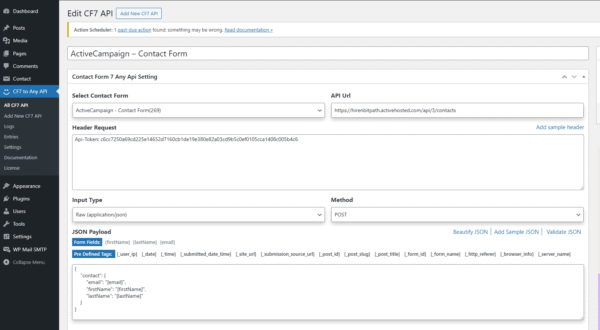
- Add Webhook or API Endpoint: Insert the ActiveCampaign API endpoint where form data will be sent.
- Include Required Headers and Keys: Add your ActiveCampaign API URL and API key to authenticate the request.
- Configure Field Mapping in Code: Verify each form field with the correct ActiveCampaign field using webhook parameters.
- Save and Test your Integration: Submit a form entry and confirm the data appears in ActiveCampaign.
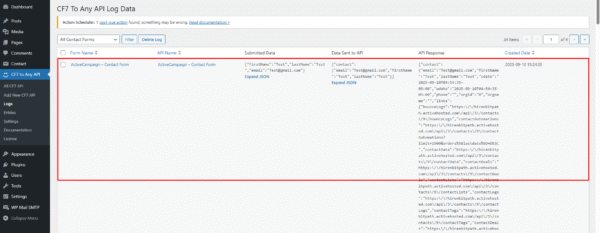
Webhooks offer flexibility, but they also come with risks if inaccurately configured. Hence, always test thoroughly and document your setup for ongoing maintenance.
What This Means For You: Using a webhook or API integration with Contact Form 7 and ActiveCampaign gives more control than plugins. However, it requires careful setup, authentication, and testing to ensure data is transferred securely and precisely.
Mapping Contact Form 7 Fields To ActiveCampaign
Accurate field mapping ensures that every detail submitted through your Contact Form 7 form is stored correctly in ActiveCampaign. This becomes even more important when working with activecampaign webhook management and multi-platform integrations.
By aligning fields, you create consistency across your marketing workflows and unlock more precise segmentation.
Here is how to map fields effectively:
- Basic Fields: Connect the form’s Name field to First Name or Full Name. And link the Email field directly to ActiveCampaign’s primary Email field.
- Phone and Company Details: Assign the Phone field to the dedicated Phone field and map any Company field to a custom field in ActiveCampaign.
- Custom Fields: Create additional custom fields in ActiveCampaign, such as Source, Campaign, or Referral, then map them to form inputs.
- Tags for Segmentation: Apply tags like “website-contact” or “ebook-download” to categorize and segment leads automatically.
- Avoid Errors: Ensure field names and types match correctly; otherwise, data may fail to sync or create mismatched records.
Well-planned field mapping makes lead data cleaner, easier to segment, and more actionable for your campaigns.
Must-Know Insight: Mapping Contact Form 7 fields to ActiveCampaign is crucial for accurate lead management. Proper alignment of basic, custom, and tagged fields ensures consistent data, superior segmentation, and smooth automation inside ActiveCampaign.

Assigning Lists, Tags, And Opt-In Settings
Once your fields are mapped, the next step is determining where each new subscriber should go inside ActiveCampaign. Assigning lists, applying tags, and configuring opt-in preferences are critical for building organized and compliant contact records.
When done correctly, this process improves segmentation and ensures that your automations reach the ideal audience.
Here is how to configure these settings:
- Assign Lists: Add new contacts to the appropriate list, such as “Newsletter,” “Event Registrations,” or “Leads.”
- Apply Default Tags: Use tags such as “website-form” or “product-interest” to categorize subscribers based on their form type or intent.
- Set Opt-in Preferences: Decide whether you want single opt-in for simplicity or double opt-in for higher security and engagement quality.
- Use Conditional Logic: Configure rules to send contacts to different lists or apply tags based on the way they answer form questions.
By carefully managing lists, tags, and opt-in settings, you build a clutter-free database that supports more relevant campaigns.
The Bottom Line: Assigning lists, tags, and opt-in preferences in ActiveCampaign ensures subscribers are organized, segmented, and compliant. It makes it more effortless to run targeted campaigns and maintain a healthy, permission-based contact database.
Testing And Troubleshooting Contact Form 7 To ActiveCampaign Integration
After setting up your integration, testing is the only way to ensure data flows correctly from Contact Form 7 to ActiveCampaign. This is especially critical when using webhook ActiveCampaign setups or external integrations.
Without testing, you risk errors that frustrate leads and create confusion in your campaigns.
Here are the vital steps and troubleshooting tips:
- Submit a Test Form: Enter sample details in your Contact Form 7 form and check if they appear in ActiveCampaign.
- Verify API Credentials: If data does not sync, confirm that your API key and URL are entered appropriately in the plugin or webhook.
- Check Required Fields: Confirm mandatory fields, such as email, are filled in; missing data often causes failed submissions.
- Resolve Field Mismatches: Ensure form field names match the appropriate ActiveCampaign fields to mitigate errors.
- Handle Duplicates: Prevent duplicate records by enabling the option to update existing contacts instead of creating new ones.
- Confirm Opt-in Settings: If double opt-in is enabled, confirm that the verification email is being sent and accepted.
Systematic testing combined with quick troubleshooting ensures a reliable and error-free integration.
Knowledge Drop: Testing and troubleshooting your Contact Form 7 ActiveCampaign integration helps eliminate data errors. By verifying API keys, field mappings, opt-ins, and duplicates, you ensure accurate syncing and smooth campaign performance every time.
Setting Up Contact Form 7 With ActiveCampaign Marketing Automation Workflows
Once your integration is tested, the tangible value comes from automation. That is where a proper webhooks ActiveCampaign integration turns form submissions into something operational rather than reactive.
Automations save time, improve consistency, and foster meaningful relationships with your audience.
Here are some essential workflows to create:
- Welcome Series: Send a warm introduction to new subscribers, share handy downloadable resources, and highlight your brand’s value.
- Lead Nurture Campaigns: Using tags and custom fields to send personalized content that resonates with each subscriber’s interest or stage in the buying journey.
- Sales notifications: Automatically notify your sales team when a high-value lead completes a form, ensuring fast follow-up.
- Re-engagement Campaigns: Target inactive contacts with captivating offers or surveys to bring them back into your funnel.
You can turn simple form submissions into meaningful customer journeys by aligning automations with your business goals.
In a Nutshell: ActiveCampaign workflows built from Contact Form 7 submissions enable you to send welcome emails, nurture leads, notify sales, and re-engage inactive contacts. It transforms basic forms into a system for continuous customer growth.

Advanced ActiveCampaign Integration Strategies For WordPress
Beyond basic form syncing, advanced strategies allow you to collect valuable data and design more powerful campaigns. These methods help you capture context, fine-tune targeting, and achieve in-depth personalization inside ActiveCampaign.
Marketers who invest in next-level setups often see higher engagement and stronger lead conversion.
Here are some proven-effective strategies to consider:
- Hidden Fields: Capture UTM parameters, referral sources, or landing page URLs without requiring the user to input extra details.
- Custom Segmentation: Map additional custom fields such as product interest, lead source, or campaign type to group your contacts systematically.
- Conditional Routing: Send leads to different lists or apply specific tags depending on how users answer key questions in the form.
- Direct API Calls: Developers can bypass plugins and post data straight into ActiveCampaign for complete control and customization.
Applying these strategies gives you the flexibility to scale campaigns and adapt to evolving marketing requirements.
Smart Summary: Advanced integration strategies for WordPress and ActiveCampaign include hidden fields, conditional routing, custom segmentation, and direct API calls. All this enhances data quality, personalization, and long-term campaign performance.
Security, Privacy, And Compliance Essentials
Collecting subscriber information comes with responsibilities. Whether your audience is in the United States, Europe, or anywhere else, proper configuration of activecampaign webhooks ensures secure and compliant data handling.
However, you must configure Contact Form 7 properly to ensure adherence and cultivate trust.
Here are salient security and compliance practices:
✅Consent Checkboxes: Always include an unambiguous marketing permission checkbox in your Contact Form 7 forms to comply with GDPR and CCPA. For full guidance, see GDPR compliant contact form API integration guide.
✅Unsubscribe Management: Validate that unsubscribe links in ActiveCampaign emails work correctly. They should enable contacts to leave lists hassle-free.
✅Data Minimization: Collect only the data you actually need. Storing excessive or irrelevant information increases risk without refining campaigns.
✅Retention Policies: Periodically audit and clean your contact database to adhere to data retention rules and improve list health.
By combining transparent form design with ActiveCampaign’s compliance settings, you protect your business and your subscribers.
Essential Insight: Strong compliance practices in Contact Form 7 and ActiveCampaign include consent checkboxes, unsubscribe management, minimal data collection, and retention audits. All this ensures privacy, builds trust, and guards your brand reputation.
Best Practices To Maximize Contact Form 7 + ActiveCampaign Results
Integrating Contact Form 7 with ActiveCampaign is only the beginning. Continuous optimization helps you get the most out of your activecampaign webhook integrations and automation workflows.
Here are proven best practices to follow:
- Optimize Form Design: Keep forms short and user-friendly to encourage more submissions while still collecting necessary details.
- Segment Effectively: Use tags and custom fields to group contacts by interest, behavior, or lifecycle stage.
- Automate Follow-ups: Send timely emails such as confirmations, reminders, or personalized offers to keep subscribers engaged. You can also explore Contact Form 7 email automation for deeper workflows.
- Audit Regularly: Test your integration and review contact records to ensure data accuracy and uniform performance.
Applying these practices transforms simple form submissions into well-managed, long-term customer relationships supported by precise data and targeted communication.
What You Should Know: Regularly optimizing forms, segmenting contacts, automating follow-ups, and auditing data ensures your Contact Form 7 and ActiveCampaign integration delivers higher conversions, stronger engagement, and long-term marketing success.
Real-World Use Cases Of Contact Form 7 To ActiveCampaign Integration
The real power of integrating Contact Form 7 with ActiveCampaign is best witnessed in real-world scenarios. By converting simple form submissions into automated workflows, businesses can boost efficiency and deliver more meaningful customer experiences.
Here are some practical examples:
Use Case 1: Newsletter Signups
When a visitor subscribes to your newsletter through Contact Form 7, ActiveCampaign can instantly add them to your mailing list.
➡️For example, a local coffee shop can welcome new subscribers with a personalized “Thank You” email, followed by a series introducing their seasonal blends and exclusive offers.
Use Case 2: Ebook Downloads
Offering ebooks as lead magnets is common. With ActiveCampaign, you can automatically tag anyone who downloads your ebook.
➡️For instance, a digital marketing agency can deliver the ebook instantly. After that, launch a nurture sequence sharing case studies, tips, and client success stories.
Use Case 3: Event Registrations
Events need structured communication. When someone registers using your Contact Form 7 form, ActiveCampaign can schedule reminder emails.
➡️For example, a fitness studio can remind attendees of an upcoming workshop and follow up with a thank-you note and a discount on future sessions.
Use Case 4: Support or Contact Requests
Customer inquiries require fast responses. By integrating Contact Form 7 with ActiveCampaign, submissions can trigger support notifications.
➡️For instance, a SaaS company can automatically route inquiries into its support pipeline, ensuring the team follows up promptly while keeping a record in the CRM.
These use cases demonstrate how Contact Form 7 and ActiveCampaign together transform static form submissions into automated experiences that drive engagement, loyalty, and growth.
Key Takeaway: From newsletters and ebooks to events and support, every use case demonstrates that integrating Contact Form 7 with ActiveCampaign adds efficiency, personalization, and value. It turns simple submissions into powerful customer journeys.

This webhook-based approach also supports integrations like Webflow ActiveCampaign integration, Google Sheets webhook workflows, and tools such as Demio. Once configured, your system can send data from multiple sources directly into ActiveCampaign.
Conclusion
Integrating Contact Form 7 with ActiveCampaign is more than a technical process; it is about building a reliable bridge between your website and your marketing system, where every captured lead flows through a webhook ActiveCampaign integration and has purpose and direction.
A solution like Contact Form to any API can help make this integration straightforward and reliable, supporting everything from ActiveCampaign webhook management to advanced integrations like ActiveCampaign Demio webhook integrations, Google Sheets webhook workflows, and more.
Start today, and turn every form submission into a measurable step forward for your business.
If your Contact Form 7 webhook is not working as expected, refer to Contact Form 7 API authentication error and Contact Form 7 API timeout guides.
Frequently Asked Questions
How do ActiveCampaign webhook integrations work?
ActiveCampaign webhook integrations send contact data in real time when a form is submitted or an event is triggered. This allows tools like Contact Form 7 to push data instantly into ActiveCampaign for automation, tagging, and email workflows.
Can I use custom code for ActiveCampaign webhook integration?
Yes, ActiveCampaign code webhook integrations allow developers to send data using API requests. This provides full control over field mapping, tagging, and automation triggers without relying on plugins.
What is an ActiveCampaign Google Sheets webhook integration?
An ActiveCampaign Google Sheets webhook integration sends data between ActiveCampaign and Google Sheets when a specified event occurs. For example, a new contact, tag update, subscription, deal change, or campaign event can trigger a webhook that sends data to a Google Sheets endpoint. ActiveCampaign webhooks can deliver real-time event data to a URL of your choice.
What is the difference between API and webhook integration in ActiveCampaign?
ActiveCampaign API integration sends data manually through requests, while webhook integration sends data automatically when an event occurs. Webhooks are real-time, whereas APIs require manual triggering.
Can I integrate Contact Form 7 with ActiveCampaign without plugins?
Yes, you can connect Contact Form 7 to ActiveCampaign using a webhook or direct API integration. However, this requires manual setup of endpoints, authentication, and field mapping.
Should I use single or double opt-in in ActiveCampaign?
Single opt-in adds contacts immediately, while double opt-in requires email confirmation. Double opt-in is recommended for better compliance, cleaner lists, and higher engagement quality.
Can I send file uploads from Contact Form 7 to ActiveCampaign?
No, ActiveCampaign does not support direct file uploads. You can store files in WordPress or cloud storage and send the file link to ActiveCampaign using custom fields.
How can I connect multiple forms to different ActiveCampaign lists or tags?
You can connect multiple Contact Form 7 forms to different ActiveCampaign lists or tags by configuring each form separately. This helps segment contacts based on form type or user intent.
Can I add hidden fields like UTM parameters in ActiveCampaign integration?
Yes, you can add hidden fields in Contact Form 7 and map them to ActiveCampaign custom fields. This allows you to track UTM parameters, referral sources, and campaign data.
How do I send Contact Form 7 data to ActiveCampaign via webhook?
To send Contact Form 7 data to ActiveCampaign via webhook, configure the API endpoint, add your API key, map fields, assign a list, and set the method to POST. This sends data instantly without Zapier.
Does Contact Form 7 to ActiveCampaign webhook setup require coding?
No, using Contact Form to API, you can set up Contact Form 7 webhook integration with ActiveCampaign without coding. The plugin handles API requests, authentication, and data transfer automatically.


