


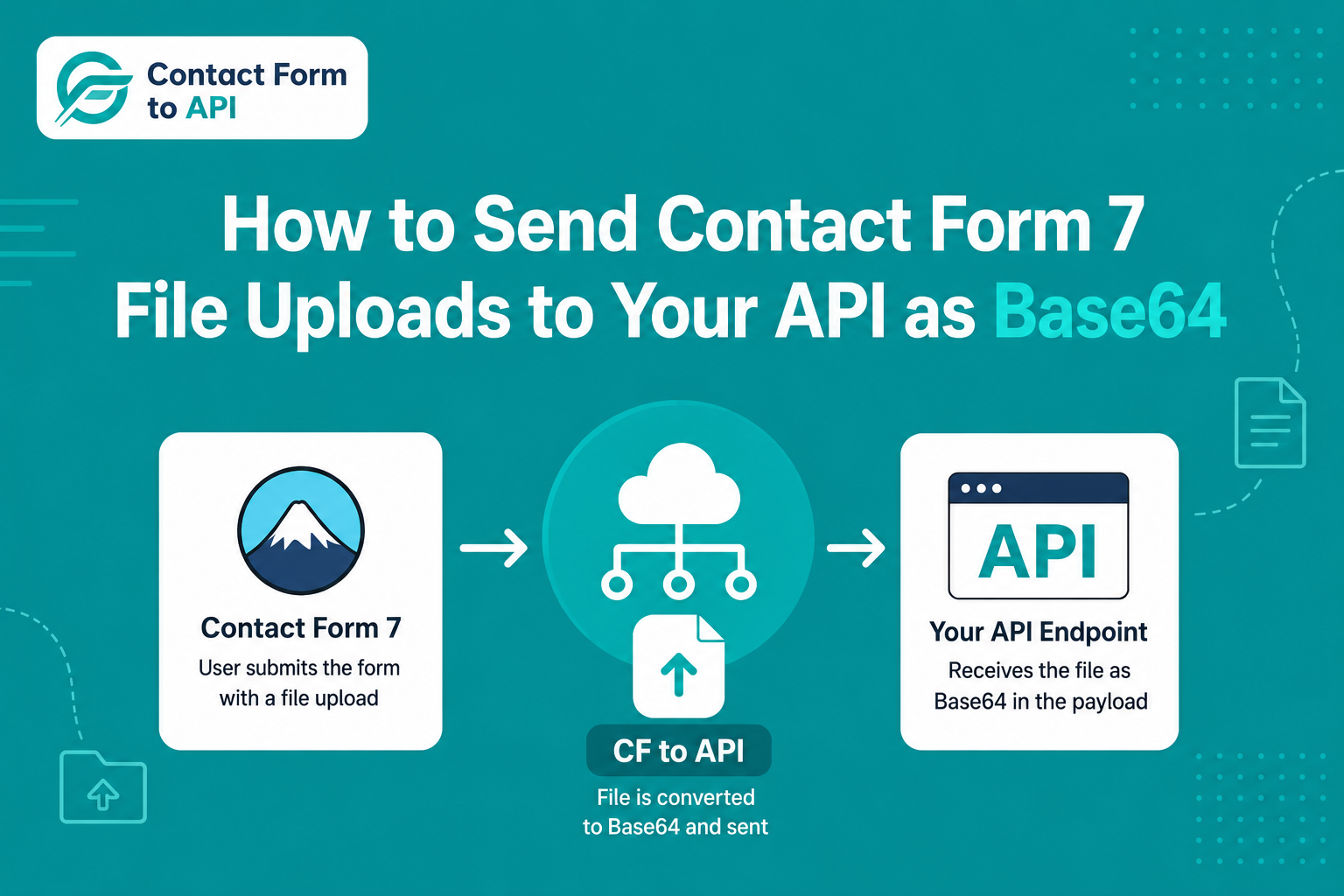
This article explains how to configure and send Contact Form 7 file upload to API as a Base64-encoded string. Base64 matters because most REST APIs accept JSON payloads, and raw binary file data cannot be placed inside a JSON request body without encoding it first. This setup is relevant for WordPress sites that route form submissions to CRMs, document processing services, webhook endpoints, or custom backend applications.
Sending Contact Form 7 file uploads to an API often requires converting the file to Base64 before including it in a JSON request. The same workflow can also be used when the source is a remote file URL: retrieve the file, convert it to Base64, and send the encoded data to an API endpoint. In this guide, you’ll learn how to send Contact Form 7 files, remoate files, and file URLs to an API as Base64, along with API authentication considerations, JSON payloads, and common file-transfer issues.
Contact Form 7 is well-suited for collecting email-bound submissions, including file attachments. The problem appears when the destination is an external API rather than an inbox. Standard file handling in CF7 involves storing the uploaded file in a temporary server directory, attaching it to an outgoing email, and deleting it after delivery. That sequence works exactly as intended for email. For API delivery, it creates a dead end: the file exists only as a local server path, which an external API endpoint cannot access.
The solution most APIs require is Base64 encoding. Converting a file to a Base64 string makes it transmittable as a plain text value inside a JSON payload, which is the format the majority of REST endpoints expect. This is why a Contact Form 7 file upload to API workflow requires an intermediate conversion step that CF7 does not perform on its own.
Modern REST APIs commonly support Base64 encoded uploads because binary files cannot be directly embedded inside JSON payloads. Base64 encoding allows files to be transmitted as text-based JSON data, although it increases payload size by roughly 33%.
The use cases are broad. A legal intake form might send a signed PDF to a case management API. A support portal might route a screenshot to a helpdesk platform. A property inquiry form might push a floorplan to a CRM. In each case, the file needs to arrive at the API as data, not as an email attachment.
Why Contact Form 7 Cannot Send Files to an API Out of the Box
When a user submits a CF7 form with a file upload field, the plugin moves the file to a temporary folder at wp-content/uploads/wpcf7_uploads. It attaches the file to the configured email, delivers the email, and then deletes the file. The file never persists beyond that cycle.
This means there is no URL, no accessible file path, and no file object that a plugin or hook can retrieve after submission and forward to an API. The only moment the file exists is during the mail-sending phase, and CF7 does not expose it in a form that allows direct API forwarding without additional tooling.
For email workflows, this behaviour is correct and efficient. The limitation is specific to cases where an external API is the intended delivery target and expects file data as part of a structured request body.
What Base64 Encoding Actually Does
Base64 encoding takes the binary data of a file and converts it into a string of ASCII characters. That string can be placed inside a JSON field just like any other text value, which solves the core problem: JSON does not support raw binary data natively.
A typical Base64-encoded file payload looks like this:
{
  "file_data": "data:application/pdf;base64,JVBERi0xLjQKJeLjz9MKMSAwIG9iag..."
}
The prefix (data:application/pdf;base64,) identifies the MIME type, and the string that follows is the encoded file content. The receiving API reads this string, decodes it back to binary, and processes the file.
There is one practical trade-off to understand before implementing this. Base64 encoding increases file size by approximately 33%. A 1MB file becomes roughly 1.37MB once encoded. This is relevant because API endpoints have maximum request body sizes, and exceeding those limits will produce a 413 error. CF7’s default file size limit is 1MB, which you can adjust via the limit: option in the file field tag, but you need to factor in the encoding overhead when comparing against your API’s payload cap.
For most document and image workflows involving files under 3 or 4MB raw, Base64 is a practical and reliable approach. For larger files, a different pattern is worth considering, which is covered later in this article.
How to Send a URL to a Base64 API Endpoint
If an API requires a file as Base64 data, a remote file URL can be used as the source of the file. The URL itself is not necessarily sent as the file content. Instead, the application retrieves the remote file and converts its contents to Base64 before sending the data to the API endpoint.
A typical API request may contain a structure similar to:
{
  "file_url": "https://example.com/document.pdf",
  "file_name": "document.pdf",
  "file_data": "BASE64_ENCODED_FILE_DATA"
}
The actual field names depend on the receiving API. Some APIs may require only the Base64 value, while others may also require the file name, MIME type, or other metadata.
For example, the workflow for a remote image could be:
Image URL → Download Image → Convert Image to Base64 → Add Base64 to JSON → POST to API
The same approach can be used for supported PDFs, documents, images, and other file types when the receiving API accepts Base64-encoded data.
Does a Base64 API Require Authentication?
Converting a remote file to Base64 does not automatically require authentication. Authentication requirements are determined by the API endpoint that receives the request and, separately, by the remote location from which the file is retrieved.
For example, a publicly accessible file URL may be retrieved without authentication, while the API receiving the Base64 data may require an API key, bearer token, OAuth credentials, or another authentication method.
The important distinction is:
- Remote file access: Does the application have permission to retrieve the file from the URL?
- API authentication: Does the receiving API require credentials to accept the request?
- File security: Is the file appropriate to retrieve and send to the destination API?
If an API endpoint intentionally accepts unauthenticated requests, credentials may not be required. However, sensitive or private files should not be sent to an unauthenticated endpoint unless the API’s security model explicitly supports that workflow.
Always check the authentication requirements and data-handling policies of the API you are connecting to.
Remote File URL vs Base64 API Request
A remote file URL and a Base64-encoded file serve different purposes in an API integration.
| Approach | What is sent to the API? | Typical use |
|---|---|---|
| File URL | A URL pointing to the file | When the API can retrieve the file itself |
| Base64 | The encoded file contents | When the API requires file data directly |
| Multipart upload | The actual file as multipart form data | When the API supports file uploads |
| JSON + Base64 | Base64 file data inside a JSON payload | When an API expects JSON requests |
If the receiving API only accepts a file URL, converting the file to Base64 may not be necessary. However, if the API expects the actual file contents in a Base64 field, the remote file must first be retrieved and encoded before the request is submitted.
Choosing the right approach depends on the API documentation and the format supported by the receiving application.
What You Need Before You Start
Before configuring any API connection, confirm the following are in place:
- Contact Form 7 is installed, and your form includes a file upload field using the
[file]or[file*]tag. The field should have thefiletypes:option set to the formats your API accepts (for example,filetypes:pdf|jpg|png). - Contact Form to API is installed and activated. Sending a Contact Form 7 file upload to API with automatic Base64 conversion is actually a PRO feature. The free tier supports sending standard text fields but does not include file upload handling.
- Your API endpoint URL is ready, along with any required authentication credentials such as an API key or Bearer token.
- You know which field name the API expects for the file data. Common examples are
attachment,document,file_data, orfile. Check your API’s documentation before mapping.
Step-by-Step Setup
Step 1: Add the File Upload Field to Your CF7 Form
Open the CF7 form editor and insert a file field tag. A basic example:
[file your-file limit:1mb filetypes:pdf|jpg|png]
Set the limit: value to the largest file size you expect, keeping in mind the 33% Base64 overhead relative to your API’s payload limit. Set filetypes: to restrict submissions to the formats your API can process.
Step 2: Open the Contact Form to API Settings for This Form
In your WordPress admin, navigate to Contact Form to API and open the connection settings for the form you just edited.
Step 3: Enter the API Endpoint URL
Paste the full API endpoint URL into the endpoint field and set the request method to POST. If your workflow sends form data to more than one destination, the plugin supports sending Contact Form 7 data to multiple APIs from a single submission.
Step 4: Add Authentication Headers
If your API requires authentication, add the appropriate header in the plugin’s headers section. For Bearer token authentication, the header name is Authorization and the value is Bearer your_token_here. For API key authentication, use whatever header name the API specifies.
Step 5: Map the File Field
In the field mapping interface, add a new row for the file upload field. Set the CF7 field name to match the tag name you used in Step 1 (in this example, your-file). Set the API field name to whatever your API expects (for example, file_data). The plugin identifies this as a file field and converts the uploaded file to Base64 automatically at submission time.
Step 6: Save and Test
Save your settings and submit a test form with an actual file. Use the plugin’s debug or log panel to inspect the outgoing request. Confirm the API received a field containing a Base64 string with the appropriate data URI prefix. If your API returns a 413 error, reduce the CF7 file size limit or check whether your API has a lower-than-expected payload cap.
Common Issues and How to Fix Them
- The file field arrives at the API with an empty value.
This usually means the file field tag exists in the mail tab configuration but was not included in the form’s markup. Confirm the [file your-file] tag appears in the Form tab, not just in the Mail tab.
- The CF7 field name does not match the mapping.
The name used in the [file your-file] tag must match exactly what you enter in the plugin’s field mapping. A mismatch causes the plugin to skip the file entirely.
- API returns 413 Payload Too Large.
Base64 overhead is the likely cause. Reduce the limit: value in the CF7 file field tag, or contact your API provider to confirm their maximum request body size.
- CF7 rejects the file before submission.
CF7 validates file types server-side based on the filetypes: option. If users are submitting a file type not listed there, the form will reject it before the API step is ever reached. Update the filetypes: option to include the required formats.
- API rejects the MIME type.
Even if CF7 accepts the file, the target API may have its own MIME type restrictions. Verify that the file types you allow in CF7 are also accepted by the API endpoint.
When Base64 Is Not the Right Approach
Base64 works well for small-to-medium files, but it has real limits. Files above approximately 5MB raw will produce Base64 strings large enough that many REST API endpoints will either reject them outright or time out during transmission.
For larger files, the more reliable pattern is a two-step process:
- Upload the file directly to cloud storage such as Amazon S3, Cloudinary, or
- Google Drive, and then send the resulting URL to your API as a plain text field value.
The API retrieves the file from the URL rather than from the request body. This keeps payloads small regardless of file size.
Some APIs also support multipart/form-data natively, which allows raw binary file uploads without Base64 encoding. If your API documentation specifies multipart support, verify whether your plugin handles that transport method before defaulting to Base64.
Plugins vs Custom Code
For developers comfortable with WordPress hooks, the wpcf7_before_send_mail filter provides access to the CF7 submission object and can be used to intercept file uploads, encode them, and forward them to an API via a custom wp_remote_post() call. This approach offers full control over request structure and is a legitimate path if your workflow has requirements that exceed what a plugin handles.
For everyone else, a no-code plugin removes the need to maintain custom PHP and handles encoding, mapping, and error logging through a UI. If your integration involves a CRM or standard webhook endpoint, connecting CF7 to a CRM through a plugin typically gets you operational faster than a hook-based build.
If you are working across multiple platforms and want to orchestrate form data delivery without any code, CF7 automation using no-code methods covers the available tooling in more detail.
The decision usually comes down to whether the customization you need justifies the maintenance overhead. For standard file-to-API workflows, a plugin is sufficient. For anything involving conditional logic, multi-step transforms, or non-standard authentication flows, a code-based approach gives you more flexibility.
Security Considerations
Accepting file uploads on a public-facing form carries inherent risk. A few practices reduce exposure significantly.
Restrict file types explicitly in the CF7 field tag. Do not use a wildcard or permissive list. Accept only the formats your API actually processes.
Set a file size limit that is as low as practical for your use case. This limits both payload size and the impact of any abuse attempt.
Ensure your API endpoint is authenticated. A Base64 payload sent to an unauthenticated endpoint is as accessible as any other POST request. Use Bearer tokens or API keys and rotate them regularly.
If your form handles sensitive documents, such as medical records, financial statements, or identity documents, verify that your API provider’s infrastructure meets the compliance requirements applicable to your industry. For teams evaluating broader data handling questions, the business considerations for CF7 CRM integration article covers relevant points around data routing and vendor selection.
Making File Uploads Easier To Process Across Platforms
Routing file uploads from Contact Form 7 to an external API is a task with a specific set of requirements: the right field configuration in CF7, a plugin that handles Base64 conversion automatically, and accurate mapping to the API’s expected payload structure. The steps above cover each of those requirements in sequence.
The Base64 approach handles most real-world use cases reliably for files under a few megabytes. For heavier files or APIs with tight payload limits, shifting to a cloud storage intermediary is the more scalable pattern. Knowing which method fits your file sizes and API constraints upfront saves time diagnosing errors after deployment.
As more WordPress workflows connect directly to APIs rather than routing through email, the ability to send structured data including files becomes a standard requirement rather than an advanced feature. Getting the configuration right the first time makes everything downstream easier.
Frequently Asked Questions
1. Can I send a CF7 file upload to an API without writing any PHP?
No. CF7 handles file uploads by temporarily storing the file on the server, attaching it to an outgoing email, and deleting it afterward. There is no built-in mechanism to route an uploaded file to an external API endpoint. To accomplish a Contact Form 7 file upload to API, you need a plugin such as Contact Form to API that intercepts the submission and converts the file to Base64 before including it in the API request.
2. What does Base64 encoding do to my file?
It converts the binary data of your file into a string of plain ASCII characters. That string can be safely included as a value in a JSON request body, which raw binary data cannot. The tradeoff is approximately 33% larger payload size compared to the original file.
3. Is the file upload feature available in the free version of Contact Form to API?
No. Sending files to an API with automatic Base64 conversion requires the PRO version. The free version supports sending standard text-based form fields to any API endpoint.
4. What file types can I send to an API via Contact Form 7?
Any file type that CF7 accepts via the filetypes: option in the field tag. Common formats include PDF, JPG, PNG, DOCX, and XLSX. Contact Form to API converts whichever file CF7 accepts into Base64 before transmission. Confirm that your target API also accepts the MIME type of the file you are sending.
5. How large a file can I send using this method?
CF7’s default file size limit is 1MB, which you can raise using the limit: option. Because Base64 encoding adds roughly 33% overhead, a 1MB file becomes approximately 1.37MB in the API payload. For files larger than a few megabytes, a cloud storage upload with URL forwarding is more reliable than Base64 in the request body.
6. Can I send multiple files from a single submission?
Yes, if your API payload requires more than one file field. Add multiple [file] tags to your CF7 form and map each one separately in the plugin’s field mapping interface. Each file is encoded and transmitted independently.


