


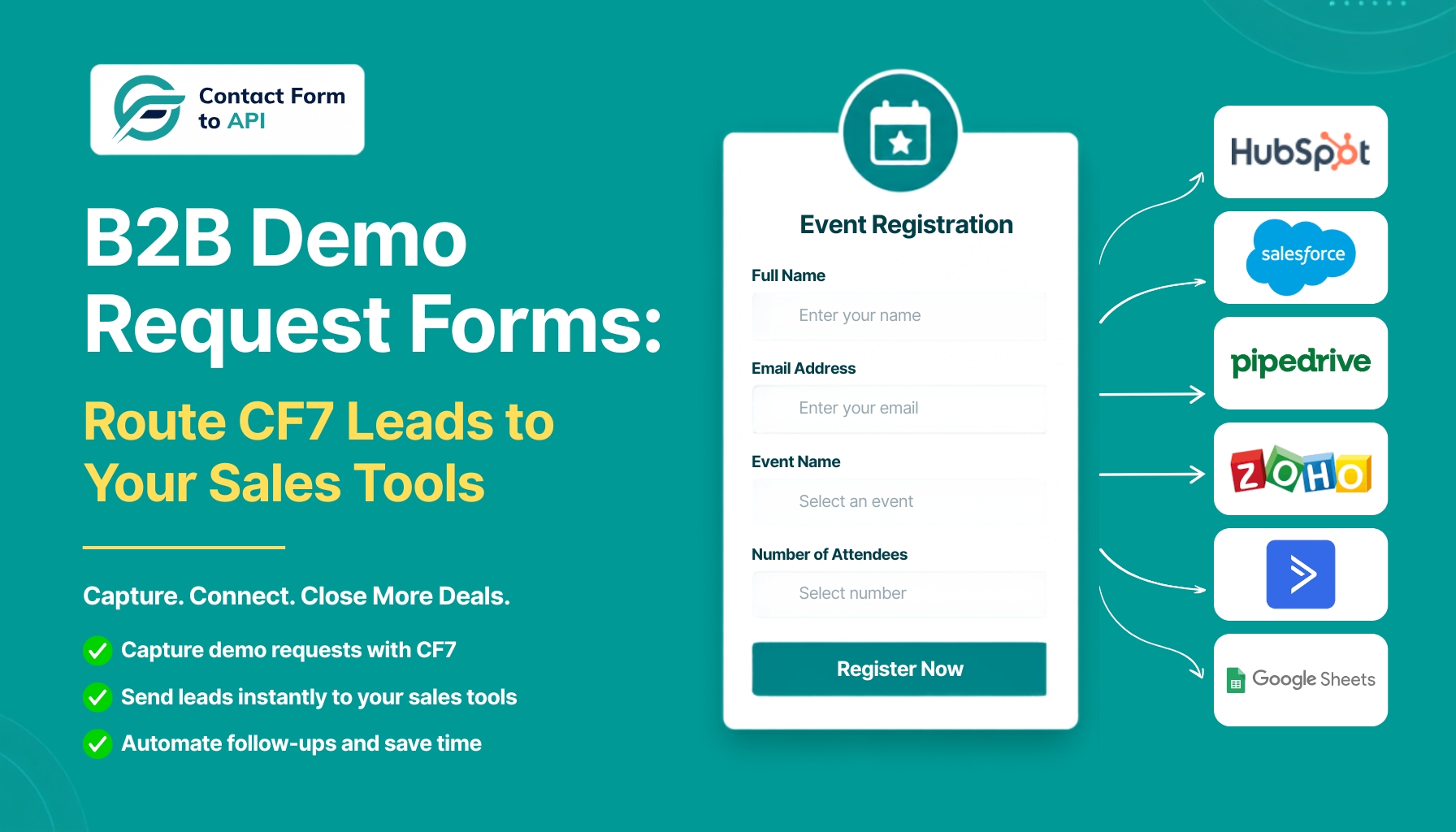
If you use Contact Form 7 to collect B2B demo requests, you can automatically send every submission to your CRM, Slack channel, or any sales platform with Contact Form to API. Whenever someone submits your demo request form, the plugin immediately sends the submitted data to your CRM, Slack workspace, sales platform, or any other API-enabled system you have configured. This eliminates the need to manually copy lead information and helps your sales team respond faster. You can also use conditional delivery to send different leads to different destinations based on values submitted in specific form fields.
If you run a B2B SaaS company on WordPress, your demo request form is one of the most valuable conversion points on your website. Visitors who complete it have already evaluated your product, understand the problem they’re trying to solve, and are ready to start a conversation with your sales team. Unlike newsletter signups or general contact forms, demo requests represent high-intent prospects who expect a prompt response.
Despite this, many small and growing SaaS teams still rely on manual processes after a form is submitted. Demo requests land in an email inbox, wait for someone to notice them, and then require a team member to copy the prospect’s details into a CRM, spreadsheet, or sales tool before any follow-up can begin. Every manual step introduces delays, increases the risk of missed or inaccurate data, and can slow down the sales process at the moment when a prospect is most engaged.
That gap between “form submitted” and “sales team notified” is exactly what B2B demo request automation is designed to eliminate. By automatically sending Contact Form 7 submissions to your CRM, internal systems, or other business applications through APIs, you can ensure every demo request reaches the right destination immediately without manual data entry. In this guide, you’ll learn how to build that workflow using Contact Form 7 and Contact Form to API, without investing in an expensive automation platform or writing custom integration code.
Why Your Demo Request Form Is Where B2B Pipeline Gets Lost
A demo request form isn’t like a general contact form. Someone who fills it out has already decided they’re interested enough to want a conversation, and every hour that passes before your team responds is a chance for that interest to cool off or for a competitor to reach them first.
On WordPress sites without any kind of B2B demo request automation, submissions typically land in one place, an inbox. Someone has to notice the email, copy the details, and get them into a CRM or spreadsheet before follow-up starts. On a good day that happens within the hour. On a busy day, or over a weekend, it can sit for far longer.
That lag matters more here than almost anywhere else on your site. A pricing page visitor bounces without you knowing. A demo request is a person actively raising their hand, and a slow response tells them your team isn’t quite ready for them yet.
To be fair, not every delay is a data problem. Sometimes there’s no clear owner for new leads, or no agreed standard for how fast a rep should follow up. Fixing the way data moves from form to sales tool solves the technical half of the problem, not the process half.
Never lose another sales lead
Discover how to sync Contact Form 7 with your CRM to speed up follow-ups and keep every inquiry organized.
→ Sync Forms to Your Sales Pipeline
How Contact Form To API Connects Your CF7 Demo Form to Sales Tools
Contact Form To API is a WordPress plugin built specifically for Contact Form 7 users who need form data to reach an external system without manual copying. Contact Form To API connects your B2B demo request form with the tools your team uses. When someone submits the form, their information is automatically sent to your chosen CRM, sales platform, or any other API-enabled system.
When a prospect submits your Contact Form 7 demo request form, the plugin captures the values from each field, formats them to match what the destination API expects, and sends the request right away.
Depending on your setup, that destination could be a CRM’s lead-creation endpoint, a Slack incoming webhook that posts the new lead to a channel, or a helpdesk tool that opens a ticket for follow-up.
Rather than trying to replace your existing tools, Contact Form to API focuses on doing one job extremely well. It reliably delivers Contact Form 7 submissions from your WordPress site to your CRM, API, or other business systems the moment a form is submitted.
Not sure which integration method to choose?
Learn the differences between direct API integrations, webhooks, automation platforms, and custom development before you get started.
→ Explore the complete integration guide
Step-by-Step: Routing a Demo Request Form to Your CRM or Slack
Here’s how to move from a demo request form that only sends you an email to one that actively delivers leads into your existing sales tools. This is the practical core of setting up B2B demo request automation on a WordPress site running Contact Form 7.
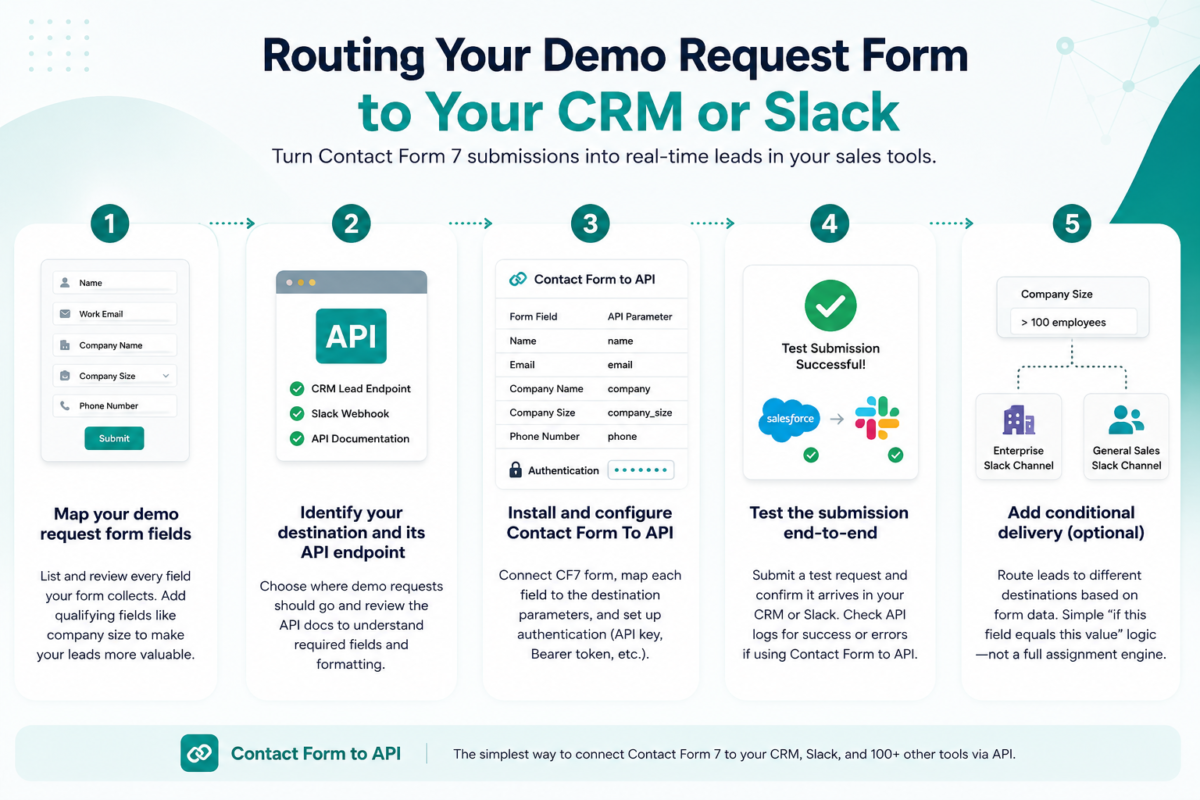
- Map your demo request form fields
Before configuring anything, list out every field your demo request form actually collects, name, work email, company name, company size, phone number, and so on. Whatever destination you choose next needs structured data to work with, so this inventory is the starting point. If your form currently just asks for “name” and “message,” this is also a good moment to add a qualifying field or two, like company size, since that makes the data more useful once it reaches your CRM.
2. Identify your destination and its API endpoint
Decide where you want demo requests to land. For most teams this is a CRM’s lead-creation endpoint, a Slack channel by way of an incoming webhook, or both. Each destination will also have its own API documentation describing what fields it expects and how it wants them formatted, so it’s worth having that open before you start configuring the plugin.
3. Install and configure Contact Form To API on the demo request form
With Contact Form To API installed, connect it to the specific Contact Form 7 form your demo request page uses, then map each field from step one to the corresponding parameter your destination API expects. Name maps to name, email maps to email, and any custom fields, like company size, map to whatever parameter your CRM or Slack setup uses to receive them. This is also where you’ll set authentication for the destination, whether that’s an API key, a bearer token, or another required method.
4. Test the submission end-to-end
Before this goes live for real prospects, submit a test demo request yourself and confirm it arrives correctly at the destination, whether that’s a new lead record in your CRM or a message in the right Slack channel. If you’re using Contact Form to API, you can also check the API logs to verify whether the request was sent successfully or if it failed, making it much easier to troubleshoot delivery issues. If the test doesn’t come through, the most common culprits are a field mapping mismatch or an authentication issue on the destination side. Fix those before moving on, and test again until a submission arrives cleanly.
5. Add conditional delivery for different lead types (optional)
Once the basic connection works, you can look at adding simple conditional logic so different leads go to different places. For example, a submission where company size is over 100 employees might route to a dedicated enterprise Slack channel, while smaller companies go to a general sales channel. It’s worth being clear about what this is and isn’t. It’s a straightforward “if this field equals this value, send to this destination” pattern, not a full assignment engine that considers rep workload or availability.
What This Approach Doesn’t Replace and When You’d Need More
Any honest look at B2B demo request automation has to state plainly what a form-to-API connection does not do. Dedicated lead-routing platforms typically offer lead scoring based on firmographic or behavioral data, enrichment that fills in missing company details automatically, round-robin assignment based on which rep is available, and audit trails showing exactly how a lead moved through the pipeline. Contact Form To API does not perform any of that on its own.
What it does is make sure the raw, structured lead data actually reaches the systems where those capabilities live. Think of it as the foundation layer rather than the full structure. Once your CRM or Slack setup is reliably receiving demo requests the moment they’re submitted, you’re in a much better position to layer on scoring, routing, or assignment rules using tools built for that job.
Your Demo Form Can Start Working the Moment Someone Submits It
Getting instant, structured lead delivery out of a Contact Form 7 demo request form doesn’t require a full sales stack overhaul or a developer on standby. Contact Form to API lets WordPress-based B2B SaaS teams send every form submission directly to a CRM, Slack, database, or any API-enabled system the moment a prospect clicks Submit. This eliminates manual data transfers, reduces the risk of missed leads, and keeps your sales data consistent across the tools your team already uses.
Contact Form to API fits into your existing sales process instead of replacing it. If your CRM or sales platform already handles lead assignment, qualification, or other automation, the plugin ensures every submission reaches that system in real time so those workflows can begin immediately. It acts as the reliable connection between Contact Form 7 and the business applications that power your sales operations.
See how Contact Form 7 automation works in other industries
The same workflow that automates B2B demo requests can also streamline student inquiries and hotel booking requests. Explore these real-world automation examples for more ideas.
→ Explore Student Inquiry Automation
→ Explore Hotel Booking Automation
FAQ Section
1. What is demo request routing for B2B SaaS companies?
Automatically sending “Request a Demo” form data to the right destination, such as a CRM or Slack channel, the moment a prospect submits it. Contact Form To API handles this connection directly for sites using Contact Form 7 for their forms, making it an accessible way to set up B2B demo request automation.
2. Does Contact Form to API replace dedicated lead routing software?
No. Contact Form to API is designed to send Contact Form 7 submissions directly to CRMs, APIs, databases, Slack, and other business systems in real time without custom code. Dedicated lead routing platforms focus on assigning leads based on rules such as territory, lead score, company size, or sales rep availability. If your CRM or sales platform already supports lead assignment, Contact Form to API ensures every submission reaches it instantly so those routing rules can take over.
3. What information should a B2B demo request form collect for accurate routing with Contact Form to API?
Company name, company size, region, and the prospect’s use case are some of the most valuable fields to collect. With Contact Form to API, you can map these fields directly to your CRM, API, or other business systems, ensuring the data arrives in a structured format that supports faster lead routing, qualification, and follow-up.
4. Is it possible to send different demo requests to different destinations based on form answers?
Yes. Contact Form to API lets you send a single Contact Form 7 submission to multiple API endpoints at the same time. You can also route submissions to different destinations based on form responses using conditional logic. For example, enterprise demo requests can go to your sales CRM, while partnership inquiries can be sent to a different system. If you need to connect one form with multiple services simultaneously, this guide on Contact Form 7 multiple API integration explains how it works.


