


A CF7 Salesforce integration plugin lets businesses automatically push Contact Form 7 submissions into Salesforce the moment a visitor fills out a form. Contact Form to API PRO with OAuth Add-on connects directly with the Salesforce API without any Zapier integration, or middleware, or a custom code.
Many businesses collect leads through Contact Form 7 on WordPress while running their sales pipeline in Salesforce. Without an automated workflow, teams end up manually copying submissions into the CRM or paying for third-party tools that add cost and complexity.
Contact Form to API solves this by sending form data to Salesforce through direct API requests, so lead capture happens automatically, in real time, without leaving WordPress. It’s commonly used for inquiry forms, consultation requests, campaign landing pages, and sales workflows where every submission needs to land in Salesforce as a Lead record immediately.
This setup is commonly used for lead capture forms, enquiry forms, campaign landing pages, consultation requests, and sales workflows where Contact Form 7 submissions need to be created as Salesforce leads in real time.
Best CF7 Salesforce Integration Plugin for WordPress
Contact Form to API gives businesses full control over how CF7 data reaches Salesforce, including field mapping, OAuth authentication, request handling, and which Salesforce objects get created. Salesforce integration is supported through the Contact Form to API PRO version with the OAuth Add-on, allowing secure API authentication directly from WordPress. Unlike single-purpose CRM plugins with fixed workflows, it adapts to how your Salesforce environment is actually set up.
For teams that need CF7 to Salesforce connection without Zapier, this keeps the entire integration inside WordPress. No external relay tools, no third-party SaaS dependency, just a direct API connection from your Contact Form 7 setup to Salesforce.
Step 1: Go to Setup
-
Login to your Salesforce account. – https://login.salesforce.com/
-
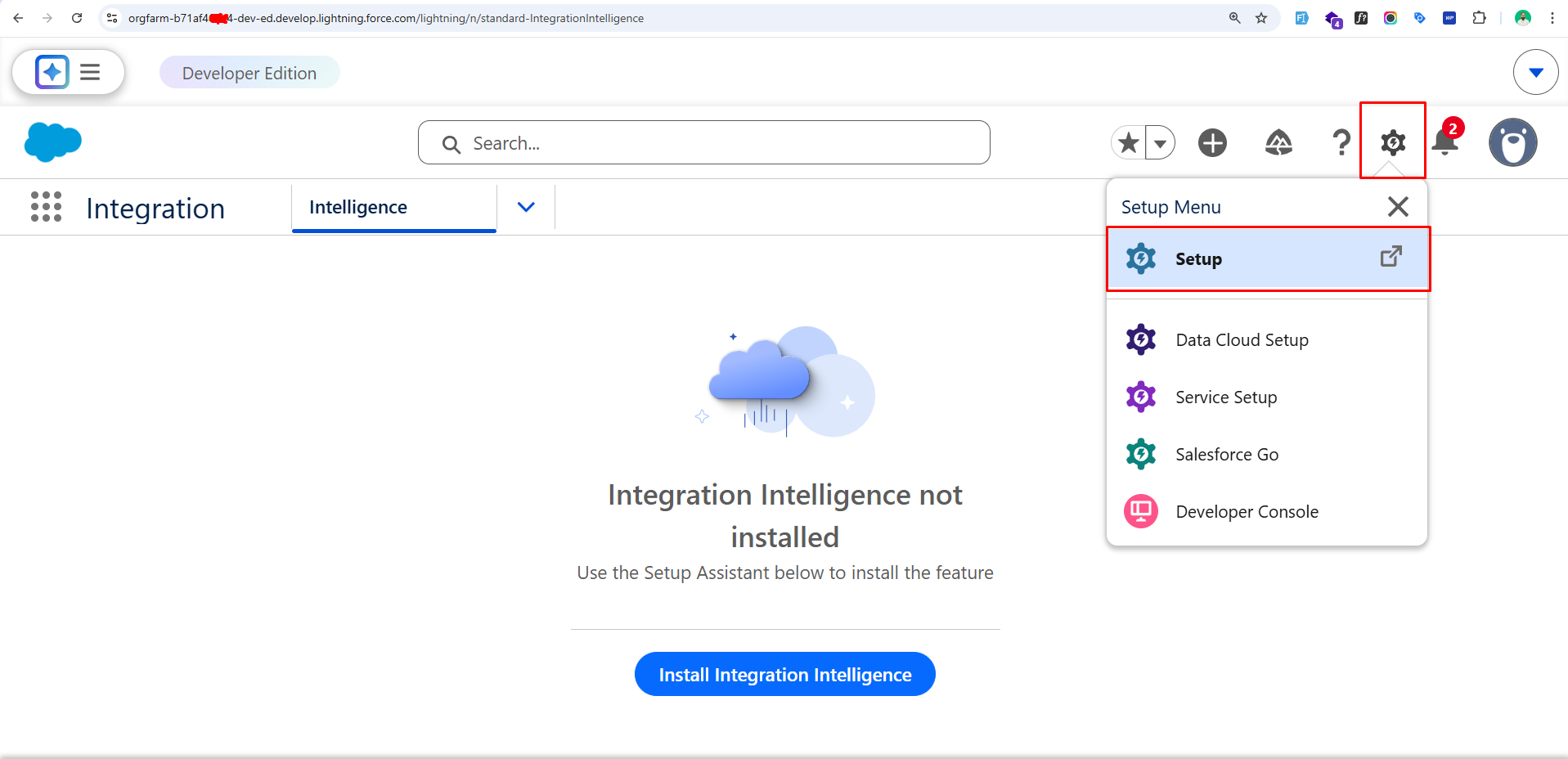
Click on the Gear icon (⚙️) in the top right.
-
Click Setup.
Step 2: Create a Connected App
-
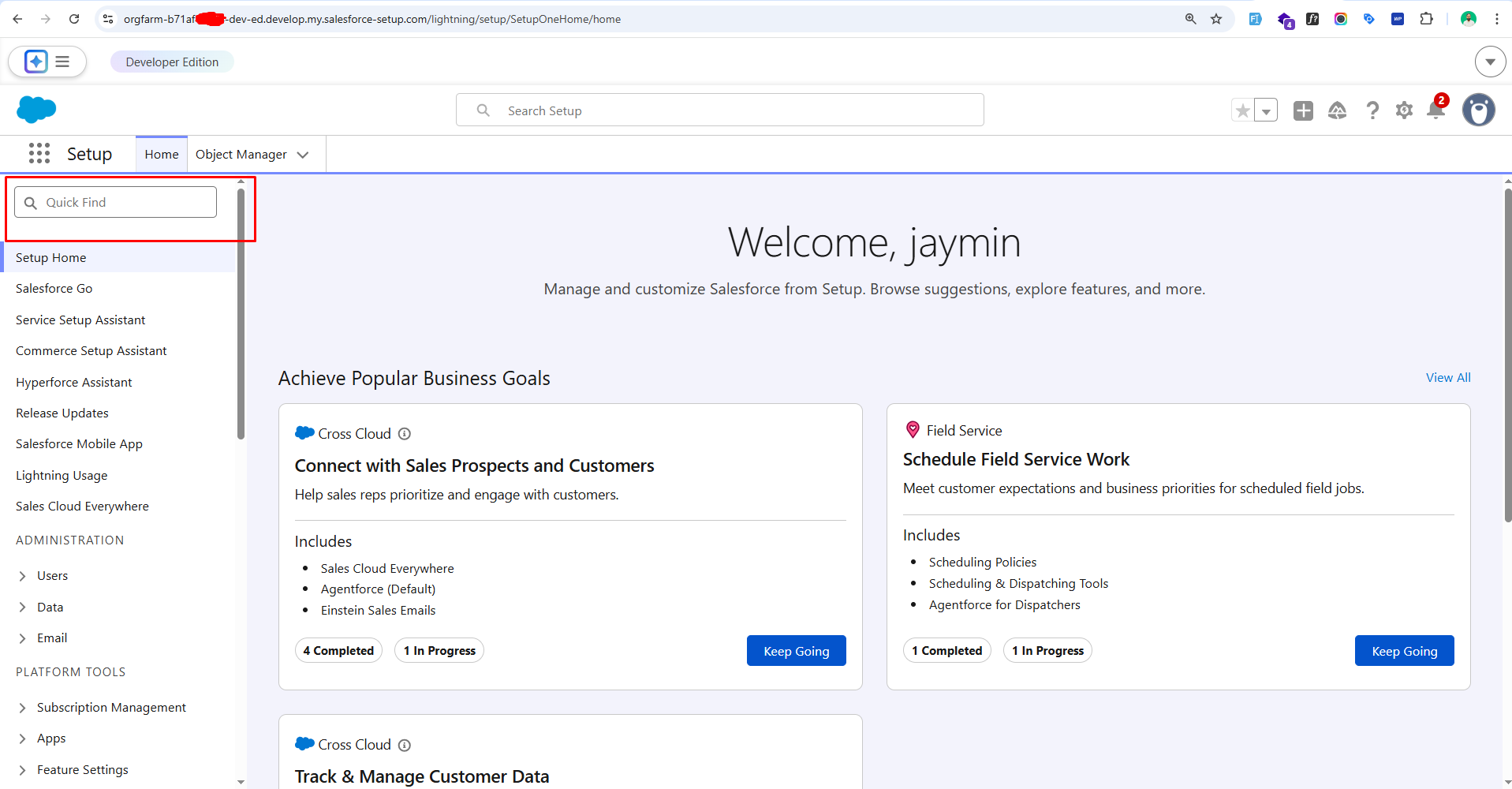
In the left sidebar search box, type App Manager.
-
Click App Manager.
-
Click New External Client App (top right).
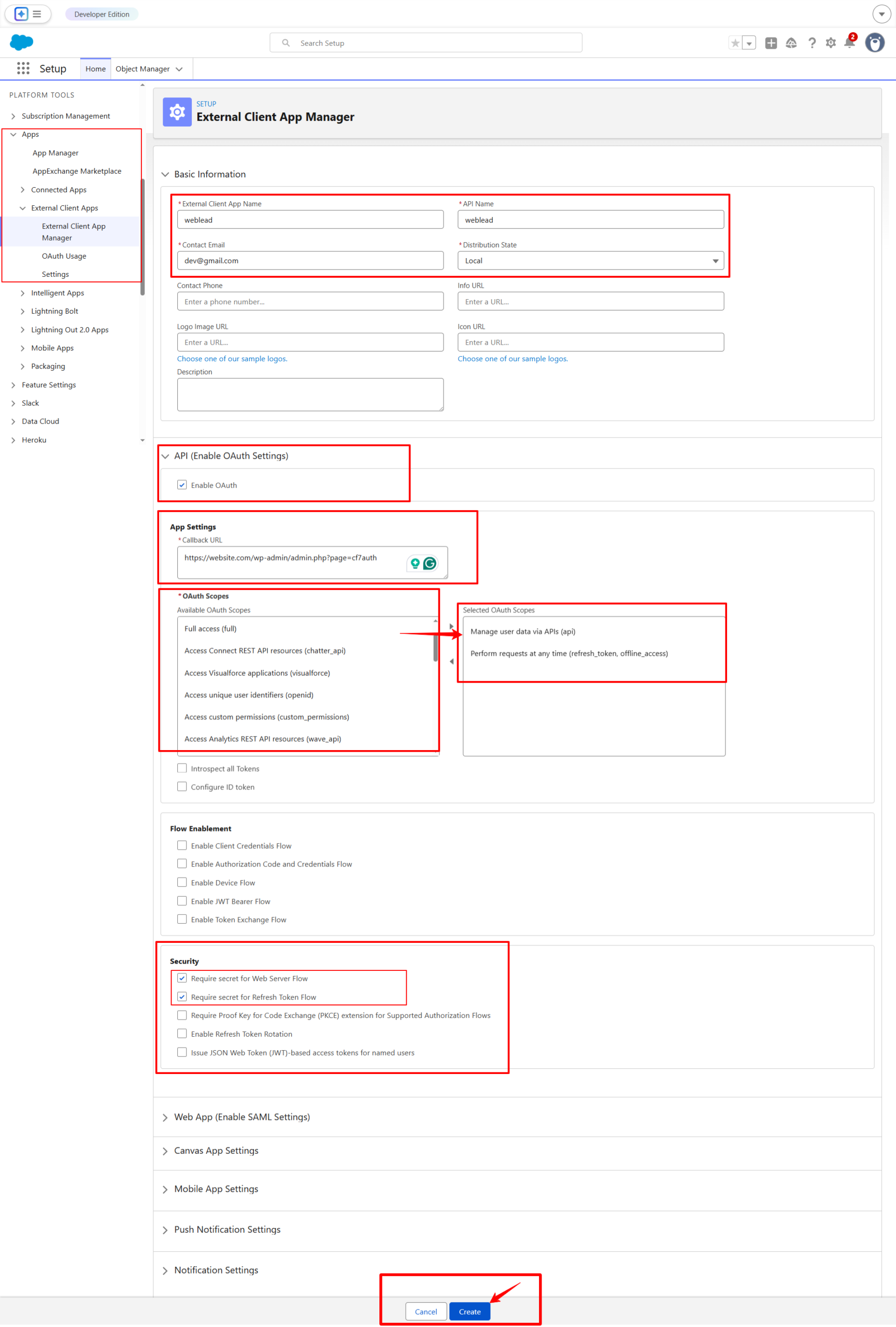
Step 3: Fill Basic Information
Fill in:
-
Connected App Name → Example:
Weblead -
API Name → Auto-filled
-
Contact Email → Your email
-
Check Enable OAuth Settings.
-
Callback URL https://website.com/wp-admin/admin.php?page=cf7auth
-
Under Selected OAuth Scopes, add:
-
Access and manage your data (api) -
Perform requests on your behalf at any time (refresh_token, offline_access)
-
-
Click Save
⚠️ Salesforce may take 2–10 minutes to activate the connected app.
Step 4: Get Client ID & Client Secret from Salesforce
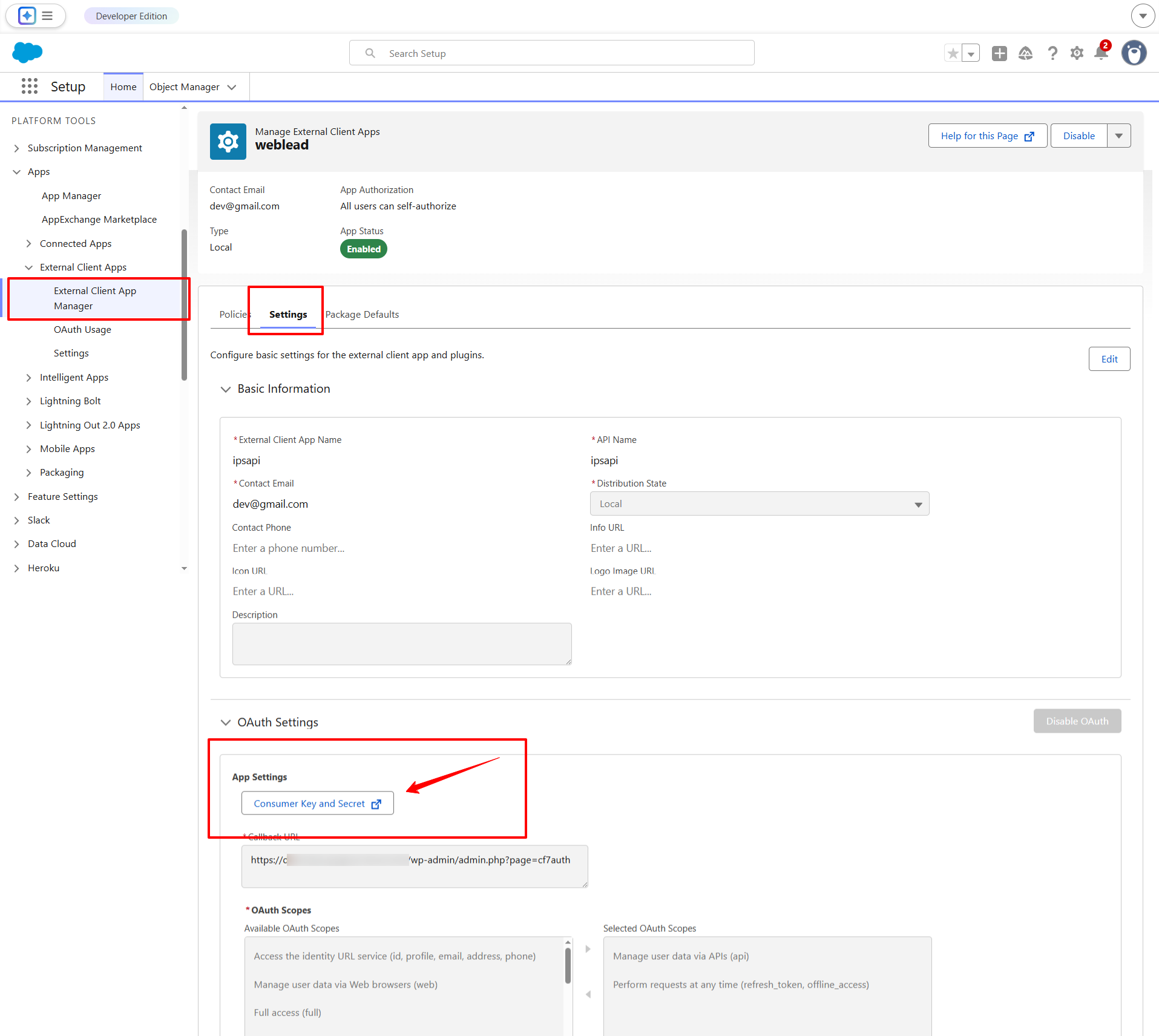
After creating and saving your External Client App, follow these steps to retrieve your credentials:
-
Go to Setup in Salesforce
-
Navigate to: Apps → External Client Apps → External Client App Manager
-
Locate and click the app you just created.
-
Open the Settings tab.
-
Under OAuth Settings, click on Consumer Key and Secret.
⚠️ Note: Salesforce may require email verification before displaying the Consumer Secret. If prompted, complete the verification process to reveal the secret.
Step 5: Configure OAuth in WordPress (Auth Master)
Please note – Salesforce OAuth authentication is available in the Contact Form to API PRO version with the OAuth add-on enabled. Before configuring the Salesforce connection, make sure you’ve purchased both, the PRO plugin and OAuth Add-on for WordPress.
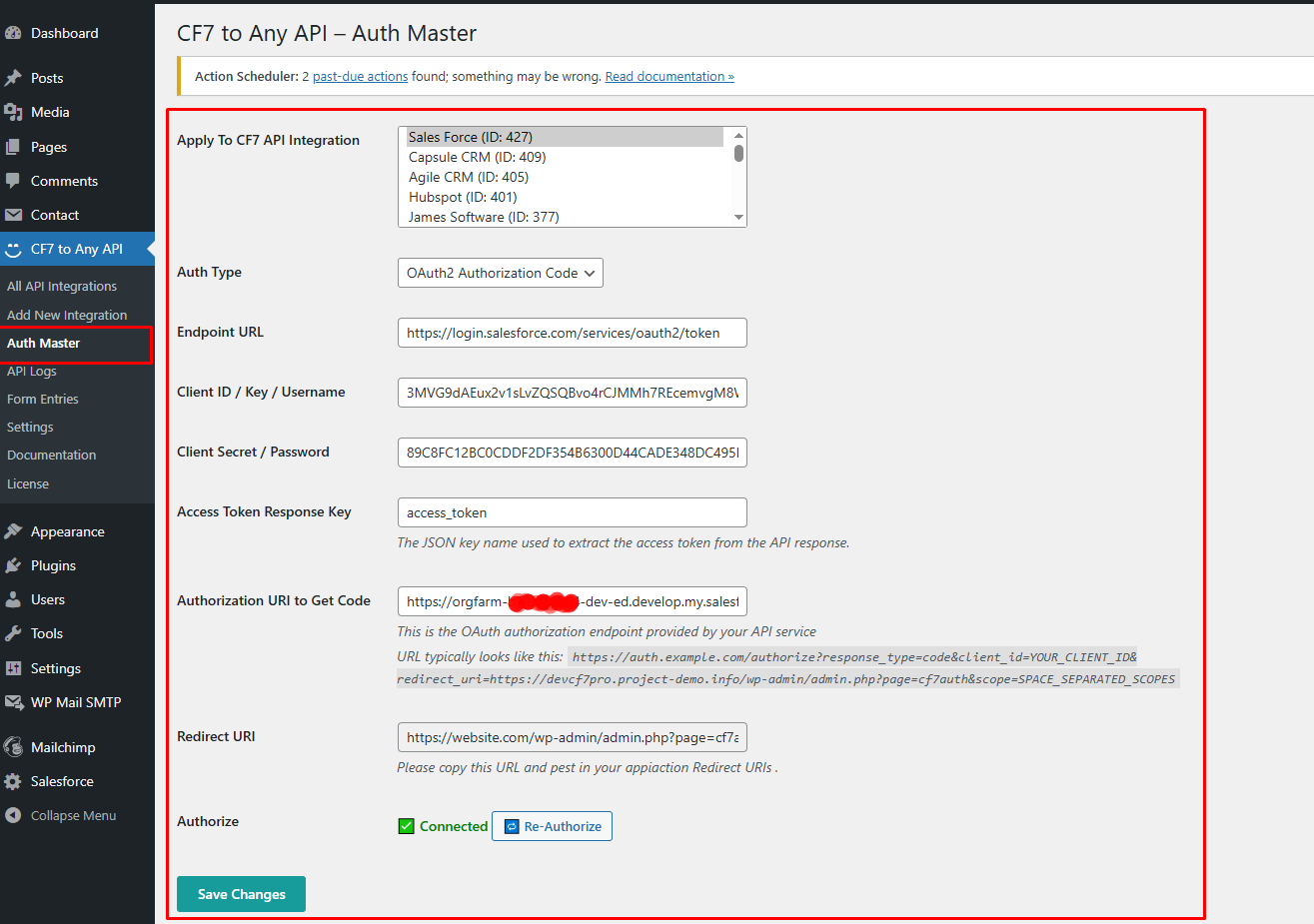
- Go to: CF7 to Any API → Auth Master
- Auth Type : OAuth2 Authorization Code
- Endpoint URL: https://login.salesforce.com/services/oauth2/token/
- Client ID: Paste Salesforce Consumer Key
- Client Secret: Paste Salesforce Consumer Secret
- Access Token Response Key: access_token
- Authorization URL: https://orgfarm-b7sda856-dev-ed.develop.my.salesforce.com/services/oauth2/authorize?response_type=code&client_id=YOUR_CLIENT_ID&redirect_uri=https://website.com/wp-admin/admin.php?page=cf7auth
- Redirect URI: Copy from plugin and paste in Salesforce app if not already added.
- Click Authorize → You should see: ✅ Connected
Step 6: Configure Salesforce API Request
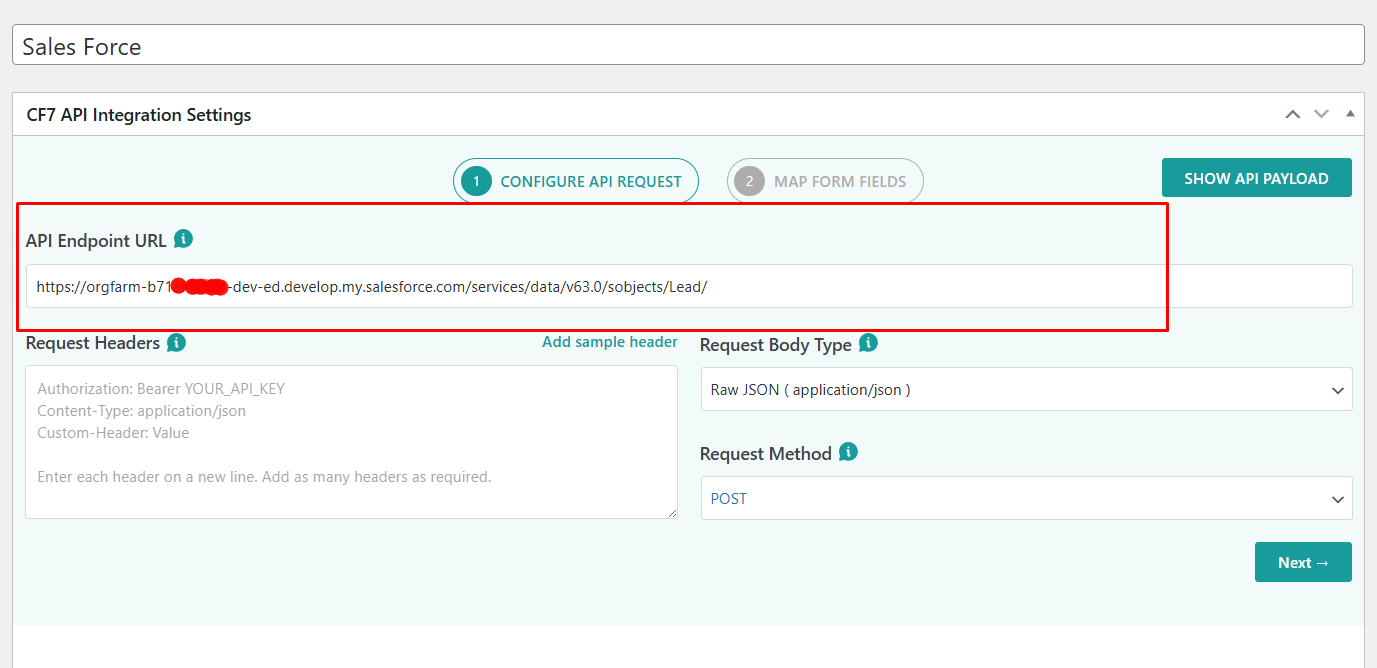
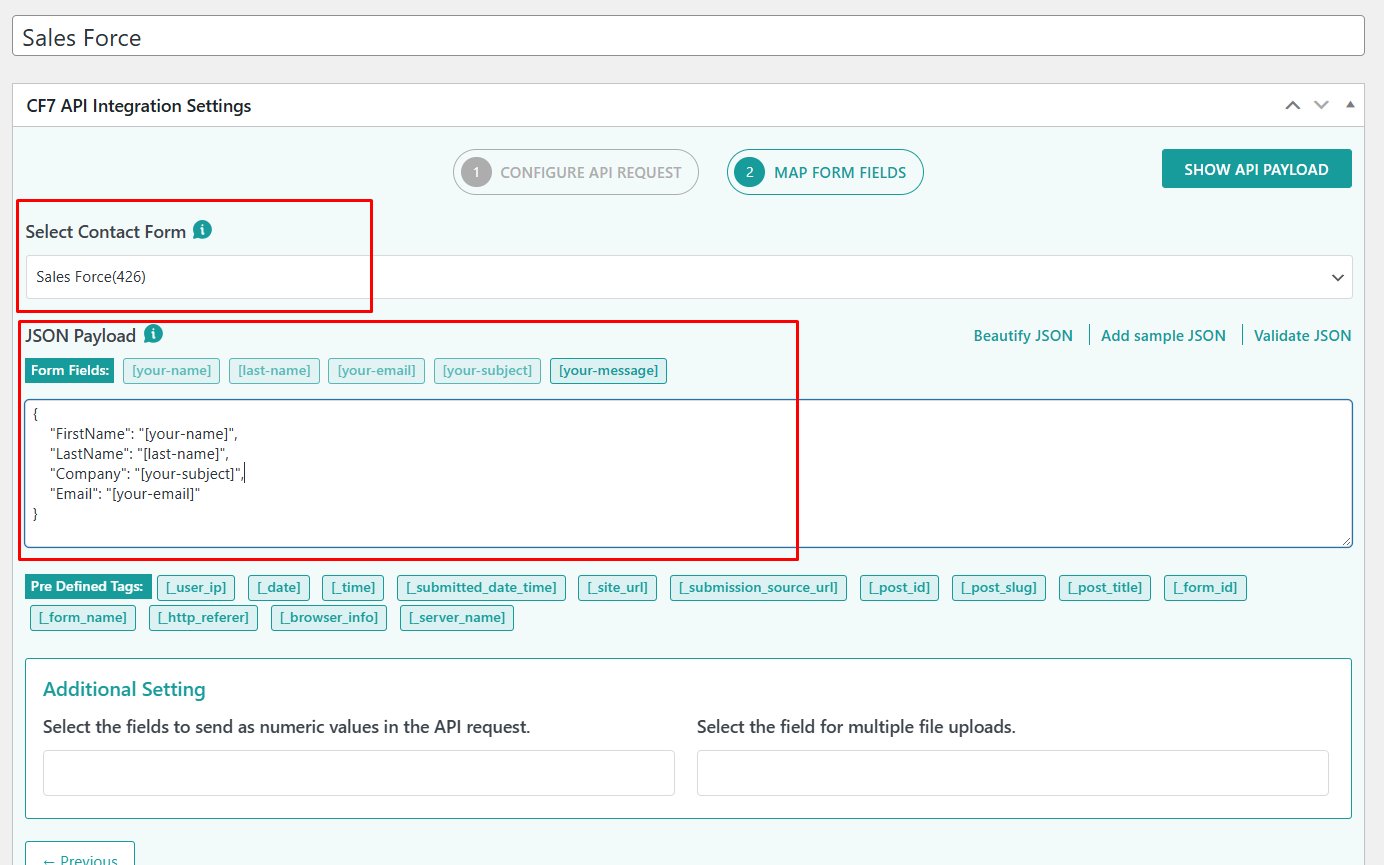
Now go to: CF7 to Any API → All API Integrations → Add New Integration
- API Endpoint URL To create a Lead: https://yourdomain.my.salesforce.com/services/data/v63.0/sobjects/Lead/
-
Version matches your Salesforce version
-
Instance URL matches your org
Request Method: POST
Example JSON Payload:
“LastName”: “[last-name]”,
“Company”: “[your-subject]”,
“Email”: “[your-email]”
}
Test the Integration
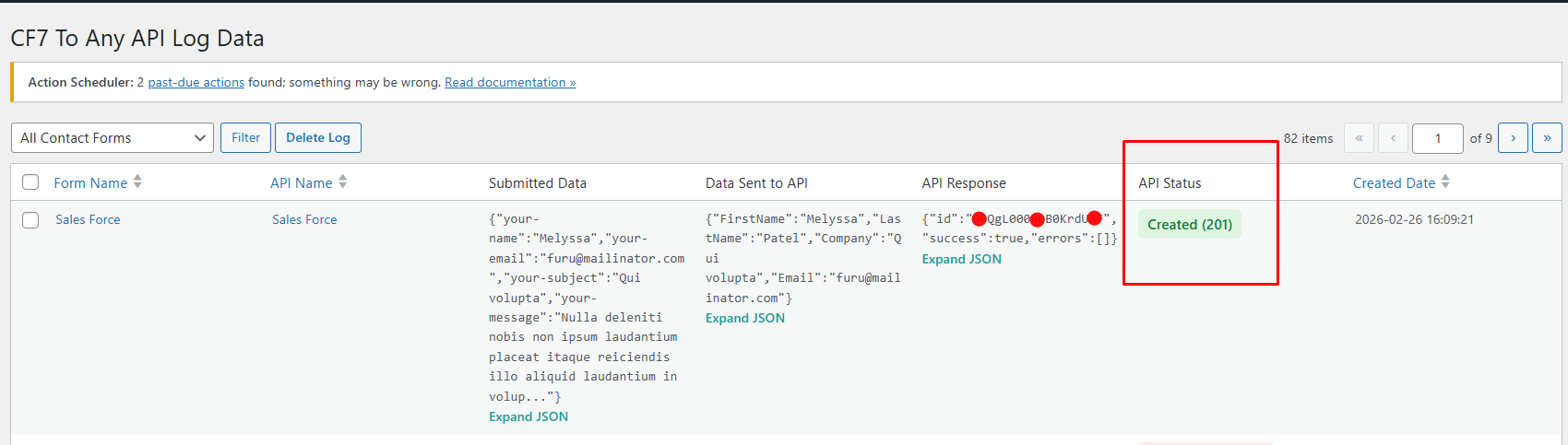
Submit your Contact Form.
Go to: CF7 to Any API → API Logs
When to Send Contact Form 7 Leads to Salesforce
- Web Lead Capture
Sales teams using Contact Form 7 for lead generation can have every submission automatically create a lead in Salesforce, no manual data transfer from WordPress needed.
2. Client Enquiry Forms
Agencies and service businesses can connect enquiry forms directly to Salesforce Lead workflows, keeping all contact tracking and follow-ups centralized inside the CRM.
3. Campaign Landing Pages
Marketing teams can send CF7 data to Salesforce directly after each campaign form submission, so leads move into the pipeline immediately without routing through Zapier or similar automation platforms.
Frequently Asked Questions
- What is the best CF7 Salesforce integration plugin?
Contact Form to API is one of the most popular WordPres plugins that connects Contact Form 7 to Salesforce through direct API requests with OAuth authentication, and doesn’t require Zapier or custom middleware.
2. Can I send CF7 leads to Salesforce without Zapier?
Yes. The plugin passes form submission data to Salesforce through API requests configured inside WordPress, no third-party automation tool involved.
3. Does this integration work with Salesforce OAuth?
Yes, the integration supports Salesforce OAuth authentication for secure API communication between Contact Form 7 and Salesforce. Salesforce OAuth support is available through the Contact Form to API PRO version with the OAuth Add-on enabled. This allows the plugin to securely authenticate Salesforce requests before creating Lead records or sending form submission data.
4. What Salesforce objects can I create from a CF7 form submission?
Businesses can use the plugin to create Salesforce Leads and other Salesforce objects depending on the configured API endpoint and field mapping setup. The integration workflow can be customized based on how the Salesforce API requests are configured inside the plugin.
5. Do I need a Salesforce developer account to set this up?
No, a Salesforce developer account is not required if you already have access to a Salesforce environment with API permissions enabled. The integration can be configured using your existing Salesforce account credentials and OAuth setup. Since Salesforce authentication is OAuth-based, the integration requires the Contact Form to API PRO version with the OAuth Add-on enabled.
6. Can I send CF7 data to Salesforce directly from WordPress?
Yes, Contact Form to API allows businesses to send CF7 data to Salesforce directly from WordPress using API-based workflows. This removes the need for third-party middleware tools while keeping the lead submission process automated.


