



If you’re using Contact Form 7 on your WordPress website to collect customer enquiries, leads, or contact details, managing those submissions manually can quickly become time-consuming. Copying contact information from WordPress and adding it to your Wix CRM not only adds extra work but can also increase the risk of missed or incorrect data.
A better approach is to connect Contact Form 7 with Wix CRM using an API integration. With the right setup, your WordPress form can communicate directly with Wix, helping you streamline how form data is handled and reduce repetitive manual tasks.
In this step-by-step guide, we’ll show you how to connect Contact Form 7 with Wix CRM in WordPress using the Contact Form To Any API plugin. You’ll learn how to add the Wix API endpoint, generate and configure an API key, set up request headers, map your Contact Form 7 fields, and test the integration.
Whether you’re setting up your first API integration or looking for a simpler way to connect Contact Form 7 with Wix CRM, follow the steps below to get started.
Watch the Video Tutorial: CF7 with Wix CRM Integration (Step-by-Step)
Before following the written steps, you can watch the complete integration setup in this quick video tutorial.
Step 1: Sign In to Your Wix Account
First, sign in to your Wix account.
You’ll need access to the Wix settings where you can manage API keys and configure the API connection.
Keep your Wix account open in another browser tab. You’ll need to switch between Wix and WordPress during the setup.
Step 2: Open Contact Form To Any API in WordPress
Log in to your WordPress dashboard.
From the WordPress admin panel, navigate to:
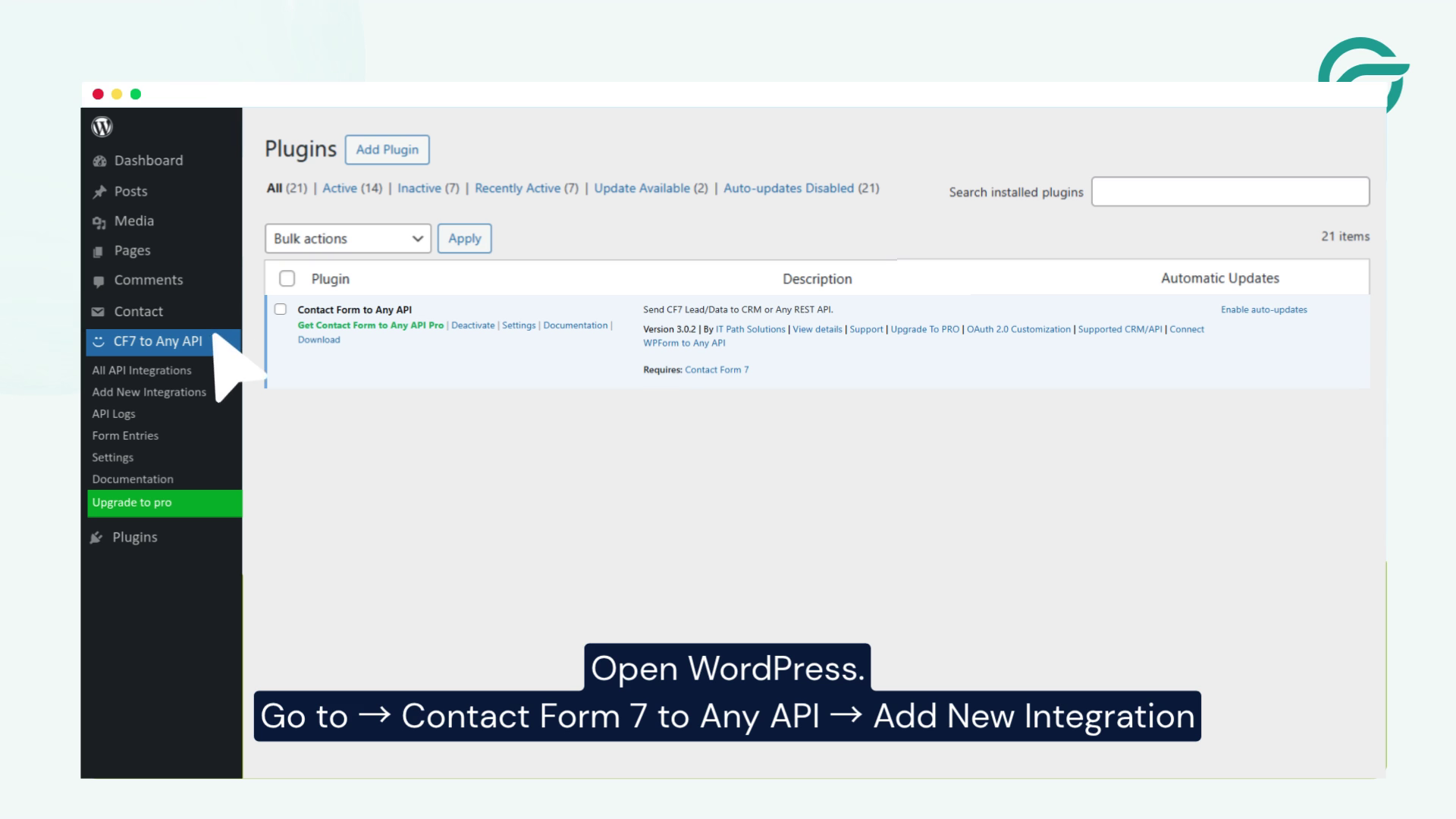
Contact Form To Any API → Add New Integration
This is where you will create the connection between your Contact Form 7 form and the Wix API.
The plugin allows you to configure the API endpoint, request headers, and JSON payload needed to send form data from WordPress.
Step 3: Add an Integration Title
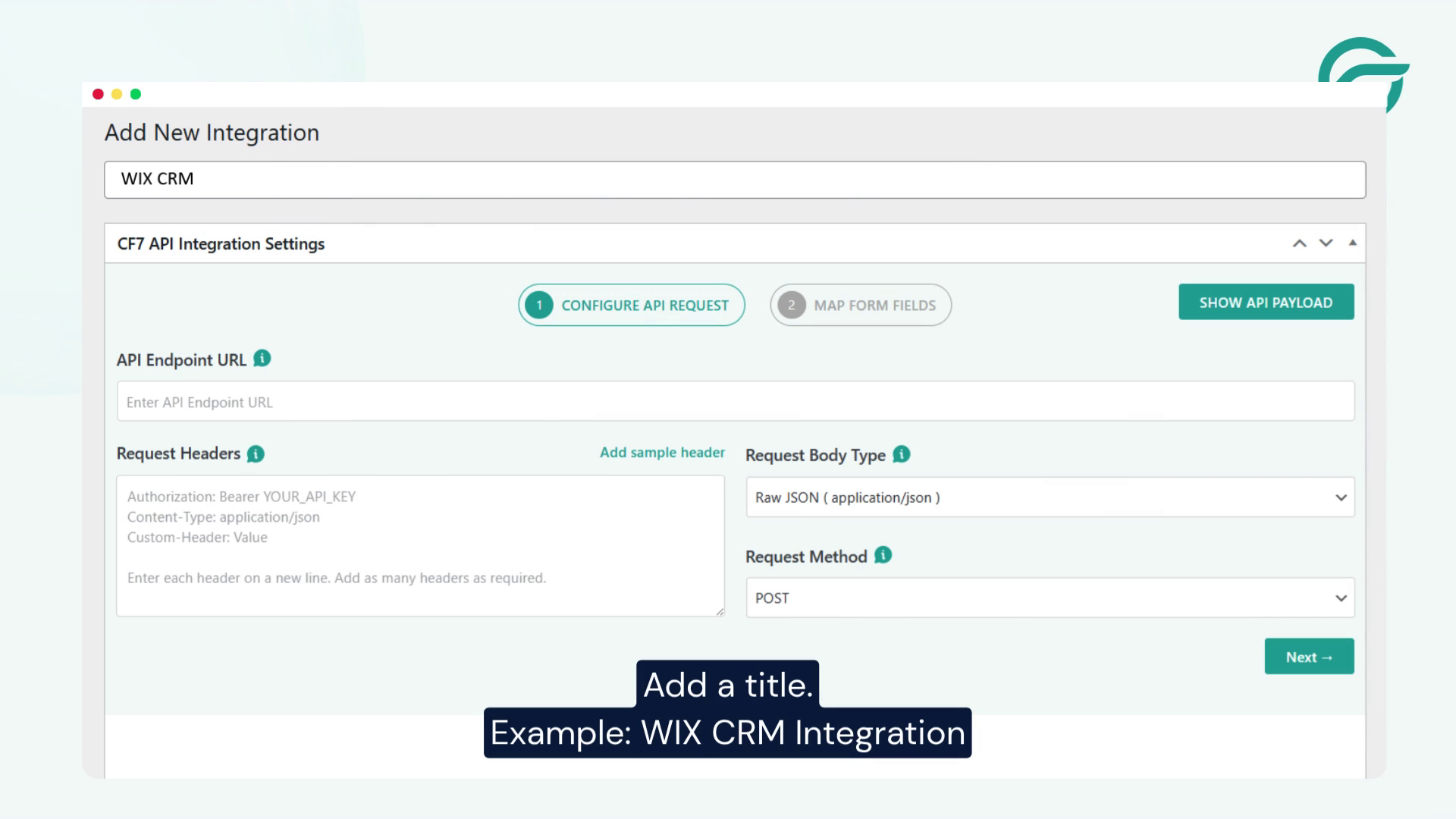
Enter a name for your new integration.
For example:
Wix CRM Integration
Use a descriptive name that makes it easy to identify the integration later, especially if your website has multiple Contact Form 7 forms or API connections.
Click Next to continue.
Step 4: Add the Wix API Endpoint URL
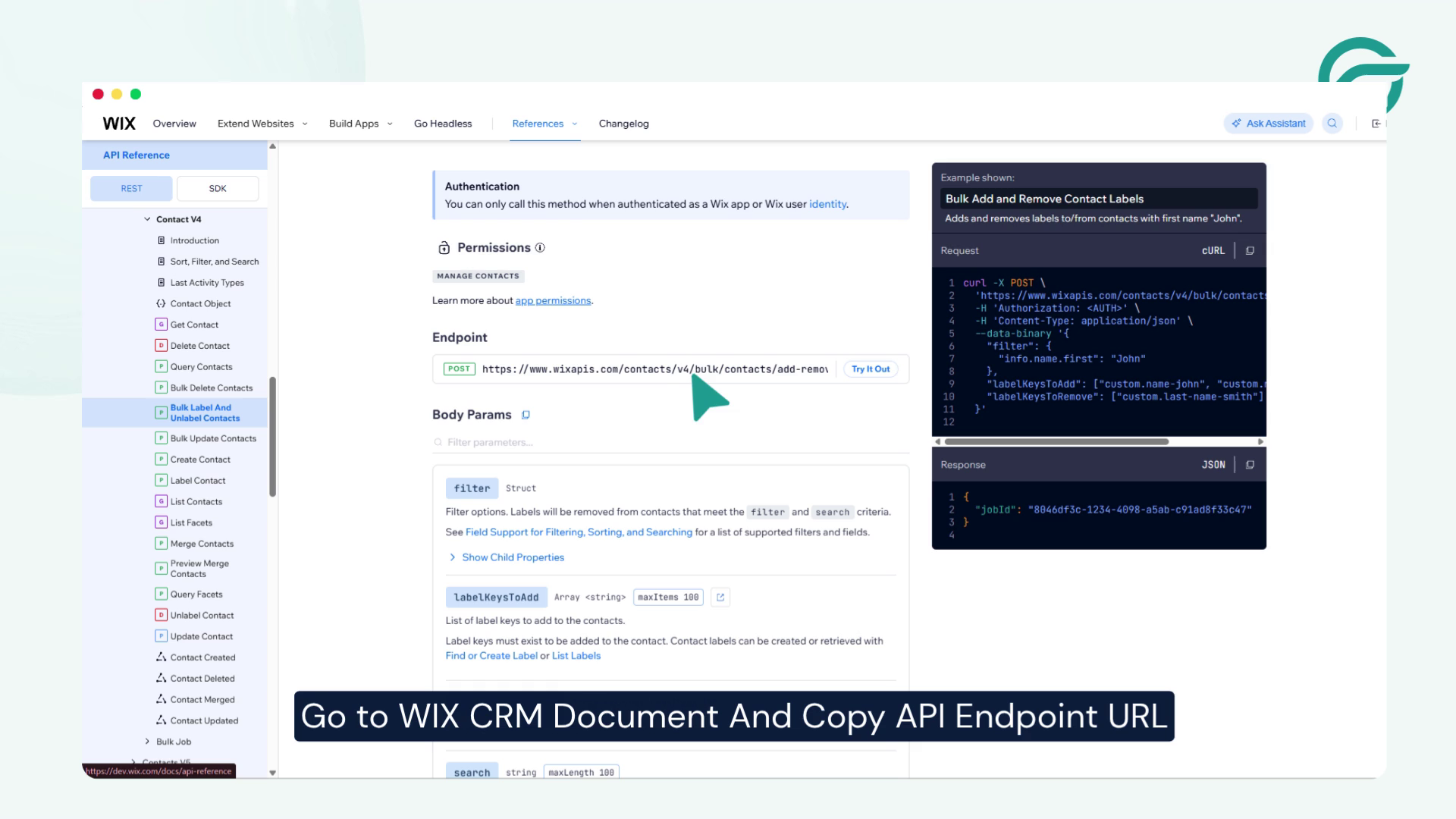
Go To Wix CRM Document And Copy API Endpoint URL
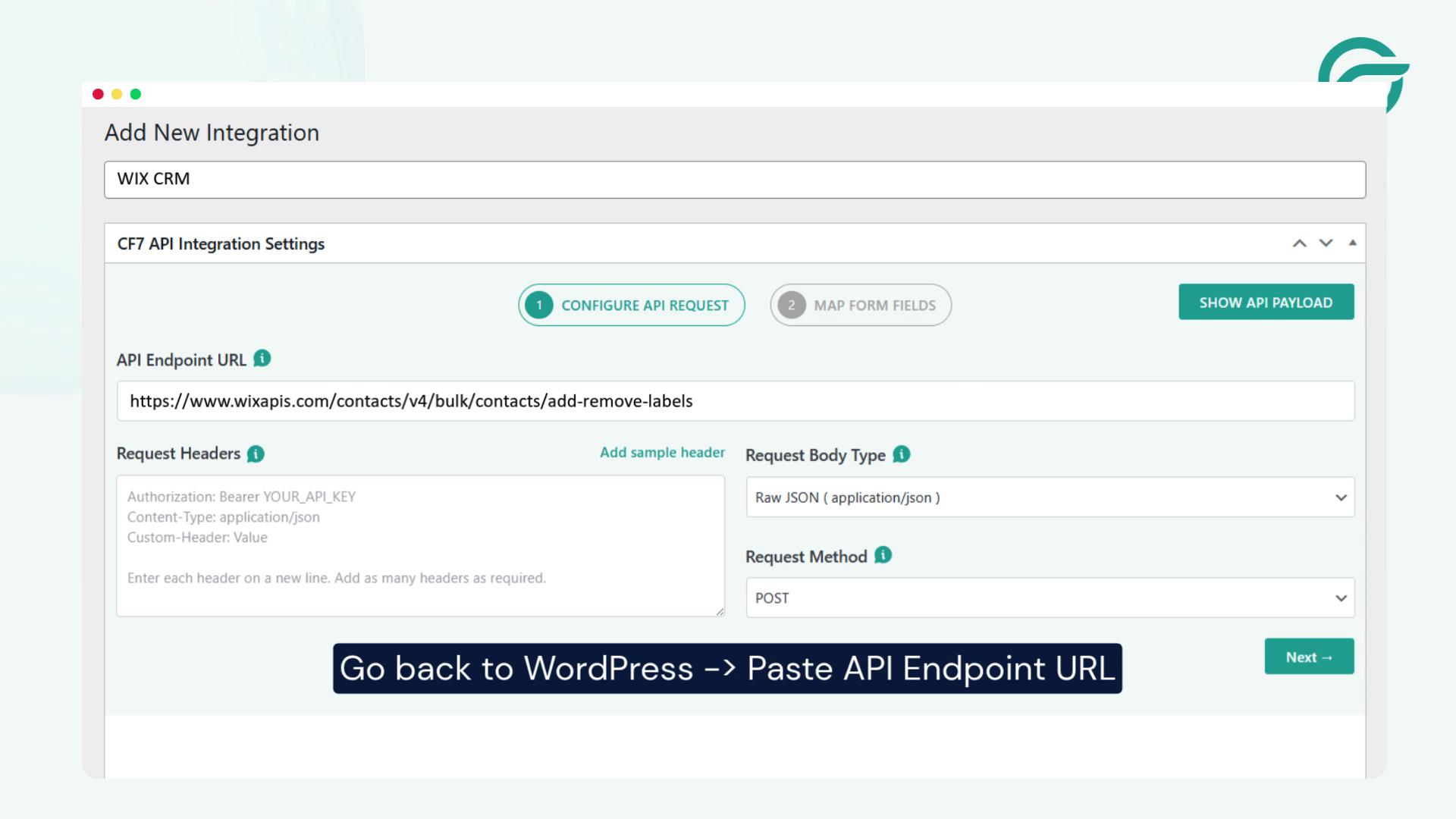
Go back to WordPress -> API Endpoint URL
In Contact Form To Any API, paste the endpoint into the API Endpoint URL field.
https://www.wixapis.com/contacts/v4/bulk/contacts/add-remove-labels
Step 5: Generate a Wix API Key
Your WordPress website needs authorization to communicate with Wix.
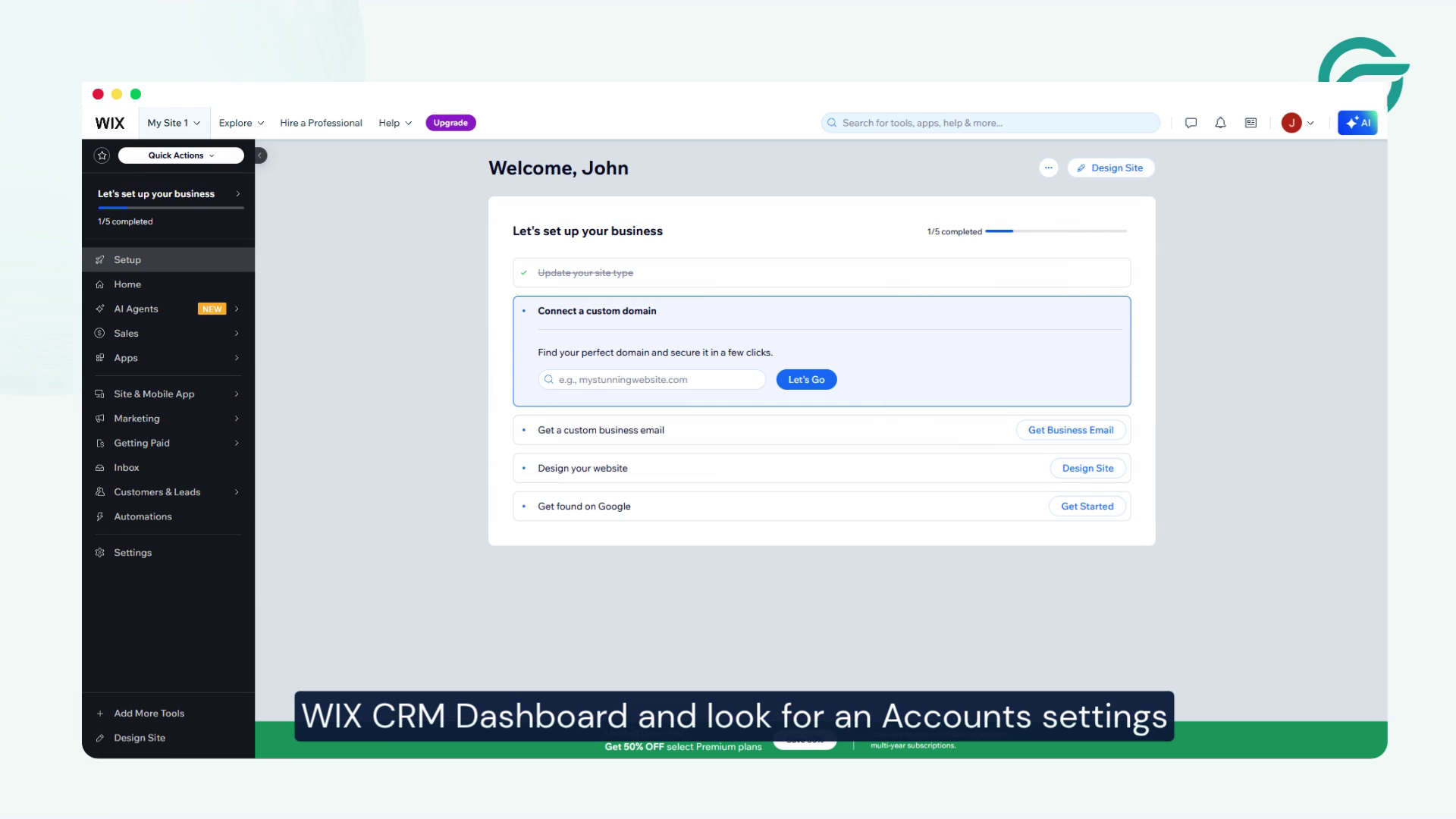
To create an API key, Go to Wix CRM Dashboard and look for an Accounts settings
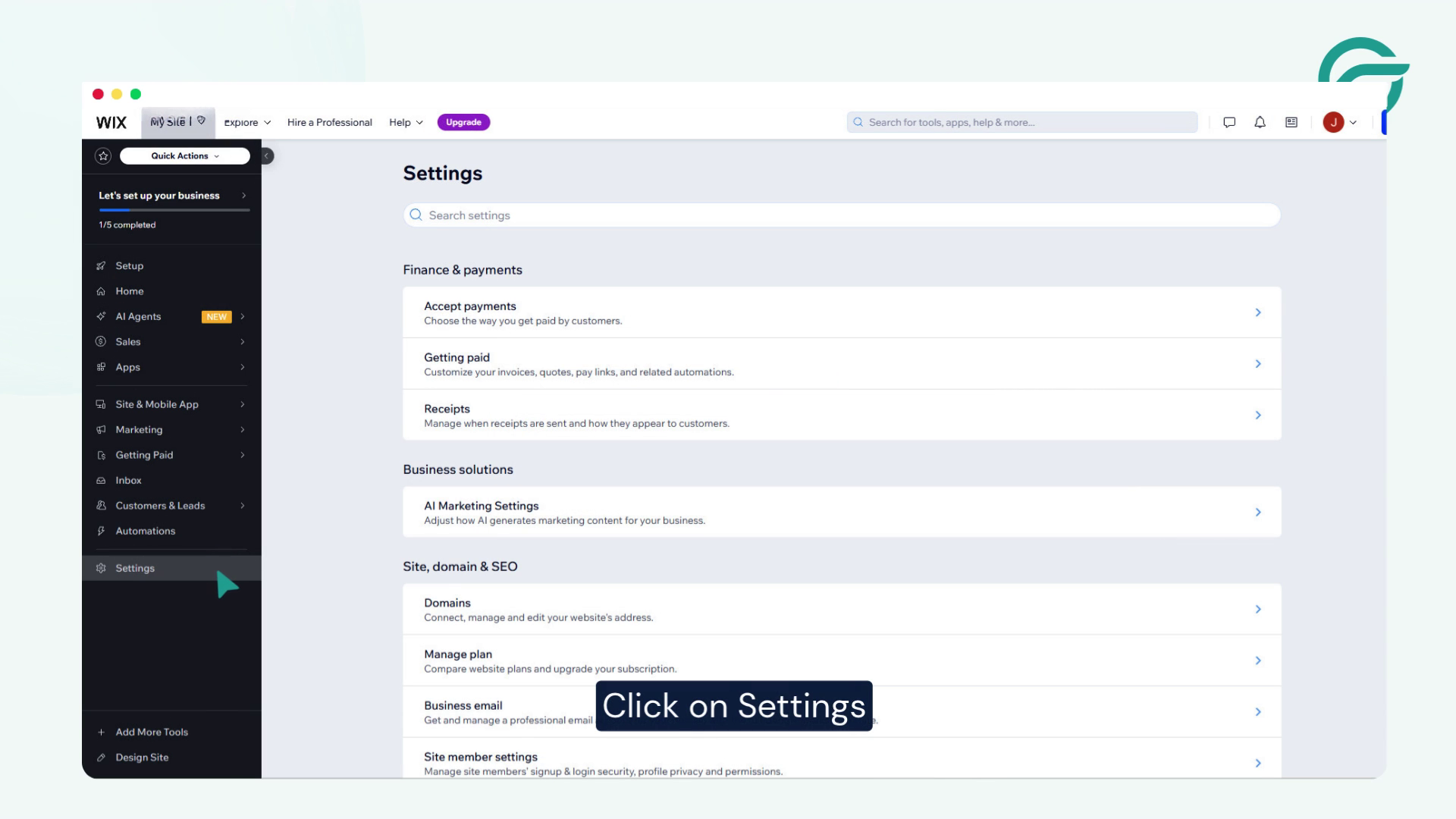
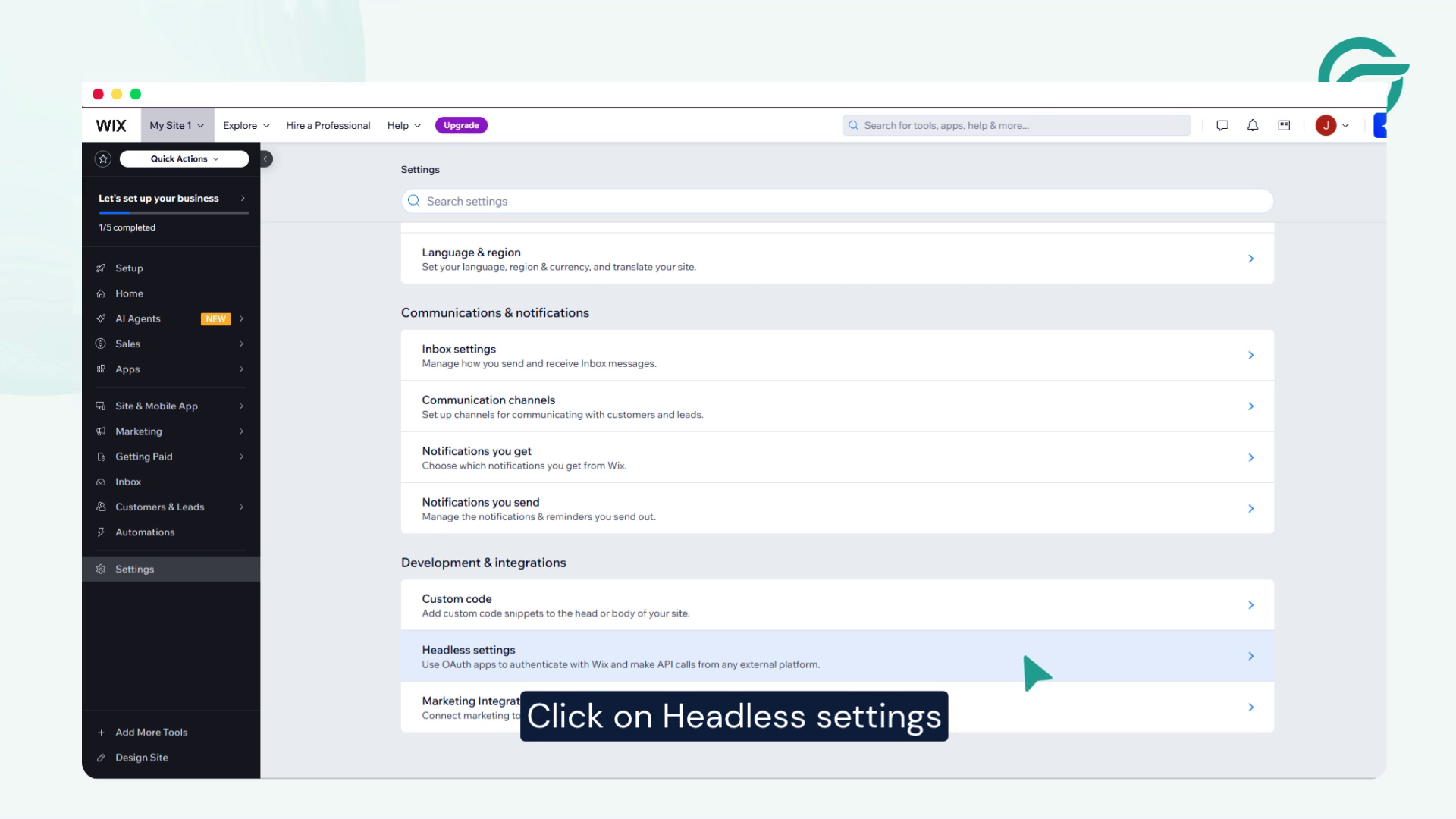
Click on Setting -> Clicks on Headless settings
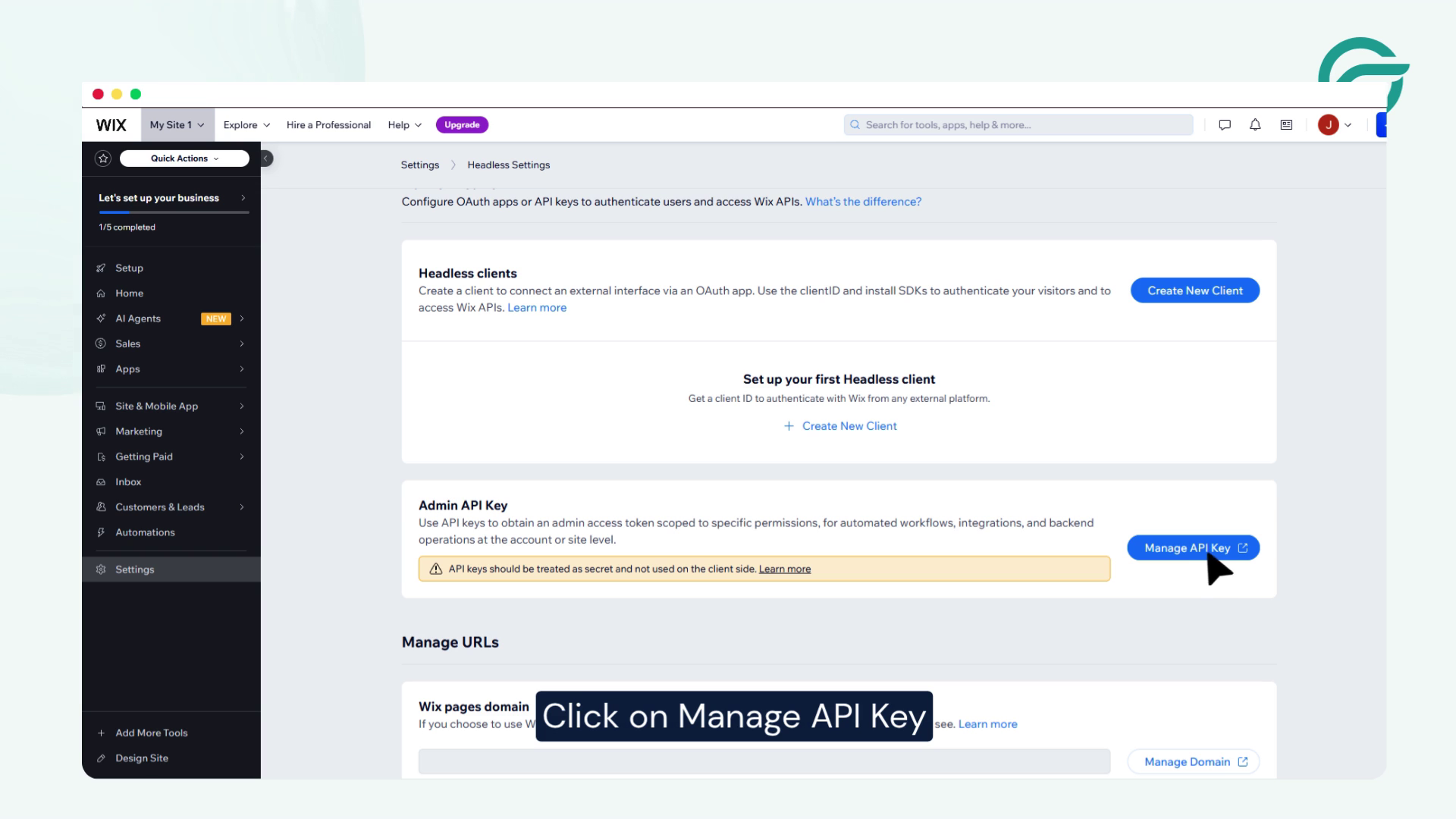
Click on Manage API Key -> Click on generate API Key
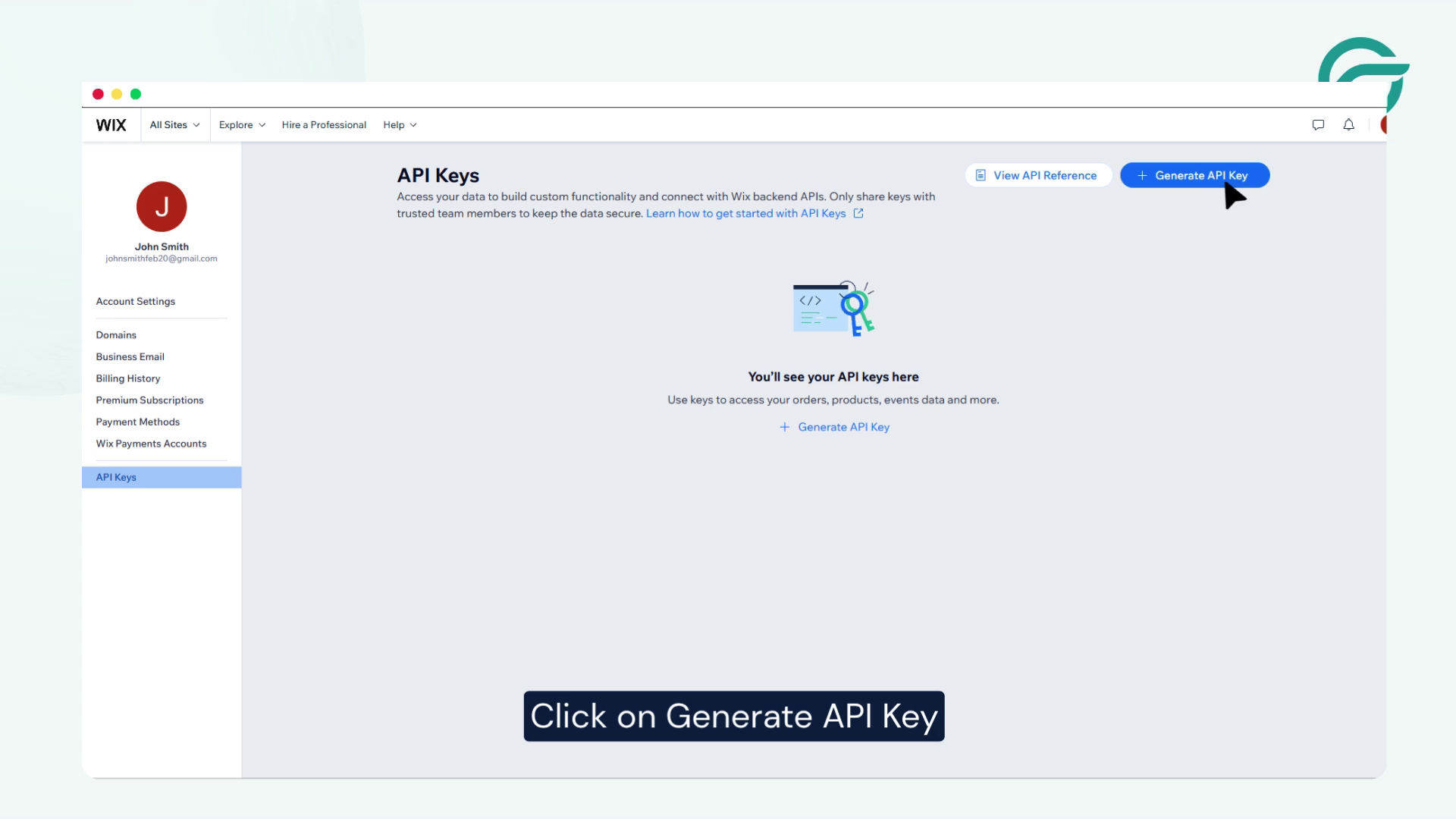
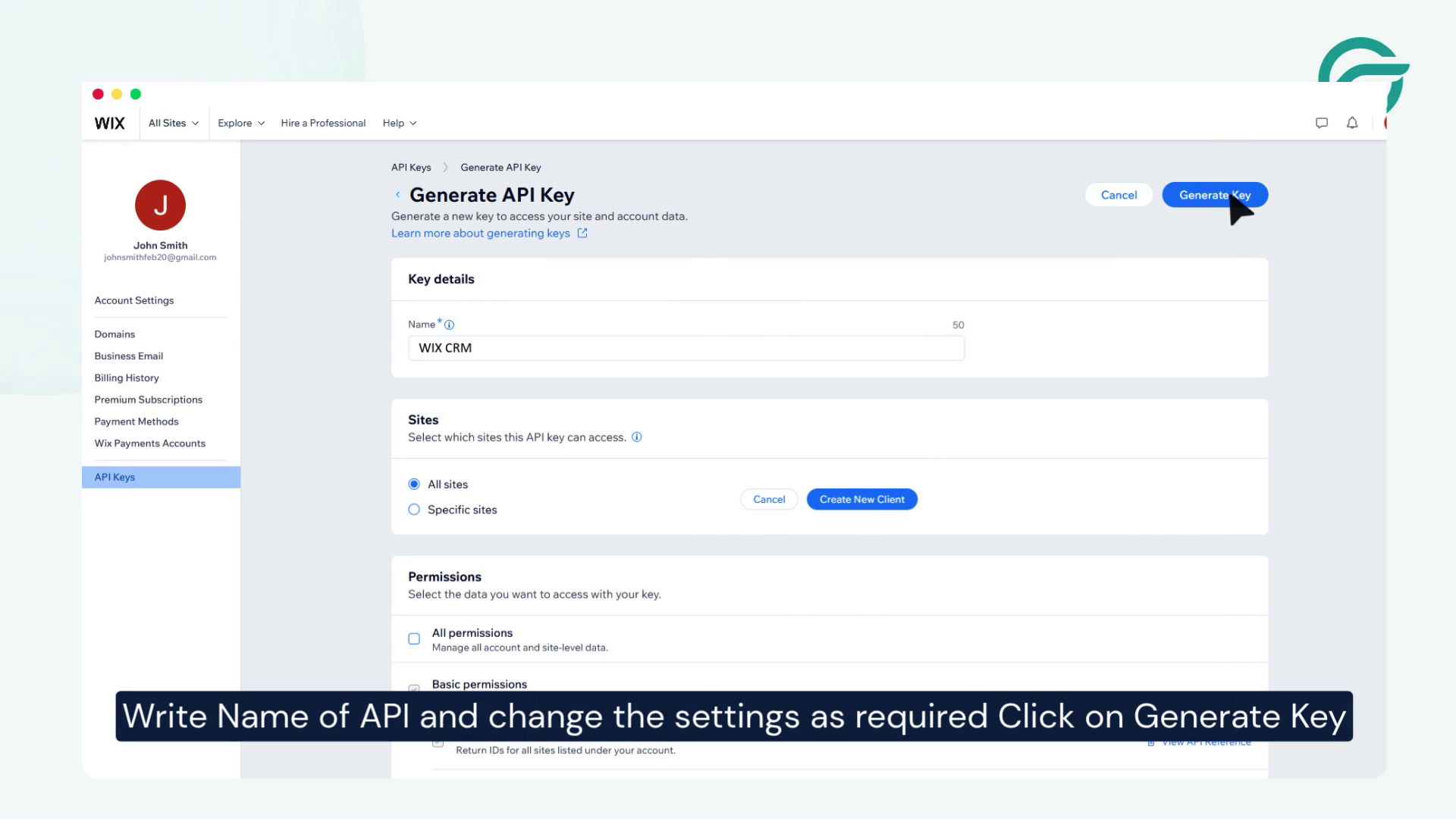
Write Name of API and change the settings as required Click on Generate Key
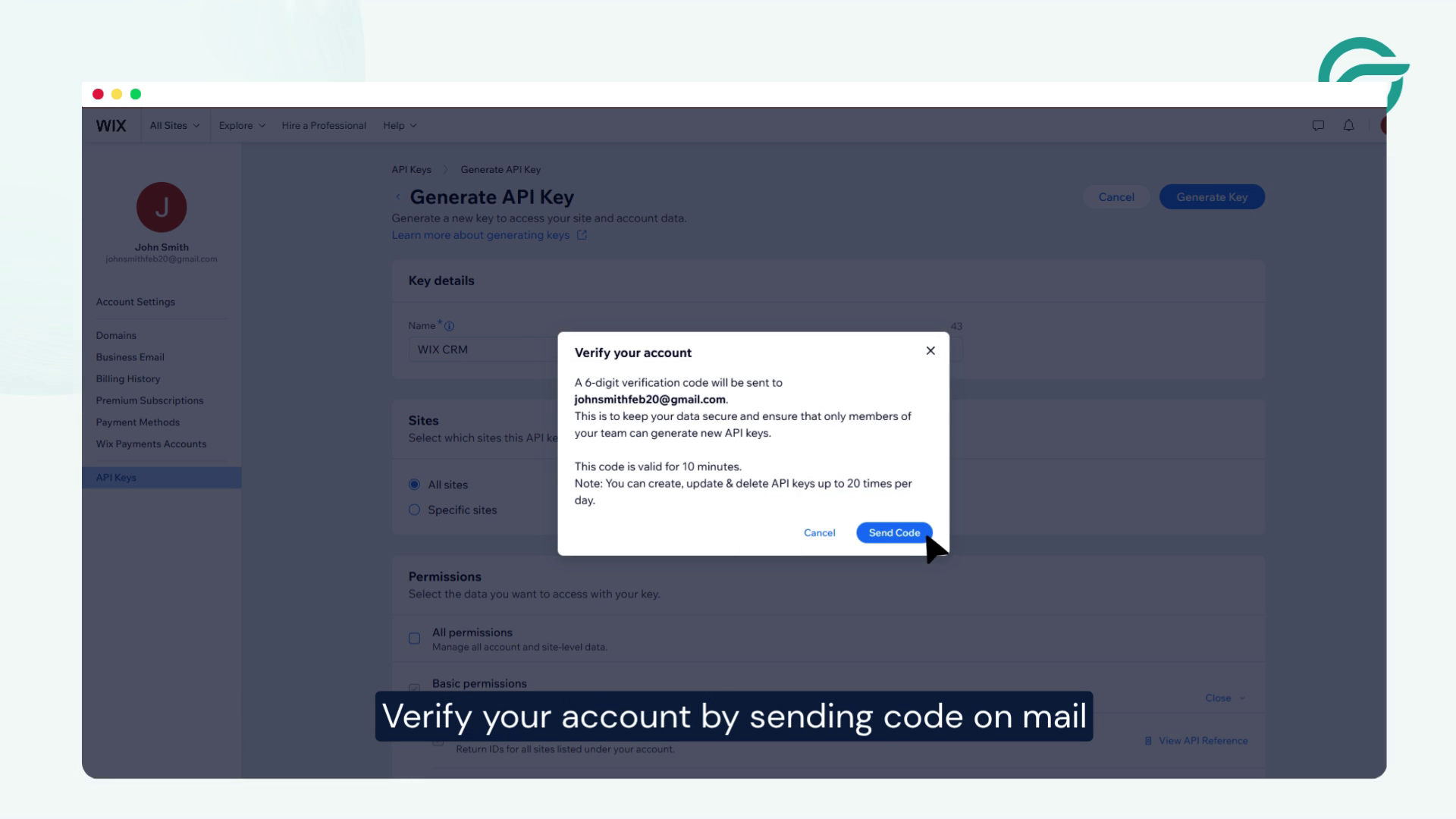
Verify your account by sending code on mail
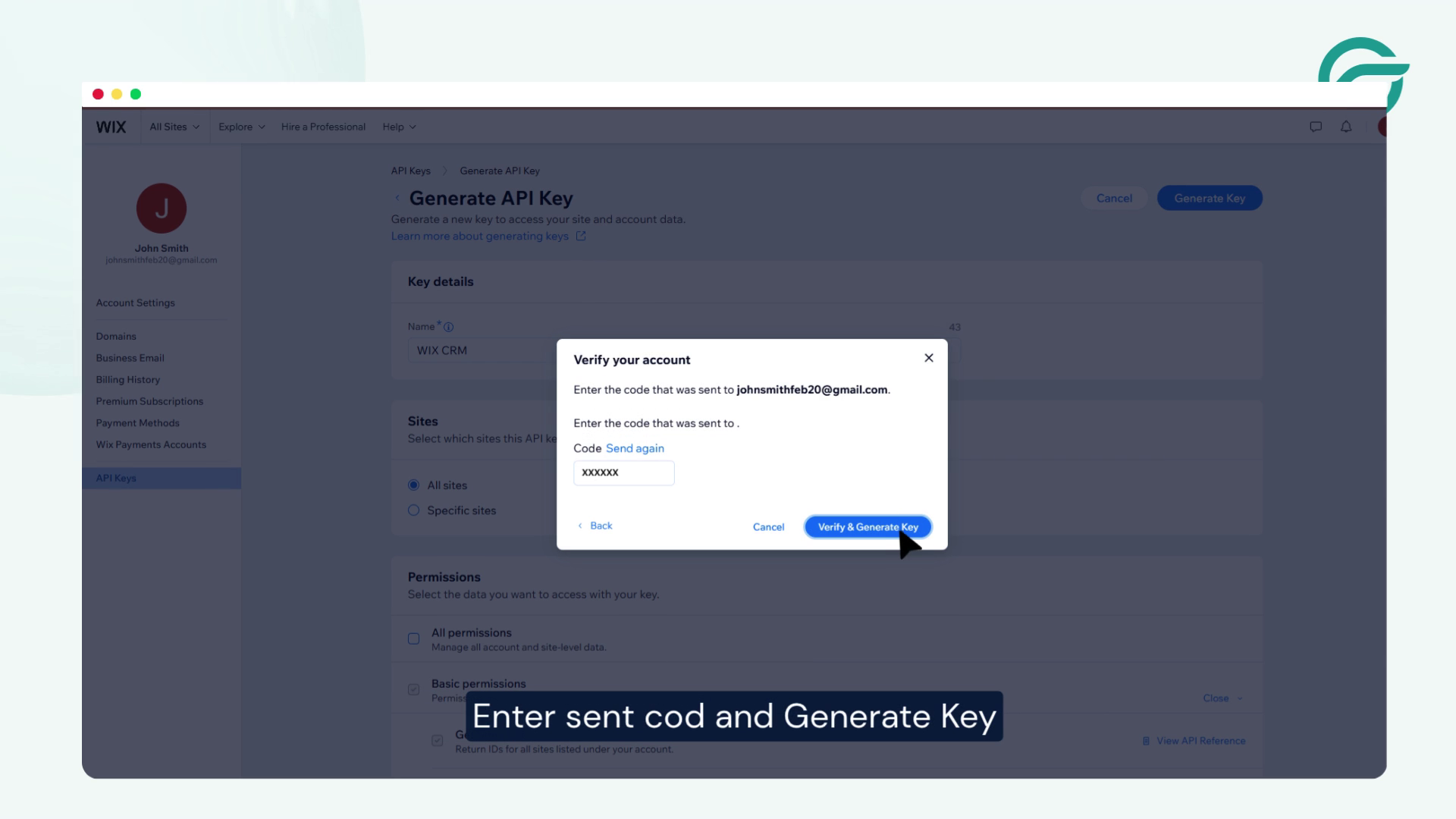
Enter sent code and Generate Key
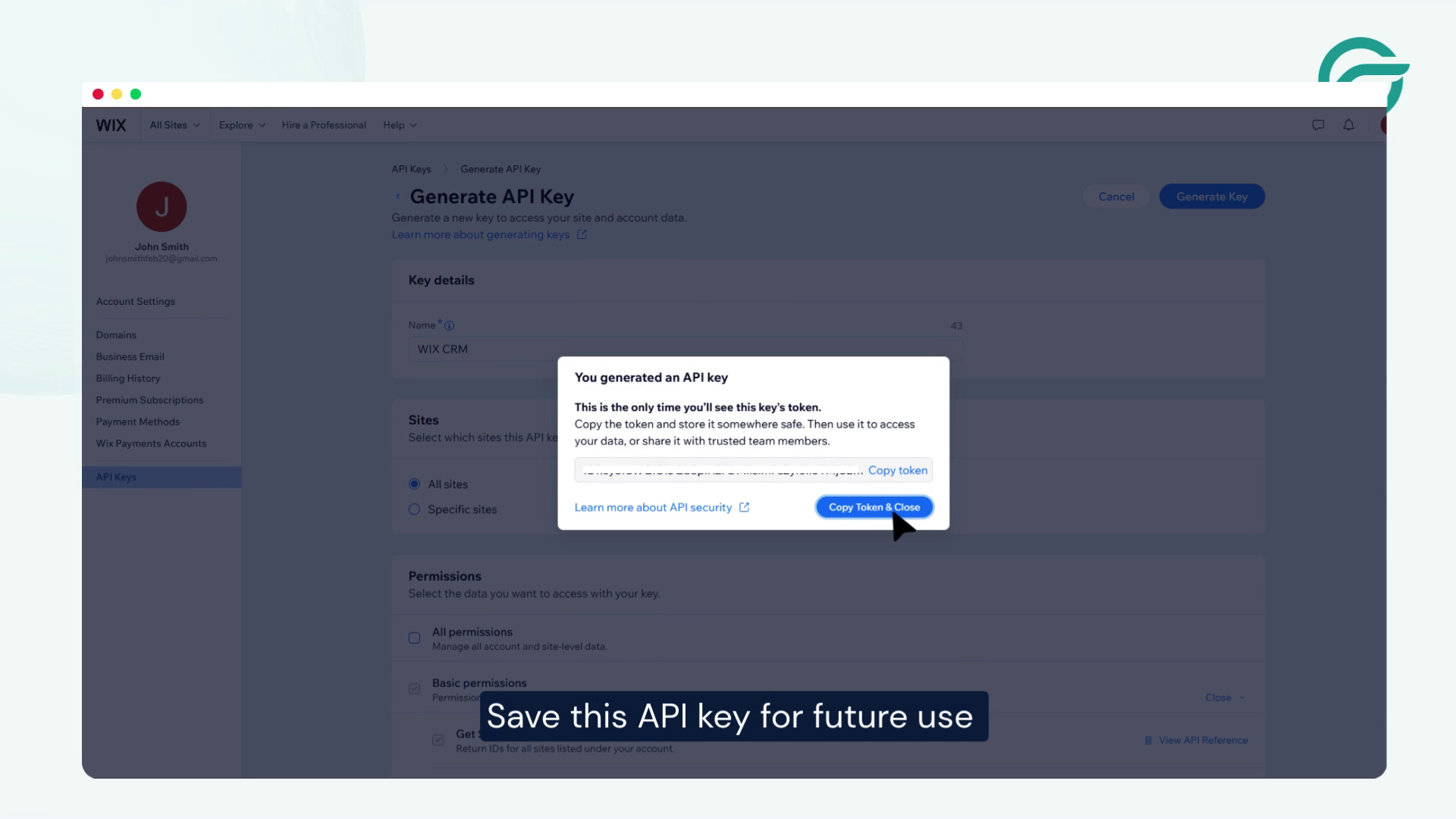
Save this API key for future use.
Step 6: Add the API Key to the Request Headers
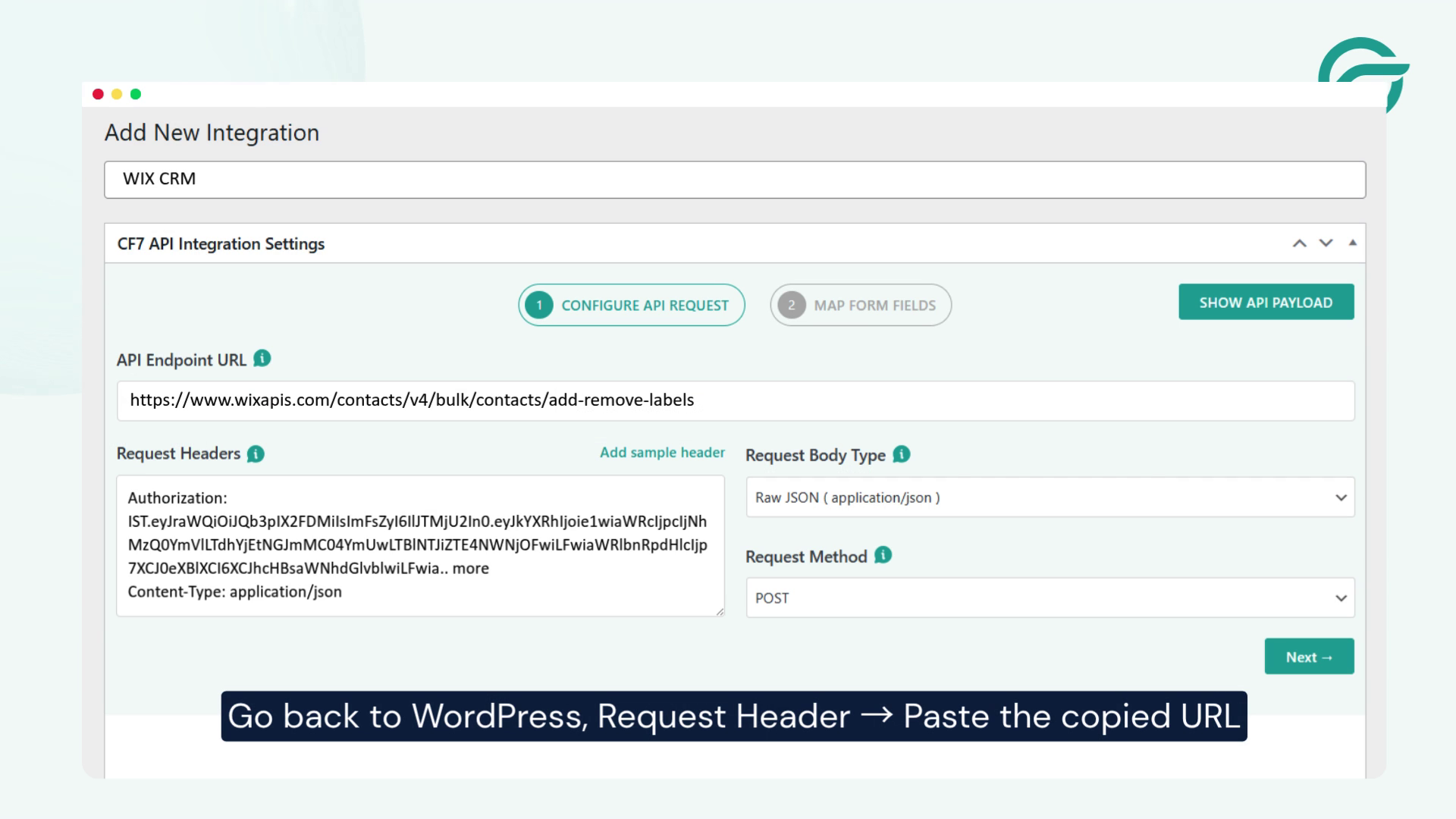
Go back to WordPress, Request Header -> Paste the copied URL in the “Request Headers” field
Click Next to continue.
Step 7: Select Your Contact Form 7 Form
The next step is to select the Contact Form 7 form that you want to connect with Wix.
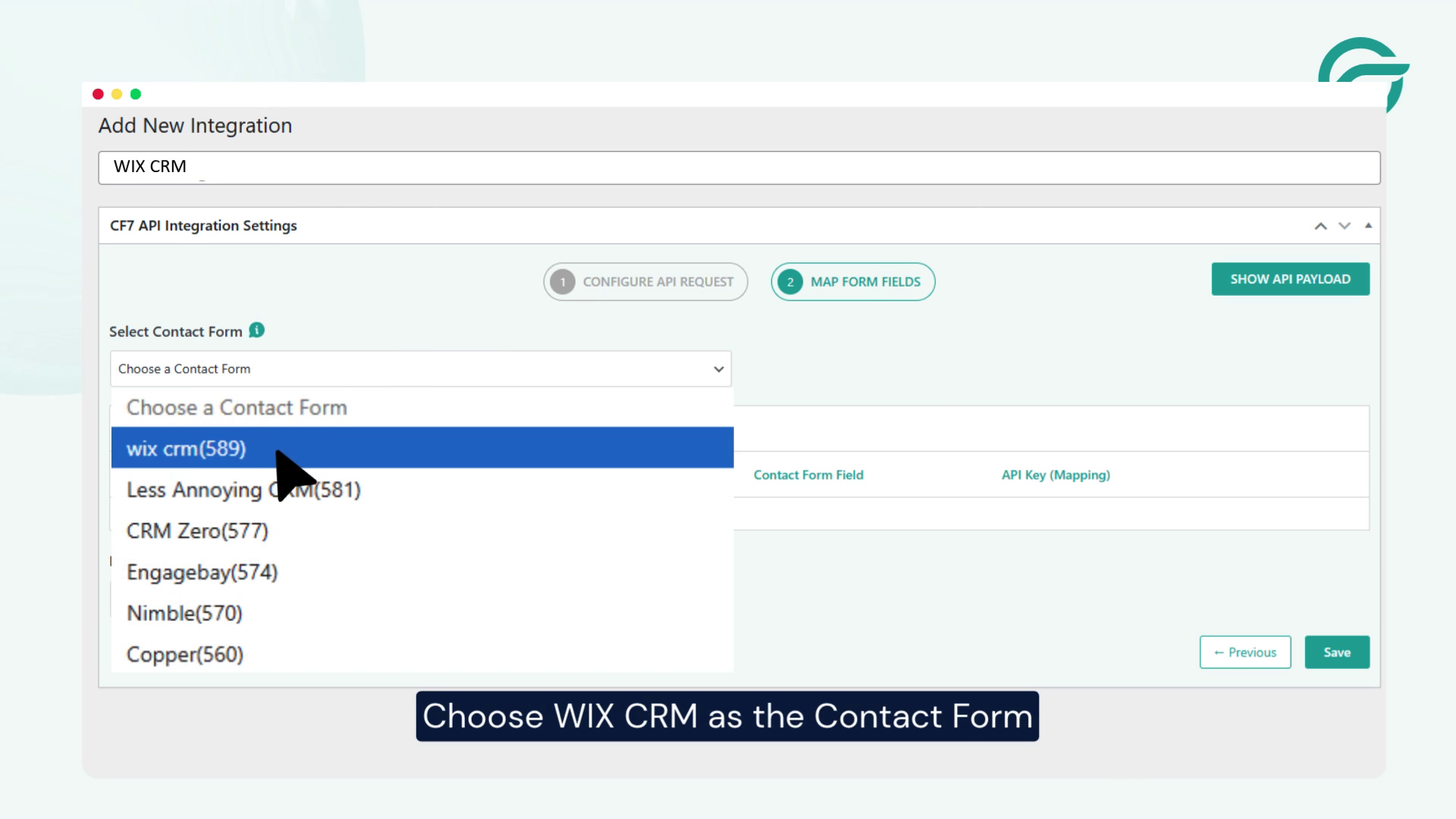
Under the Contact Form section, choose the appropriate Contact Form 7 form.
For example:
Wix CRM Contact Form
If you have multiple forms on your WordPress website, make sure you select the correct one.
Step 8: Map Contact Form 7 Fields to Wix
Now you’ll need to configure the data that WordPress sends to the Wix API.
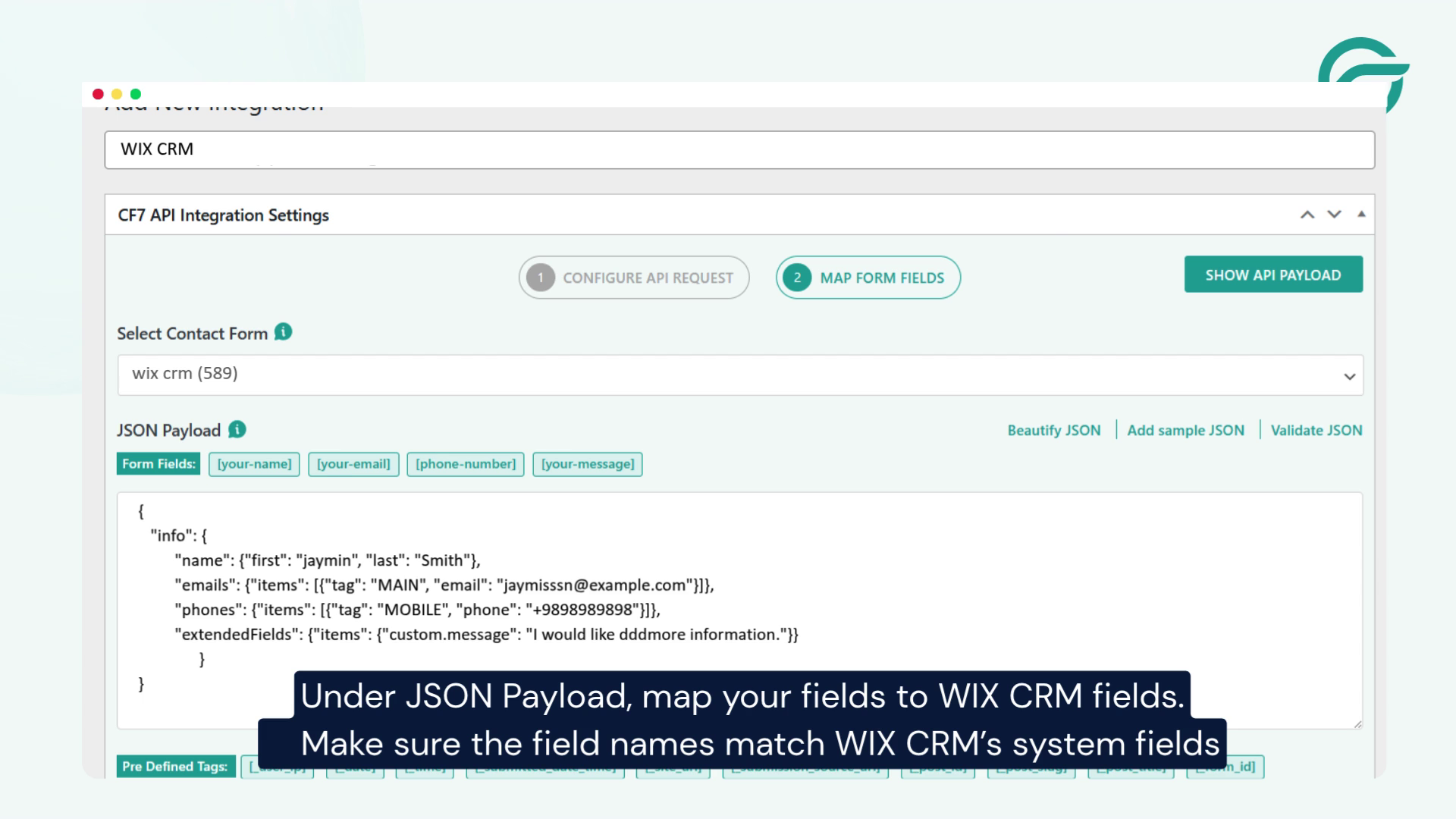
Under JSON Payload, map the fields from your Contact Form 7 form to the corresponding Wix fields or API properties.
For example, your Contact Form 7 form might collect:
- Name
- Phone
- Message
The JSON payload should use the structure required by the specific Wix API endpoint you’re calling.
Step 9: Submit Test Entry
Once the field mapping is complete, submit a test entry through your Contact Form 7 form.
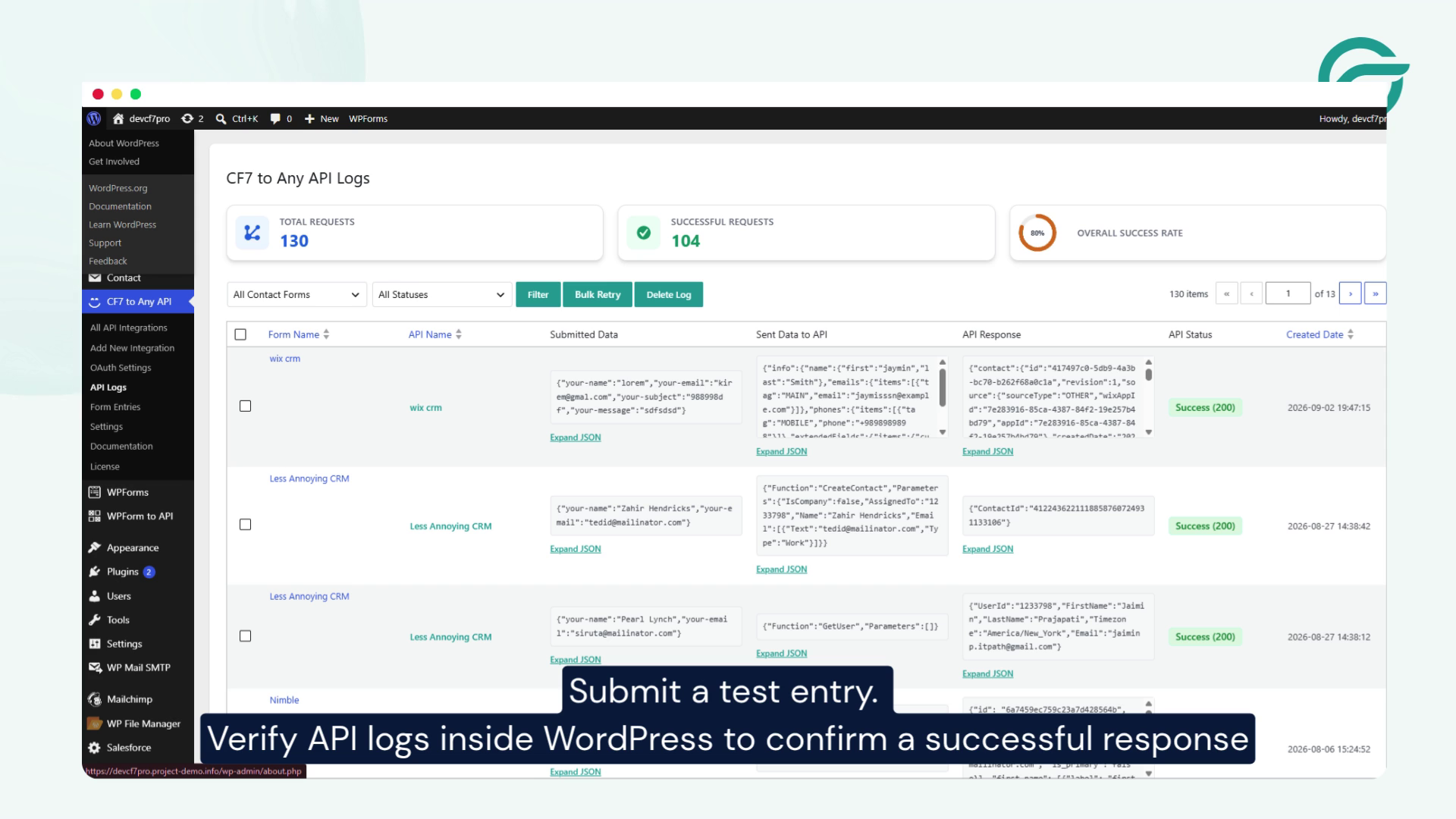
After submitting the form, check the API logs inside WordPress to confirm that the request was successfully sent and that Wix CRM returned a successful response.
Testing the integration with a sample submission can help you identify authentication, endpoint, or field-mapping issues before you start receiving real leads.
Conclusion
Connecting Contact Form 7 with Wix CRM can help you simplify the way your WordPress website handles form submissions. Instead of manually transferring contact information between platforms, you can use an API integration to streamline the process and reduce repetitive work.
As shown in this guide, the setup involves adding the Wix API endpoint, configuring the required API key and request headers, selecting your Contact Form 7 form, mapping the form fields in the JSON payload, and testing the API request. Once everything is configured correctly, you can use the integration to connect your WordPress form with your Wix CRM workflow.
With Contact Form To Any API, you can connect Contact Form 7 with Wix CRM and other third-party platforms through API requests without building a custom integration from scratch.
Ready to connect your Contact Form 7 forms with external applications? Get started with Contact Form To Any API and simplify your WordPress API integrations today.
Frequently Asked Questions
Can Contact Form 7 send leads directly to Wix CRM?
Yes. Contact Form 7 can send submitted form data to Wix CRM through an API integration. This allows lead information collected through your WordPress website to be transferred to Wix CRM automatically instead of requiring manual data entry.
What are the benefits of connecting Contact Form 7 with Wix CRM?
Connecting Contact Form 7 with Wix CRM can save time, reduce manual data entry, and keep website leads organized in one place. It also helps businesses transfer new enquiries into their CRM workflow more efficiently for follow-up and lead management.
How can Contact Form 7 and Wix CRM integration help with lead management?
The integration can automatically transfer information submitted through WordPress forms to Wix CRM. This gives businesses a more consistent way to capture and organize website leads, making it easier to manage enquiries and follow up with potential customers.
Can Contact Form 7 submissions be automatically added to Wix CRM?
Yes. With an API-based integration, Contact Form 7 submissions can be sent automatically to Wix CRM when visitors submit a form. This eliminates the need to manually copy contact details from individual form submissions into the CRM.
What types of businesses can use Contact Form 7 with Wix CRM?
Businesses that use WordPress and Contact Form 7 to collect customer information can benefit from the integration. Common use cases include service enquiries, quote requests, consultation forms, sales leads, registrations, and other website forms that collect prospect or customer information.
Can Contact Form 7 connect to Wix CRM without custom coding?
Yes. An API integration plugin can simplify the connection without requiring you to develop a custom WordPress integration from scratch. You can configure the API connection, authentication, request data, and field mapping using the integration tool and the requirements of the Wix API.
Why integrate Contact Form 7 with Wix CRM instead of managing form submissions manually?
Manual lead transfer can become time-consuming as the number of website enquiries increases. Connecting Contact Form 7 with Wix CRM can automate data transfer, reduce repetitive administrative work, and provide a more efficient way to move website leads into your CRM for management and follow-up.


