


Introduction
Managing customer information manually can quickly become time-consuming, especially when your website receives a steady stream of inquiries. By connecting Contact Form 7 with Twenty CRM, you can automatically send form submissions from your WordPress website directly into your CRM, eliminating manual data entry and ensuring every lead is captured instantly.
With the Contact Form to Any API plugin, integrating Contact Form 7 with Twenty CRM is simple. In this guide, we’ll walk you through the complete setup process so your Contact Form 7 submissions are automatically synced with Twenty CRM using its GraphQL API.
Benefits of Using Contact Form to Any API
The Contact Form to Any API plugin makes it easy to connect Contact Form 7 with virtually any CRM or third-party application without writing custom code.
With support for custom headers, JSON payloads, authentication methods, and flexible field mapping, you can automate workflows and integrate Contact Form 7 with thousands of APIs.
Watch the Video Tutorial: CF7 with Twenty CRM Integration (Step-by-Step)
Before following the written steps, you can watch the complete integration setup in this quick video tutorial.
Step 1: Sign in to Your Twenty CRM Account
Log in to your Twenty CRM account using your administrator credentials.
Step 2: Open Your WordPress Dashboard
Navigate to your WordPress admin panel.
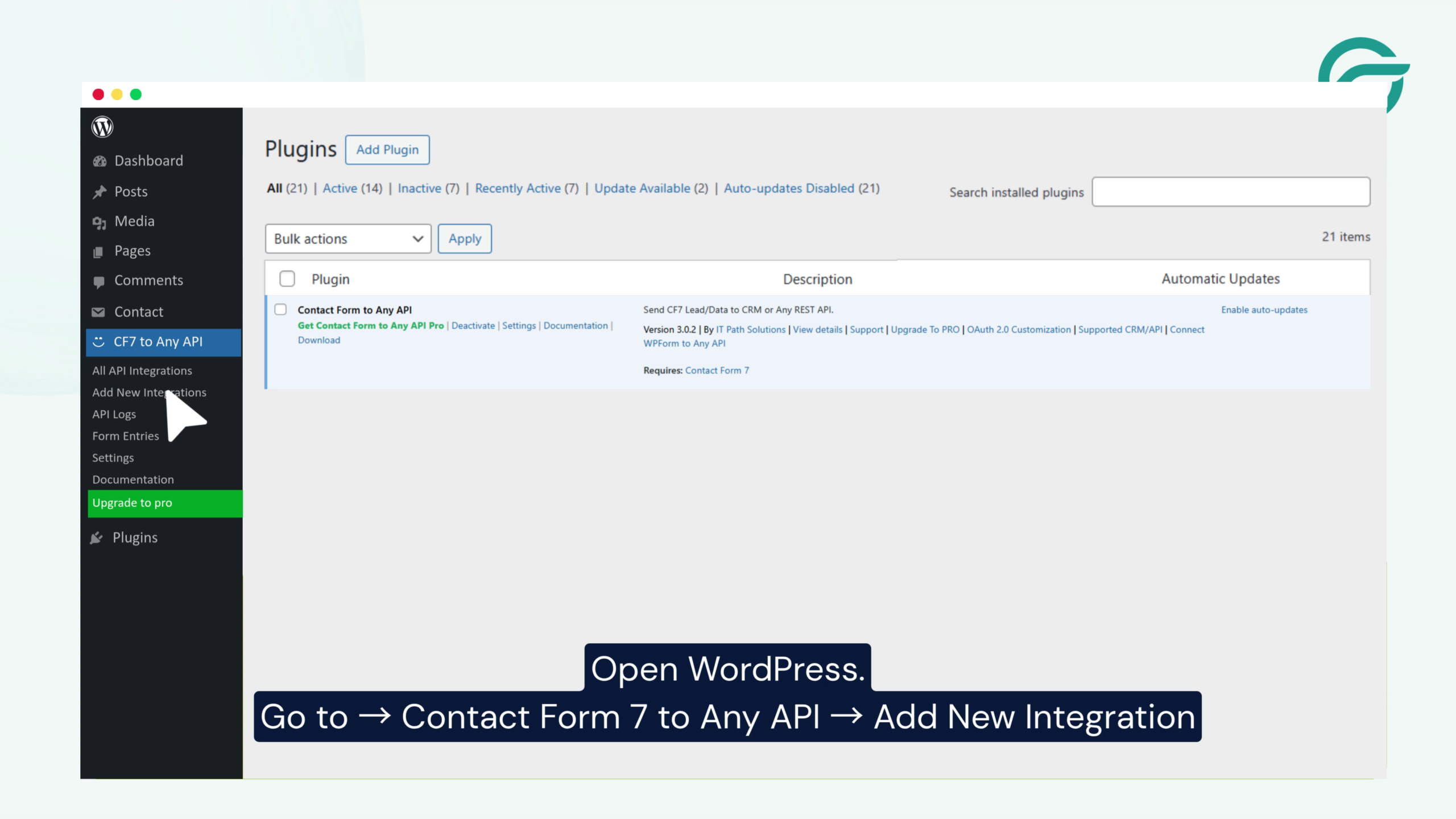
Go to:
Contact Form to Any API → Add New Integration
Step 3: Create a New Integration
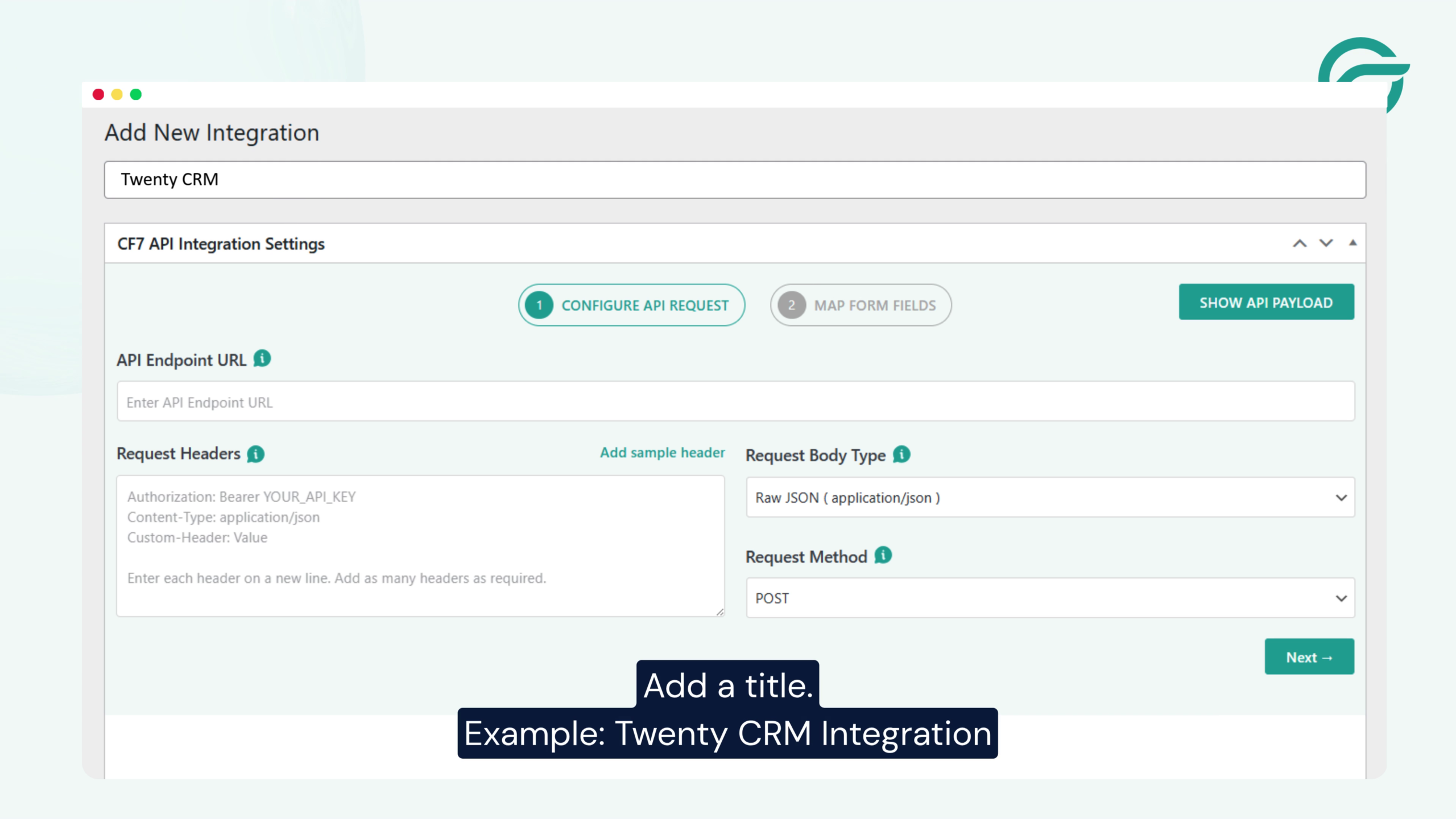
Enter a name for your integration.
Example:
Twenty CRM Integration
This title is only for your reference within WordPress.
Step 4: Configure the API Endpoint URL
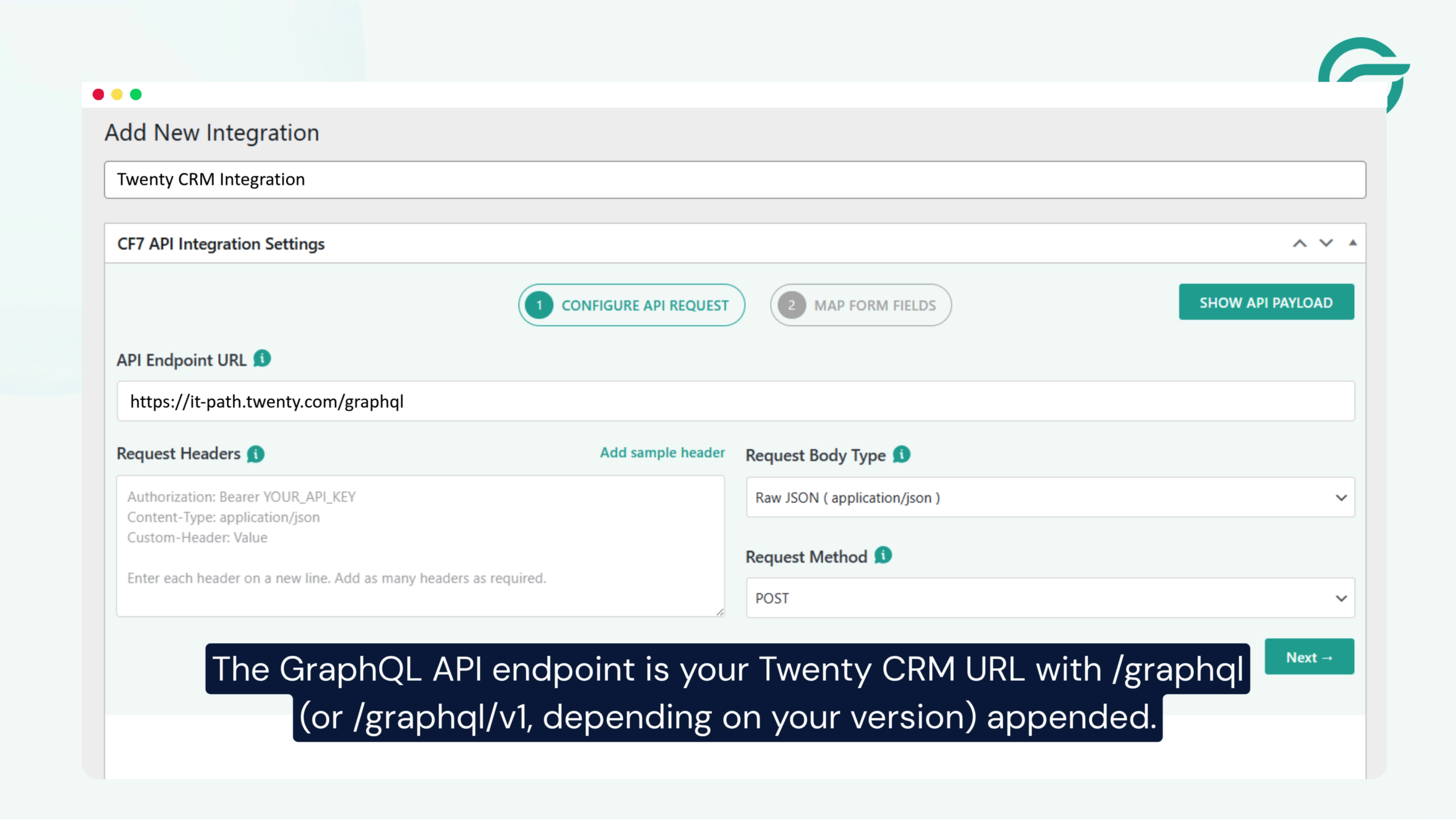
In your Twenty CRM instance, locate your GraphQL endpoint.
Example:
https://it-path.twenty.com/graphql
Copy the endpoint URL.
Return to WordPress and paste it into the API Endpoint URL field.
Step 5: Generate Your API Key
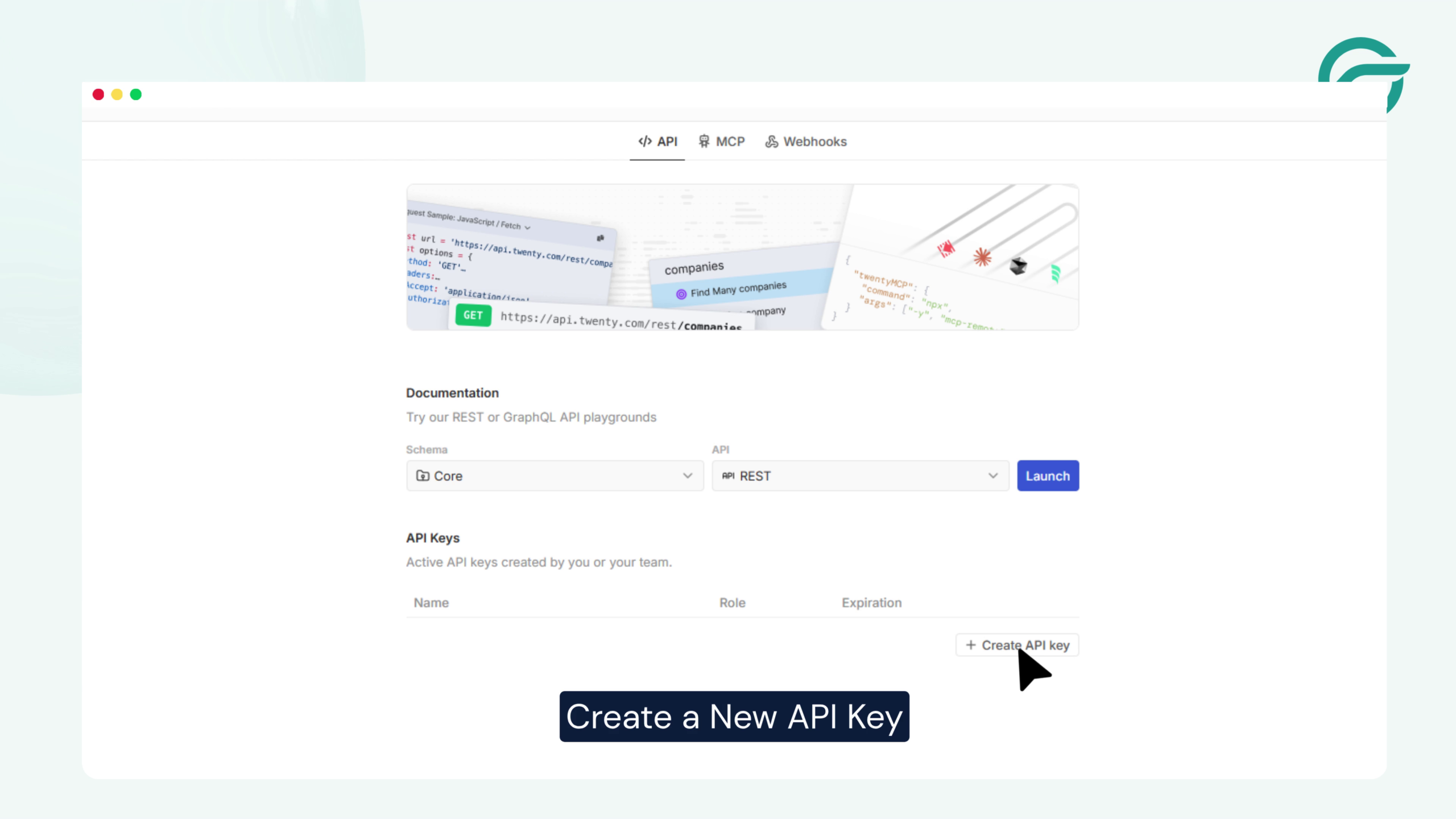
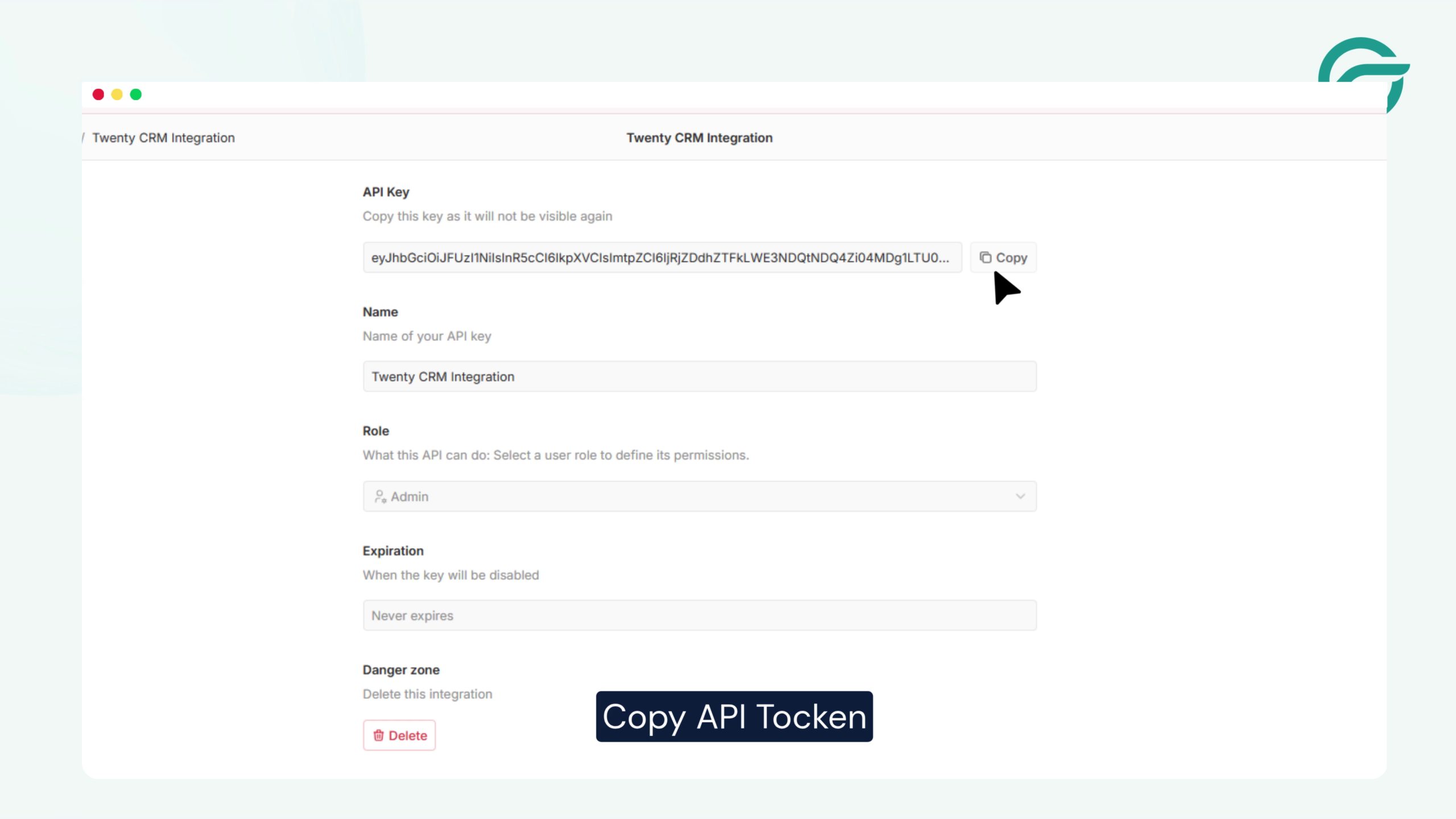
Inside Twenty CRM:
Settings → Developers → API Keys
Generate a new API key or copy an existing one.
Step 6: Configure Request Headers
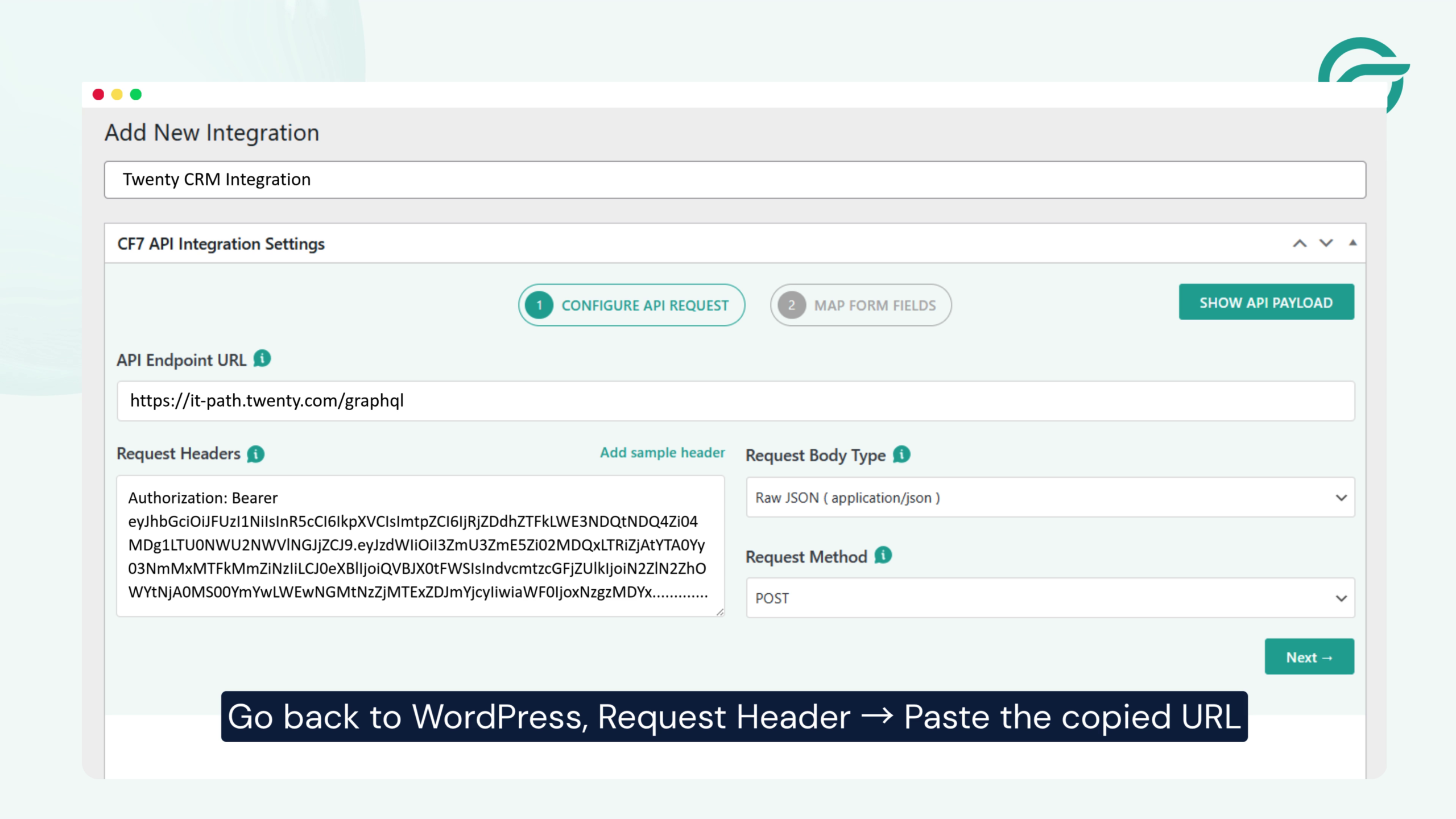
Return to your Contact Form to Any API integration.
Paste your API key into the Request Headers field using the required Authorization header format.
This allows WordPress to authenticate requests with Twenty CRM.
Step 7: Continue to Field Mapping
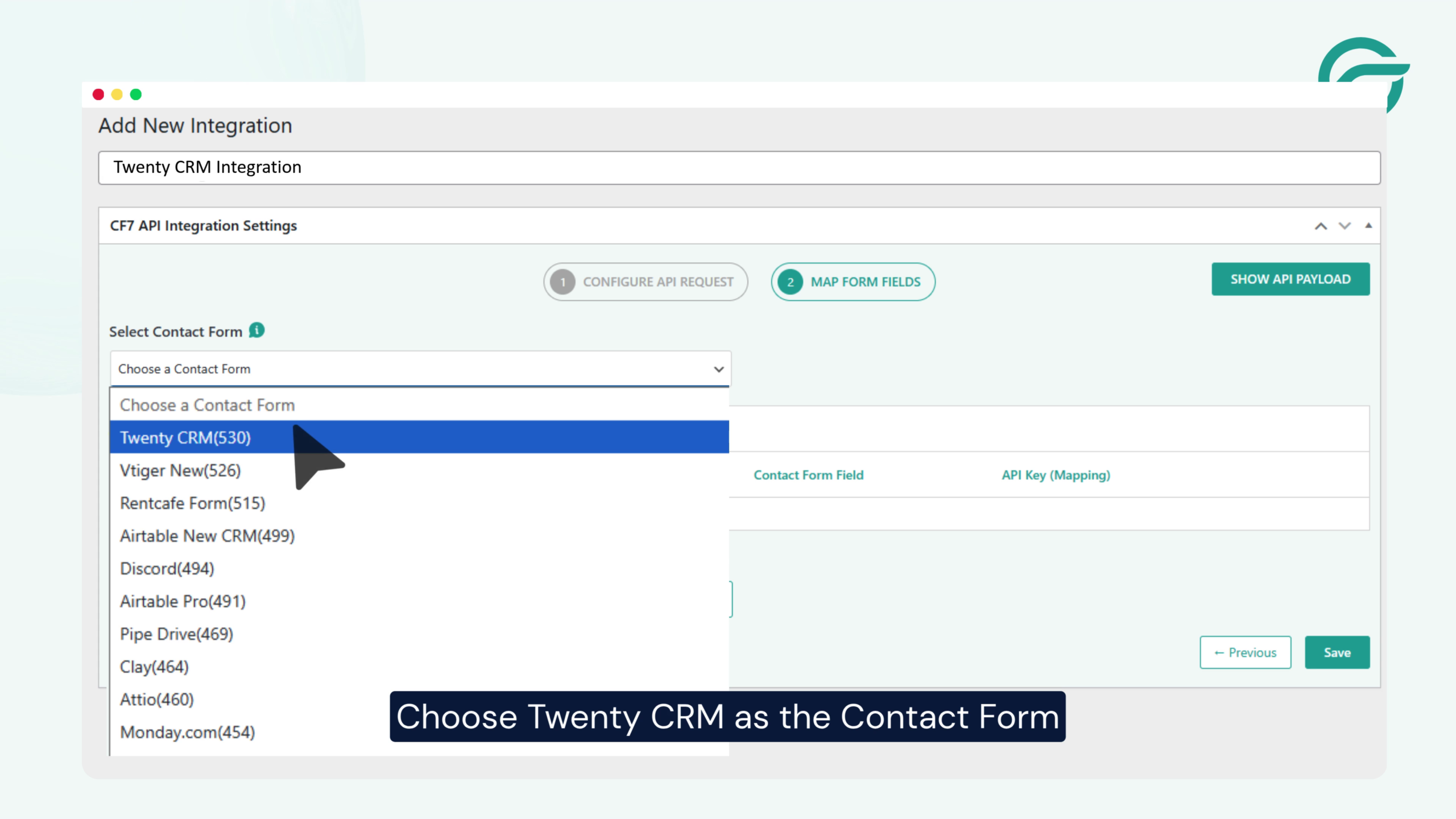
Click the Next button.
Select Twenty CRM as your integration.
Step 8: Map Contact Form Fields
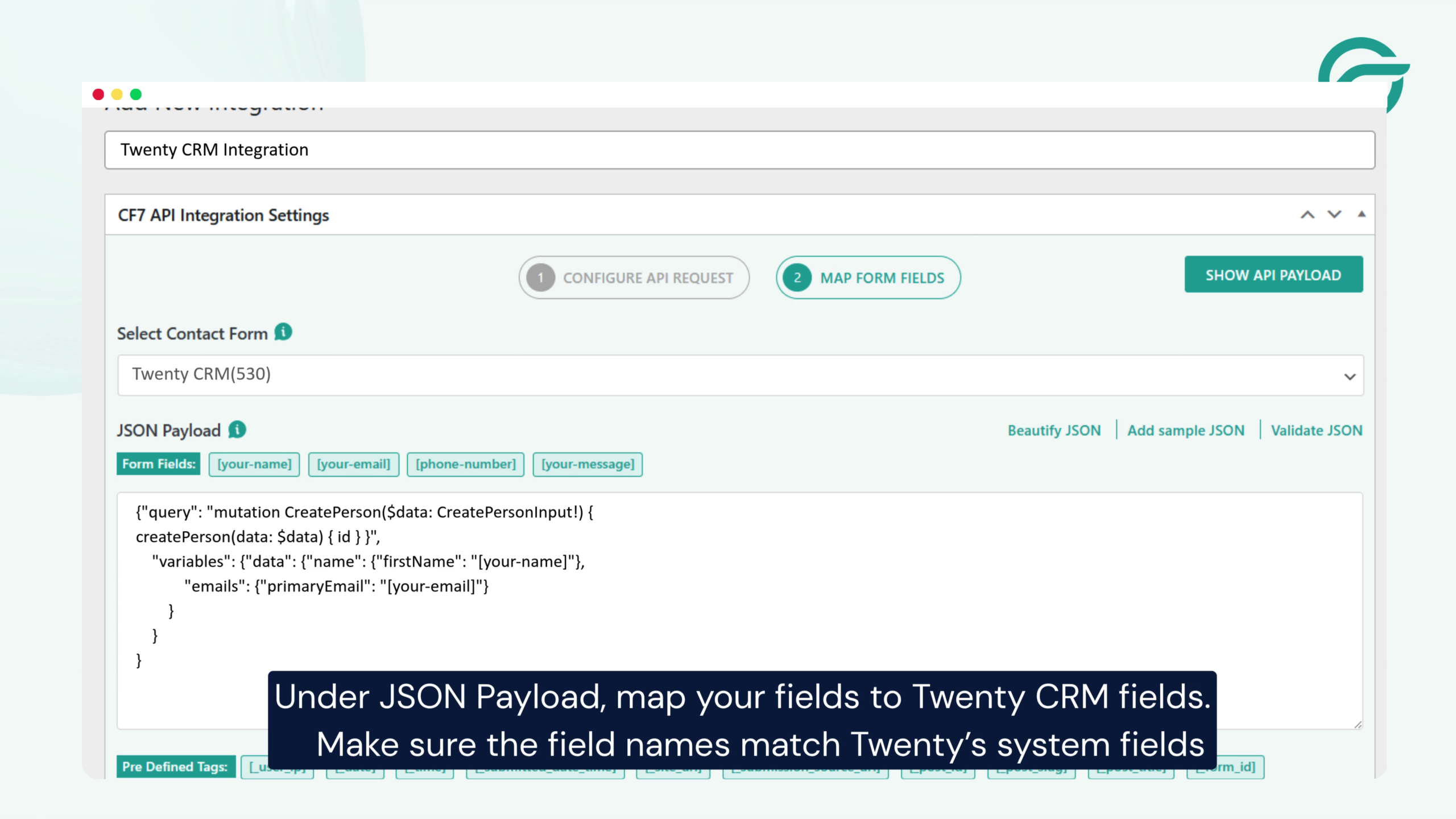
Under the JSON Payload section, map your Contact Form 7 fields to the corresponding fields in Twenty CRM. Ensure that each form field is assigned to the correct CRM field and that the field names match Twenty CRM’s expected structure. Accurate field mapping is essential for successfully transferring form submission data to your CRM.
Step 9: Test the Integration
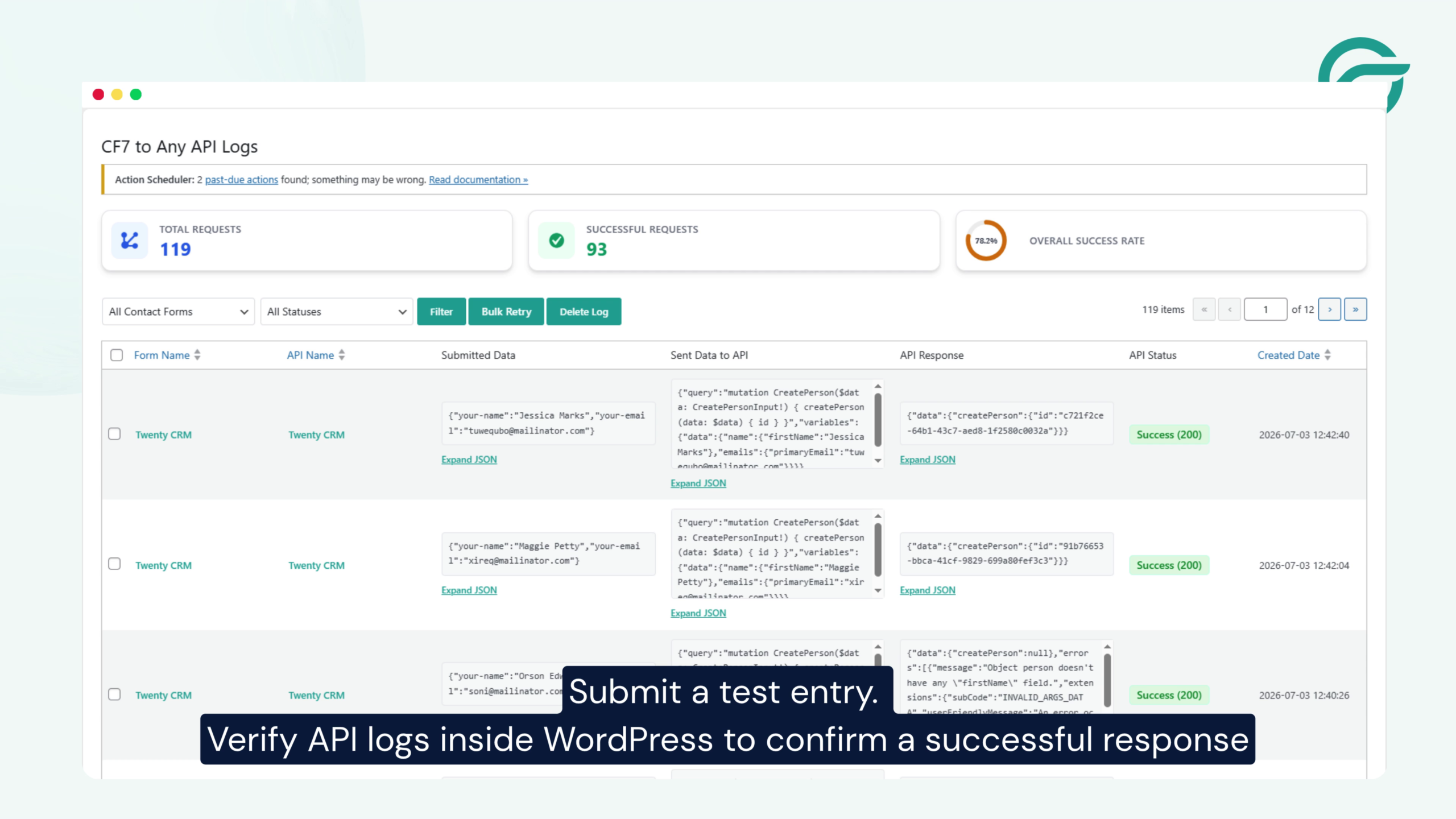
Submit a test entry using your Contact Form 7 form.
Then:
- Open the API Logs inside WordPress.
- Verify that the API request returned a successful response.
- Confirm that the new contact appears inside Twenty CRM.
If everything looks correct, your integration is complete.
Conclusion
Integrating Contact Form 7 with Twenty CRM is an effective way to automate lead management and improve your workflow. By using the Contact Form to Any API plugin, you can send every form submission directly to Twenty CRM through its GraphQL API, ensuring your sales team receives new leads instantly and your customer data stays organized.
Once configured, the integration runs automatically in the background, saving time, reducing manual work, and helping your business respond to prospects faster.
Frequently Asked Questions
1. What is the benefit of connecting Contact Form 7 with Twenty CRM?
Connecting Contact Form 7 with Twenty CRM automatically sends every form submission to your CRM, eliminating manual data entry. This helps your team respond to leads faster, maintain accurate customer records, and streamline sales workflows.
2. Can I integrate Contact Form 7 with Twenty CRM without Zapier?
Yes. You can connect Contact Form 7 directly to Twenty CRM using the Contact Form to API plugin. This approach sends form submissions straight to the Twenty CRM API without relying on third-party automation platforms like Zapier or Make.
3. What data can be sent from Contact Form 7 to Twenty CRM?
You can send virtually any form field, including:
- Name
- Email address
- Phone number
- Company name
- Job title
- Message
- Custom fields
- Hidden fields
- UTM parameters
As long as the field exists in Twenty CRM, it can be mapped during the integration.
4. Does Twenty CRM provide an API for integration?
Yes. Twenty CRM offers REST APIs that allow developers to create, update, and manage contacts, companies, and other CRM objects. Authentication is handled using API keys, making it straightforward to integrate with Contact Form 7.
5. Is coding required to connect Contact Form 7 with Twenty CRM?
No. Using the Contact Form to API plugin, you can configure the API endpoint, authentication, request headers, and field mapping directly from the WordPress dashboard without writing custom PHP code.
6. Can I map custom fields to Twenty CRM?
Yes. You can map Contact Form 7 fields to both standard and custom fields available in your Twenty CRM account, ensuring all relevant customer information is transferred correctly.
7. What are the common use cases for integrating Contact Form 7 with Twenty CRM?
Popular use cases include:
- Capturing website leads automatically
- Managing sales inquiries
- Collecting demo requests
- Processing consultation bookings
- Tracking partnership requests
- Managing customer support inquiries
- Centralizing contact information for follow-up
8. Is the integration secure?
Yes. Data is transmitted through HTTPS, and Twenty CRM authenticates API requests using secure API keys. You should always keep your API credentials private and avoid exposing them publicly.
9. Can I connect multiple Contact Form 7 forms to Twenty CRM?
Yes. You can configure separate integrations for multiple Contact Form 7 forms. Each form can send submissions to different objects, pipelines, or workflows depending on your business requirements.
10. What should I do if my Contact Form 7 submissions are not appearing in Twenty CRM?
Check the following:
- Verify your API key is correct.
- Confirm the API endpoint URL.
- Ensure field mappings match the CRM fields.
- Check request headers and authentication settings.
- Review the plugin logs for API errors.
Most integration issues are caused by incorrect authentication or field mapping.


