



Managing website inquiries manually can be time-consuming and may lead to missed leads or delayed follow-ups. By connecting Contact Form 7 with Relaticle CRM in WordPress, you can automatically send form submissions to your CRM, making it easier to organize contact details and manage incoming leads.
Integrating Contact Form 7 with Relaticle CRM helps you transfer form submissions from your WordPress website directly to your CRM. This integration can simplify lead management, reduce manual data entry, and help your team organize incoming inquiries more efficiently.
In this guide, we’ll walk you through the step-by-step process of setting up the integration using the Contact Form to Any API plugin, configuring API authentication, mapping form fields, and testing the connection to ensure everything works correctly.
Step 1: Sign In to Your Relaticle CRM Account
First, sign in to your Relaticle CRM account. You will need access to the CRM documentation and API settings to configure the integration.
Keep your Relaticle CRM account open so you can easily retrieve the API endpoint and generate an access token.
Step 2: Open Your WordPress Dashboard
Log in to your WordPress website and navigate to the administration dashboard.
Ensure that the Contact Form 7 and Contact Form to Any API plugins are installed and activated. Contact Form 7 will collect visitor information, while the API integration plugin will send that information to Relaticle CRM.
Step 3: Create a New API Integration
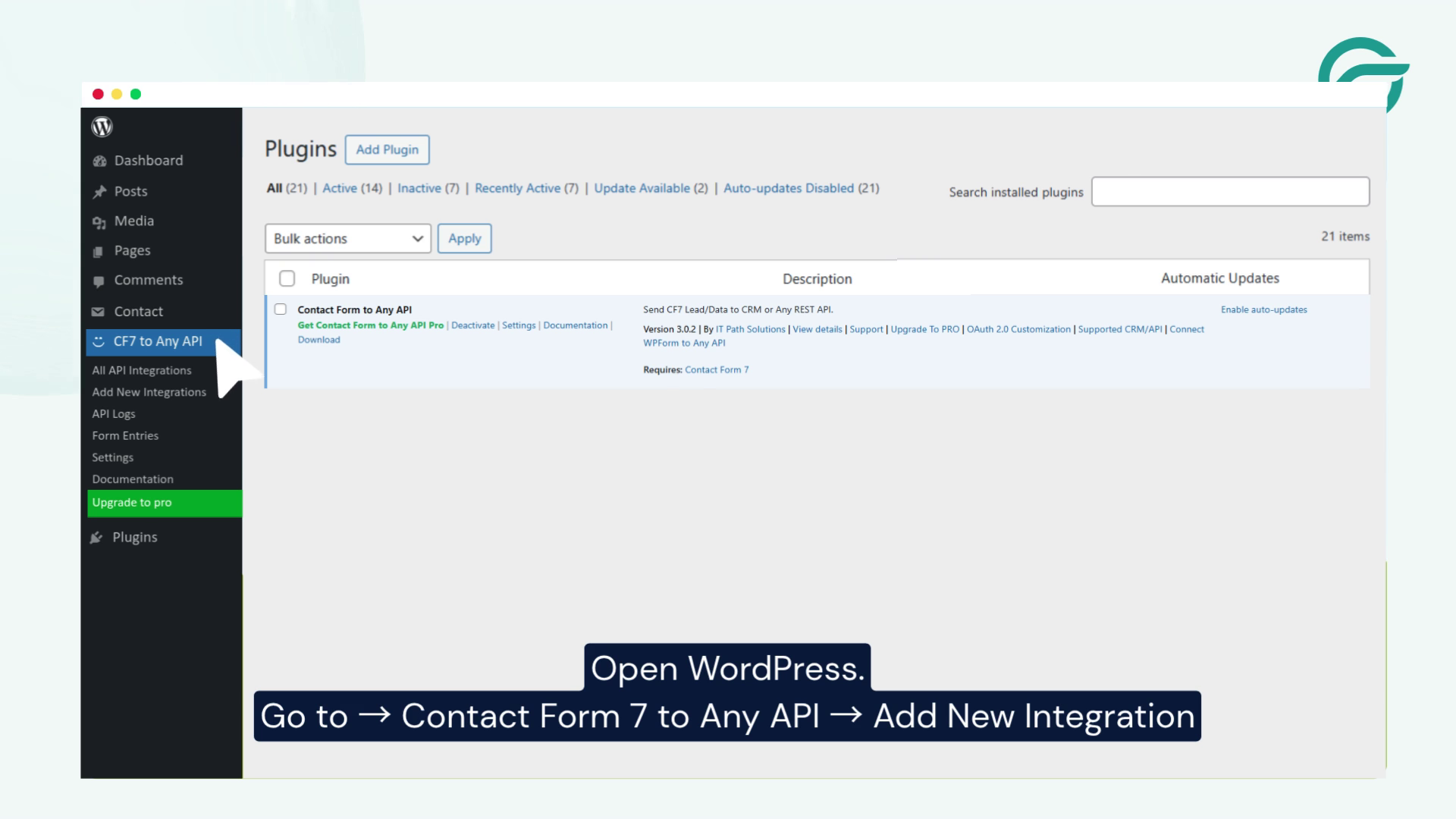
From your WordPress dashboard, navigate to:
Contact Form to Any API → Add New Integration
This will open the integration configuration screen, where you can define how WordPress communicates with Relaticle CRM.
Step 4: Enter an Integration Title
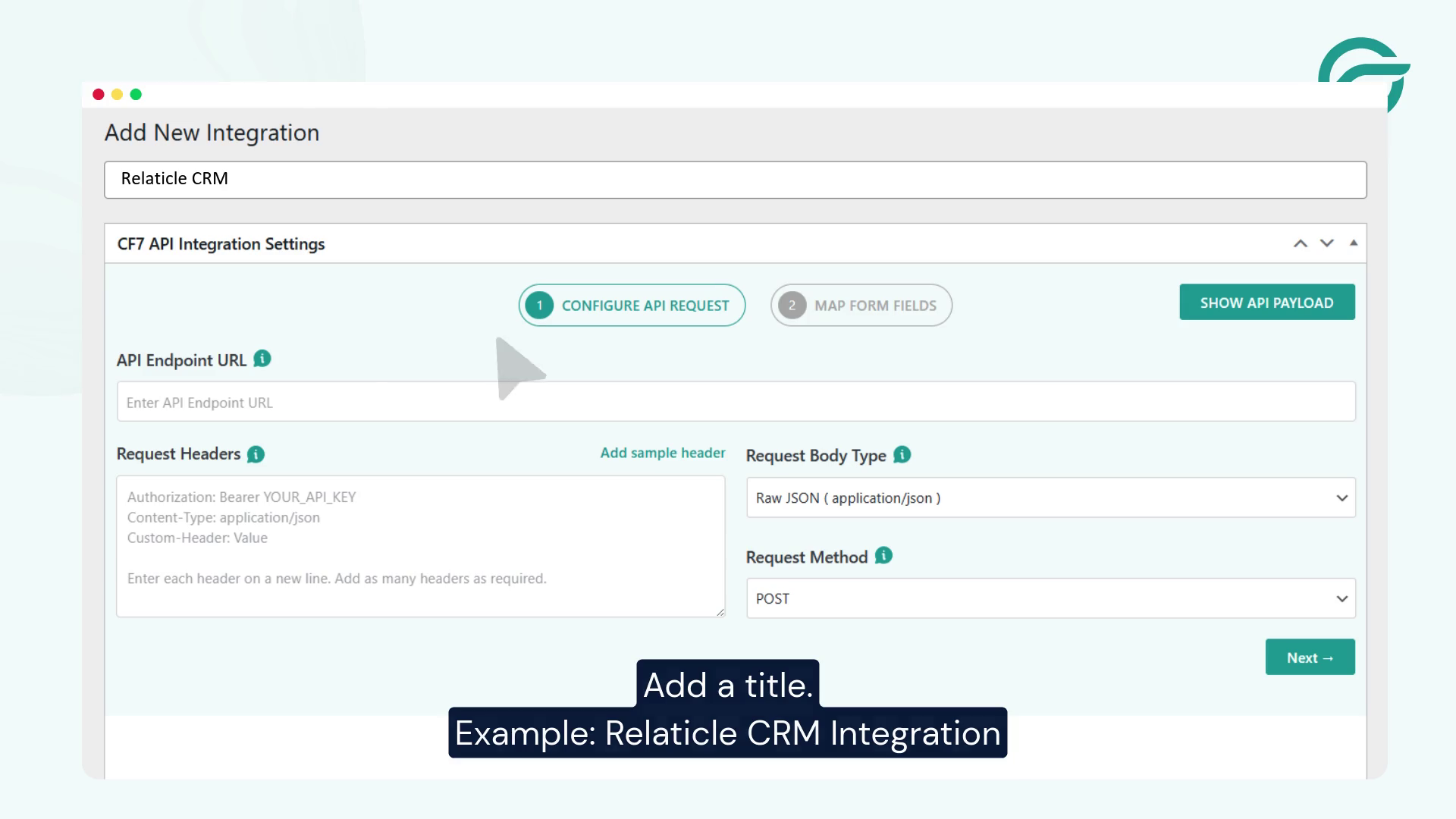
Provide a descriptive name for your integration so you can identify it easily later.
For example:
Relaticle CRM Integration
The title is used to organize your integration settings within WordPress. Choose a name that clearly identifies the connected CRM.
Step 5: Find the Relaticle CRM API Endpoint
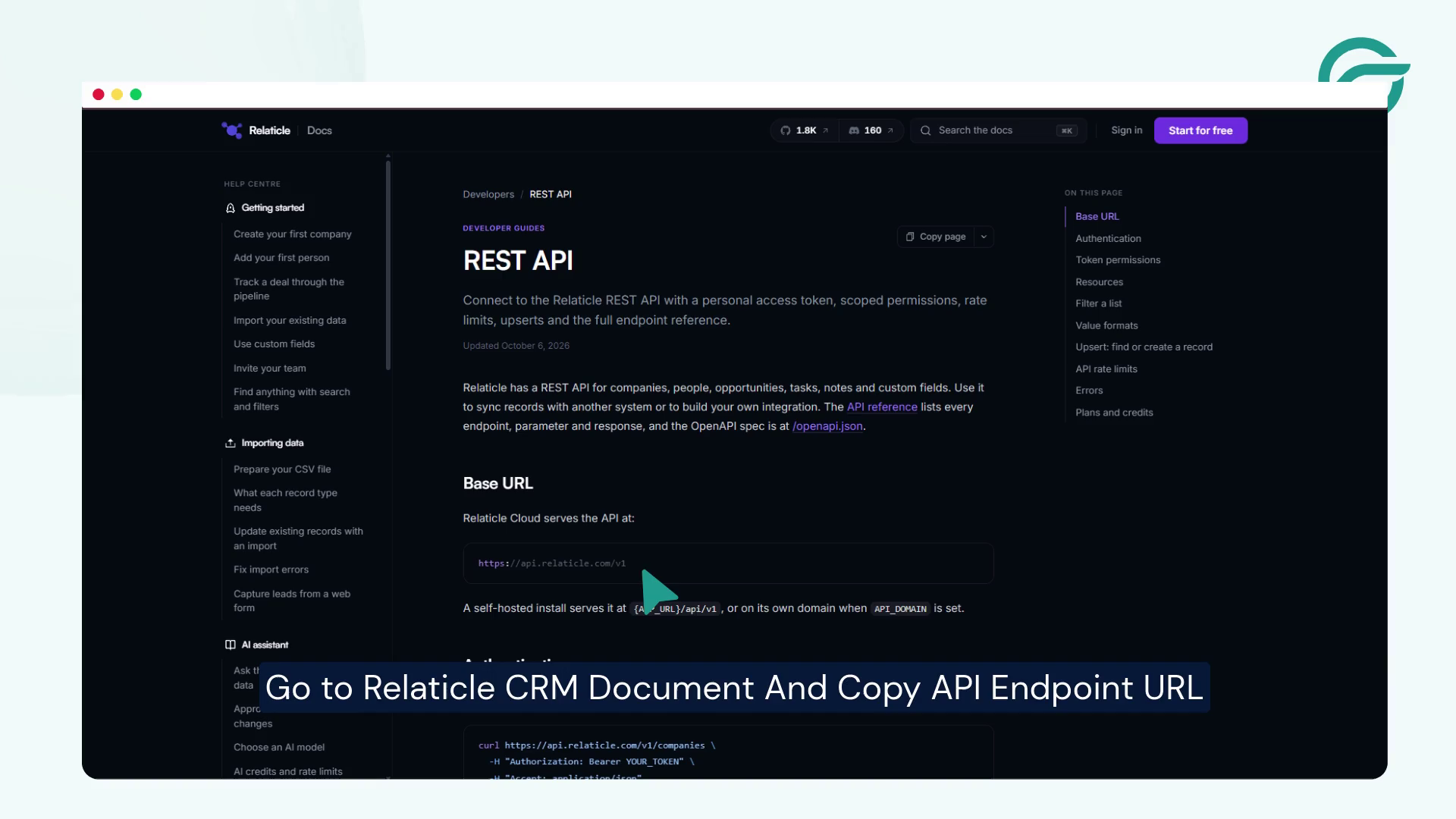
Go To Relaticle CRM Document And Copy API Endpoint URL
Step 6: Configure the API Endpoint URL
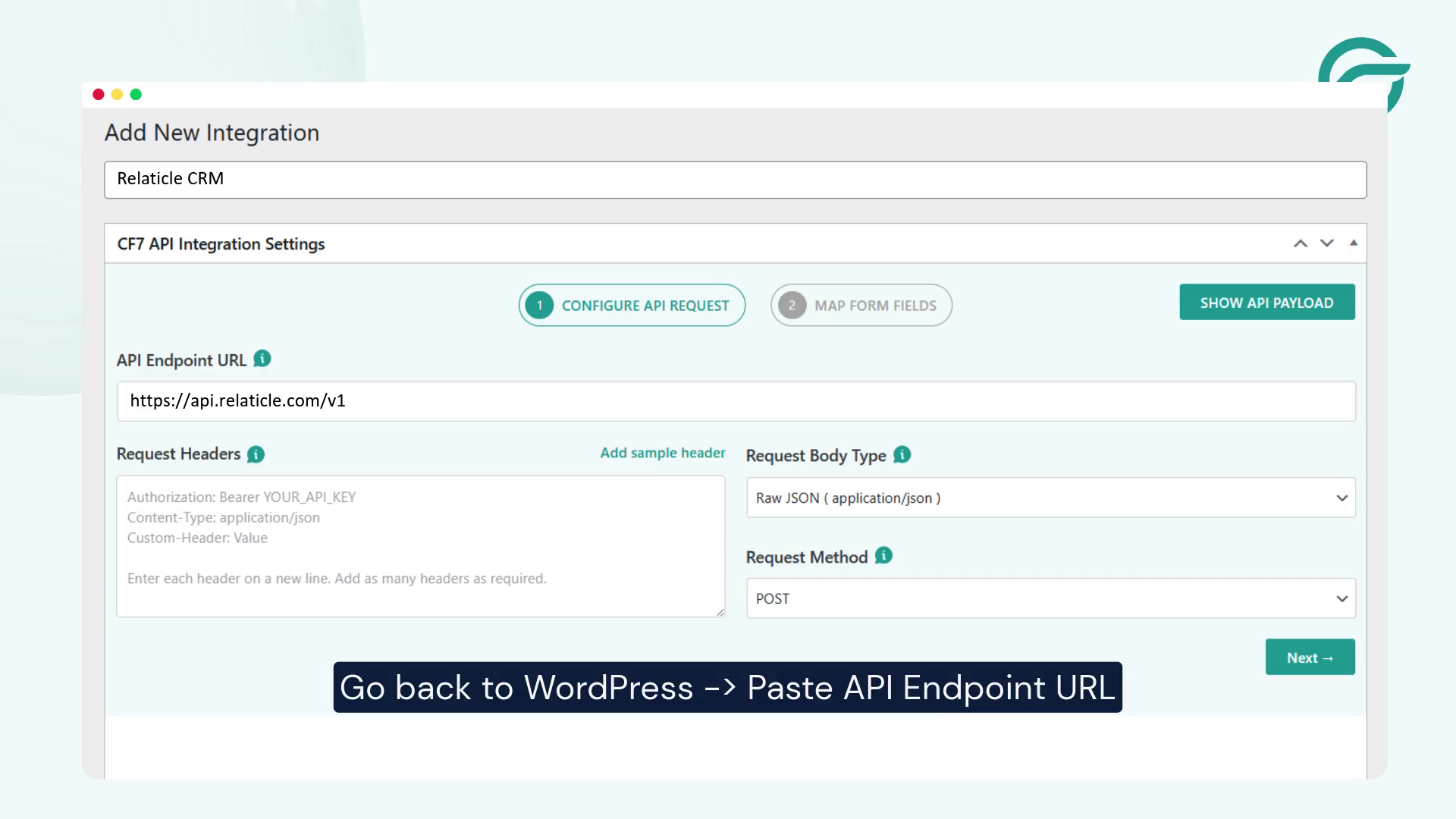
In your Contact Form to Any API integration settings, locate the API Endpoint URL field.
Paste the copied URL: https://api.relaticle.com/v1
Step 7: Generate an Access Token in Relaticle CRM
For Request Header. Relaticle CRM requires authentication to authorize API requests. To generate an access token, follow these steps:
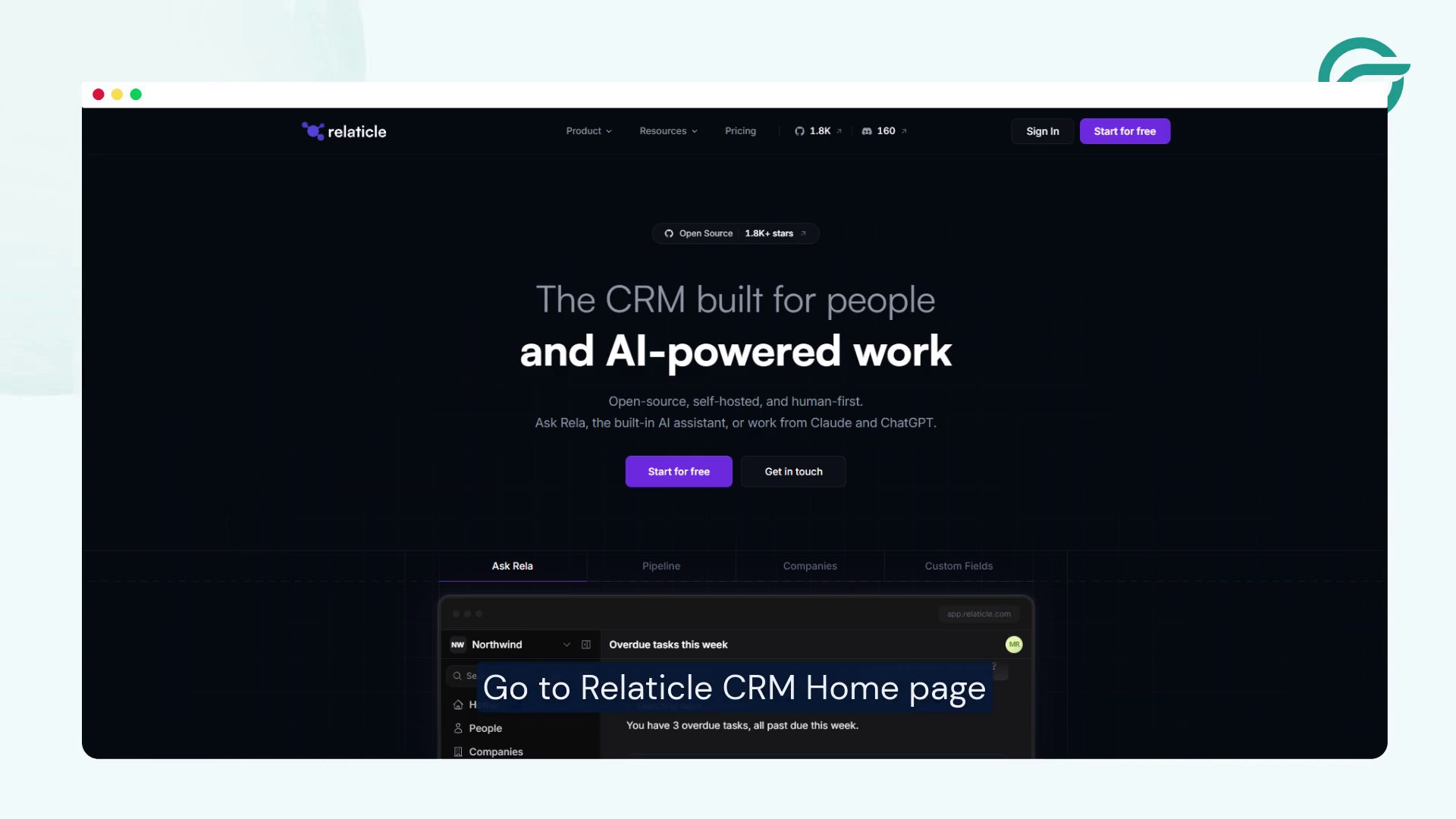
Go to Relaticle CRM Home Page ->
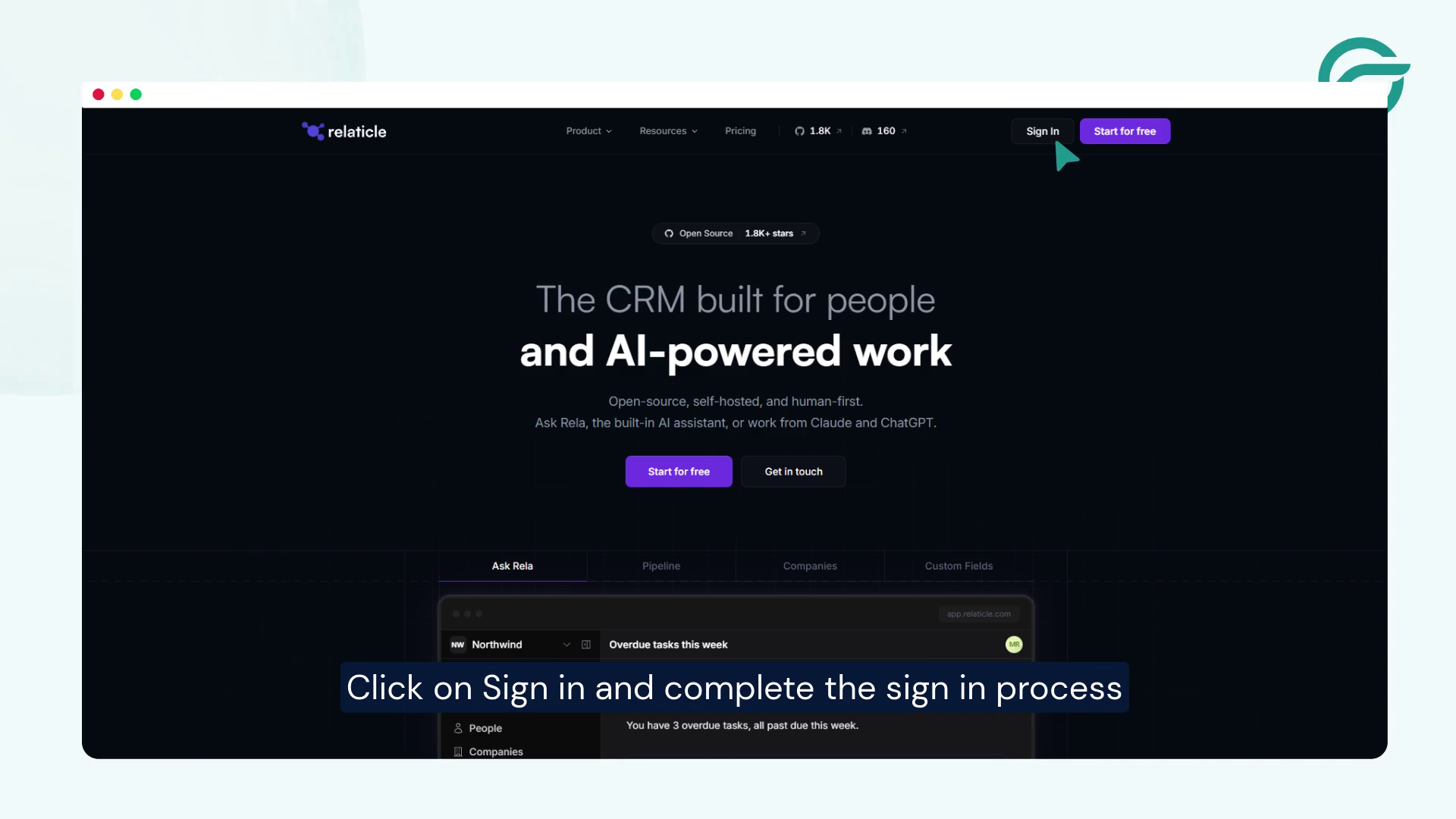
Click on Sign in and complete the sign in process

Relaticle Landing Page – > Click your profile avatar in the top-right corner.
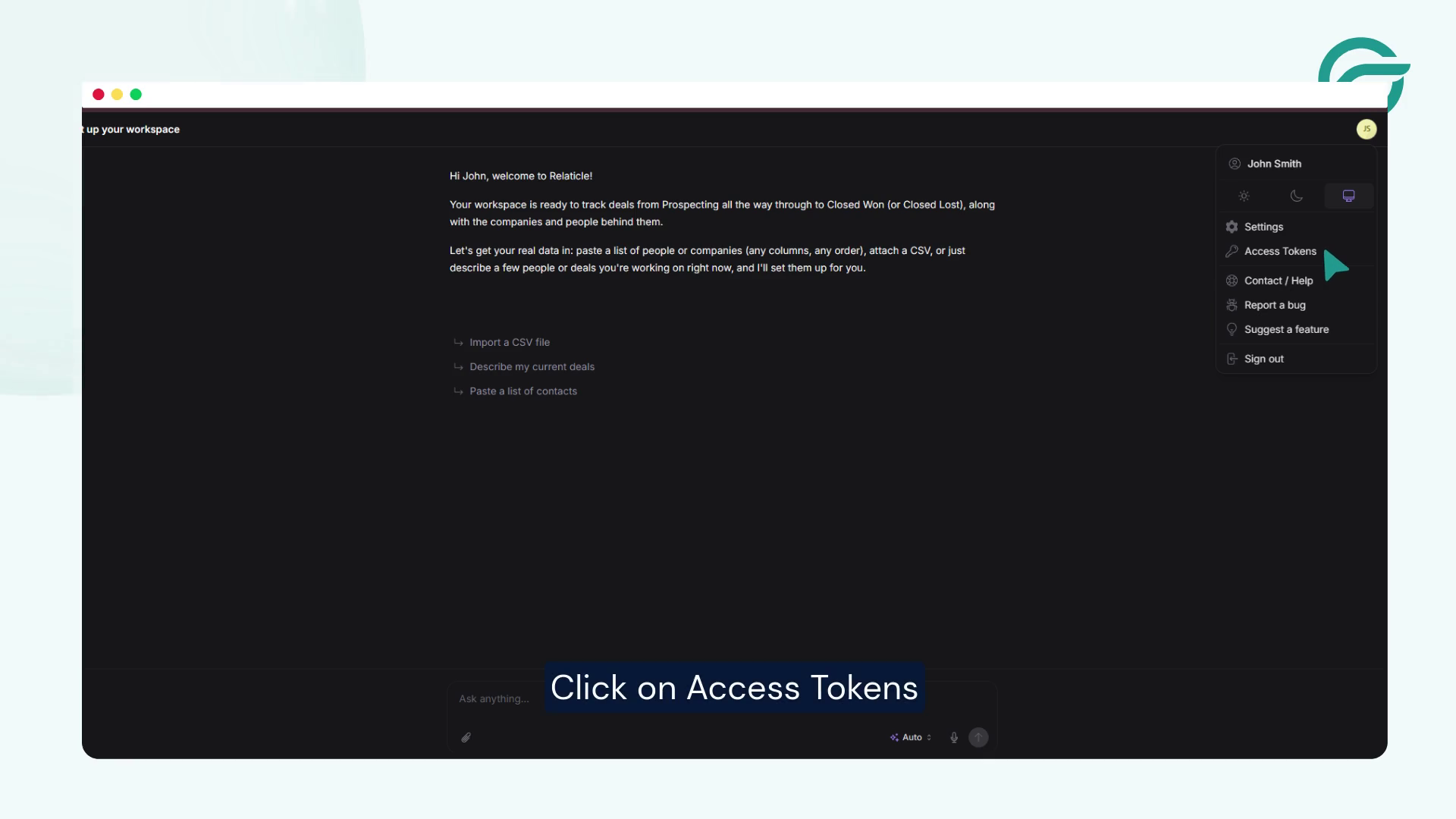
Click on Access Tokens
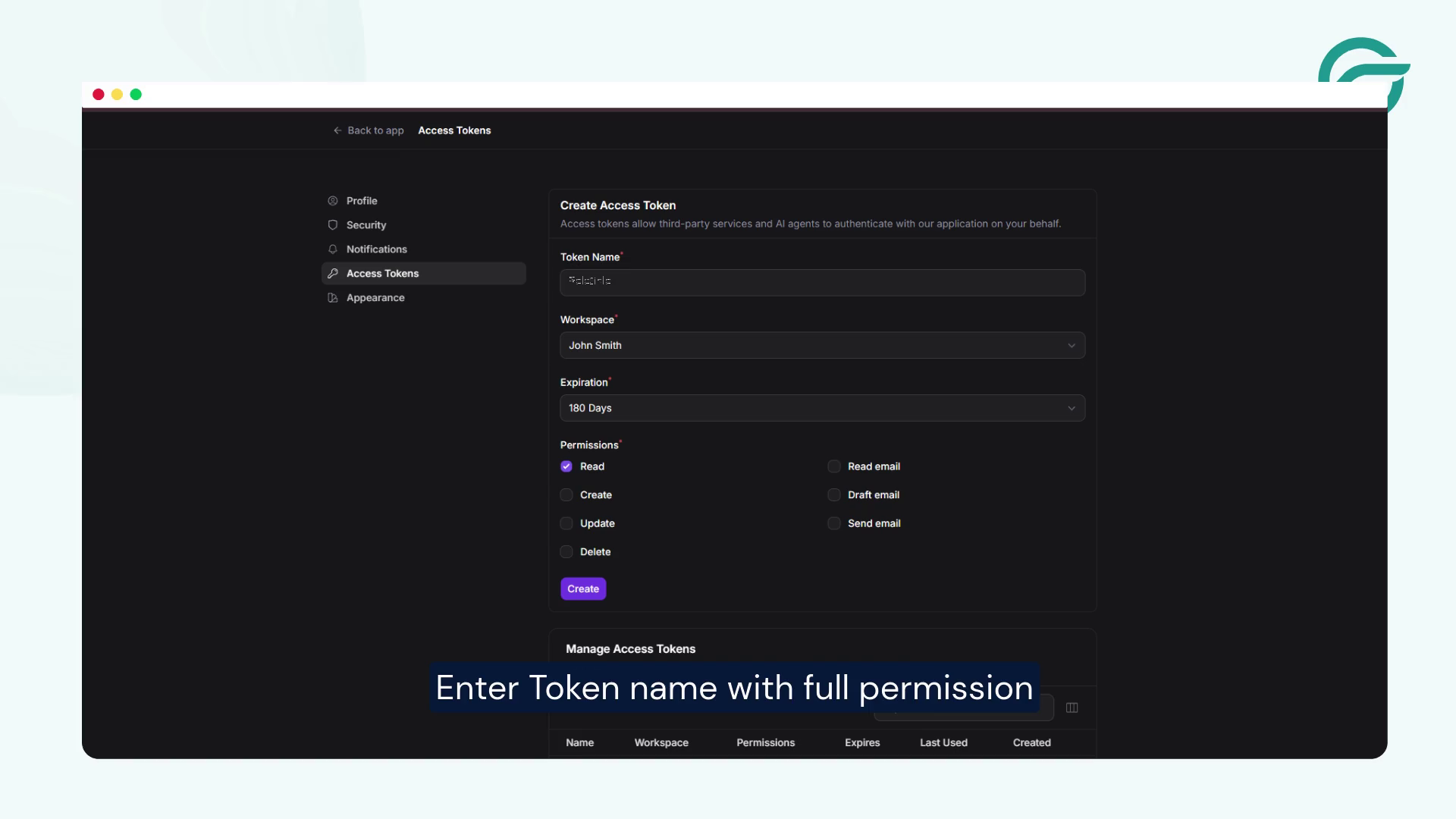
Enter Token name with full permission
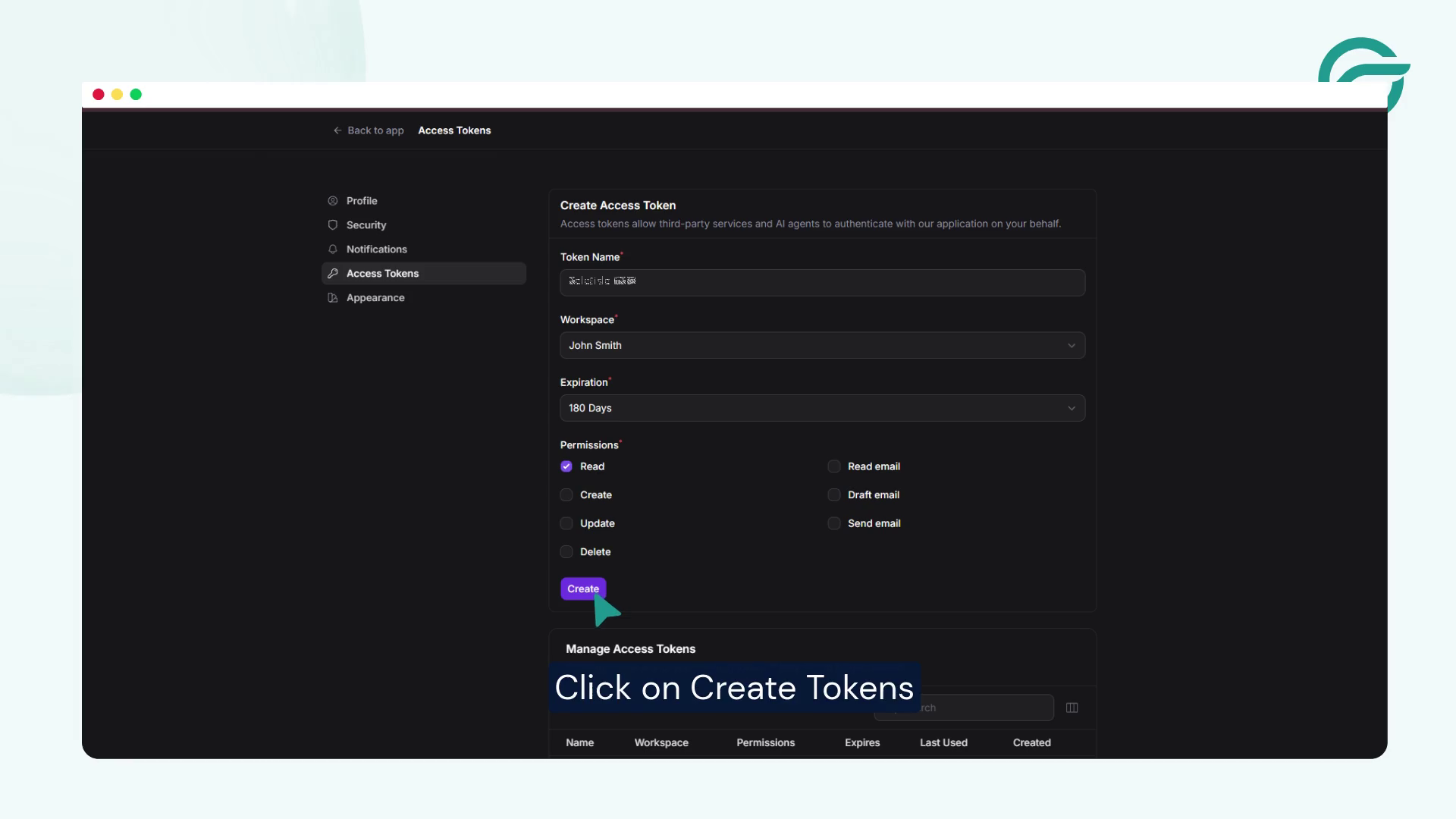
Click on Create Tokens
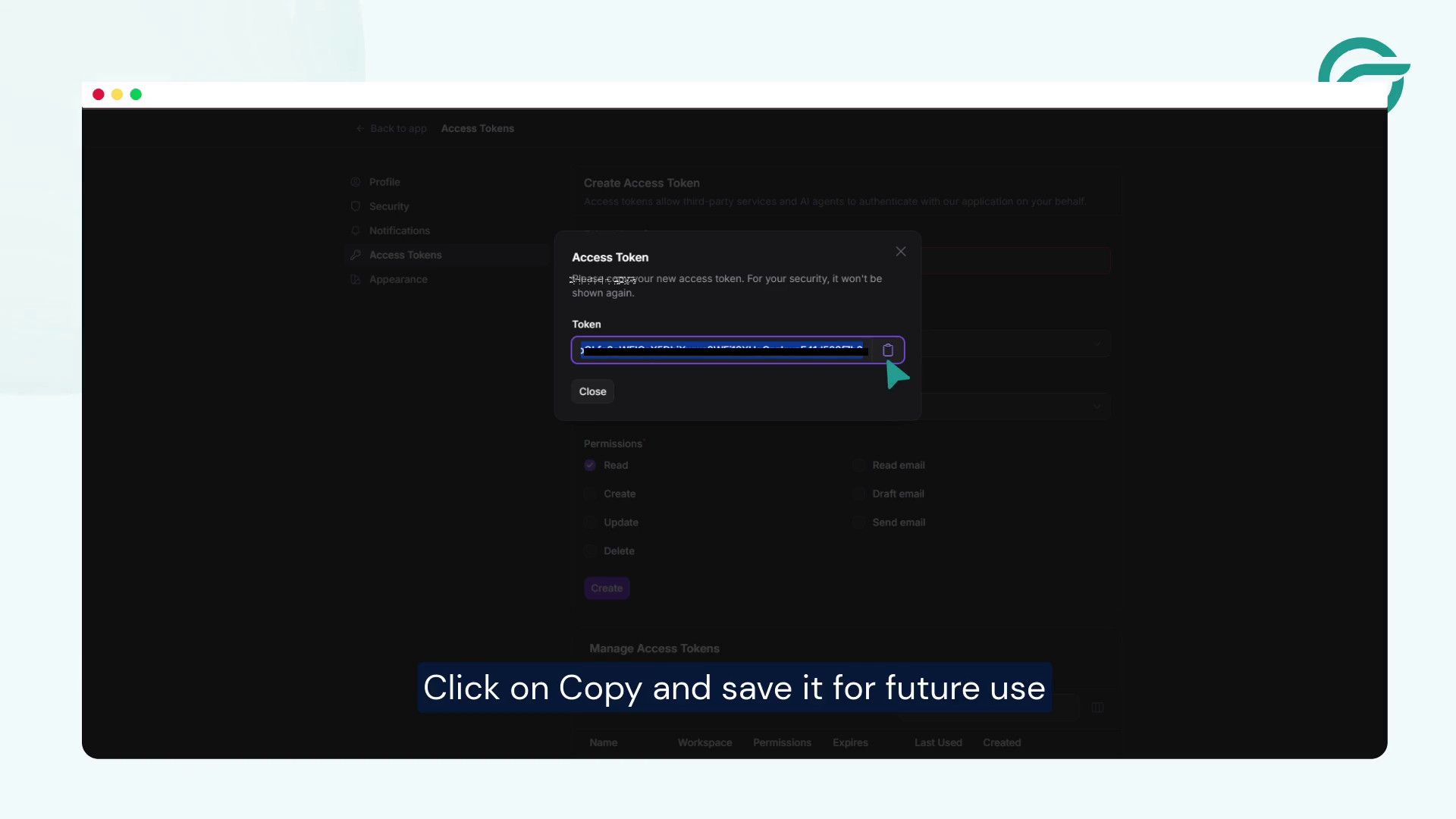
Click on Copy and save it for future use.
Step 8: Add the Request Header in WordPress
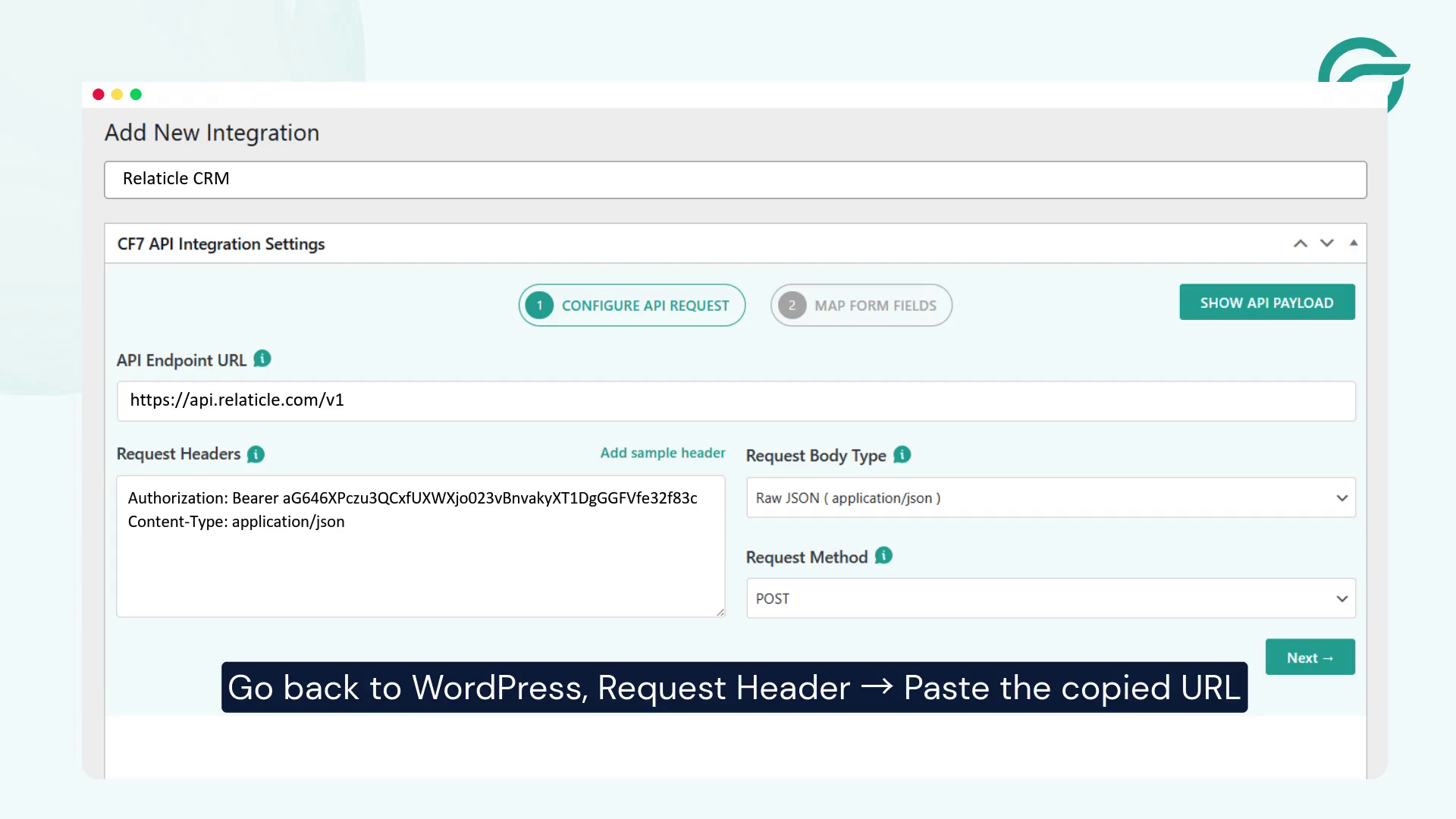
Go back to WordPress, Request Header -> Paste the copied URL in the “Request Headers” field
Click Next to the button.
Step 9: Select Your Contact Form 7 Form
After configuring the endpoint and request headers, locate the Select Contact Form option.
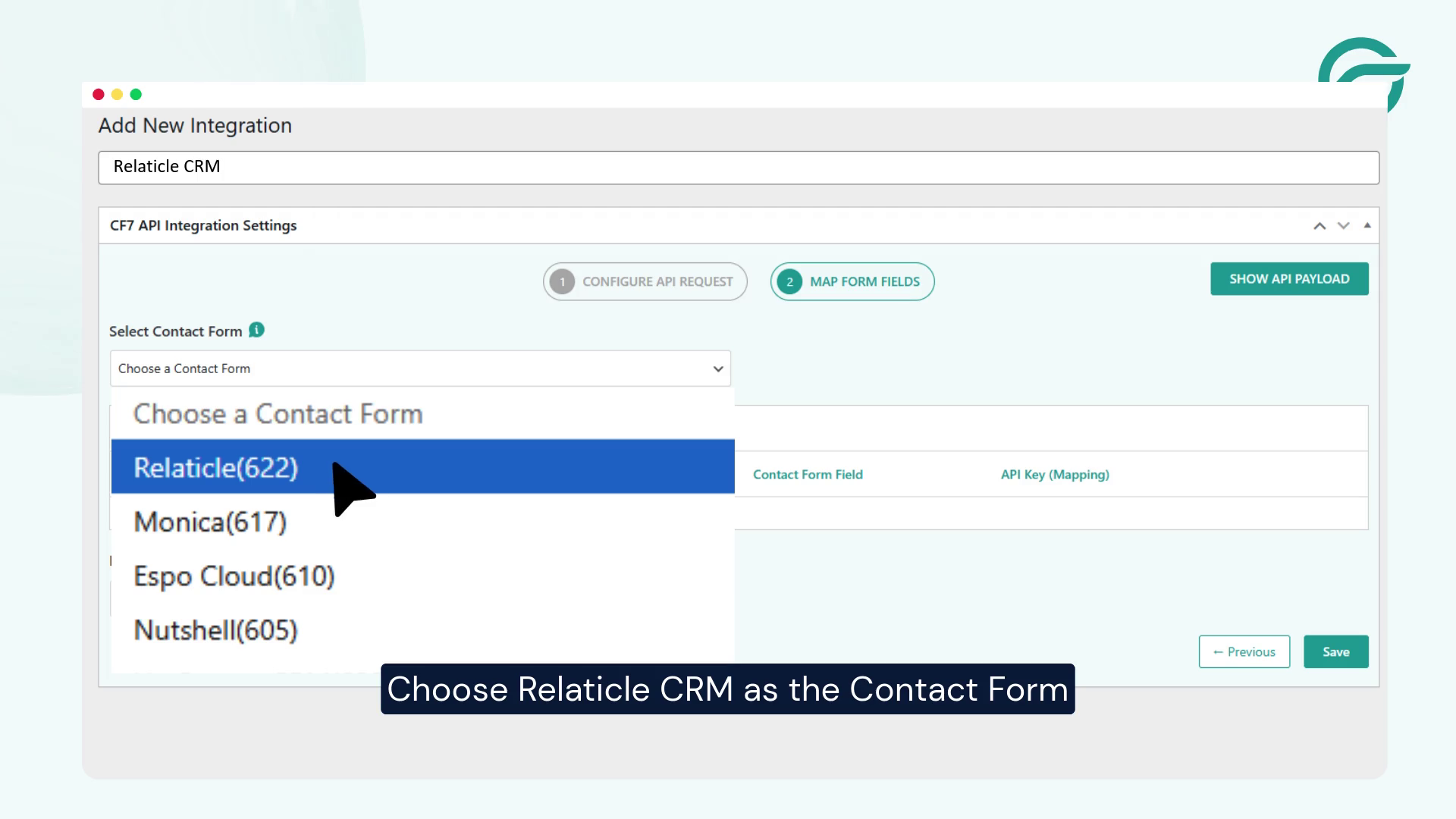
Choose Relaticle CRM as the Contact Form.
Step 10: Map Form Fields to Relaticle CRM Fields
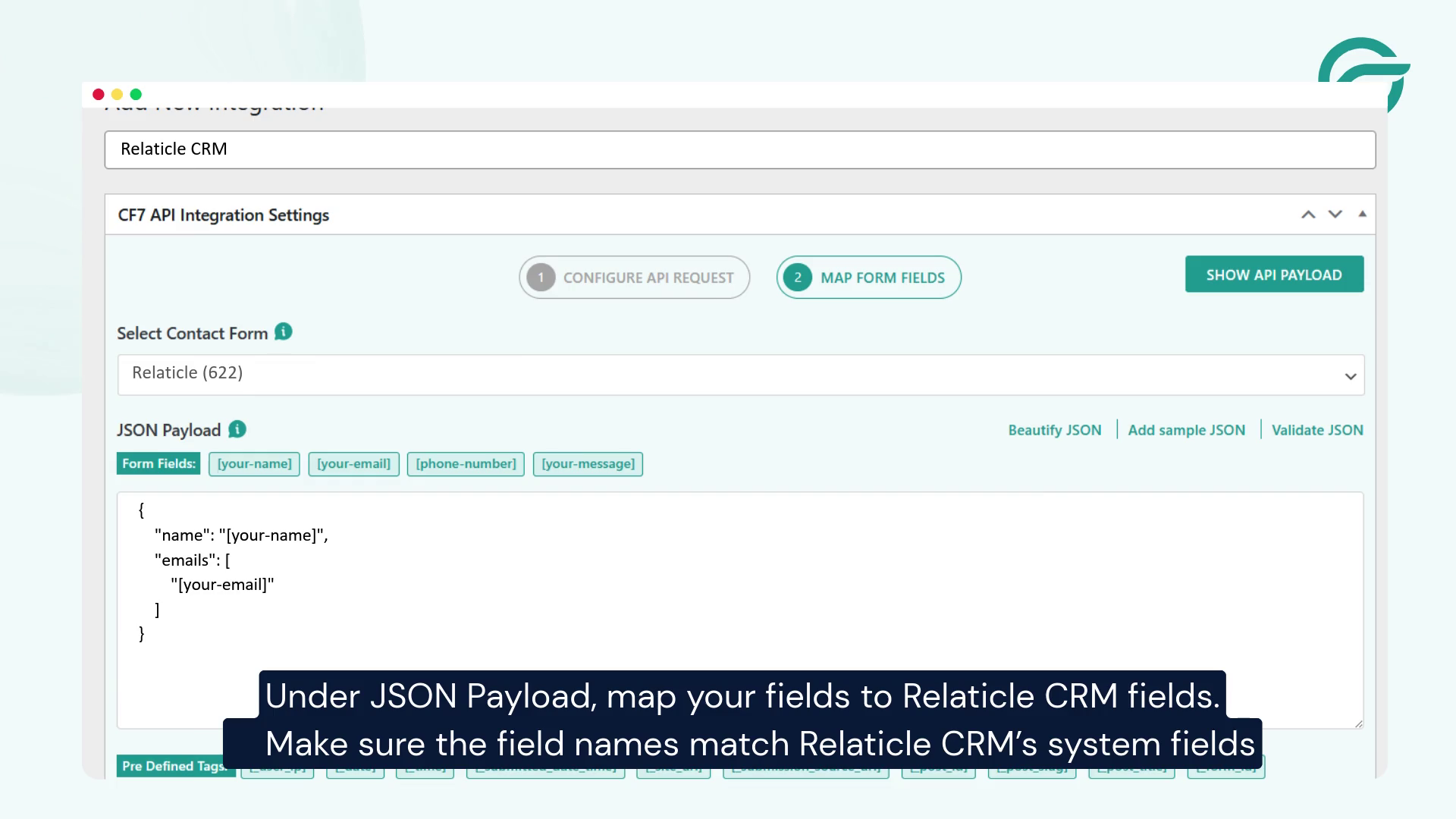
Under JSON Payload, map your fields to Relaticle CRM fields.
Make sure the field names match Relaticle CRM’s system fields
For example, a basic JSON payload might look like this:
{
“name”: “[your-name]”,
“email”: “[your-email]”,
“phone”: “[your-phone]”,
“message”: “[your-message]”
}
Step 11: Submit a Test Entry and Verify the Integration
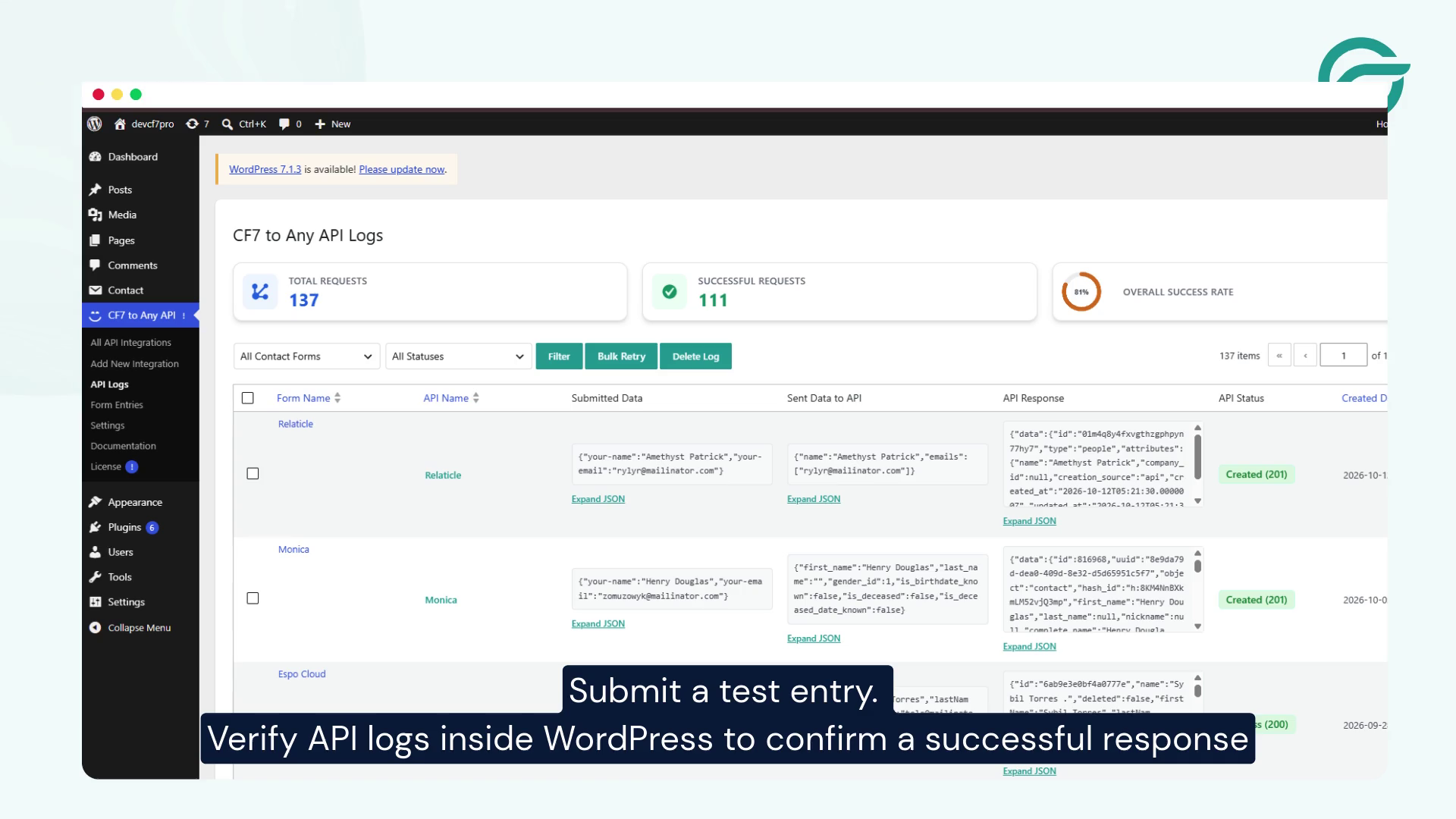
Submit a test entry. Verify API logs inside WordPress to confirm a successful response.
Conclusion
Connecting Contact Form 7 with Relaticle CRM helps automate lead collection, reduce manual data entry, and keep your contact information organized. By configuring the API endpoint, authentication token, and form field mapping correctly, you can streamline the process of transferring website inquiries directly to your CRM.
To simplify integrations between WordPress forms and external applications, you can also explore Contact Form to Any API, a useful solution for connecting your website forms with different APIs and automating data transfer. This can help you build a more efficient workflow while reducing repetitive manual tasks.
Frequently Asked Questions
What are the benefits of integrating Contact Form 7 with Relaticle CRM?
Integrating Contact Form 7 with Relaticle CRM helps automate lead collection, reduce manual data entry, centralize contact information, and make it easier to manage website inquiries and follow-ups.
Who should use Contact Form 7 with Relaticle CRM?
This integration is useful for businesses, marketing teams, sales professionals, and service providers who use WordPress forms to collect customer inquiries, leads, and contact details.
What types of data can be transferred from Contact Form 7 to Relaticle CRM?
Depending on your form configuration and the CRM API’s supported fields, you can transfer information such as names, email addresses, phone numbers, company details, and customer messages.
Can this integration help businesses manage leads more efficiently?
Yes. By sending form submissions to Relaticle CRM, businesses can keep incoming leads organized in one place, making it easier to review inquiries, coordinate follow-ups, and manage customer relationships.
Do I need coding knowledge to connect Contact Form 7 with Relaticle CRM?
Basic integration can be configured using the Contact Form to Any API plugin without writing a complete custom integration. However, understanding API authentication, JSON payloads, and field mapping can help when troubleshooting advanced issues.
Can I connect multiple Contact Form 7 forms to Relaticle CRM?
Yes, multiple forms may be connected by configuring separate integrations, depending on the plugin’s capabilities. Each integration can be configured to send the relevant form data to the appropriate CRM endpoint.


