



Contact Form 7 is a popular WordPress plugin for creating website forms, while Monica CRM helps you manage your contacts and customer relationships. Connecting these tools allows you to send form submissions from your WordPress website to Monica CRM through an API integration.
By using the Contact Form to Any API plugin, you can configure the API endpoint, authenticate your requests with an API token, and map form fields to the appropriate CRM fields. This integration helps streamline contact management and reduces the need to transfer form submission data manually.
In this guide, you will learn how to connect Contact Form 7 with Monica CRM in WordPress, configure the API settings, map form fields, and test the integration.
Watch the Video Tutorial: CF7 with Monica CRM Integration (Step-by-Step)
Before following the written steps, you can watch the complete integration setup in this quick video tutorial.
Step 1: Sign In to Monica CRM
First, sign in to your Monica CRM account. You will need access to the account settings to generate an API token for authentication.
Keep your Monica CRM account open, as you will need to return to it during the integration process.
Step 2: Open WordPress
Log in to your WordPress admin dashboard.
From the dashboard, locate the Contact Form to Any API plugin. Make sure the plugin is installed and activated before proceeding.
Step 3: Create a New API Integration
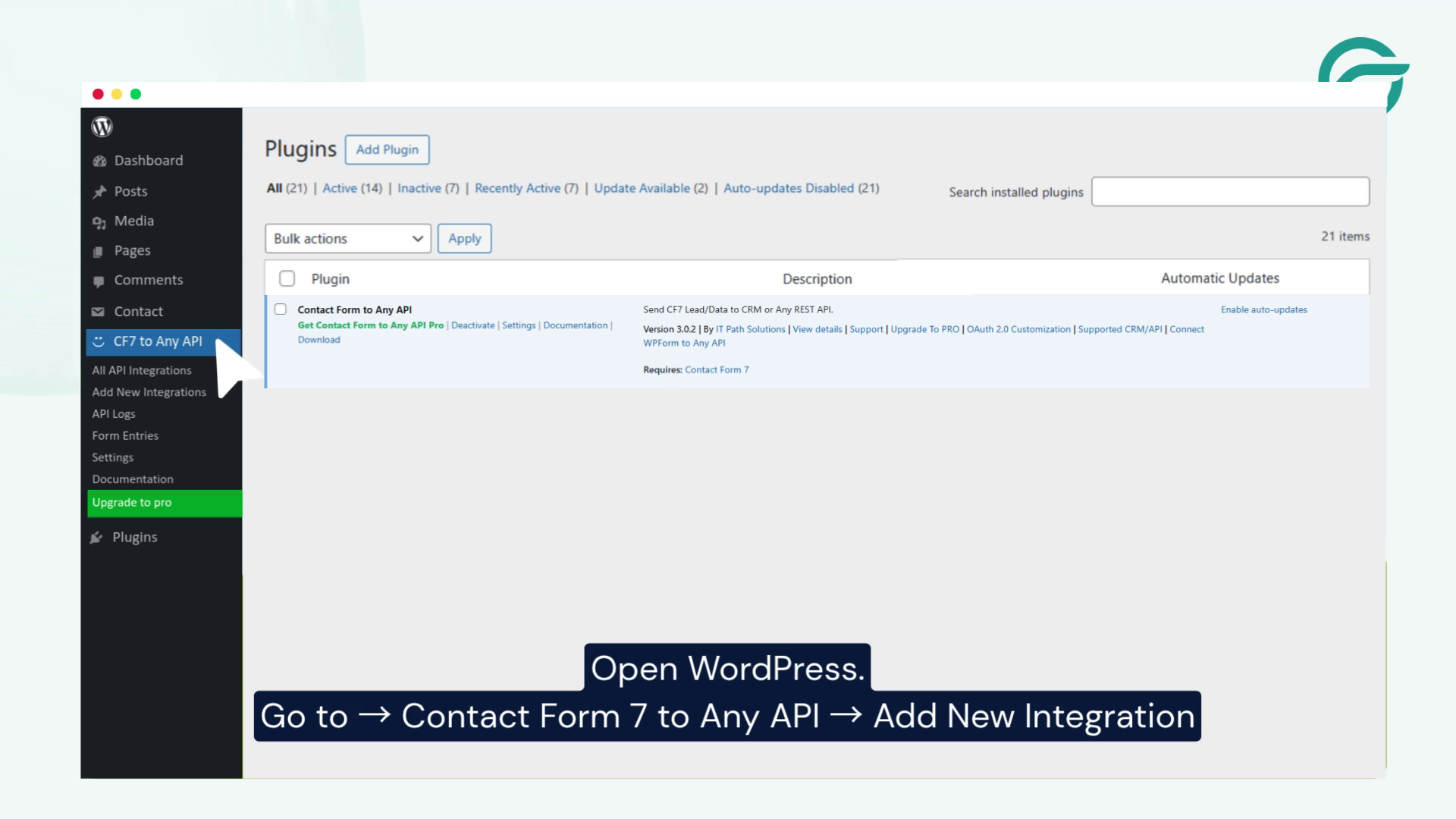
Navigate to Contact Form to Any API → Add New Integration.
This will open the integration configuration screen, where you can define how your WordPress form communicates with Monica CRM.
Step 4: Enter an Integration Title
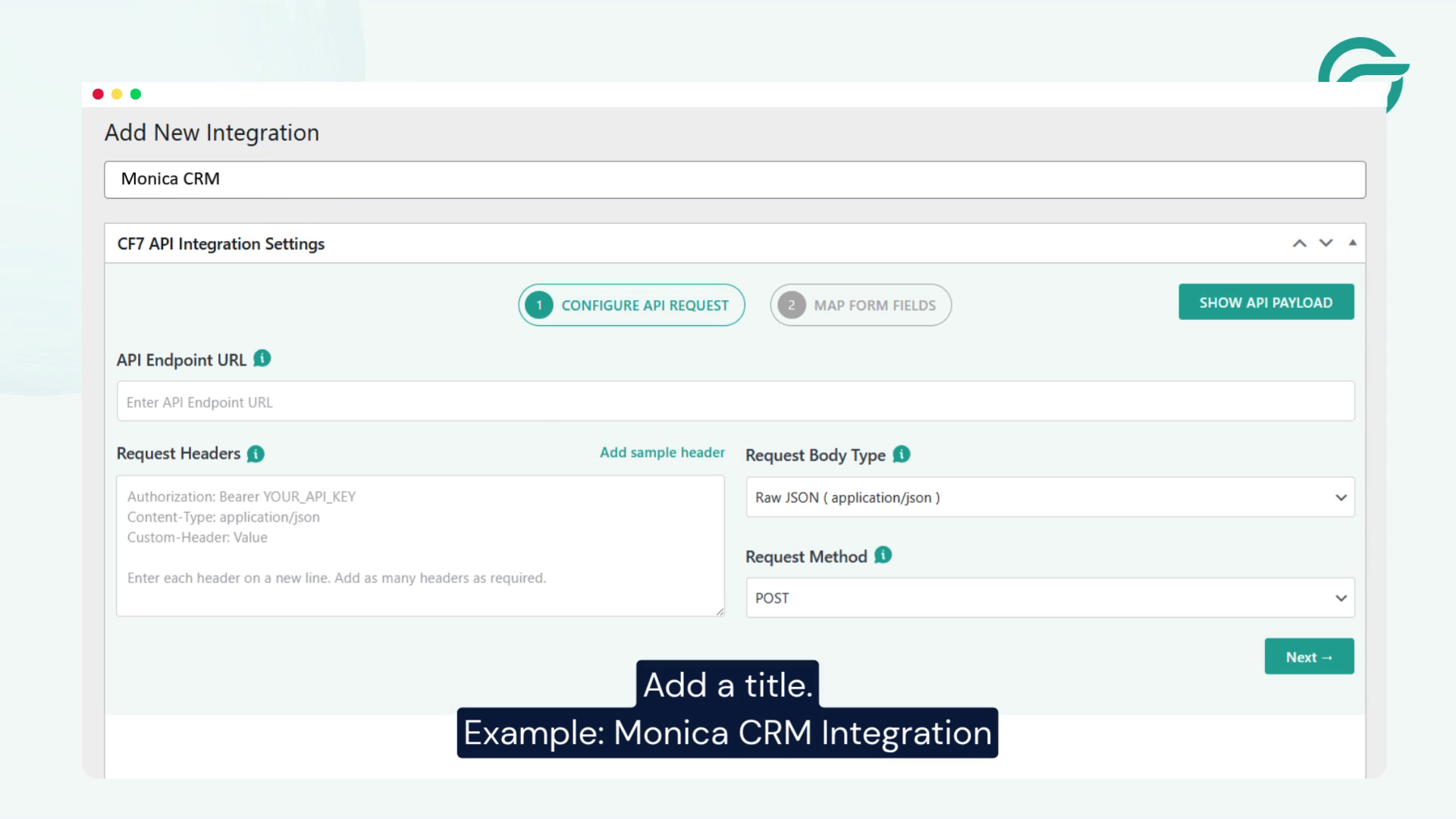
Enter a descriptive title for your integration so you can easily identify it later.
For example:
Monica CRM Integration
Using a clear title helps you distinguish this integration from other API connections you may configure on your website.
Step 5: Find the Monica CRM API Endpoint
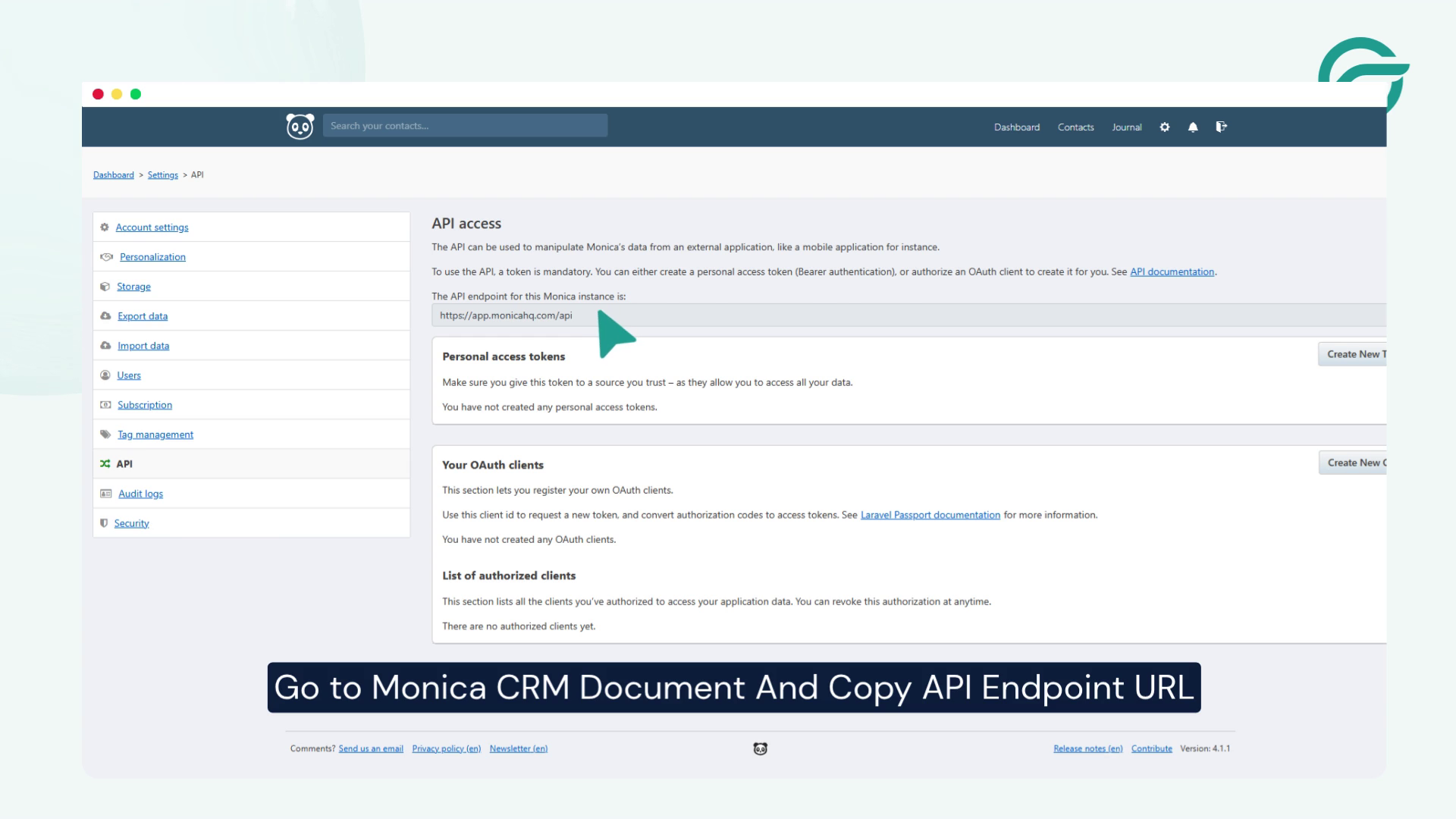
Go To Monica CRM Document And Copy API Endpoint URL
Step 6: Configure the API Endpoint in WordPress
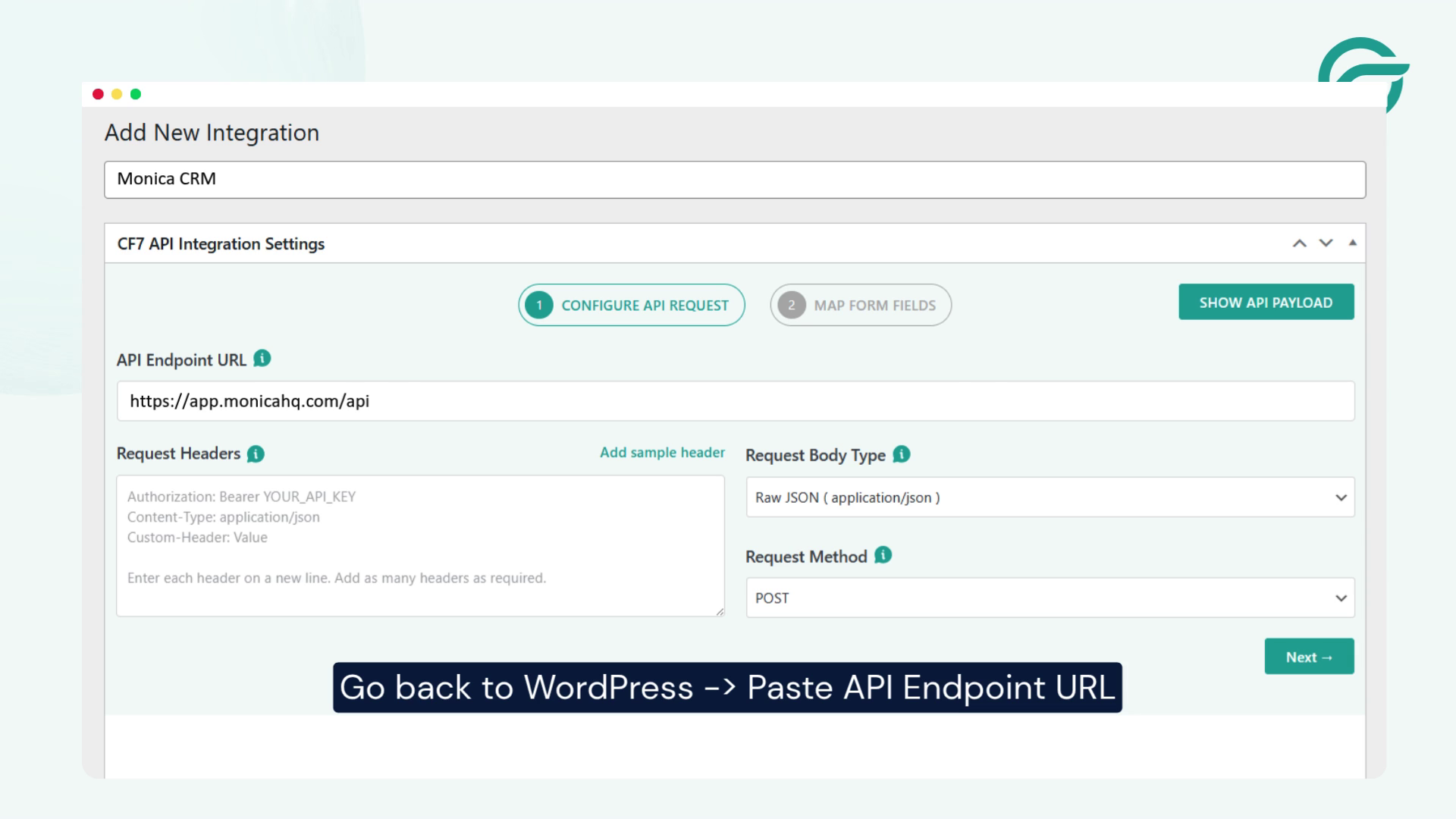
Go back to WordPress -> API Endpoint URL
Paste the copied URL: https://app.monicahq.com/api
This setting tells WordPress where to send the form submission data.
Step 7: Generate an API Token in Monica CRM
For Request Header
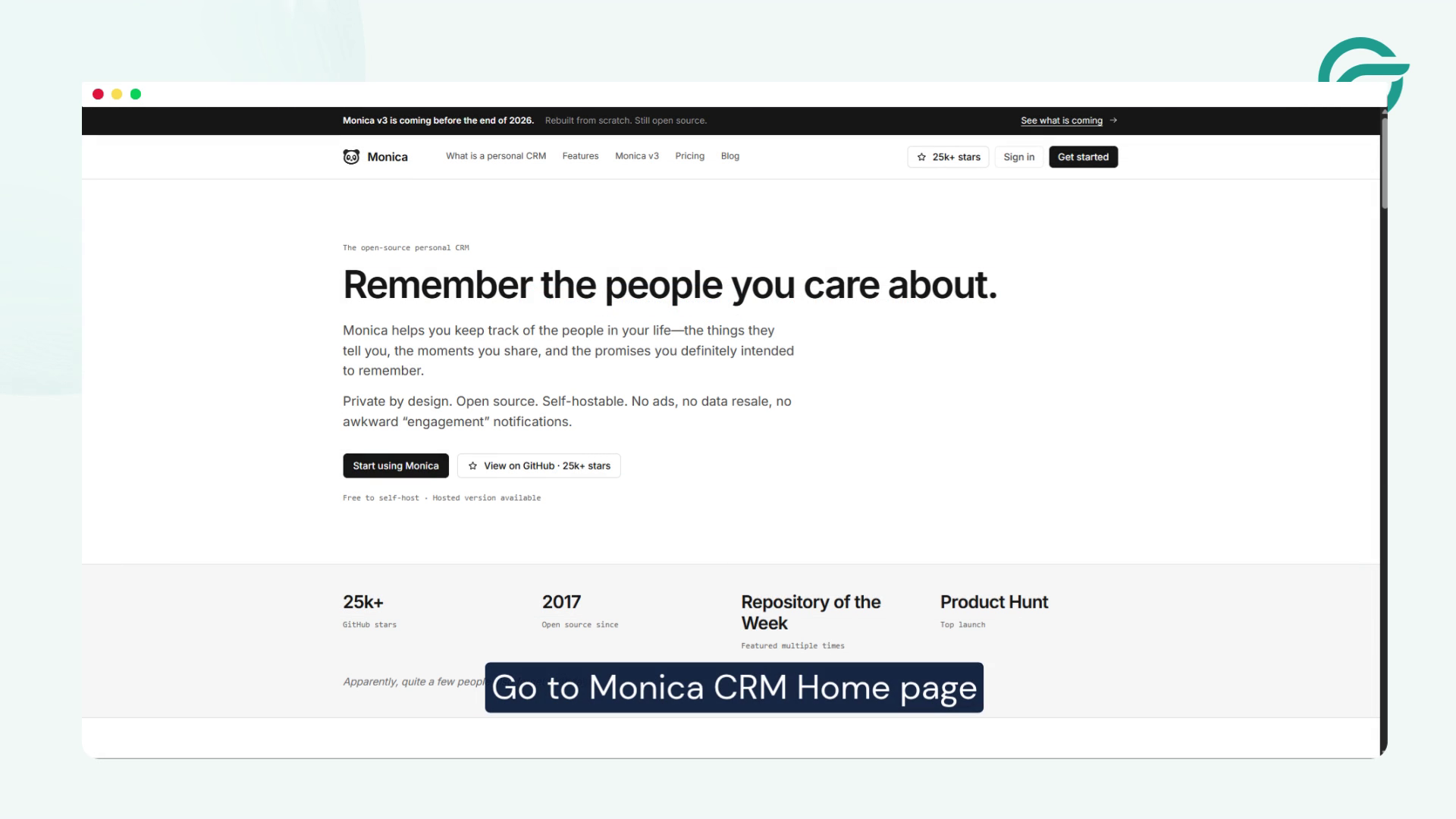
Go to Monica CRM Home page ->
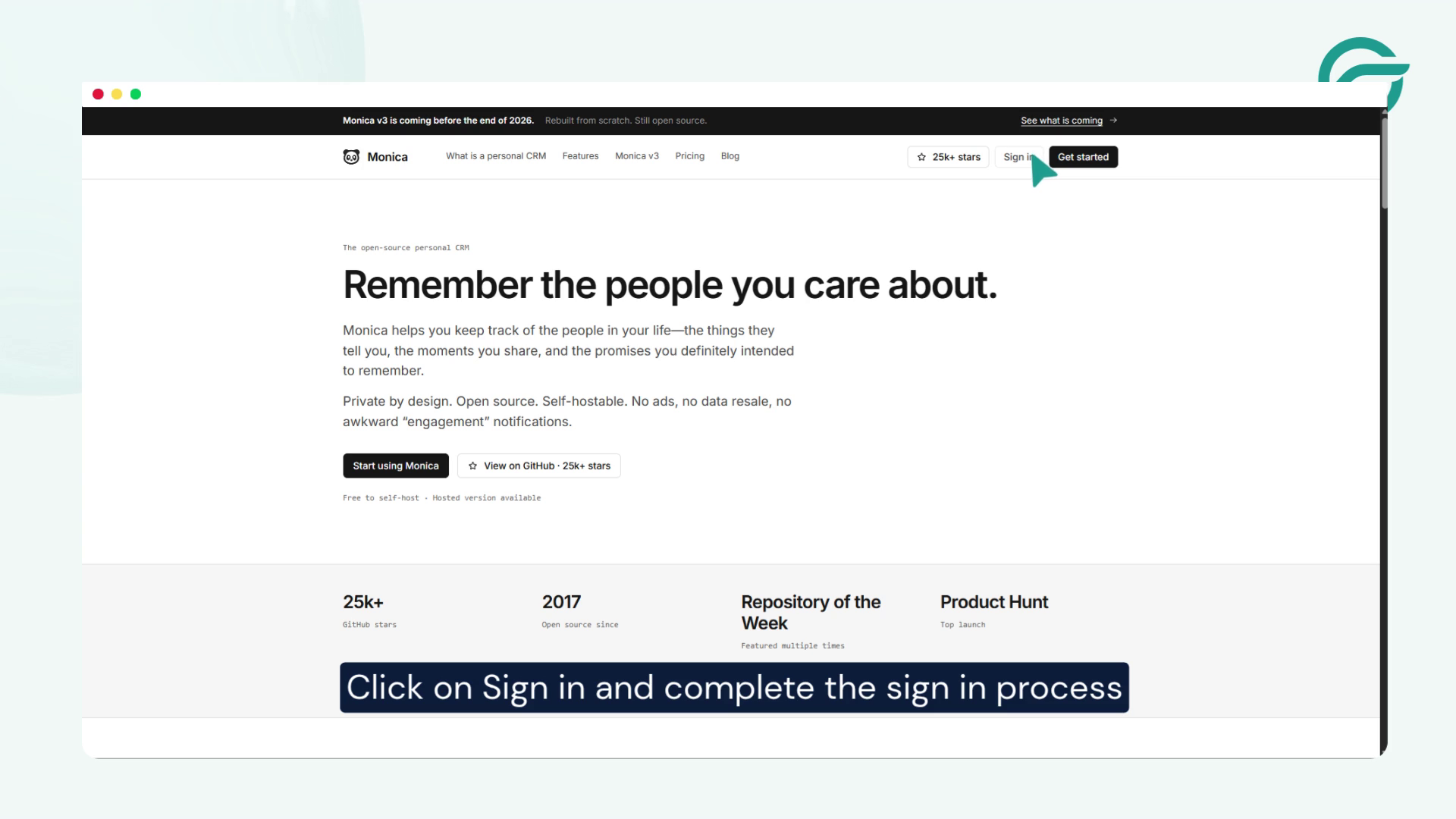
Click on Sign in and complete the sign in process
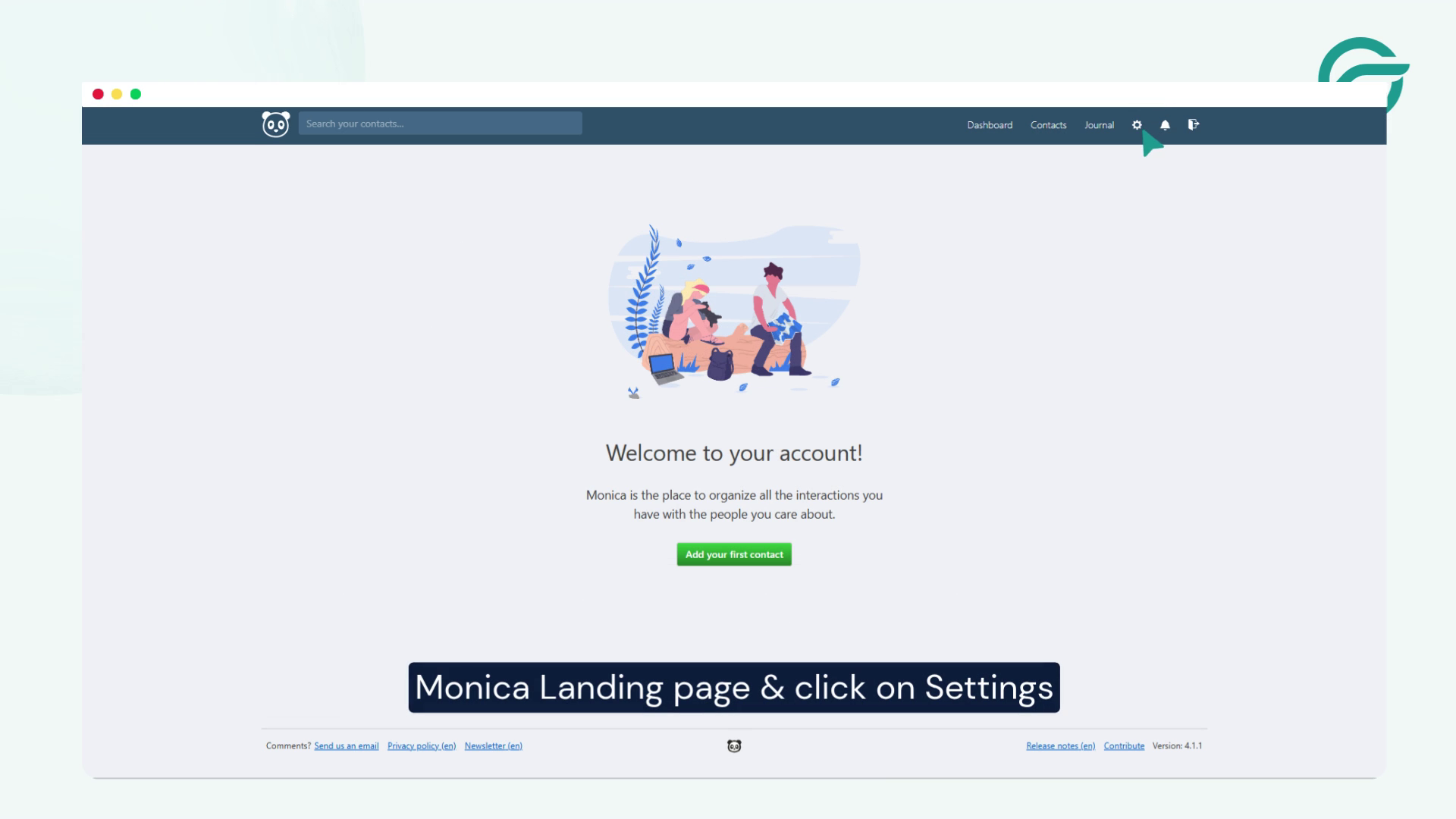
Monica Landing page & click on Settings
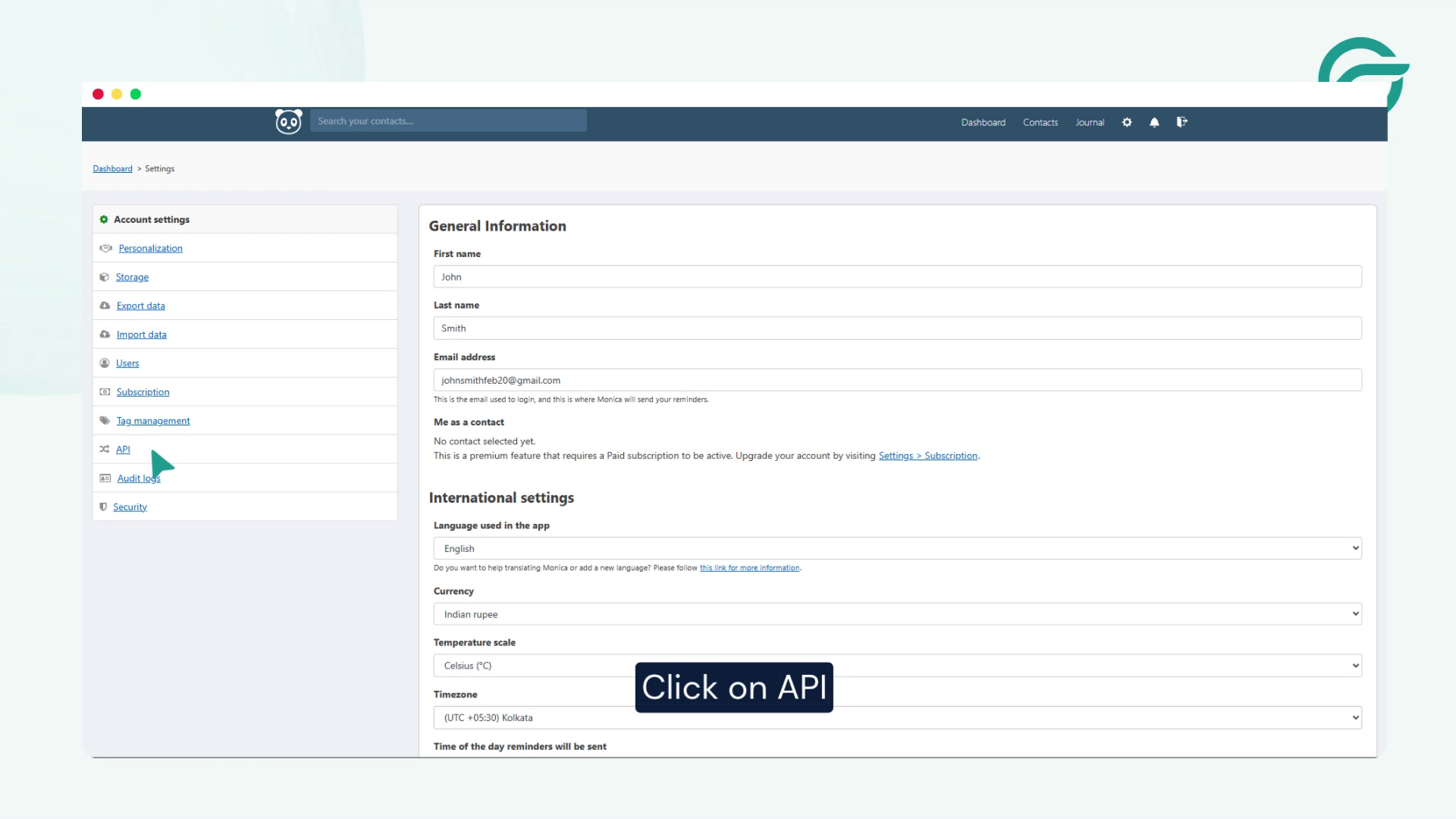
Click on API ->
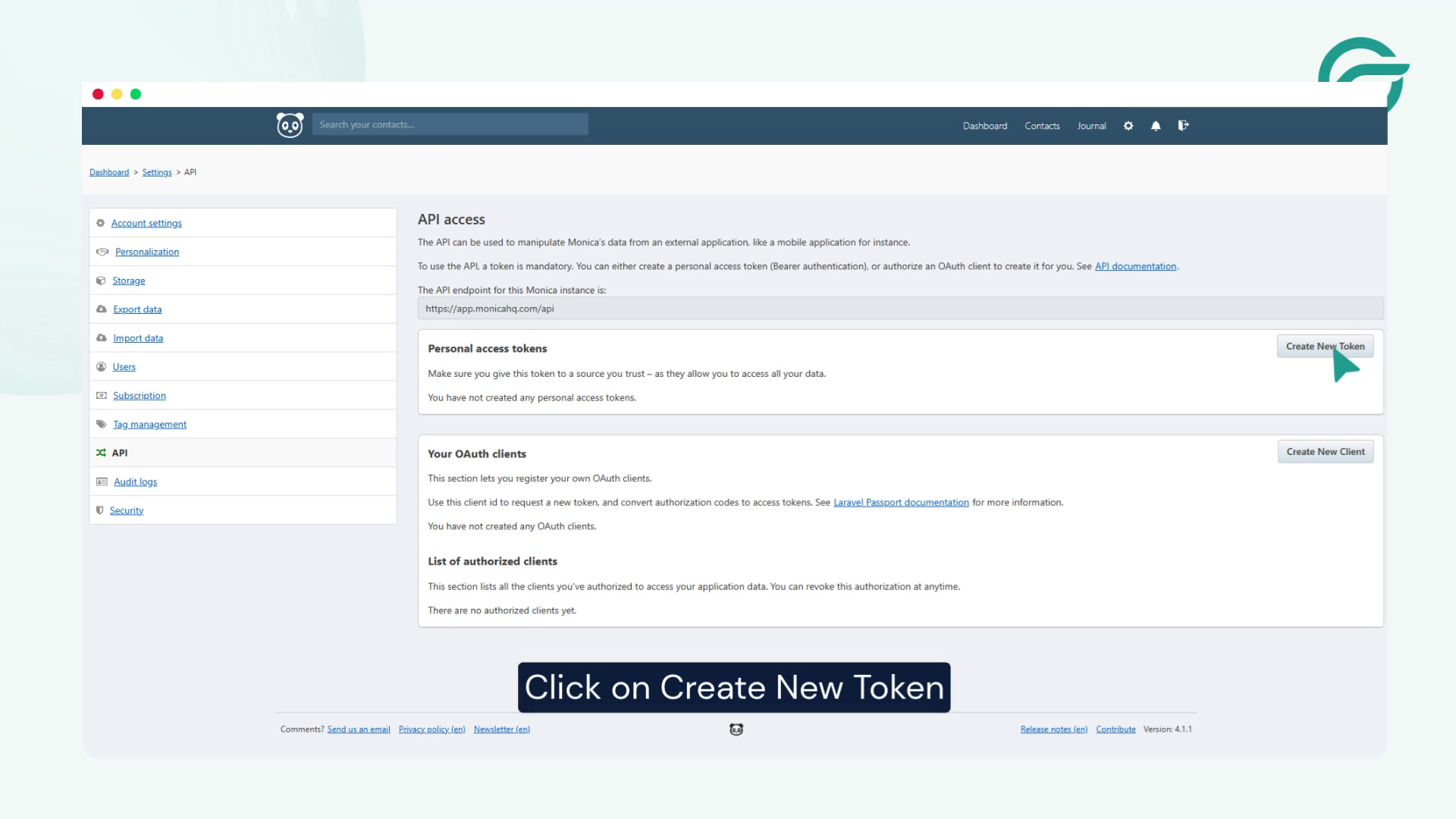
Click on Create New Token
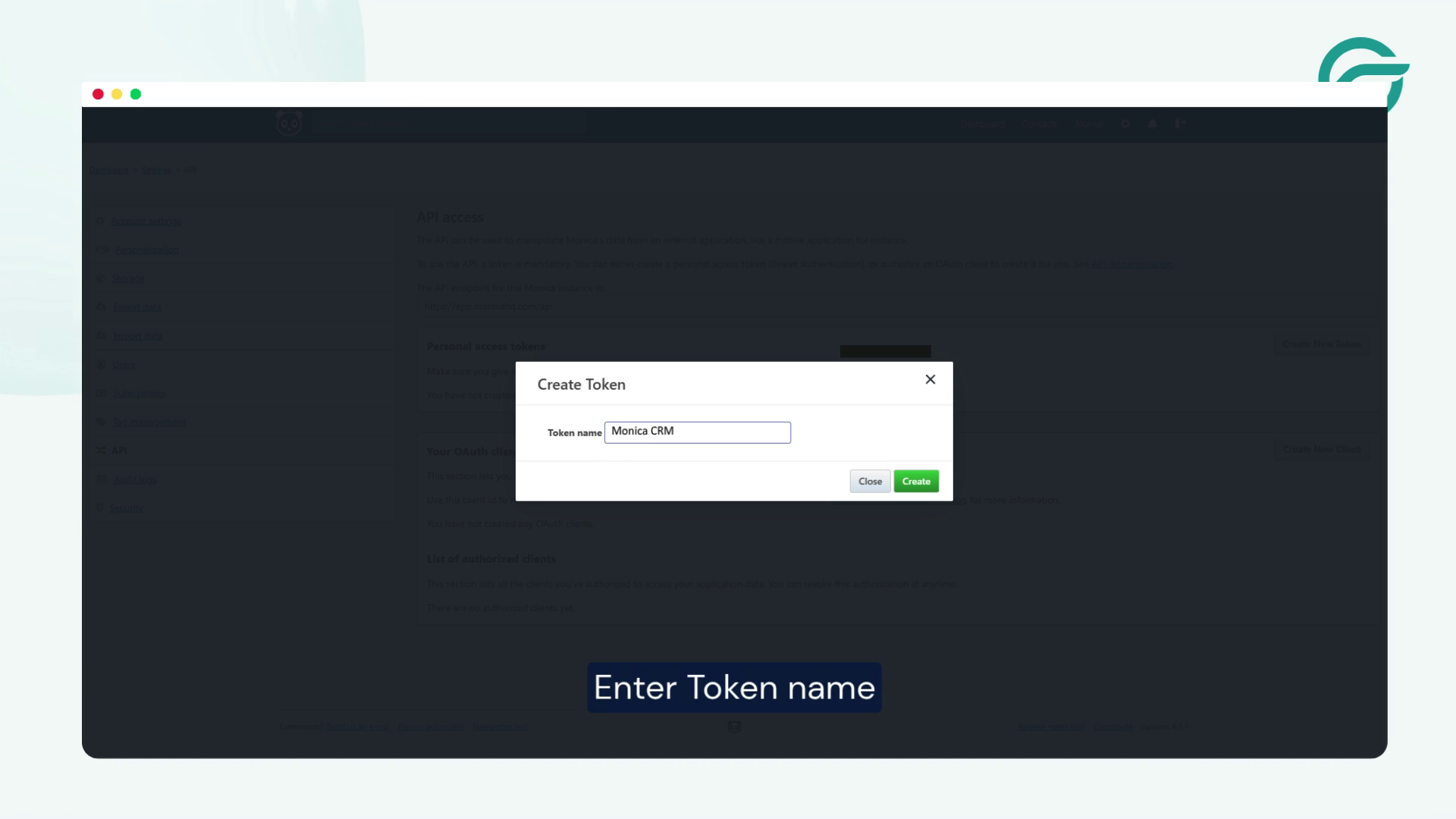
Enter Token name -> Click on Create
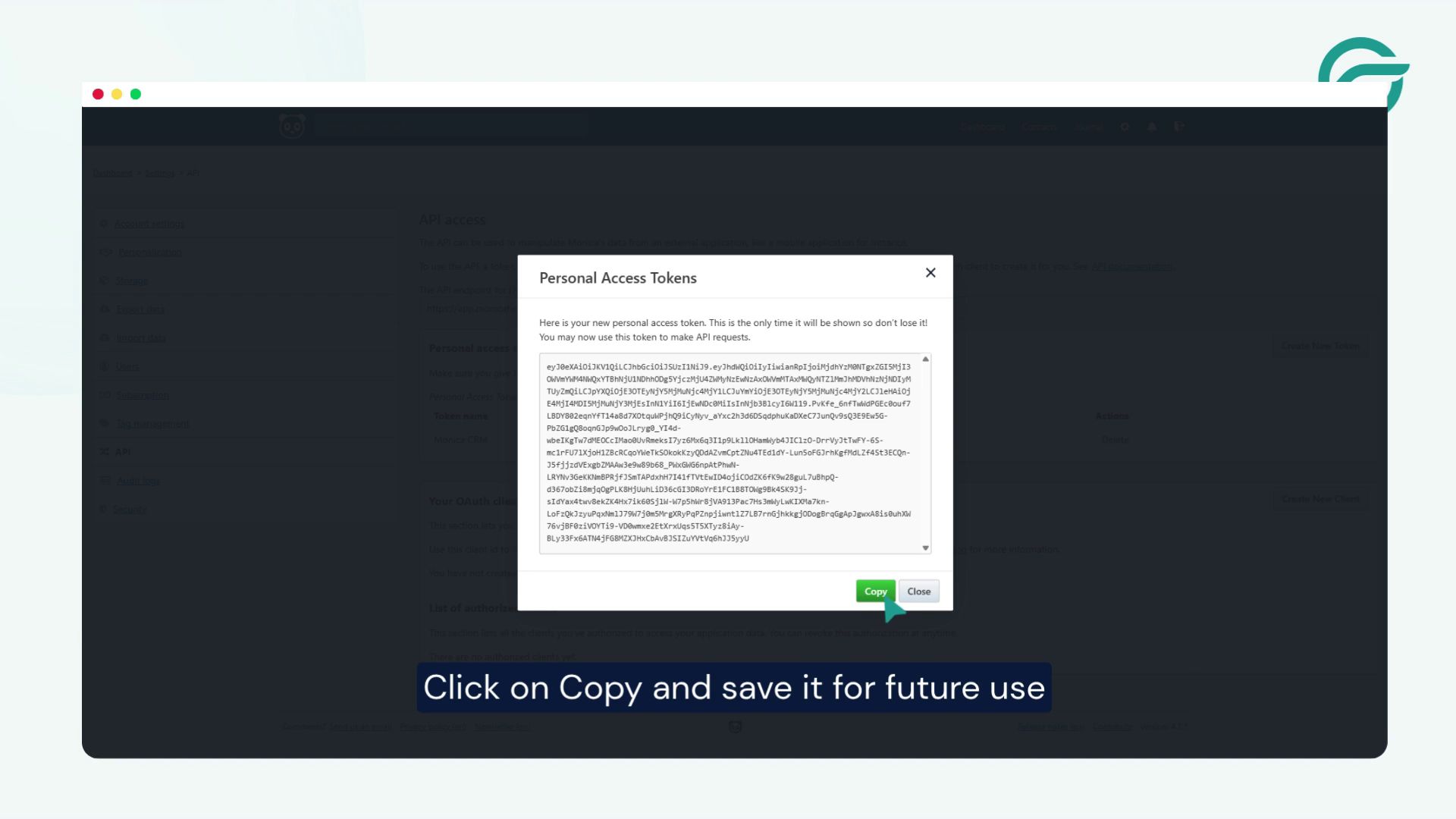
Click on Copy and save it for future use
Step 8: Configure the Request Headers
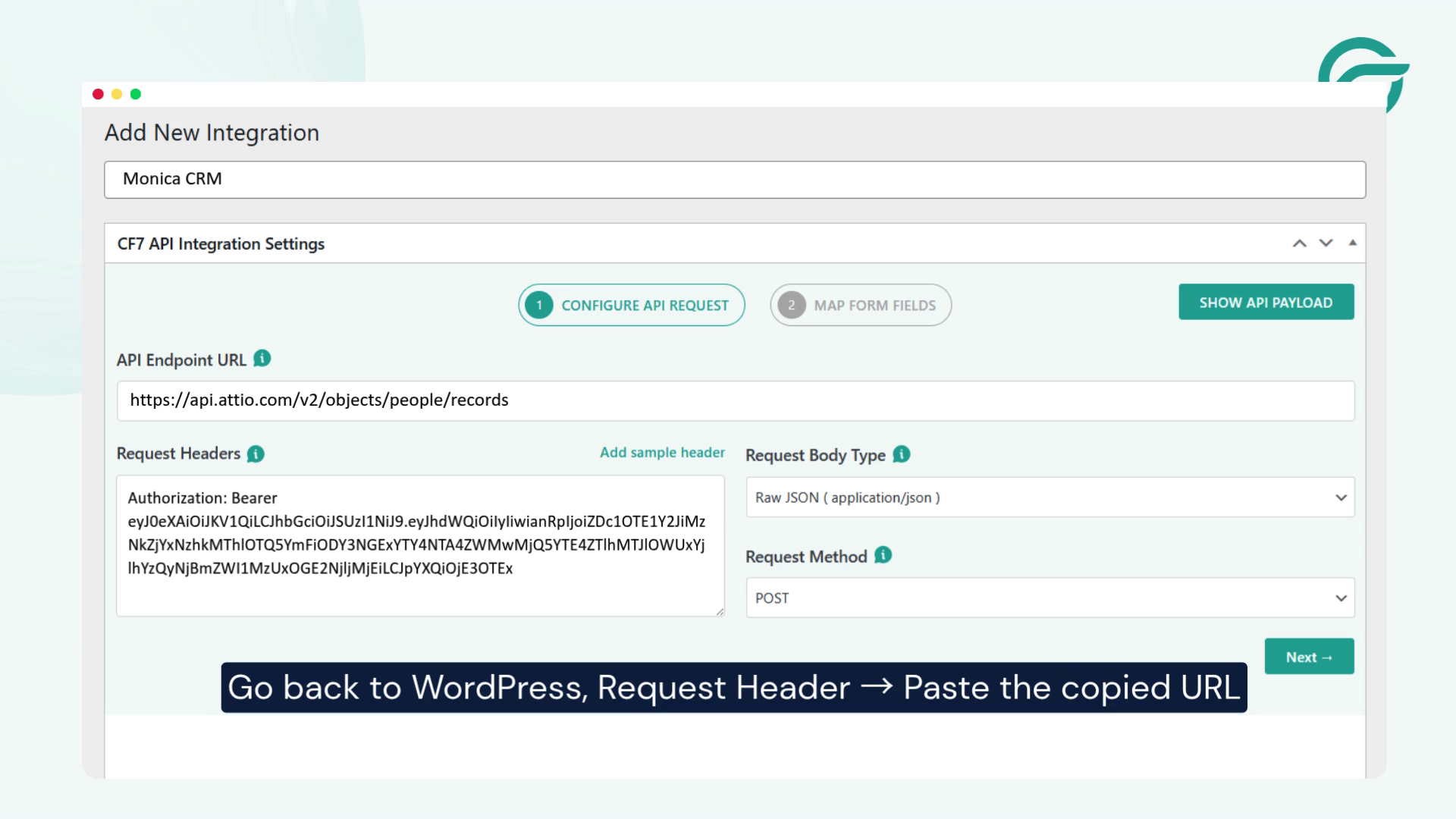
Go back to WordPress, Request Header -> Paste the copied URL in the “Request Headers” field
Once the headers are configured, click Next to continue.
Step 9: Select the Contact Form
In the integration settings, locate the Select Contact Form option.
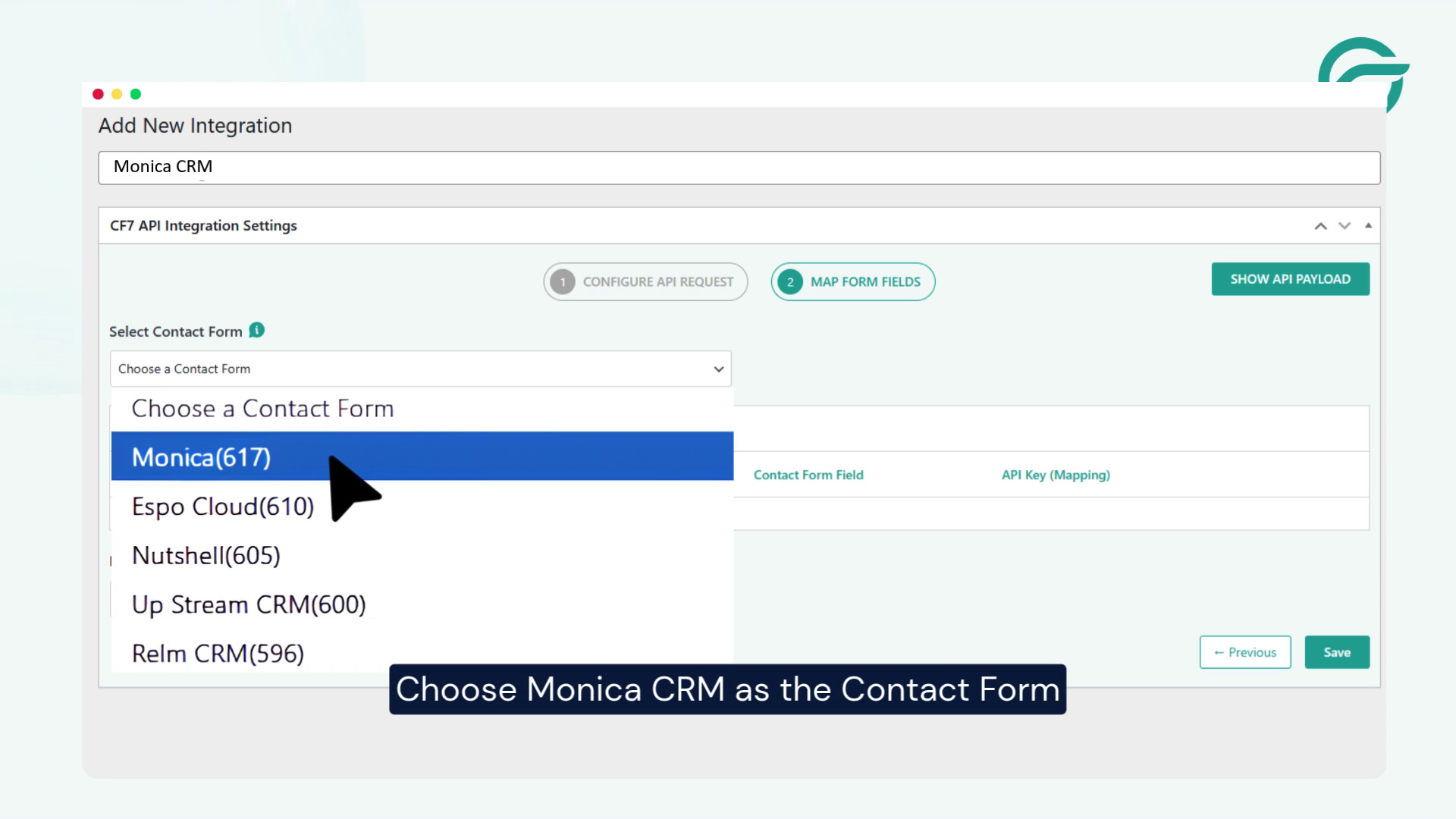
Choose Monica CRM as the Contact Form
Step 10: Map the Form Fields in the JSON Payload
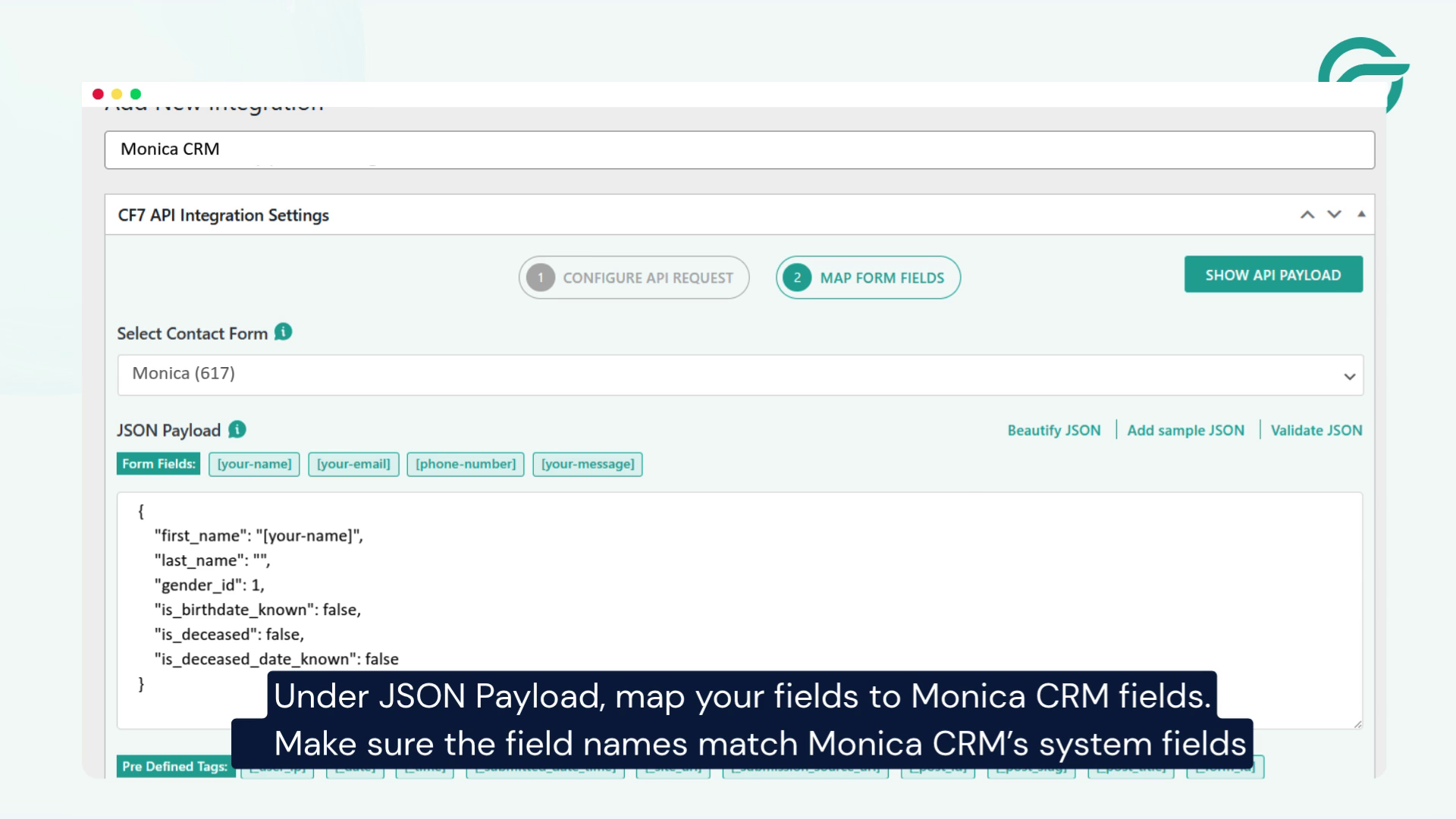
Next, configure the JSON Payload to map your Contact Form 7 fields to the corresponding fields supported by Monica CRM.
For example, if your website form collects a contact’s first name, last name, and email address, your payload might resemble the following structure:
{
“first_name”: “[your-first-name]”,
“last_name”: “[your-last-name]”,
“email”: “[your-email]”
}
This is an illustrative example. The actual field names, JSON structure, and Contact Form 7 mail-tag names must match your form configuration and the Monica CRM API requirements.
Step 11: Test the Integration
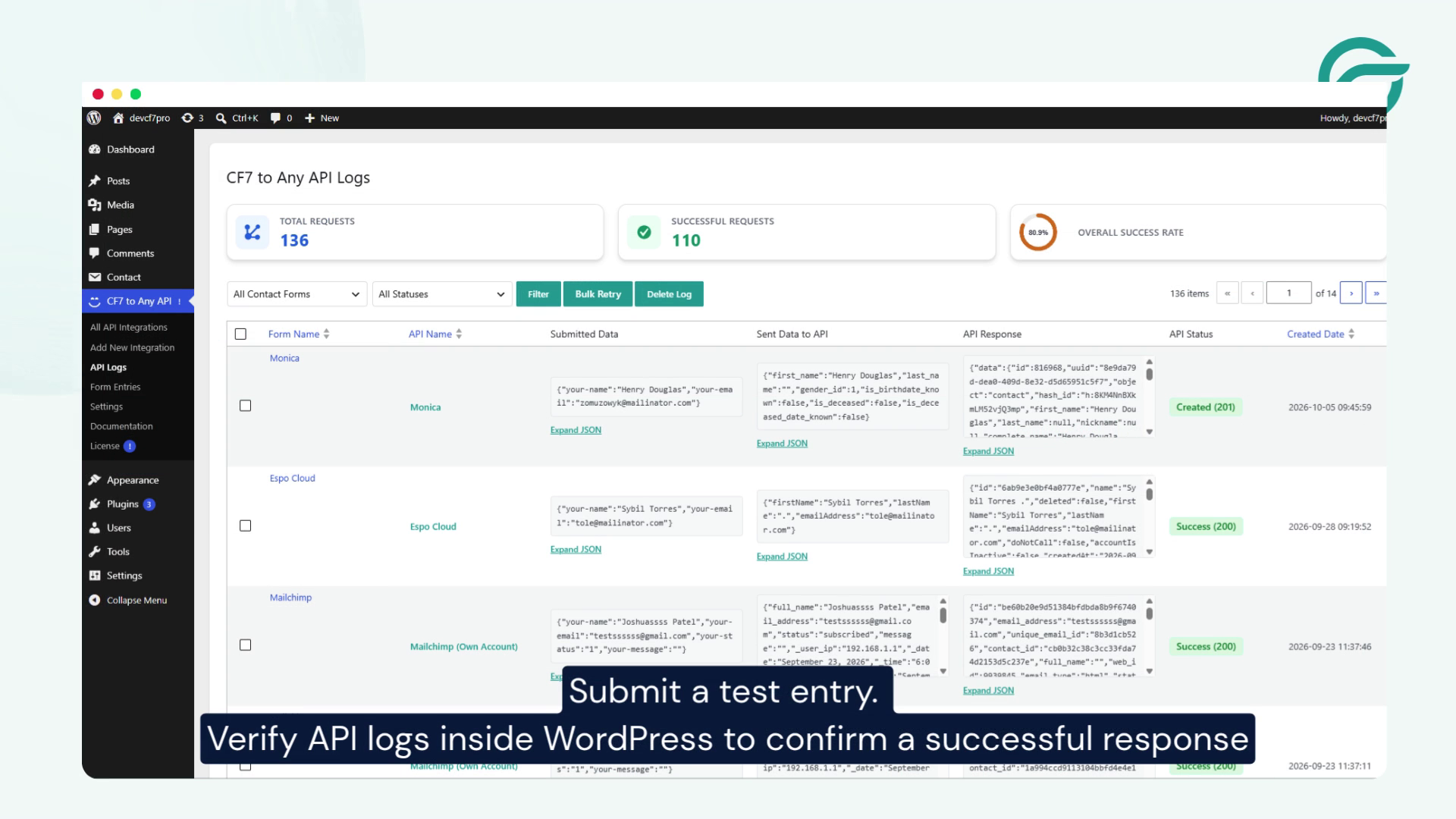
After configuring the API endpoint, request headers, selected form, and JSON payload, Submit a test entry. Verify API logs inside WordPress to confirm a successful response.
Then, review the API logs available in the Contact Form to Any API plugin.
Check the response to determine whether the request was successful. If the integration works correctly, verify that the submitted contact information appears in Monica CRM.
Conclusion
Connecting Contact Form 7 with Monica CRM in WordPress can help simplify contact management by sending website form submissions directly to your CRM through an API integration. By configuring the API endpoint, generating an authentication token, setting up request headers, and mapping the form fields correctly, you can establish a streamlined workflow between your website and Monica CRM.
Before relying on the integration, test the complete submission process and review the API response logs to confirm that contact information is being transferred successfully. With the integration configured correctly, you can reduce manual data entry and make it easier to manage contacts collected through your WordPress website.


