


Introduction
Managing leads manually can be time-consuming and often results in missed opportunities. By connecting Contact Form 7 with EngageBay CRM using the Contact Form to Any API plugin, you can automatically send form submissions to your CRM as soon as they’re received.
This integration helps streamline your lead management process, keeps your customer data organised, and allows your sales and marketing teams to respond more quickly. In this guide, we’ll show you how to set up the integration step by step—no custom coding required.
Watch the Video Tutorial: CF7 with EngageBay CRM Integration (Step-by-Step)
Before following the written steps, you can watch the complete integration setup in this quick video tutorial.
Step 1: Sign In to Your EngageBay Account
Log in to your EngageBay account using your administrator credentials.
You’ll need access to the API documentation and endpoint details during the setup process.
Step 2: Open Your WordPress Dashboard
Log in to your WordPress admin area where the Contact Form to Any API plugin is installed.
Step 3: Create a New Integration
From the WordPress dashboard, navigate to:
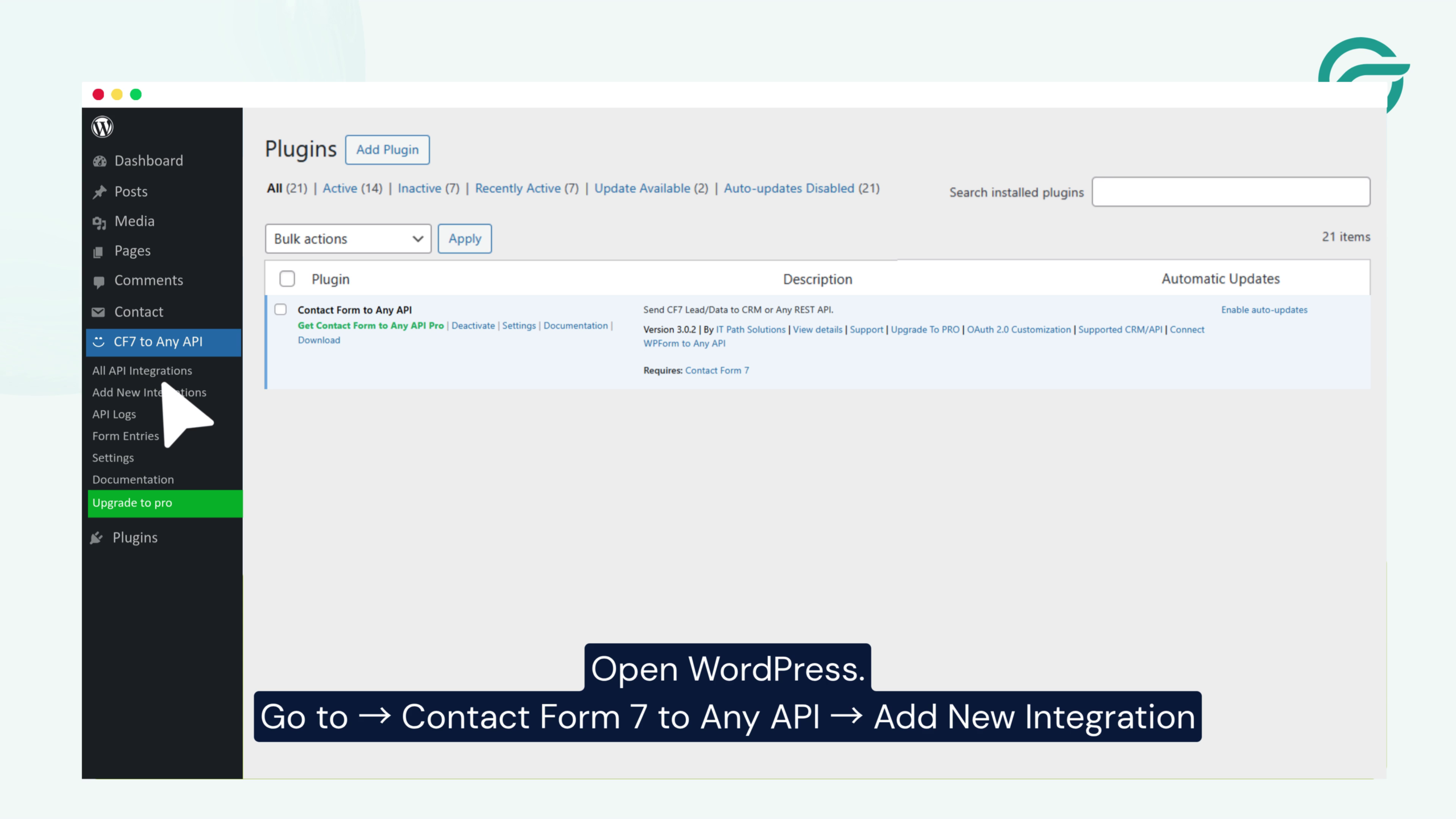
Contact Form to Any API → Add New Integration
This opens the integration setup page where you’ll configure the API connection.
Step 4: Enter an Integration Name
Provide a descriptive title for your integration.
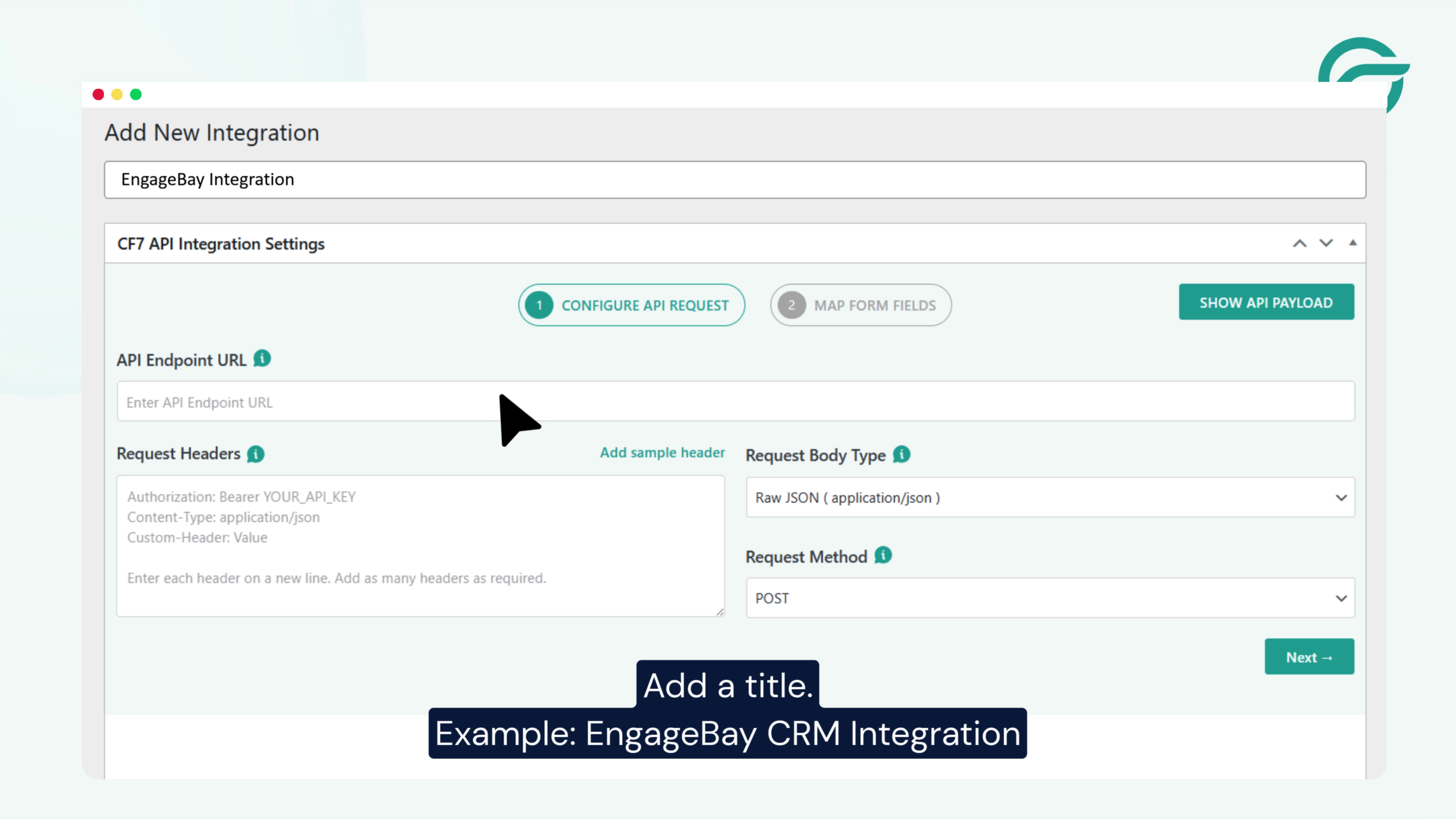
For example:
EngageBay Integration
Using a meaningful name makes it easier to identify the integration if you manage multiple API connections.
Step 5: Copy the EngageBay API Endpoint
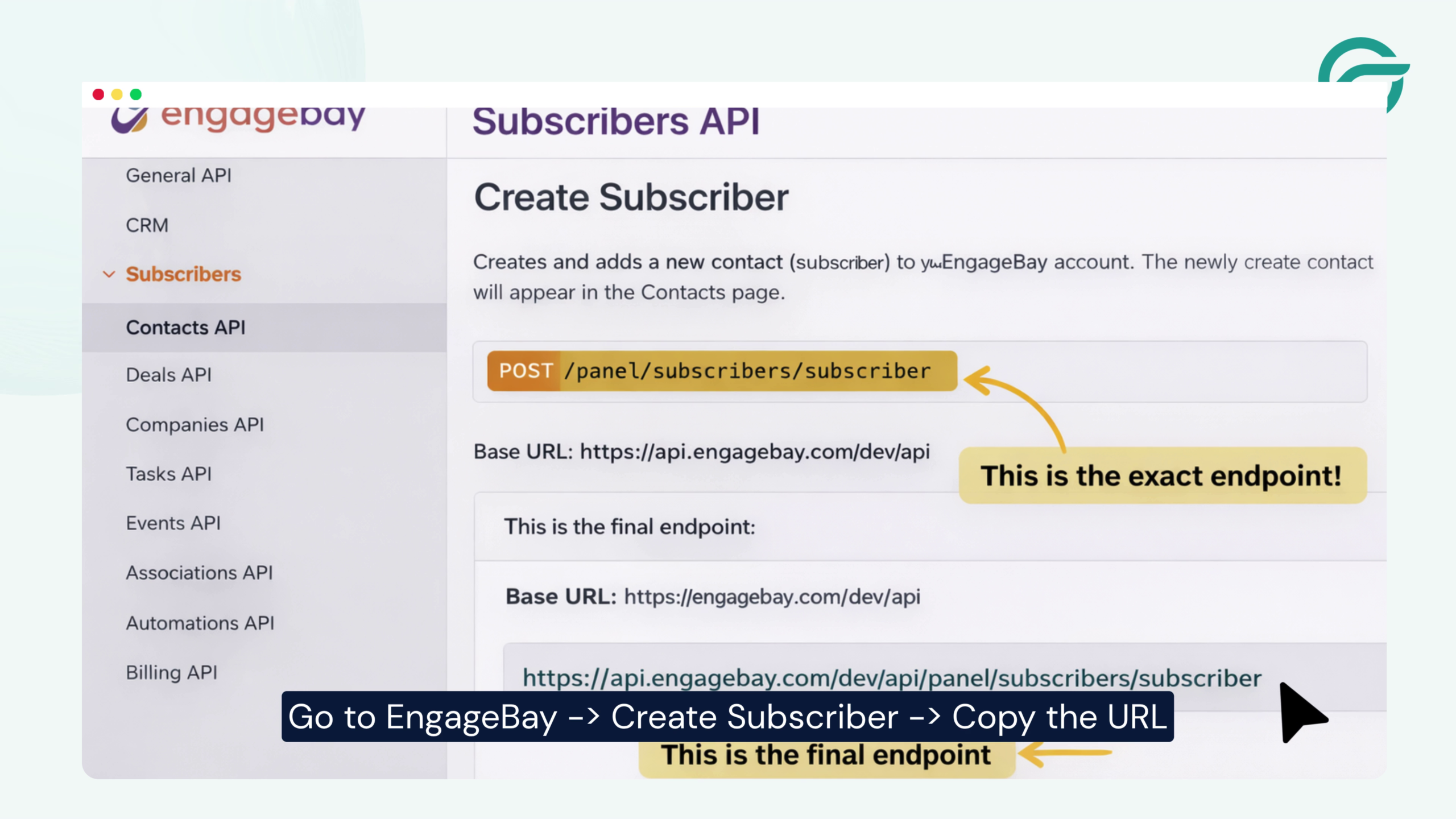
In your EngageBay dashboard, navigate to the API documentation and locate the Writing to the API section.
Copy the API endpoint provided by EngageBay.
For most integrations, the endpoint is:
https://api.engagebay.com/dev/api/panel/subscribe
Step 6: Paste the API Endpoint into WordPress
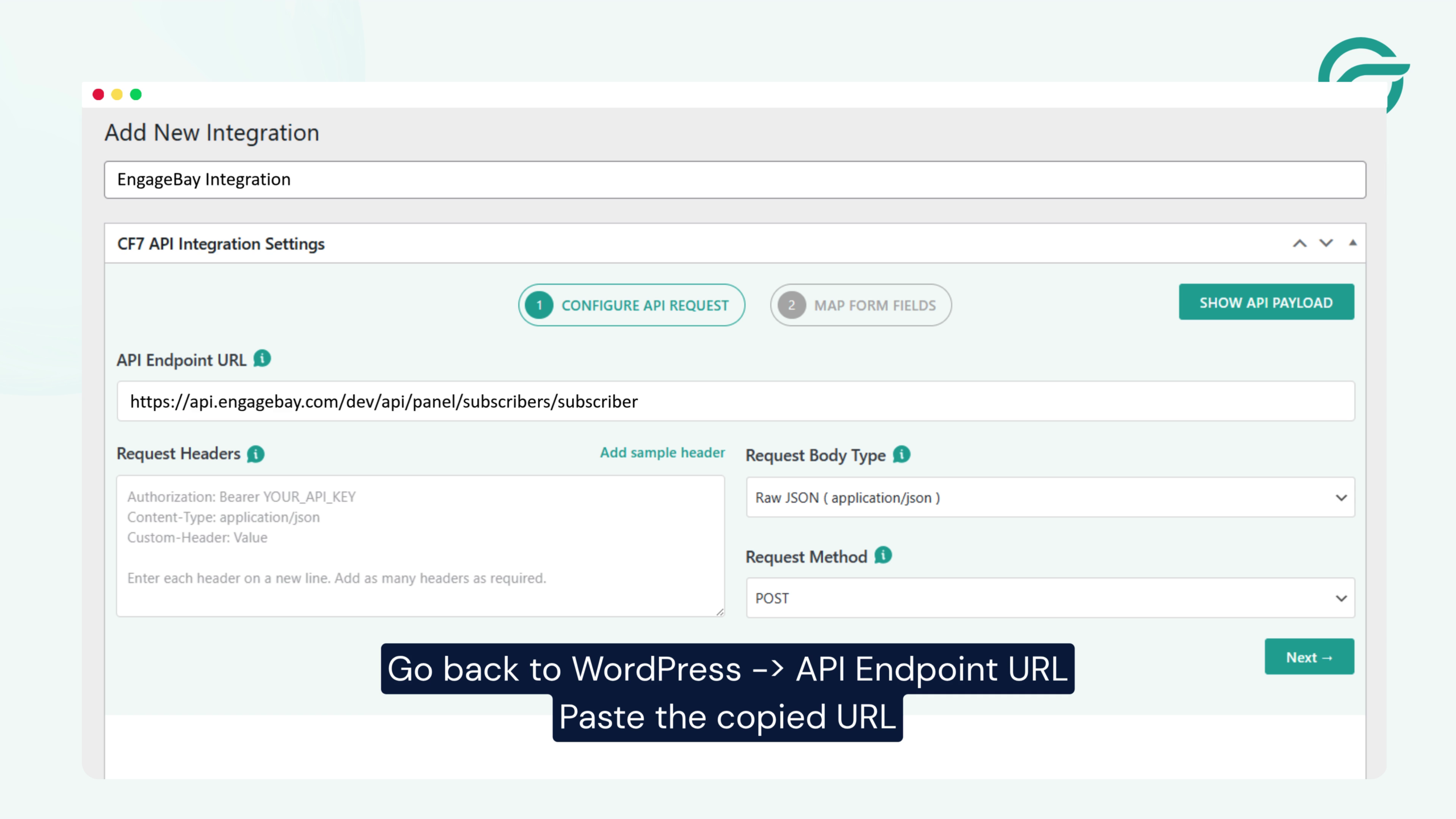
Go back to WordPress -> API Endpoint URL
Paste the copied URL: https://api.engagebay.com/dev/api/panel/subscribe
Locate the API Endpoint URL field and paste the copied endpoint.
This is the destination where Contact Form 7 will send your form submissions.
Step 7: Copy the Required Request Headers
Go to your EngageBay Document -> Copy the request header
These headers authenticate your requests and allow EngageBay to accept incoming data securely.
Step 8: Add the Request Headers
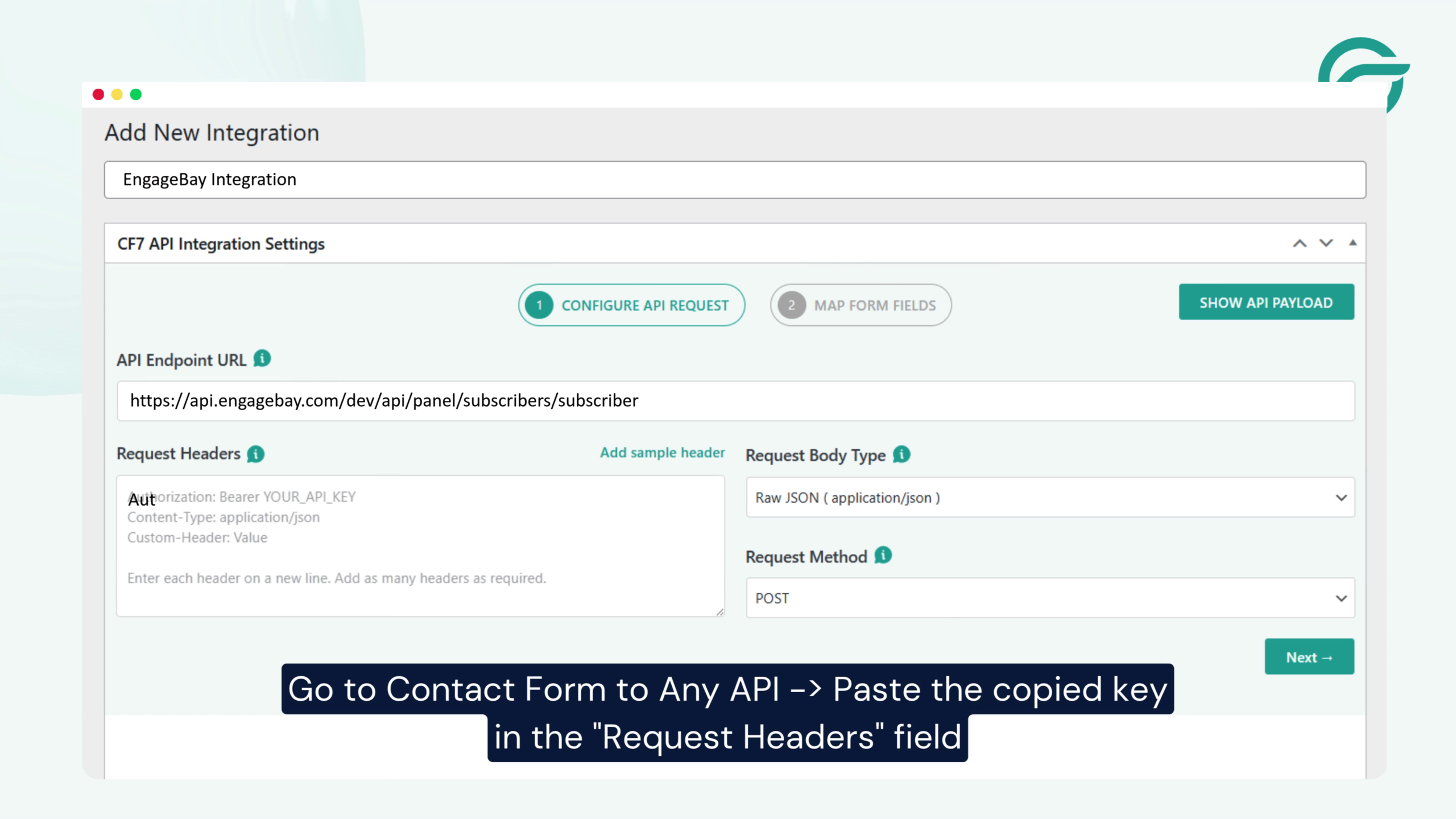
In Contact Form to Any API, locate the Request Headers section.
Go to Contact Form to Any API -> Paste the copied key in the “Request Headers” field
Incorrect headers may cause the API request to fail, so double-check the values before proceeding.
Step 9: Continue to the Next Step
After entering the endpoint and request headers, click the Next button.
This takes you to the request mapping screen.
Step 10: Select Contact Form 7
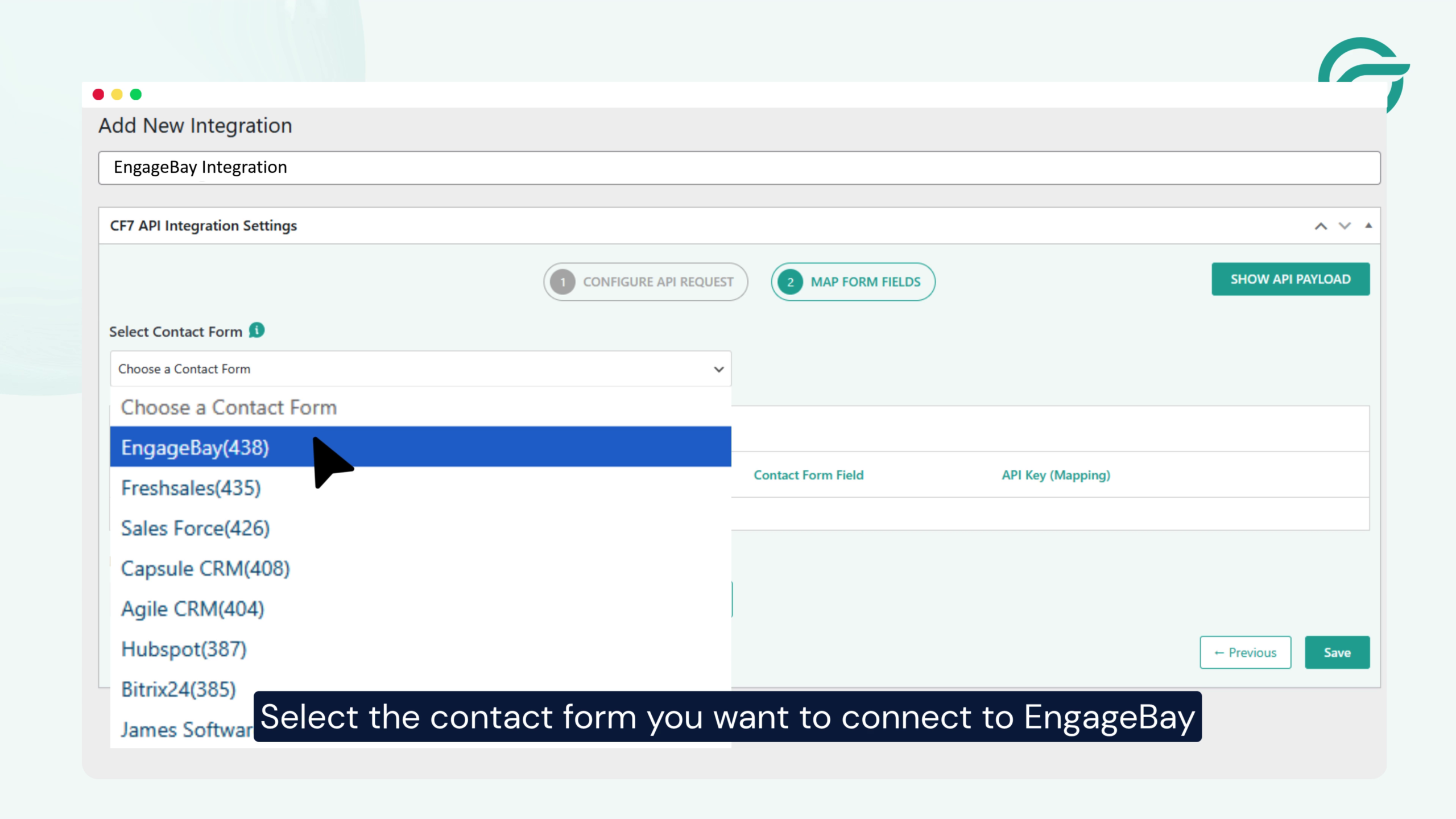
Choose Contact Form 7 as the form source for this integration.
Then select the Contact Form 7 form you want to connect with EngageBay.
Step 11: Map Contact Form Fields
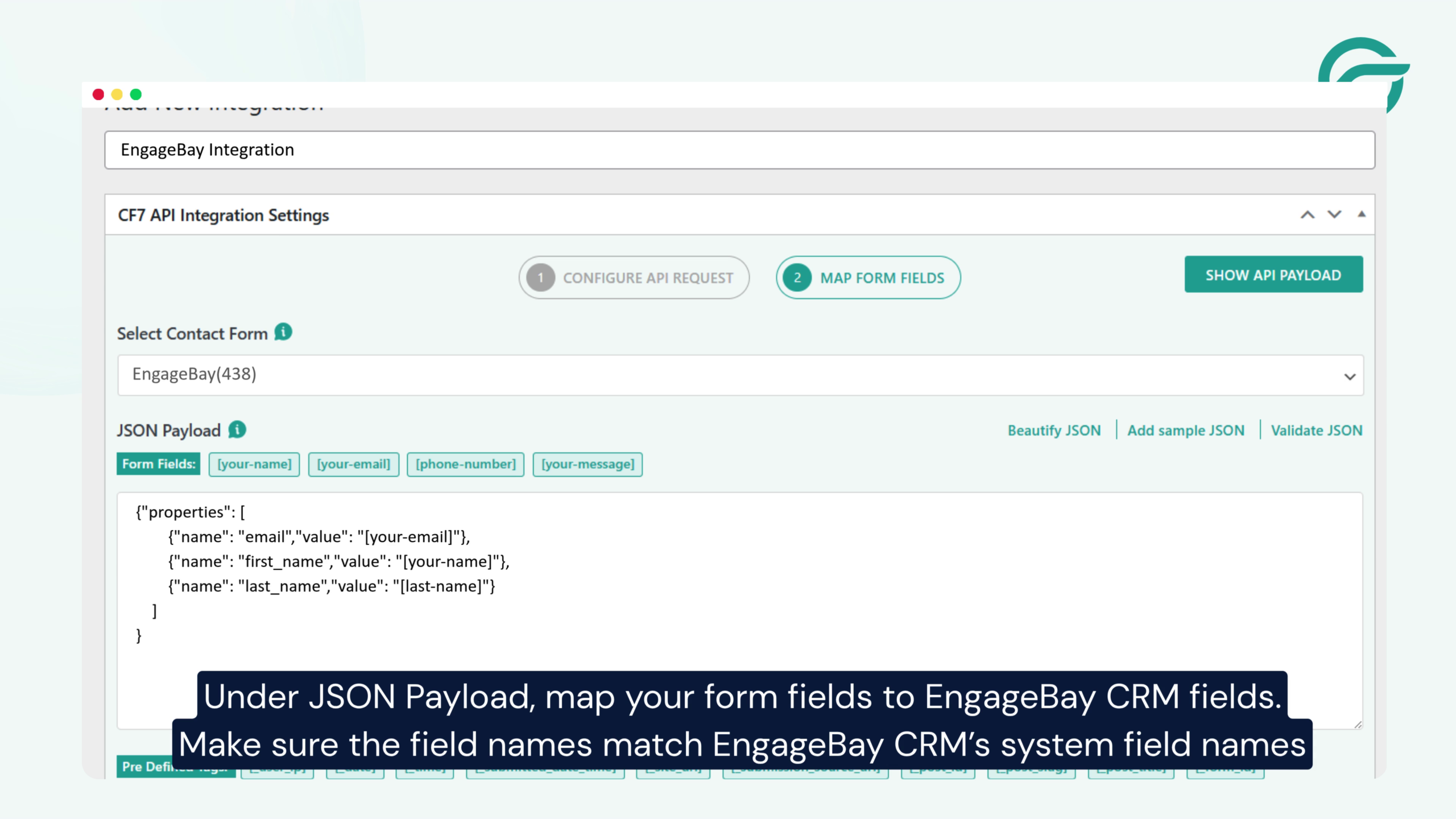
In the JSON Payload section, map your Contact Form 7 fields to the corresponding EngageBay CRM fields.
Step 12: Test the Integration
Submit a test entry through your Contact Form 7 form.
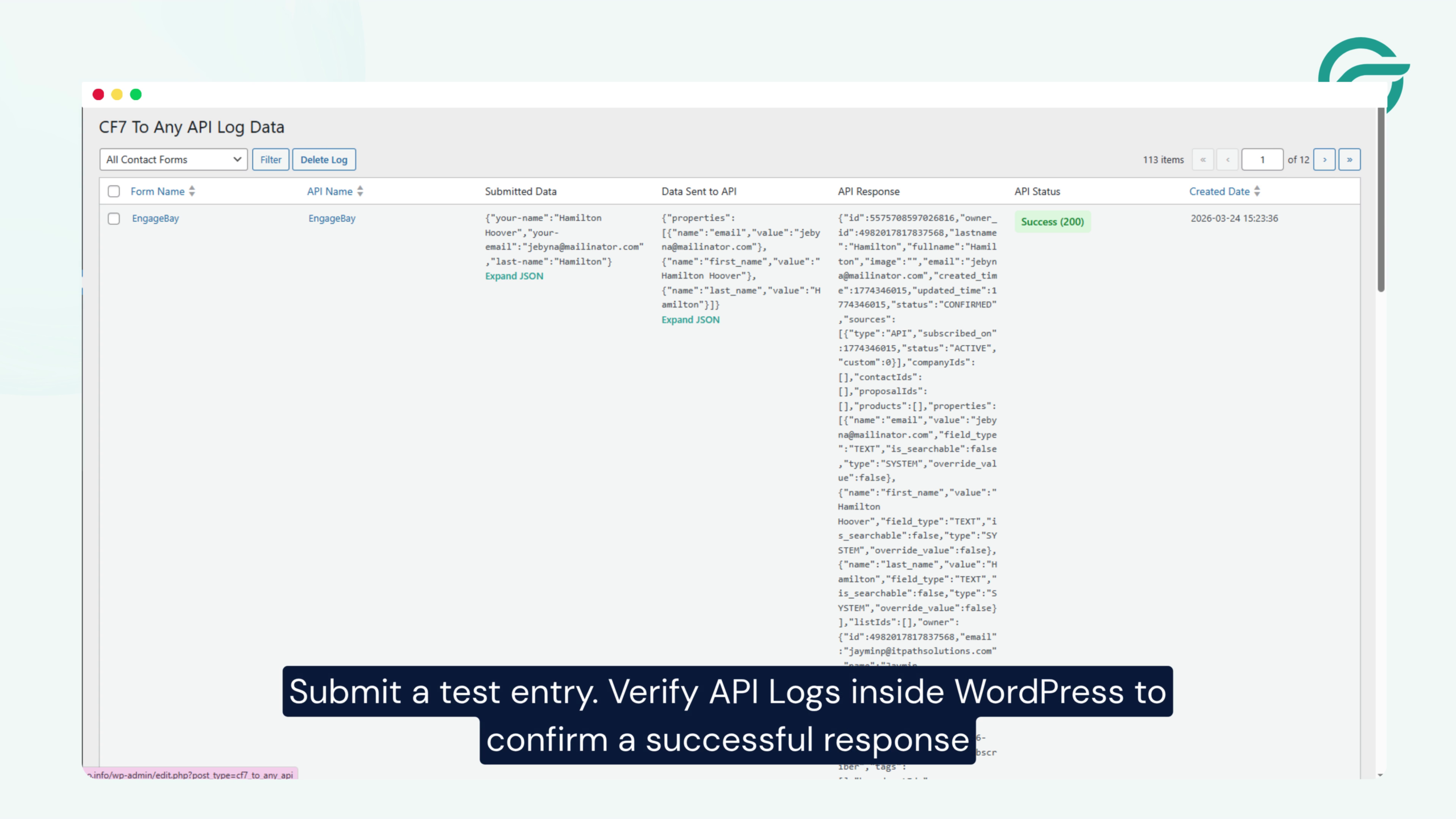
After submission, open the API Logs inside the Contact Form to Any API plugin.
Verify that:
- The request was sent successfully.
- EngageBay returned a successful response.
- The contact appears inside your EngageBay CRM.
If everything looks correct, your integration is ready to use.
Final Thoughts
Connecting Contact Form 7 with EngageBay CRM using the Contact Form to Any API plugin is a quick and reliable way to automate lead management.
Once configured, every Contact Form 7 submission is automatically delivered to EngageBay, helping your sales and marketing teams respond faster while eliminating repetitive manual work.
Whether you’re collecting enquiries, demo requests, or customer information, this integration streamlines your workflow and ensures your CRM stays up to date automatically.


