


By integrating Contact Form 7 with Close CRM, you can automatically send every form submission from your WordPress website directly to your CRM. This helps you respond to new leads faster, reduces manual data entry, and ensures no enquiry is missed.
Whether you’re collecting sales enquiries, support requests, or contact forms, automating the workflow allows your team to focus on building customer relationships instead of performing repetitive tasks.
In this step-by-step guide, you’ll learn how to connect Contact Form 7 with Close CRM using the Contact Form to Any API plugin. We’ll cover everything from configuring the API endpoint and authentication to mapping form fields and testing the integration, so you can start syncing leads automatically in just a few minutes.
Watch the Video Tutorial: CF7 with Close CRM Integration (Step-by-Step)
Before following the written steps, you can watch the complete integration setup in this quick video tutorial.
Step 1: Sign in to Your Close CRM Account
Log in to your Close CRM account. You’ll need access to your account settings later to generate an API key for authentication.
Step 2: Open WordPress
Log in to your WordPress admin dashboard where Contact Form 7 and the Contact Form to Any API plugin are installed.
Step 3: Create a New Integration
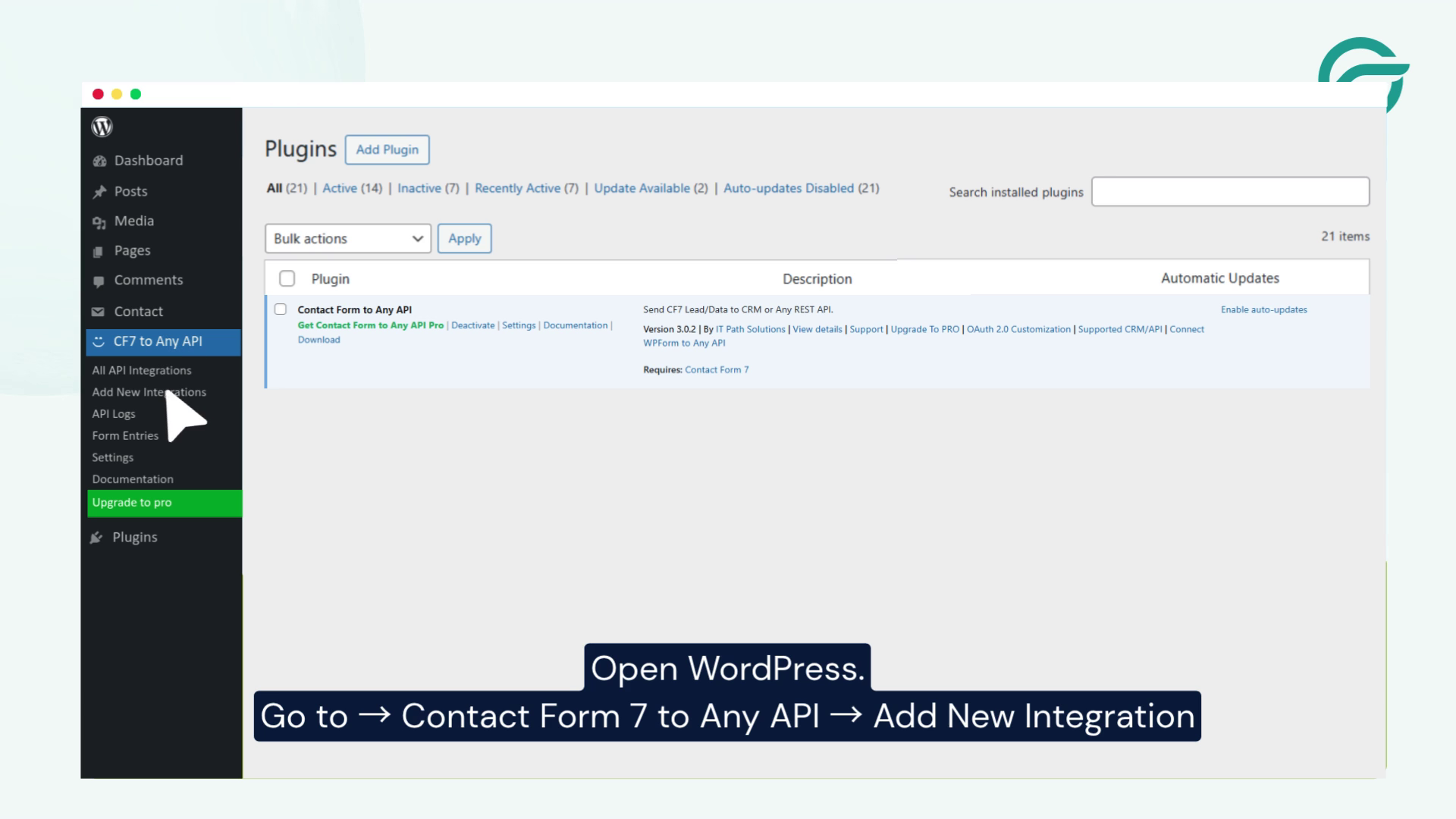
From the WordPress dashboard, navigate to:
Contact Form to Any API → Add New Integration
This is where you’ll configure the connection between Contact Form 7 and Close CRM.
Step 4: Add an Integration Title
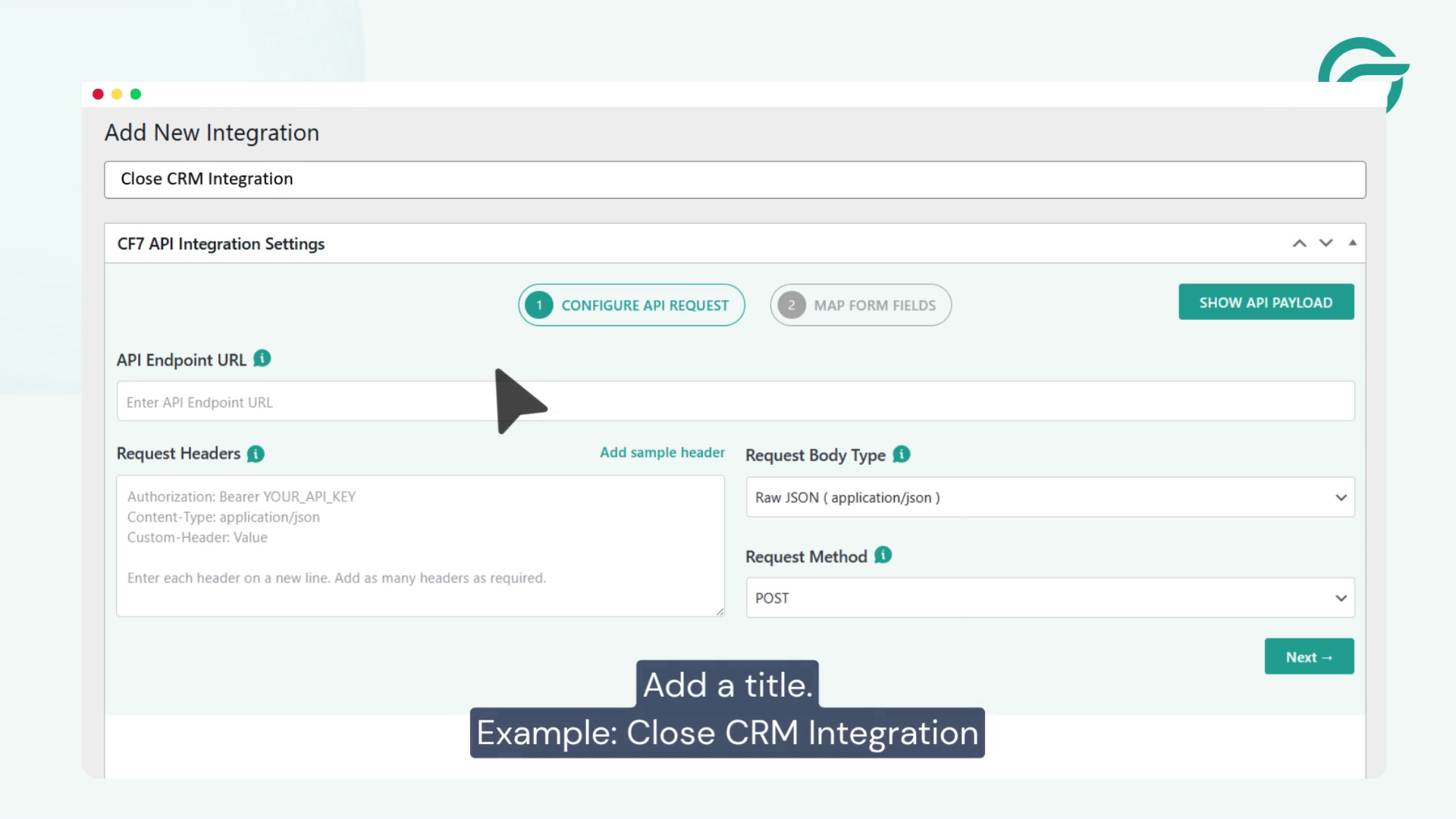
Enter a descriptive title for your integration.
Example:
Close CRM Integration
Using a clear name makes it easier to identify the integration if you manage multiple API connections.
Step 5: Add the Close CRM API Endpoint URL
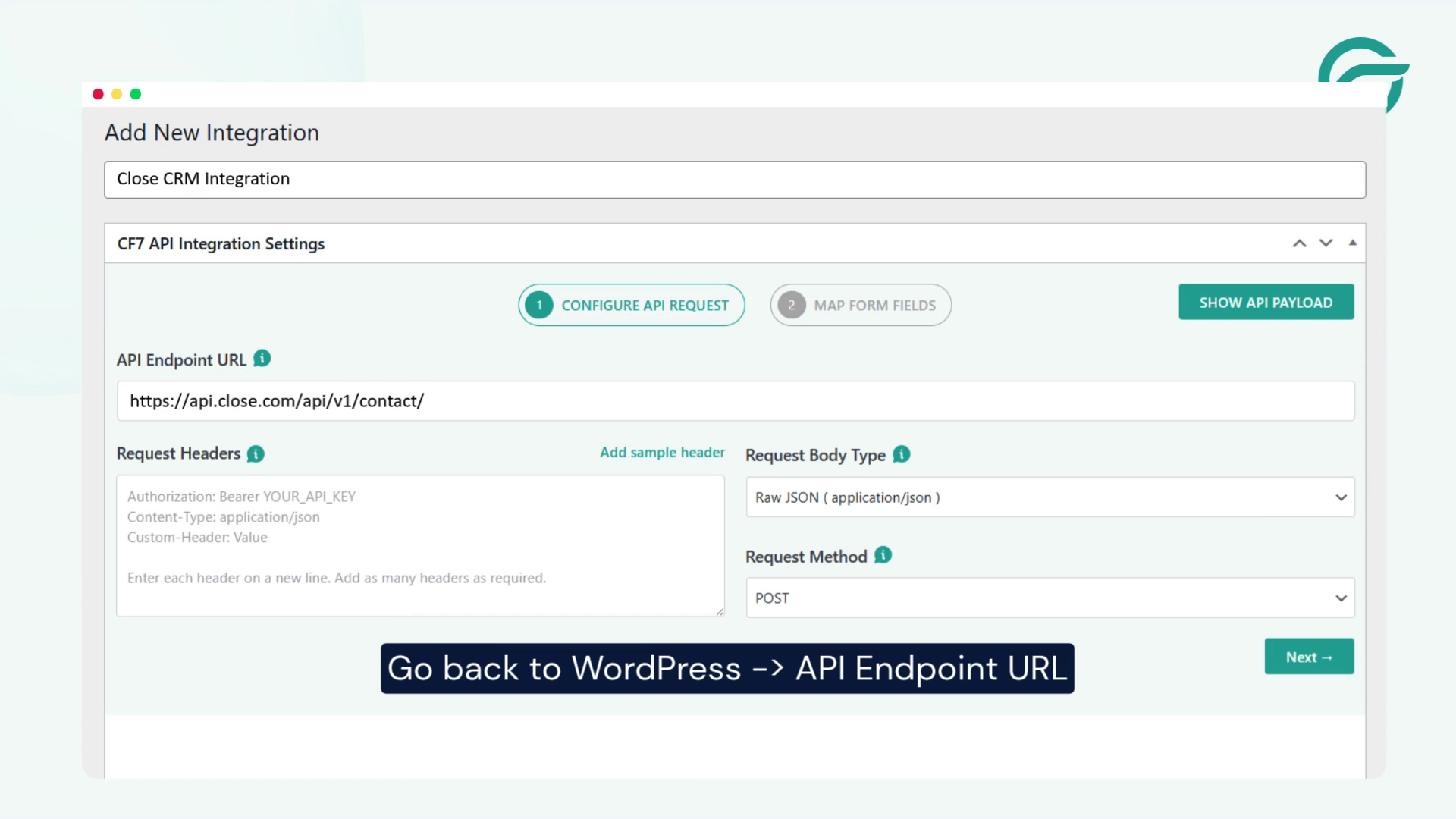
Go back to WordPress and locate the API Endpoint URL field.
Paste the following Close CRM endpoint:
https://api.close.com/api/v1/contact/
This endpoint is used to create contacts in Close CRM whenever a Contact Form 7 form is submitted.
Step 6: Generate and Add Your Close CRM API Key
To authenticate your requests, you’ll need an API key from Close CRM.
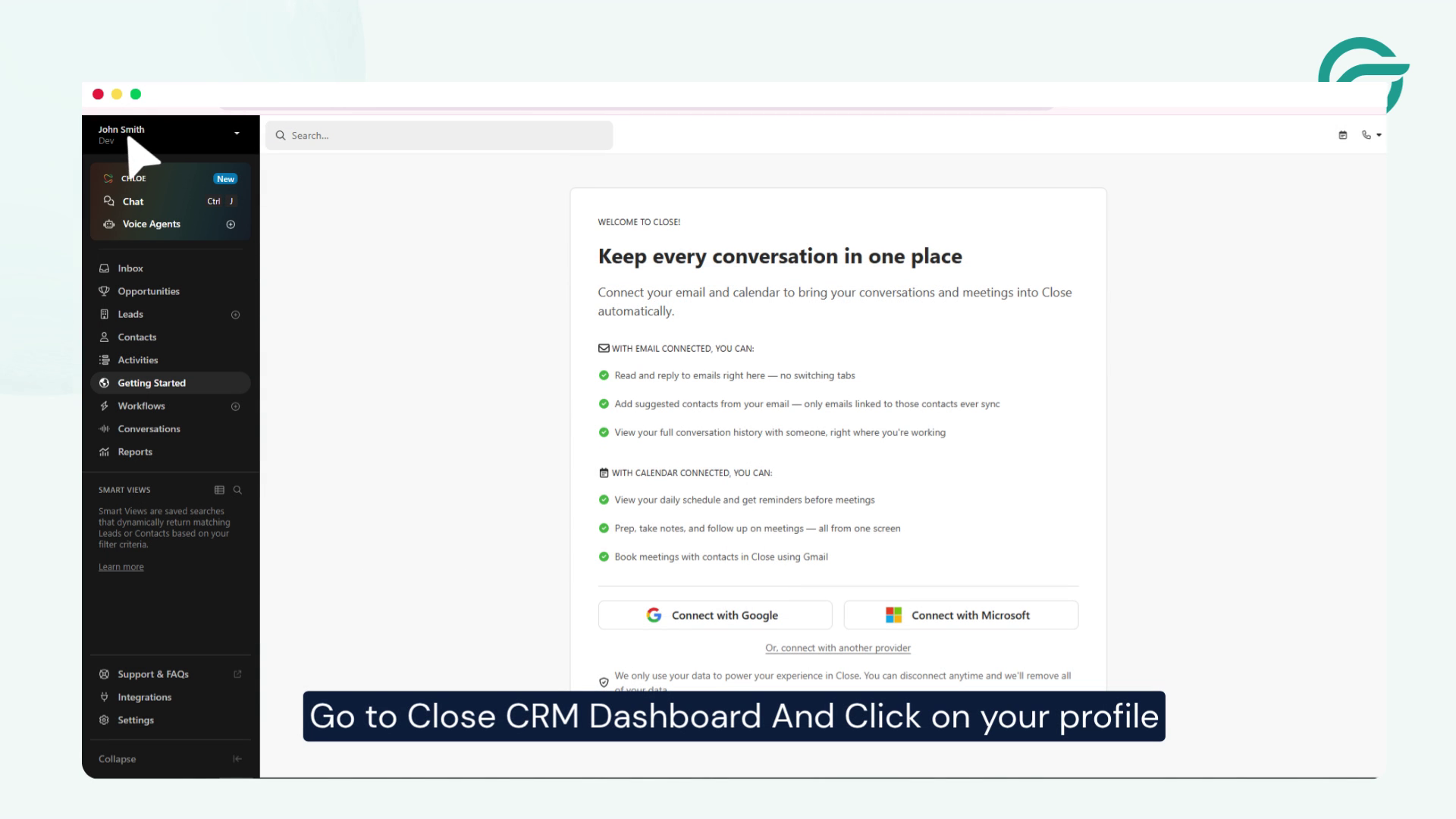
In Close CRM:
- Go to Profile
- Select Account
- Open Developer
- Click Create a New API Key
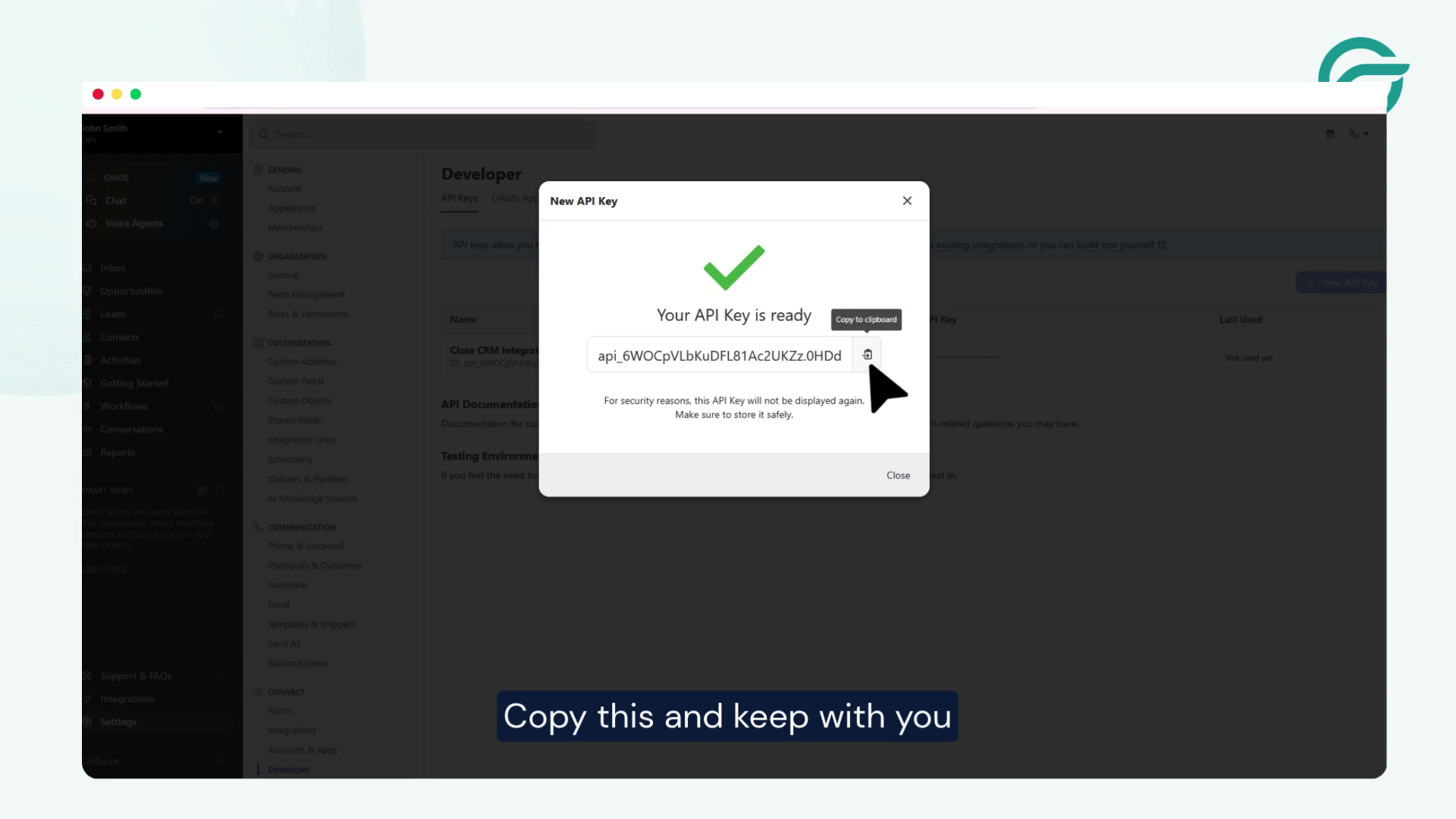
- Enter a name for the API key
- Save it
- Copy the generated API key
Step 7:
Go back to WordPress, Request Header -> Paste the copied URL in the “Request Headers” field
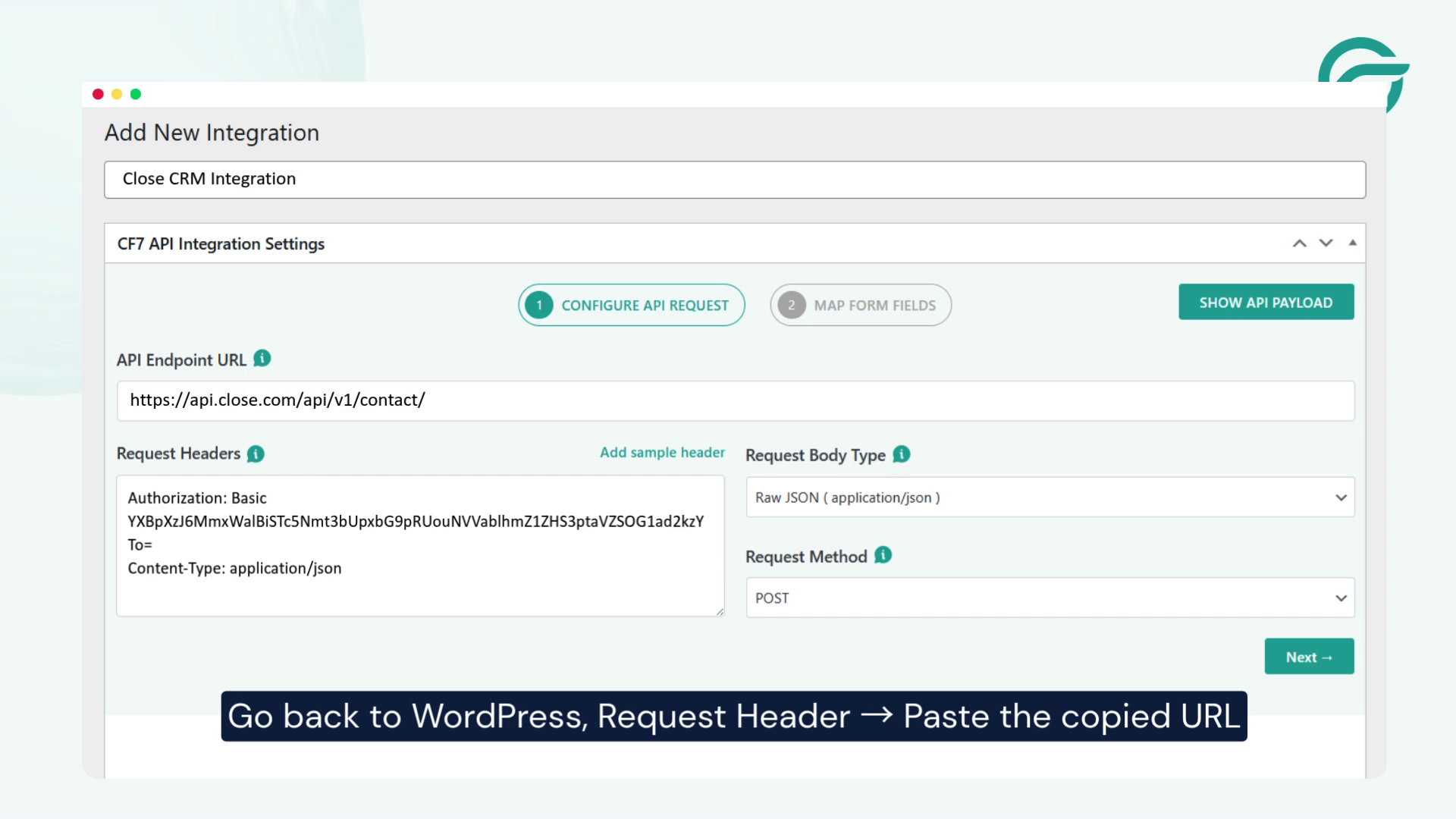
Once you’ve added the header, click the Next button.
Step 8: Select Contact Form 7
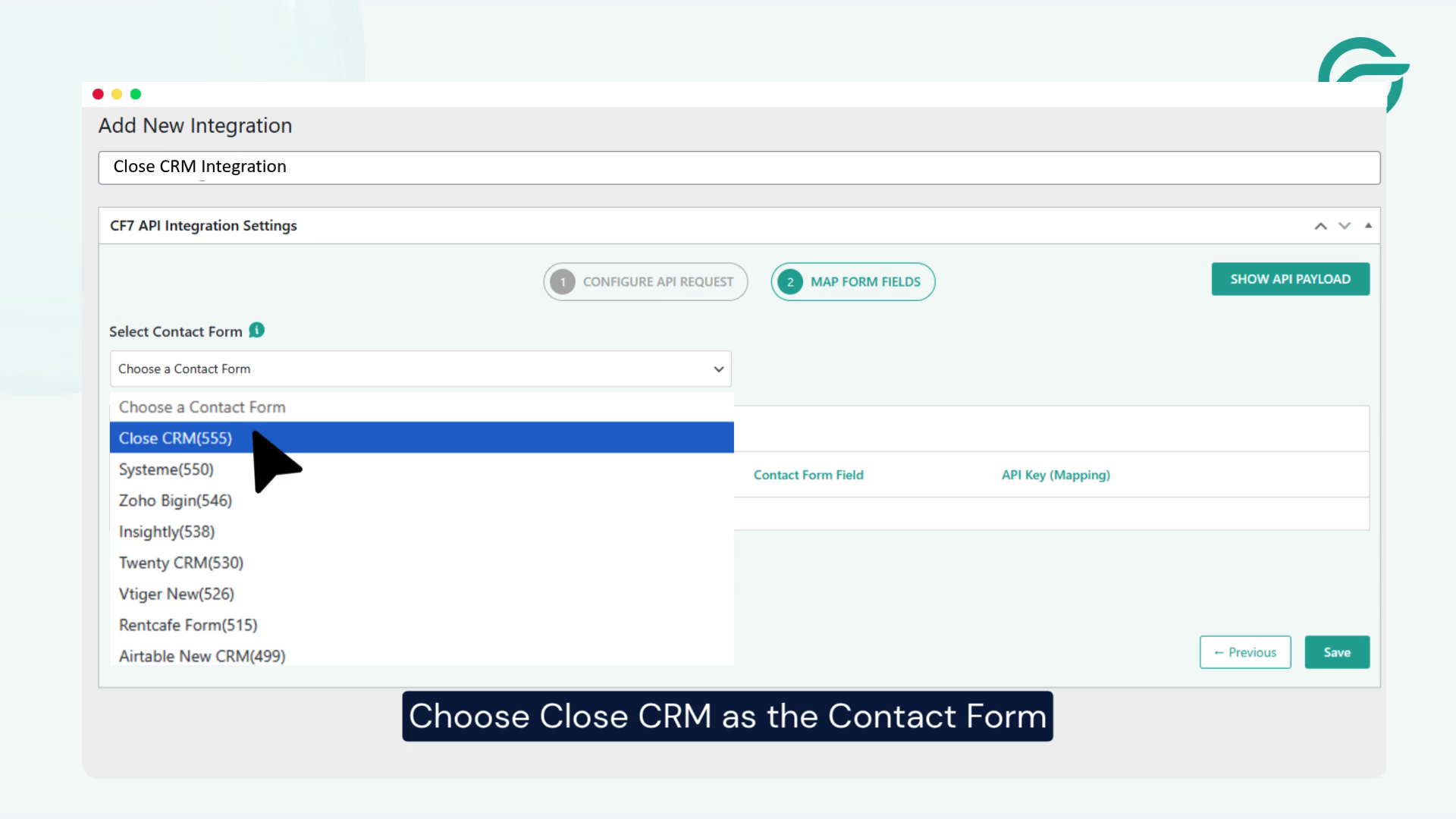
Choose Contact Form 7 as the form source for this integration.
This tells the plugin which Contact Form 7 submissions should be sent to Close CRM.
Step 9: Map Contact Form Fields
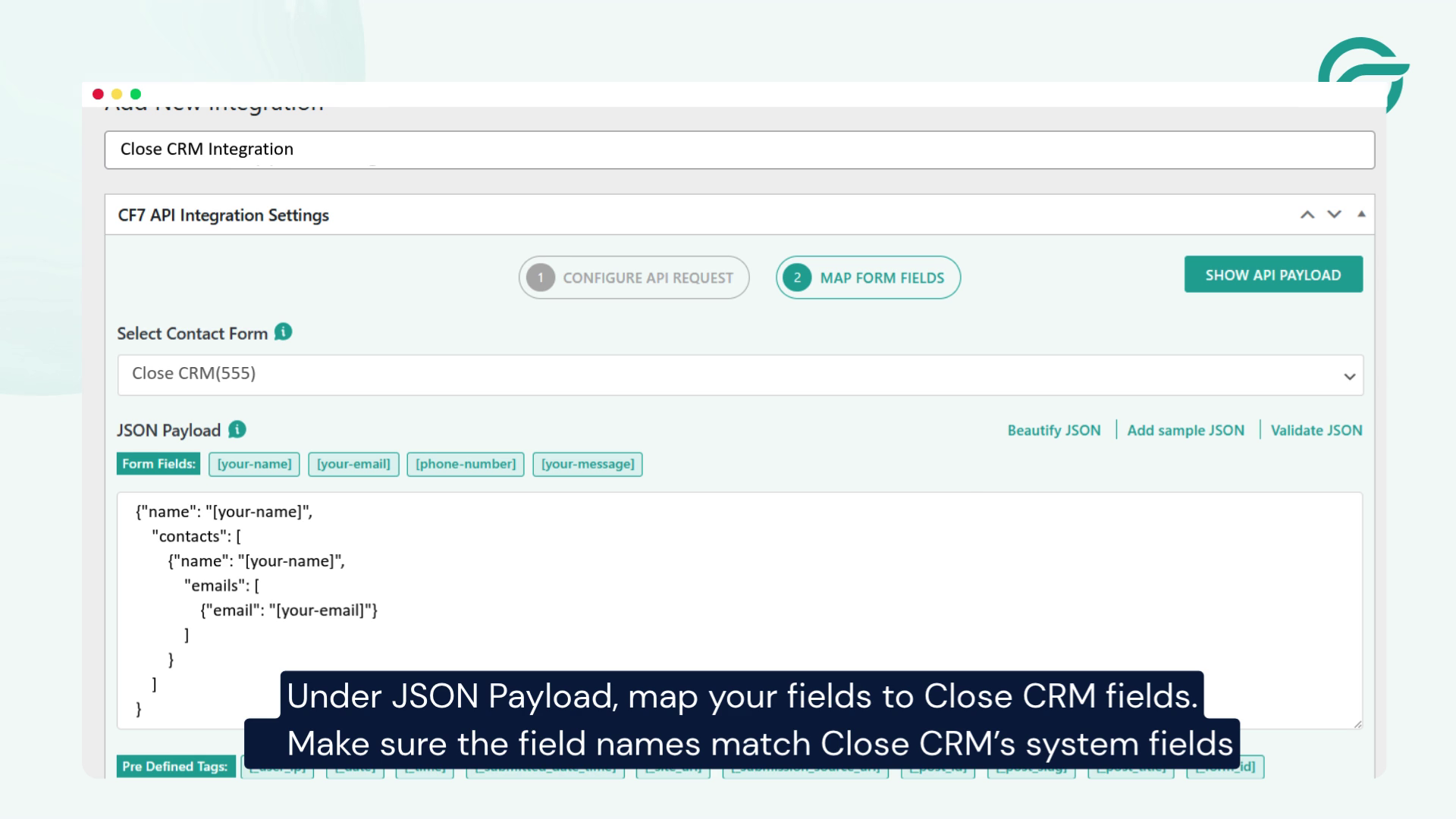
Under JSON Payload, map your Contact Form 7 fields to the corresponding Close CRM fields.
For example, you can map fields such as:
- Name
- Phone Number
- Company
- Message
Important: Make sure the field names match Close CRM’s system fields to ensure the data is accepted correctly.
Step 10: Test the Integration
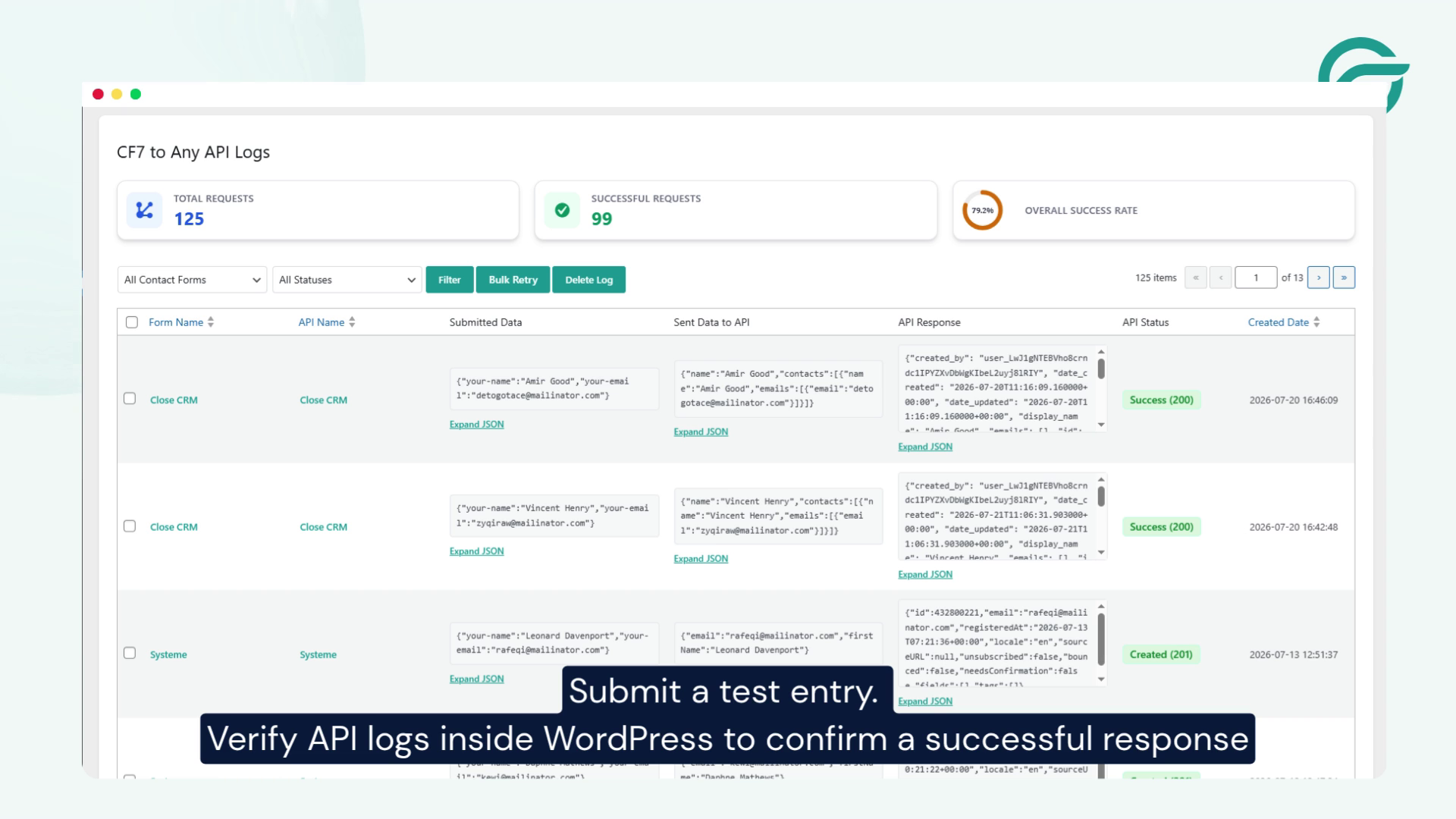
Submit a test entry through your Contact Form 7 form.
After submission, review the API Logs inside WordPress to verify that the request was successful and the contact has been created in Close CRM.
If everything is configured correctly, your lead will appear in Close CRM automatically.
Conclusion
That’s it! Your Contact Form 7 and Close CRM integration is now complete.
By connecting Contact Form 7 with Close CRM using the Contact Form to Any API plugin, every form submission can be sent directly to your CRM without any manual work. This helps streamline your lead management process, reduce errors, and ensure your sales team receives new enquiries instantly.
Frequently Asked Questions (FAQs)
1. Why should I integrate Contact Form 7 with Close CRM?
Integrating Contact Form 7 with Close CRM automates your lead capture process. Instead of manually copying form submissions into your CRM, every enquiry is sent automatically, helping your sales team respond faster, reduce manual work, and avoid missing potential customers.
2. What information can I send from Contact Form 7 to Close CRM?
You can send virtually any information collected through your Contact Form 7 form, including names, email addresses, phone numbers, company names, enquiry details, and custom fields. As long as the fields are correctly mapped, the data will be stored in Close CRM for future follow-up.
3. Who can benefit from this integration?
This integration is ideal for businesses that rely on website enquiries, including SaaS companies, digital agencies, real estate firms, consultants, healthcare providers, educational institutions, and eCommerce businesses. Any organisation using WordPress and Close CRM can automate lead management and improve response times.
4. Can I use this integration for multiple Contact Form 7 forms?
Yes. You can create separate integrations for different Contact Form 7 forms. For example, you can send sales enquiries, support requests, and partnership applications to different workflows while keeping all data organised within Close CRM.
5. Does this integration help improve sales follow-up?
Absolutely. Since new leads are added to Close CRM immediately after form submission, your sales team can contact prospects sooner. Faster follow-ups often lead to higher engagement rates and improved conversion opportunities.
6. Is coding required to connect Contact Form 7 with Close CRM?
No. Using the Contact Form to Any API plugin, you can connect Contact Form 7 with Close CRM without writing custom code. The integration is configured through a user-friendly interface where you enter the API details, map fields, and test the connection.
7. What are some real-world use cases for this integration?
Businesses use this integration in many ways, such as automatically creating CRM contacts from “Request a Demo” forms, capturing consultation requests, collecting quote enquiries, managing event registrations, and tracking website-generated leads without manual data entry.
8. What happens if a form submission fails to reach Close CRM?
The Contact Form to Any API plugin provides API logs that help you identify failed requests and error messages. This makes it easier to troubleshoot issues such as incorrect authentication, invalid field mappings, or missing required data before they affect your lead management process.
9. Can I customise the data before sending it to Close CRM?
Yes. The plugin allows you to map Contact Form 7 fields to the appropriate Close CRM fields and customise the JSON payload. This flexibility ensures the data is structured according to your CRM requirements.
10. What are the main benefits of automating Contact Form 7 with Close CRM?
Automating the integration helps eliminate repetitive data entry, reduces the risk of human error, ensures every lead is captured instantly, speeds up customer response times, improves team productivity, and keeps your CRM data accurate and up to date.


