



Want to connect Contact Form 7 with Threadkore CRM on your WordPress website? With the Contact Form to API plugin, you can configure an API connection to send contact form submissions to your CRM and streamline your lead collection process.
In this tutorial, we will explain how to connect Contact Form 7 with Threadkore CRM using the Lead Capture API. You will learn how to configure the API endpoint, select your contact form, map form fields to CRM parameters, and test the integration.
Step 1: Log in to Threadkore CRM
First, log in to your Threadkore CRM account using your authorized credentials.
Open your CRM dashboard and ensure that you have access to the lead management features. You will use the Lead Capture API to send contact information from your WordPress website to Threadkore CRM.
Step 2: Open Your WordPress Dashboard
Log in to your WordPress website and access the WordPress administration dashboard.
Search for Contact Form to API, install the plugin, and activate it.
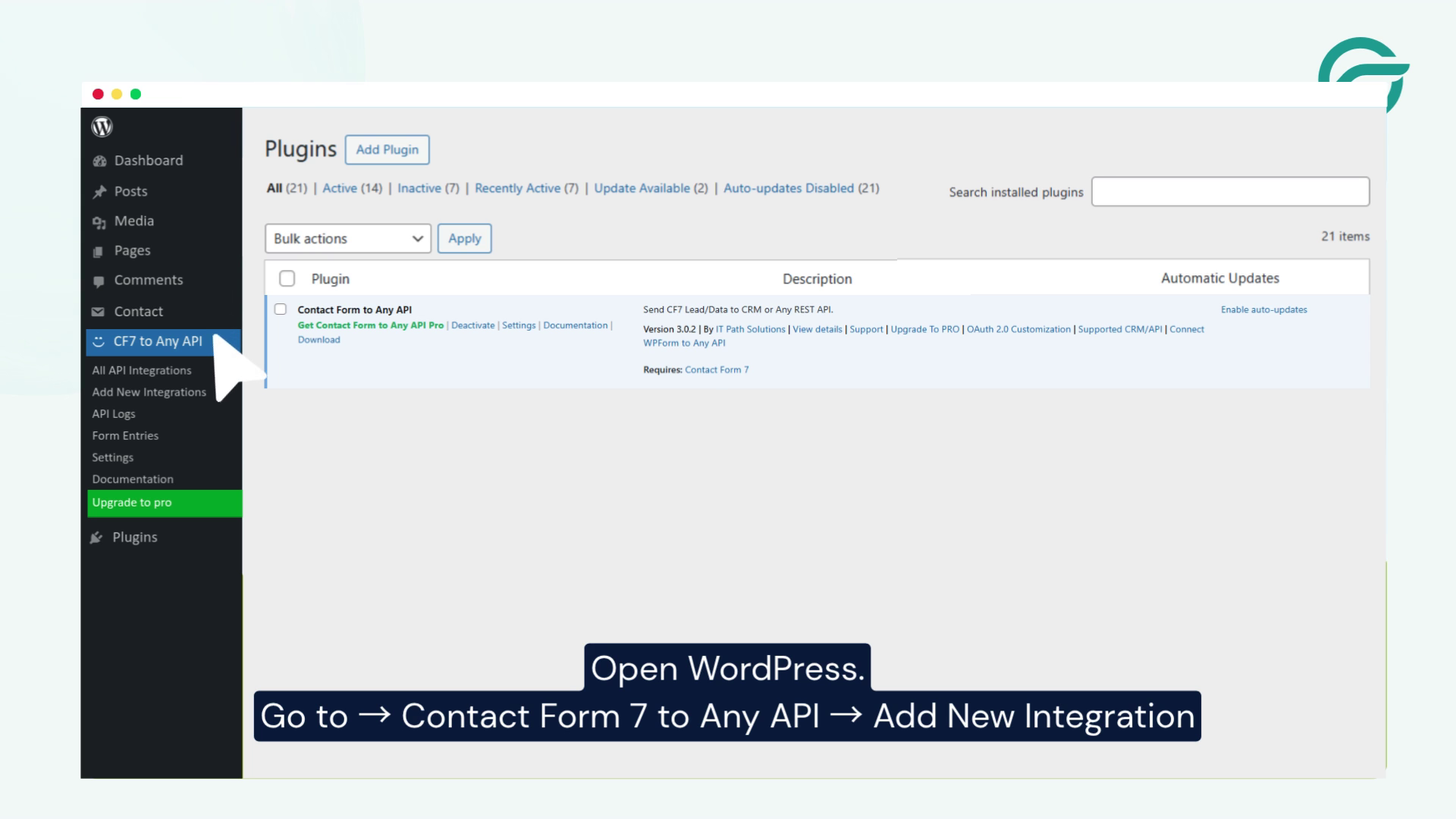
Navigate to:
Contact Form to Any API → Add New Integration
This is where you will create the connection between your Contact Form 7 form and Threadkore CRM.
Step 3: Create a New API Integration
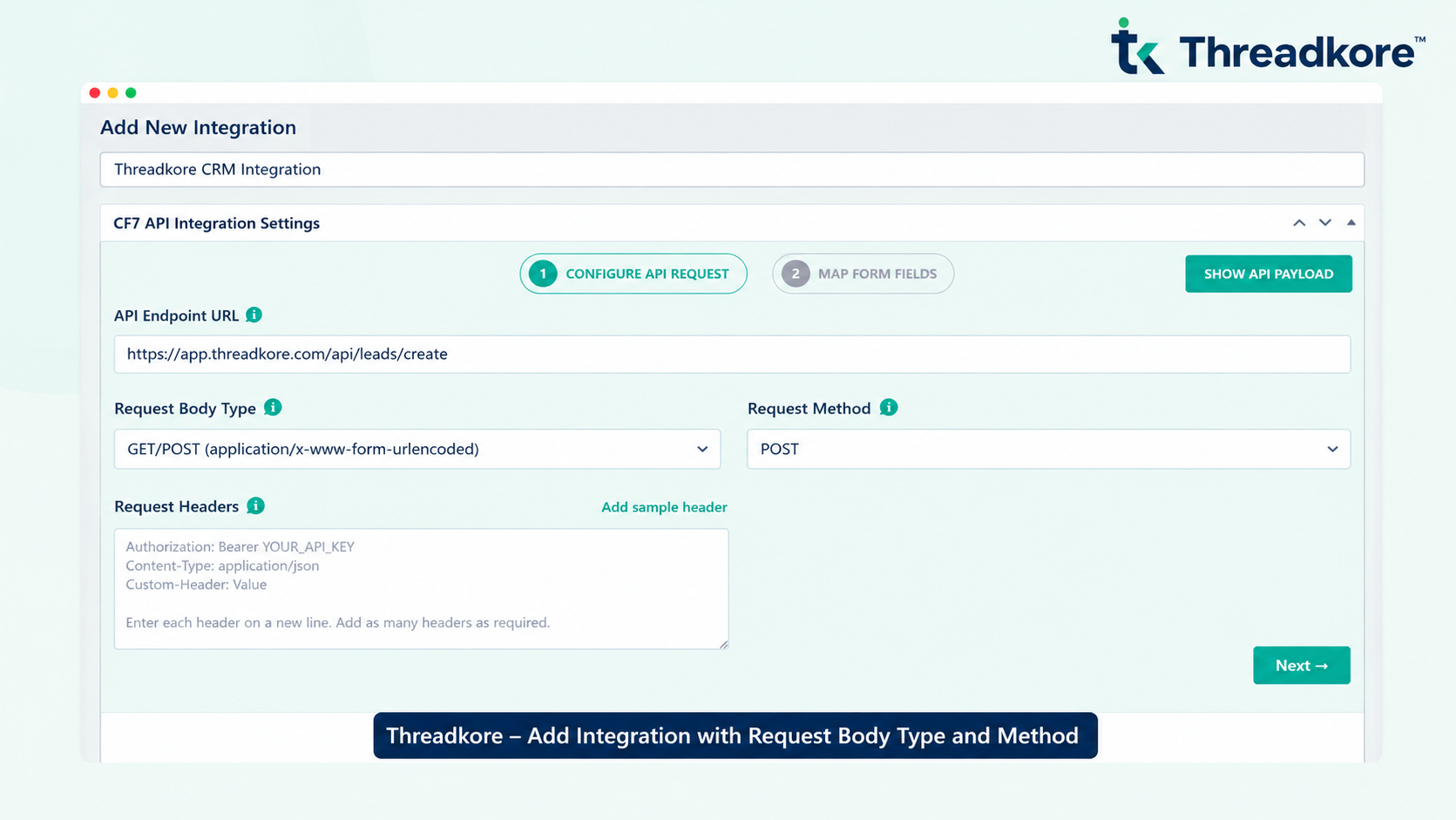
Click Add New Integration and enter an integration title.
For example:
Threadkore CRM Integration
Choose a name that makes the integration easy to identify, especially if you have multiple forms or API integrations on your website.
In the API Endpoint URL field, enter the Threadkore CRM Lead Capture API URL:
https://app.threadkore.com/api/leads/create
Configure the following settings:
Request Body Type: Parameters – GET/POST (application/x-www-form-urlencoded)
Request Method: POST
Keep the Request Headers field as needed for your API configuration. Click Next to continue.
Step 4: Select Contact Form 7
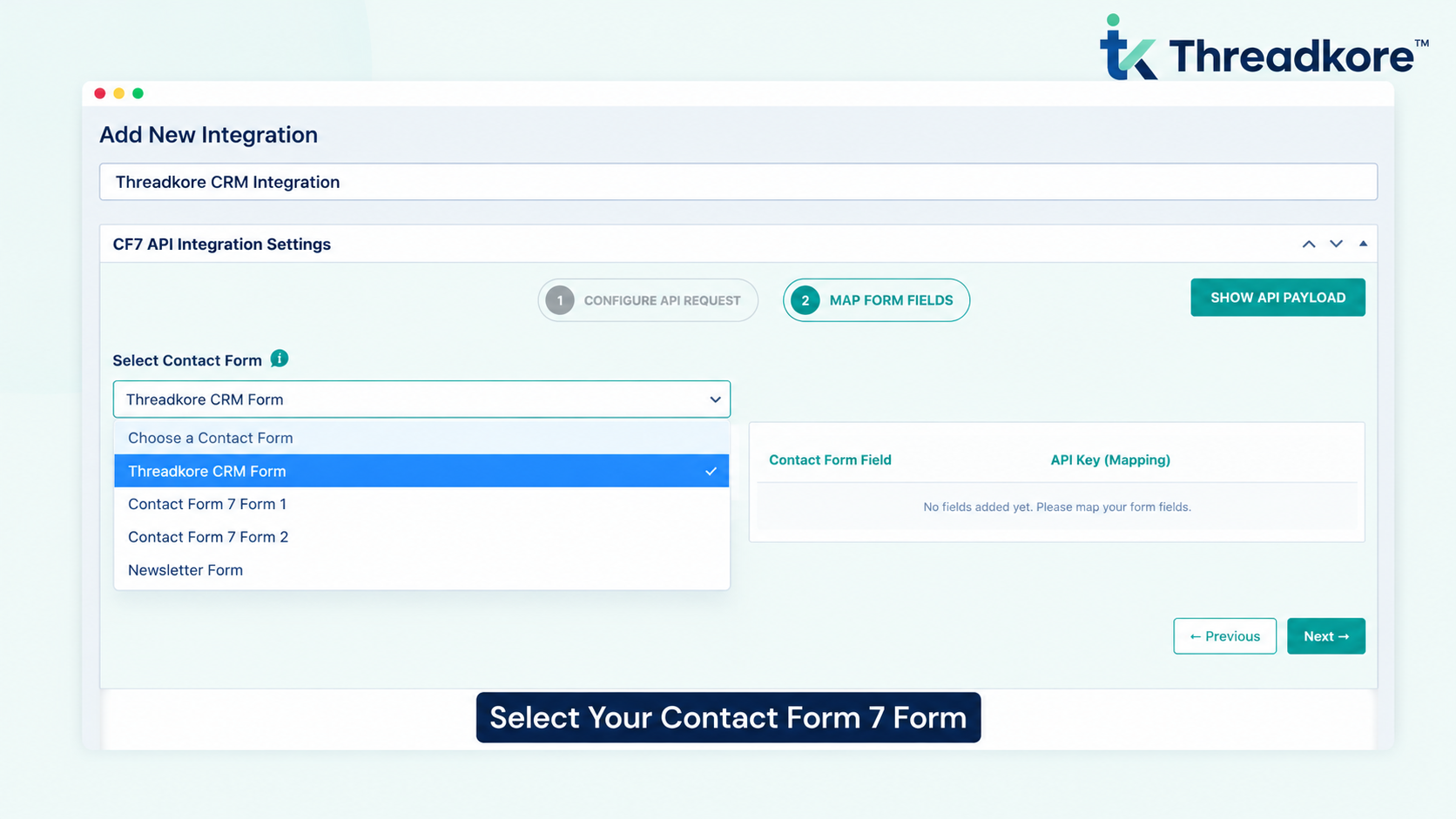
Create a Contact Form 7 form for Threadkore CRM, then select it under Select Contact Form in the Map Form Fields step.
Click Next
Step 5: Map Contact Form 7 Fields to Threadkore CRM
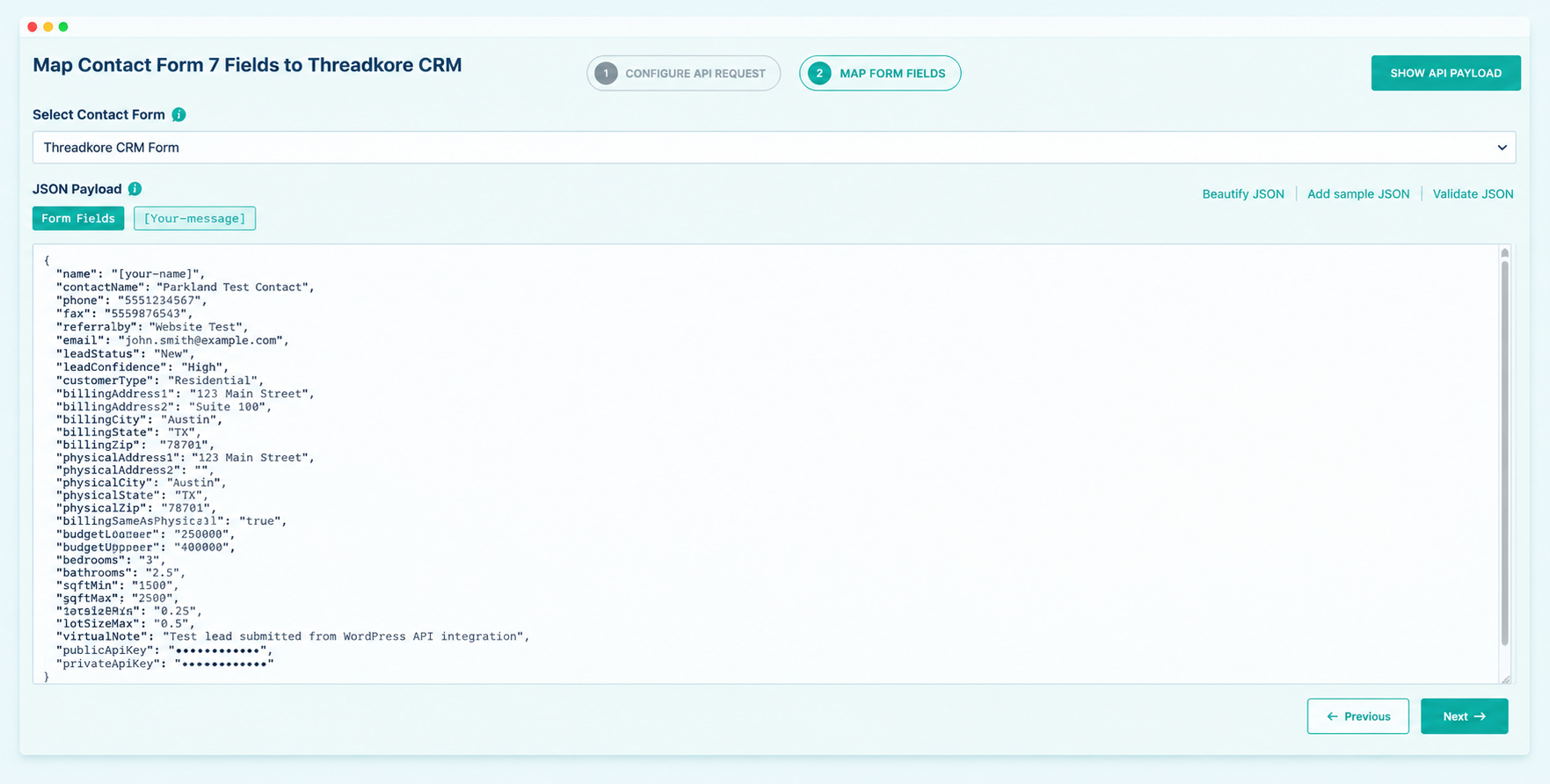
Select your Threadkore CRM Form and map the Contact Form 7 fields to the corresponding Threadkore CRM API parameters.
API Authentication: Enter your Threadkore Public API Key and Private API Key in the JSON payload. Both keys are required for the integration. Make sure the keys are correct and keep your private API key secure.
Step 6: Submit a Test Entry
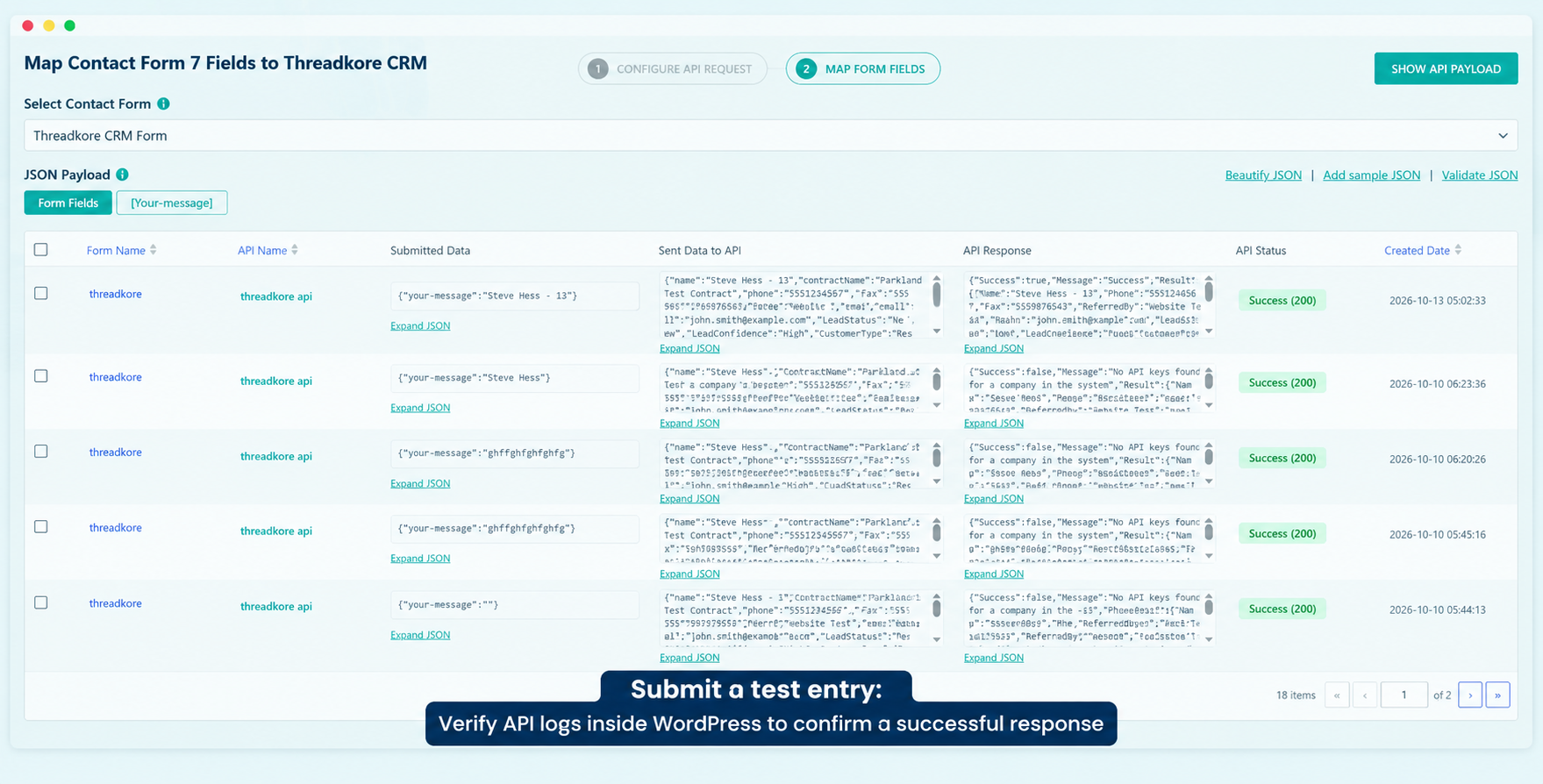
Submit a test entry. Verify API logs inside WordPress to confirm a successful response.
Conclusion
Integrating Contact Form 7 with Threadkore CRM can help automate the process of transferring website leads and contact information into your CRM. By connecting your WordPress forms to Threadkore CRM through its API, you can reduce manual data entry, improve contact management, and organize new form submissions more efficiently.
Using the Contact Form to Any API plugin makes the integration process straightforward. You can configure the Threadkore CRM API endpoint, set up authentication using the required API credentials, map your Contact Form 7 fields, and test the API request. Once the integration is configured correctly, form submissions can be sent to Threadkore CRM to support your lead management workflow.
Frequently Asked Questions
1. What are the benefits of integrating Contact Form 7 with Threadkore CRM?
Integrating Contact Form 7 with Threadkore CRM can automate the transfer of website form submissions, reduce manual data entry, keep contact information organized, and help teams manage and follow up with leads more efficiently.
2. Can Contact Form 7 submissions be automatically added to Threadkore CRM?
Yes. Once the API integration is configured correctly, Contact Form 7 submissions can be automatically sent to Threadkore CRM whenever a visitor submits a form.
3. What are some real-world use cases for Contact Form 7 and Threadkore CRM integration?
Businesses can use this integration for contact inquiries, quote requests, consultation bookings, demo requests, service inquiries, and other lead-generation forms. Submitted information can be transferred to Threadkore CRM for further management and follow-up.
4. How does the integration help with lead management?
The integration helps centralize website-generated leads in Threadkore CRM, allowing sales and marketing teams to manage incoming inquiries from their CRM instead of manually transferring information from WordPress.
5. Does Contact Form 7 and Threadkore CRM integration reduce manual data entry?
Yes. When configured correctly, the integration can automatically transfer form data to Threadkore CRM, reducing repetitive copy-and-paste tasks and minimizing errors associated with manual data entry.
6. Can multiple Contact Form 7 forms be connected to Threadkore CRM?
Yes. Multiple Contact Form 7 forms can be configured to send data to Threadkore CRM. For example, separate forms can handle contact inquiries, service requests, demo requests, and quote requests, depending on your API configuration.
7. Can this integration help businesses respond to new leads faster?
Yes. Automatically transferring form submissions to Threadkore CRM can reduce delays caused by manual data entry. Teams can access new lead information in their CRM workflow and follow up more quickly.


