



Capturing website enquiries is only the first step in managing potential customers. To turn those enquiries into meaningful business opportunities, you need an efficient way to organize, track, and manage incoming leads.
If your WordPress website uses Contact Form 7 to collect enquiries and Big Contacts CRM to manage customer relationships, integrating the two can simplify your workflow. By connecting Contact Form 7 with Big Contacts CRM through an API, you can automatically transfer form submissions into your CRM without manually copying contact details.
This integration helps reduce manual data entry, minimize the chances of missing enquiries, and keep your contact information organized in one place.
In this step-by-step guide, you’ll learn how to connect Contact Form 7 with Big Contacts CRM in WordPress using the Contact Form to API plugin, configure the API authentication, map form fields, and test the integration to ensure everything works correctly..
Watch the Video Tutorial: CF7 with Big Contacts CRM Integration (Step-by-Step)
Before following the written steps, you can watch the complete integration setup in this quick video tutorial.
Step-by-Step Guide to Connect Contact Form 7 with Big Contacts CRM
Step 1: Sign in to Your Big Contacts Account
First, sign in to your Big Contacts CRM account using your registered login credentials. Keep your account accessible, as you’ll need to generate an API access token during the integration process.
Step 2: Open Your WordPress Dashboard
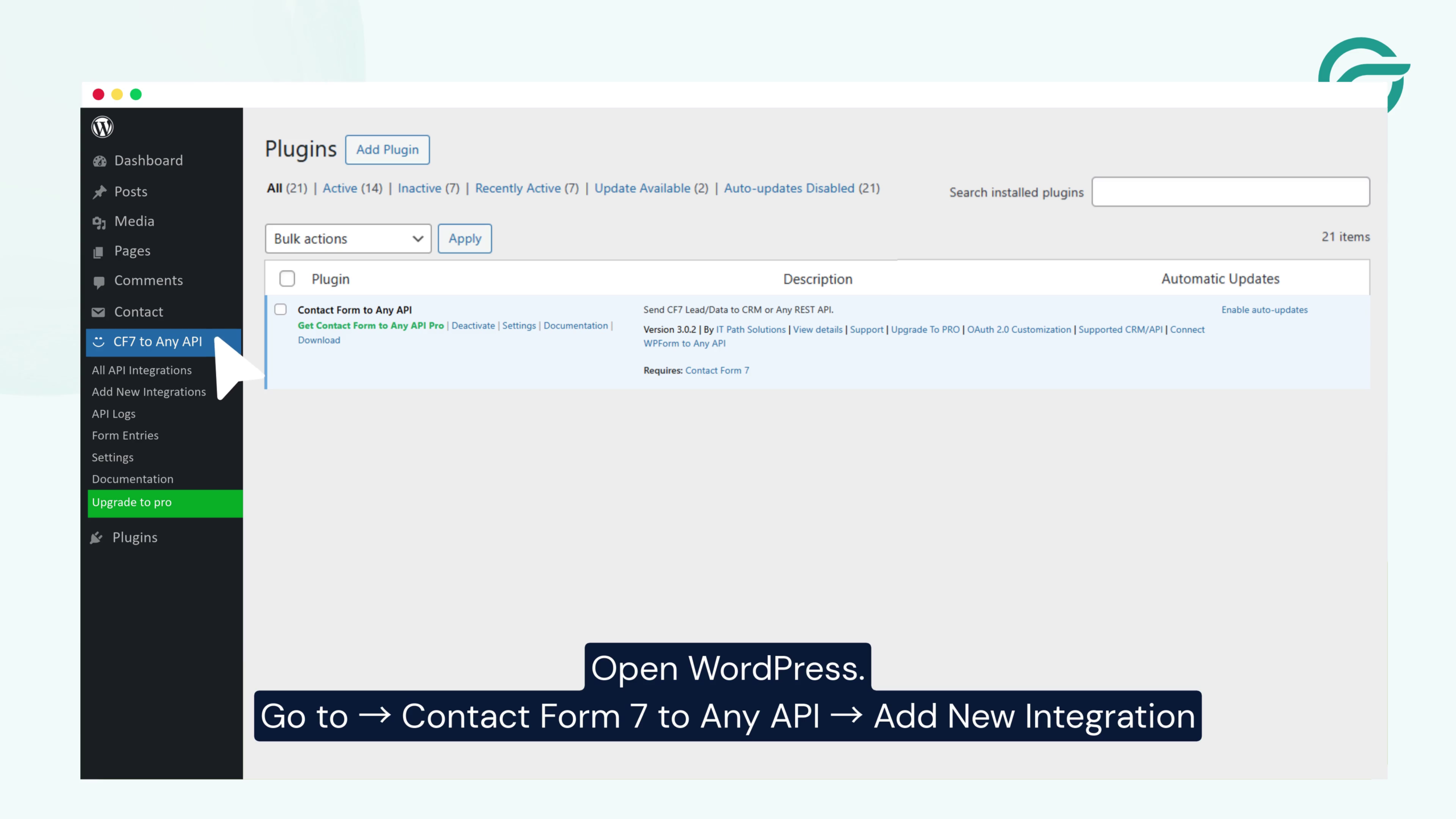
Go to -> Contact Form to Any API -> Add New Integration
Step 3: Create a New API Integration
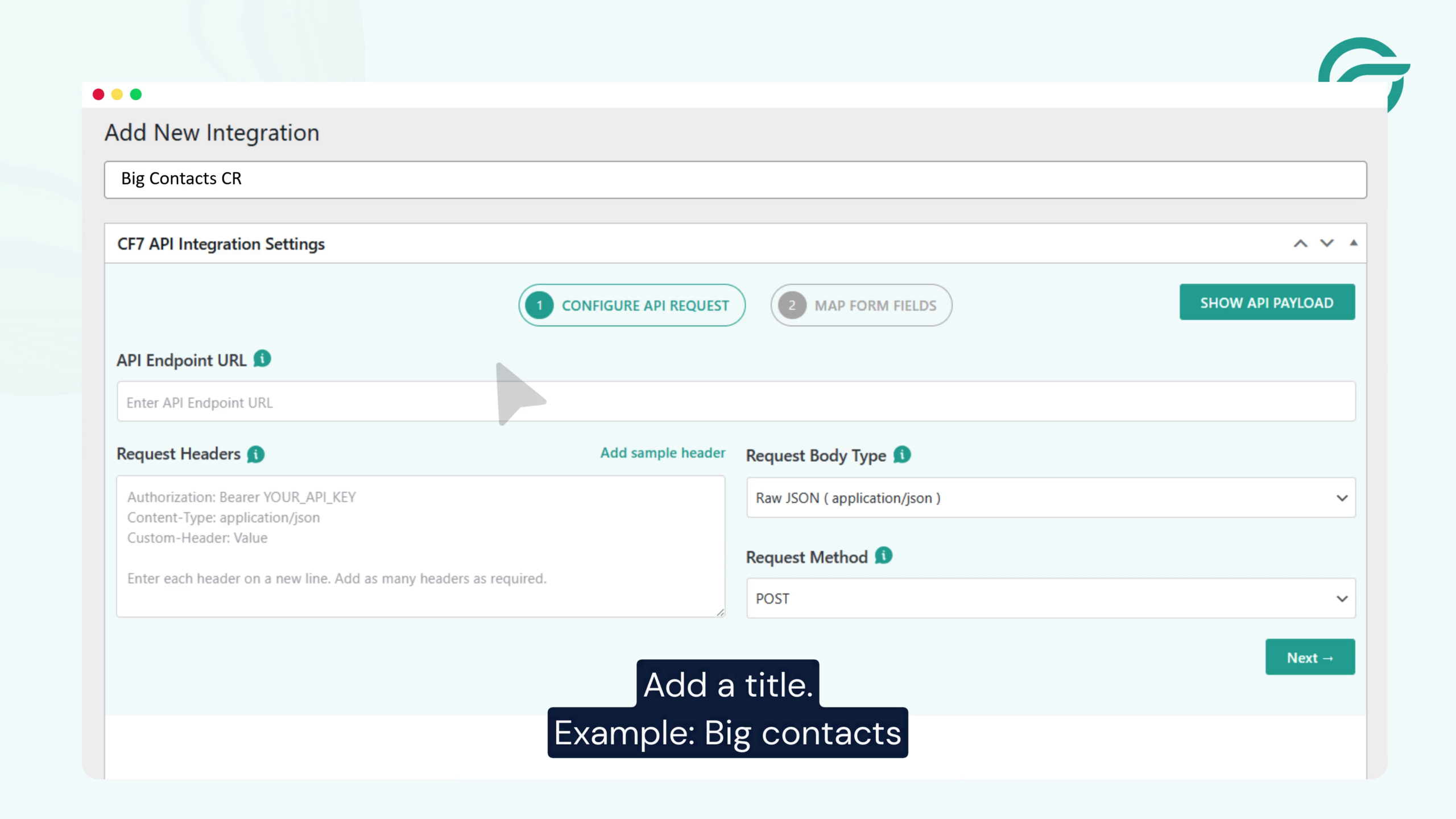
Add new integration title:- Example – Big Contacts CRM Integration
This title will help you identify the integration easily when managing multiple API connections.
Step 4: Add the Big Contacts API Endpoint URL
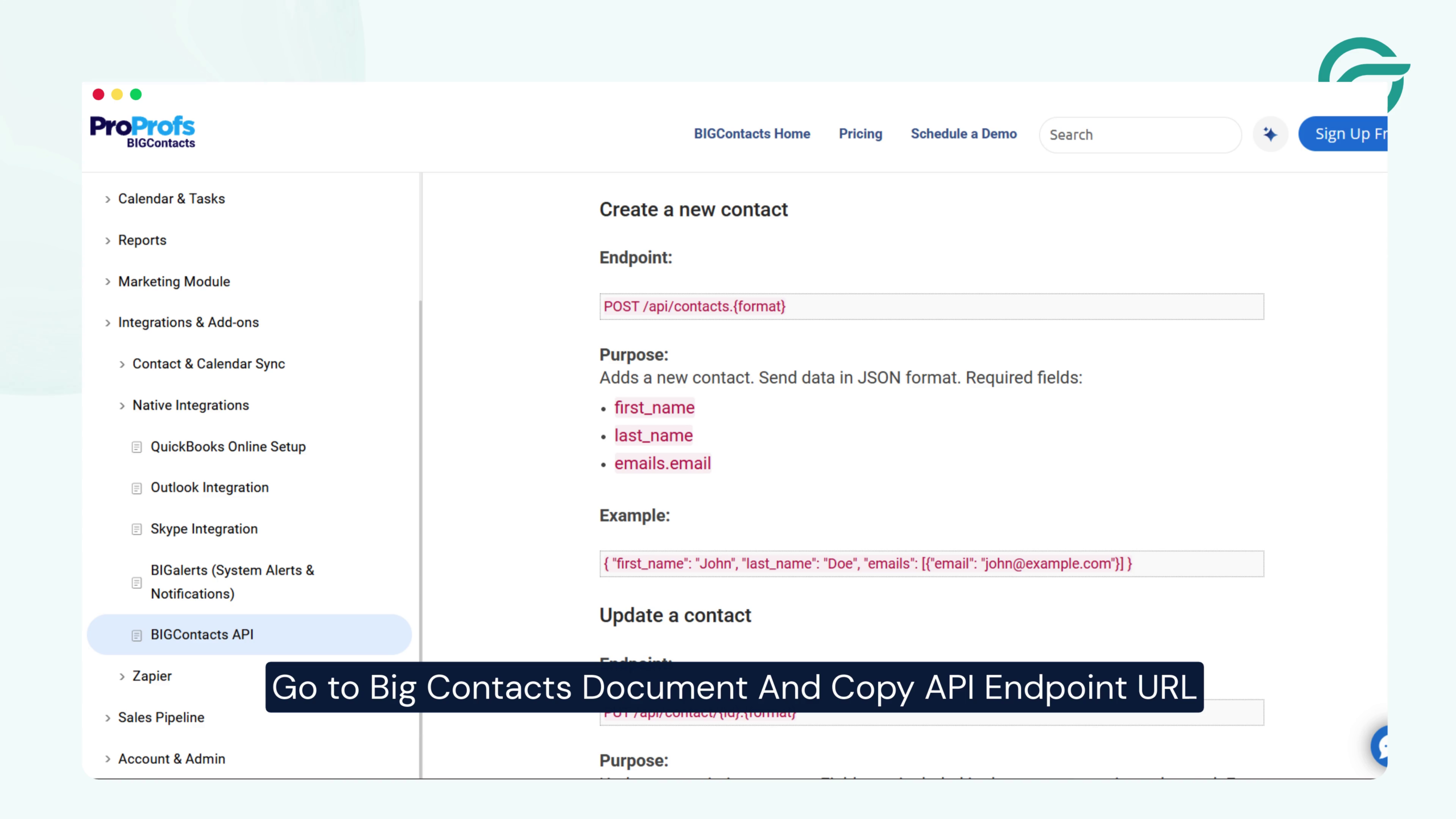
Go To BigContacts Document And Copy API Endpoint URL
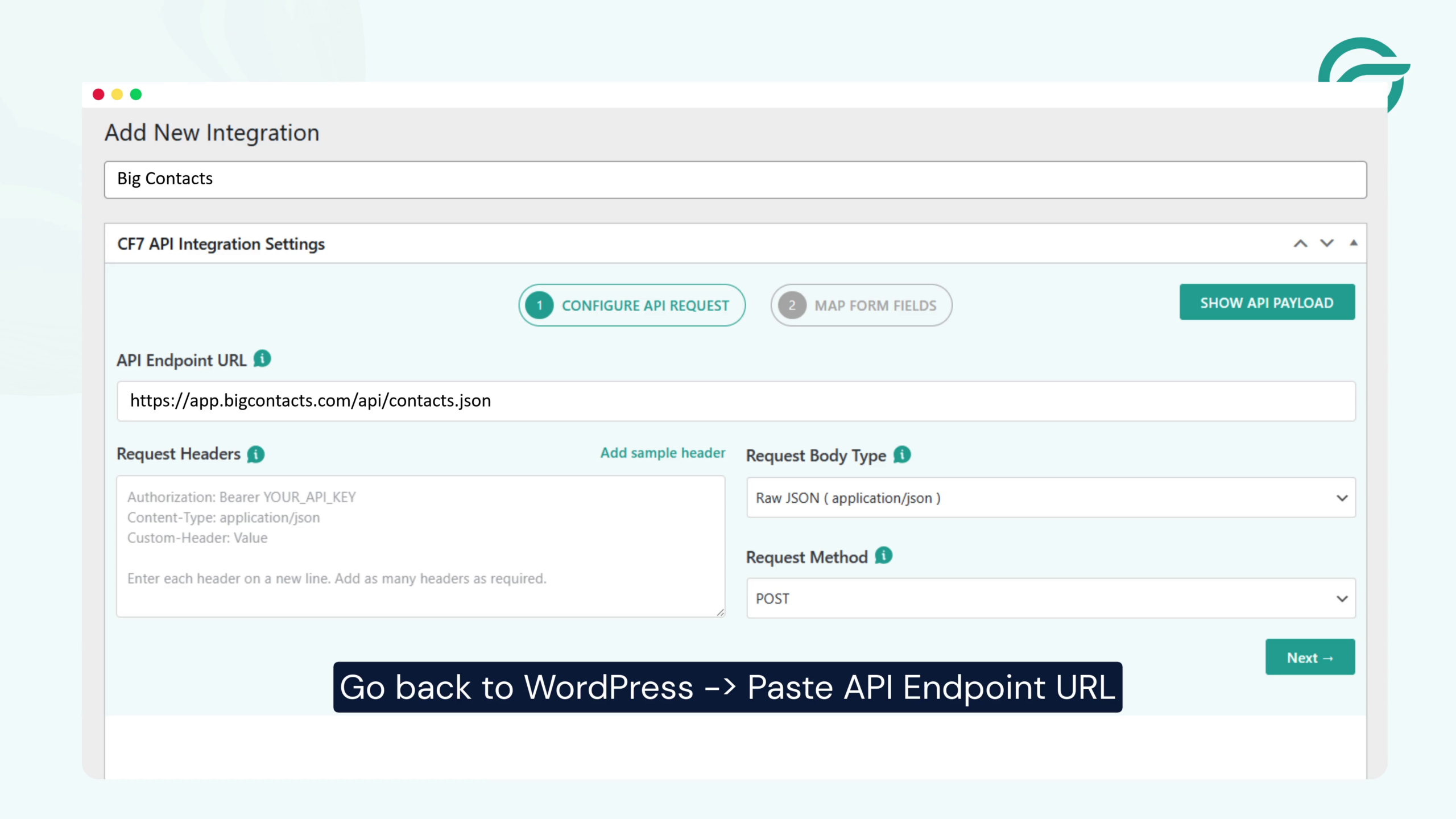
Go back to WordPress -> API Endpoint URL
Paste the copied URL: https://app.bigcontacts.com/api/contacts.json
Return to your WordPress dashboard and paste the copied URL into the API Endpoint URL field.
Step 5: Generate an API Access Token in Big Contacts
To authenticate the connection between WordPress and Big Contacts, you need an API access token.
Follow these steps:
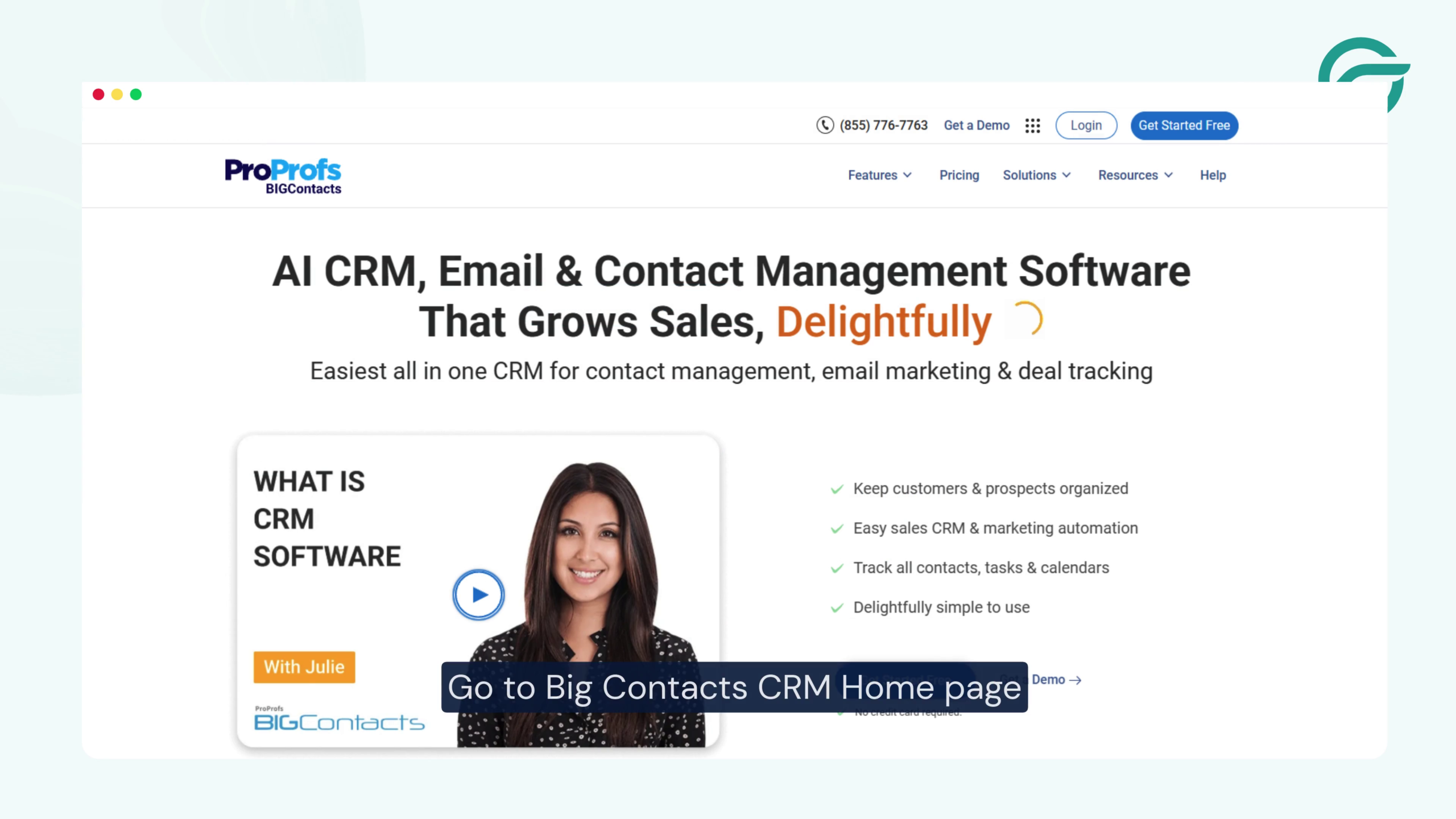
Go to Big Contacts Home Page -> Click on login and complete the Login or Sign in process
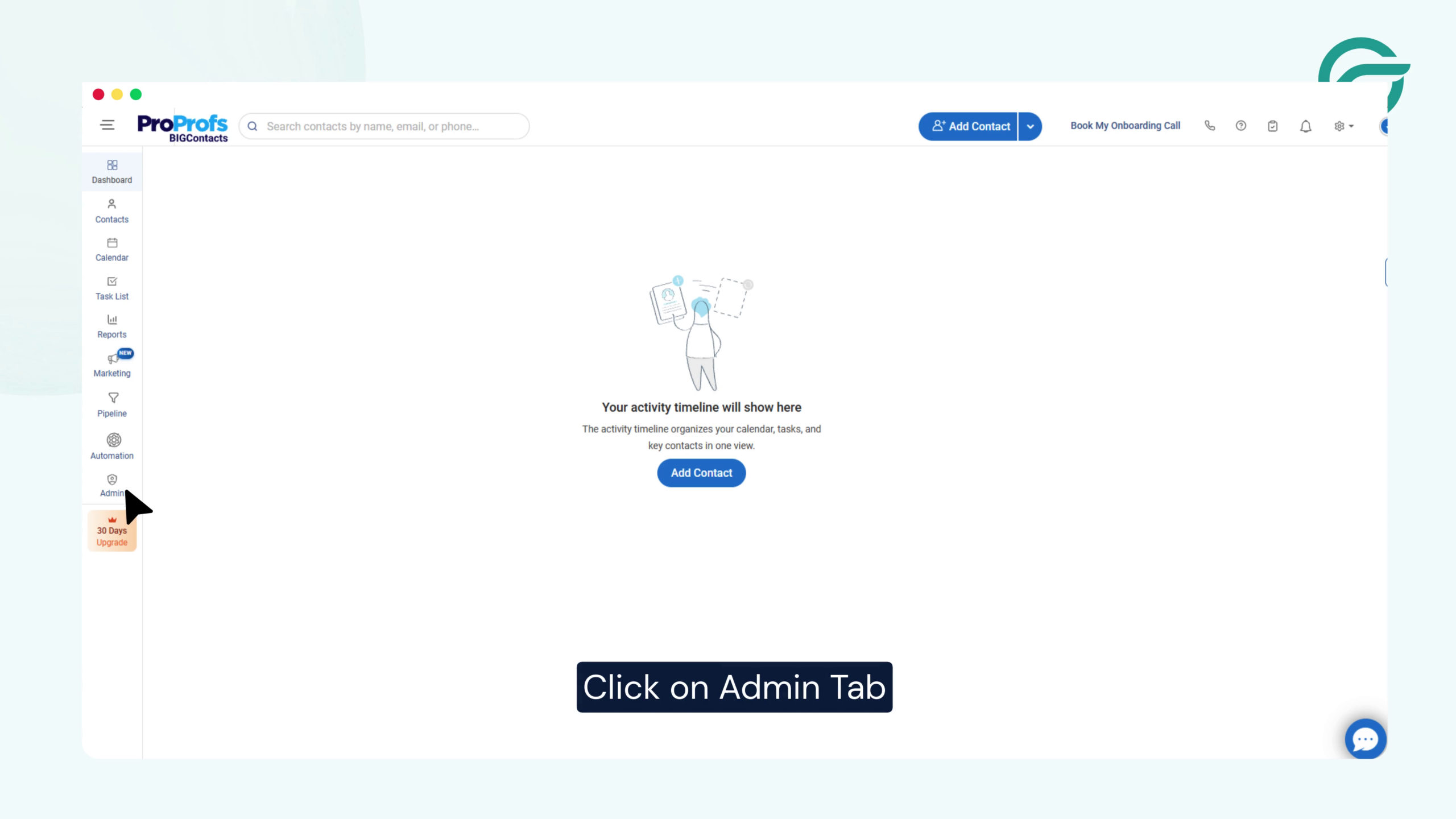
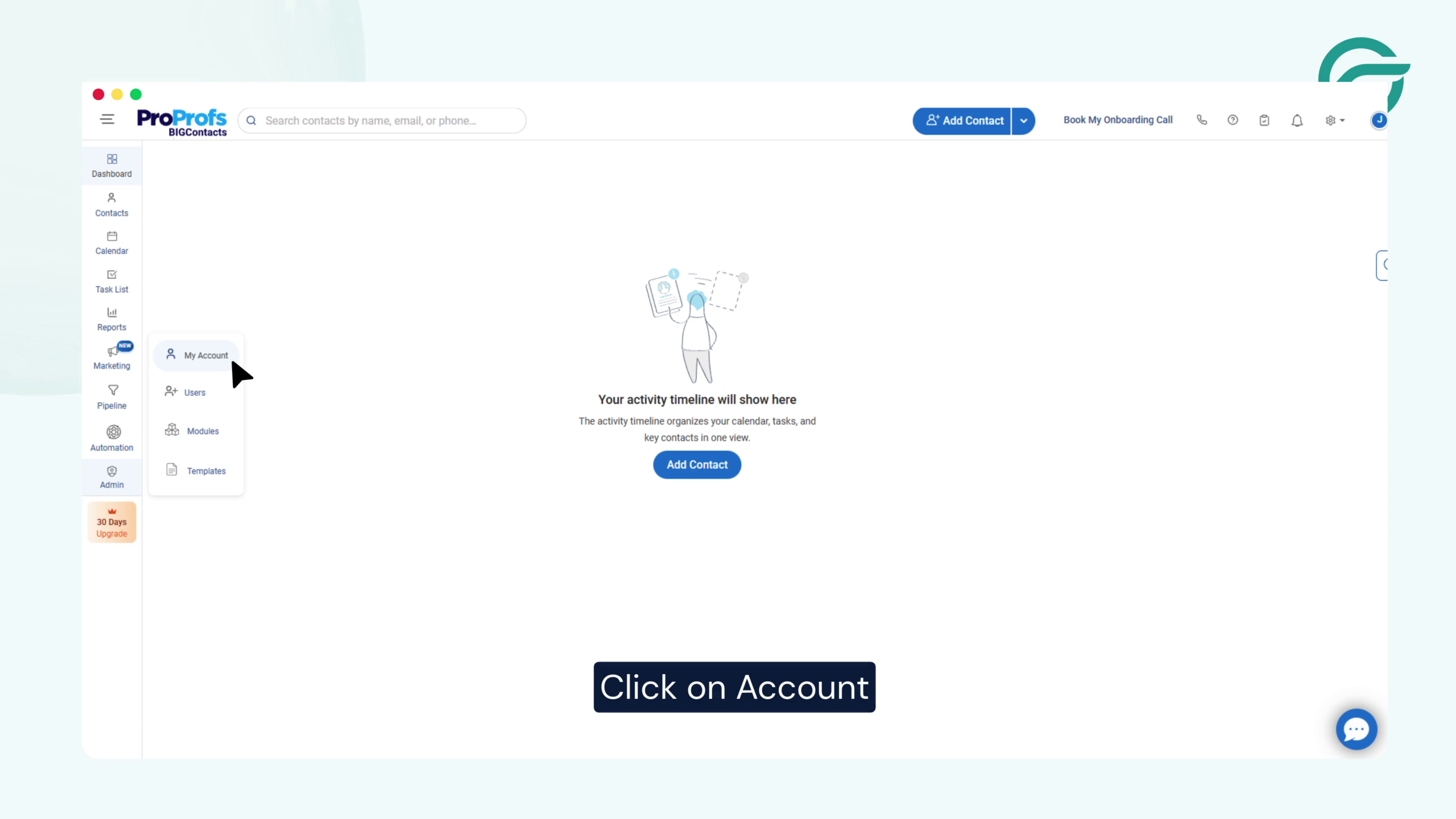
BigContacts Landing page – > Click on Admin Tab -> Click on Account
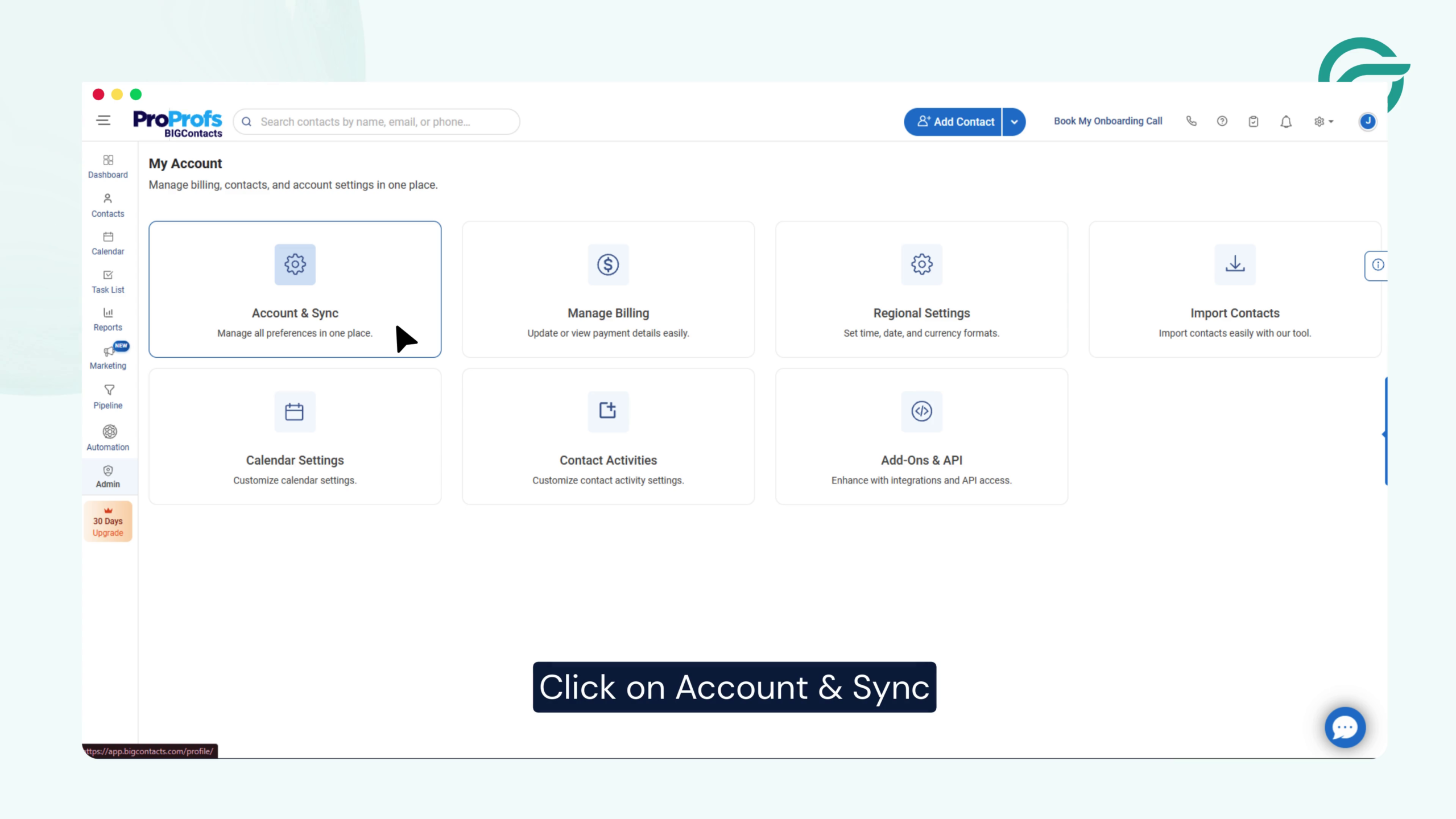
Click on Account & Sync – >
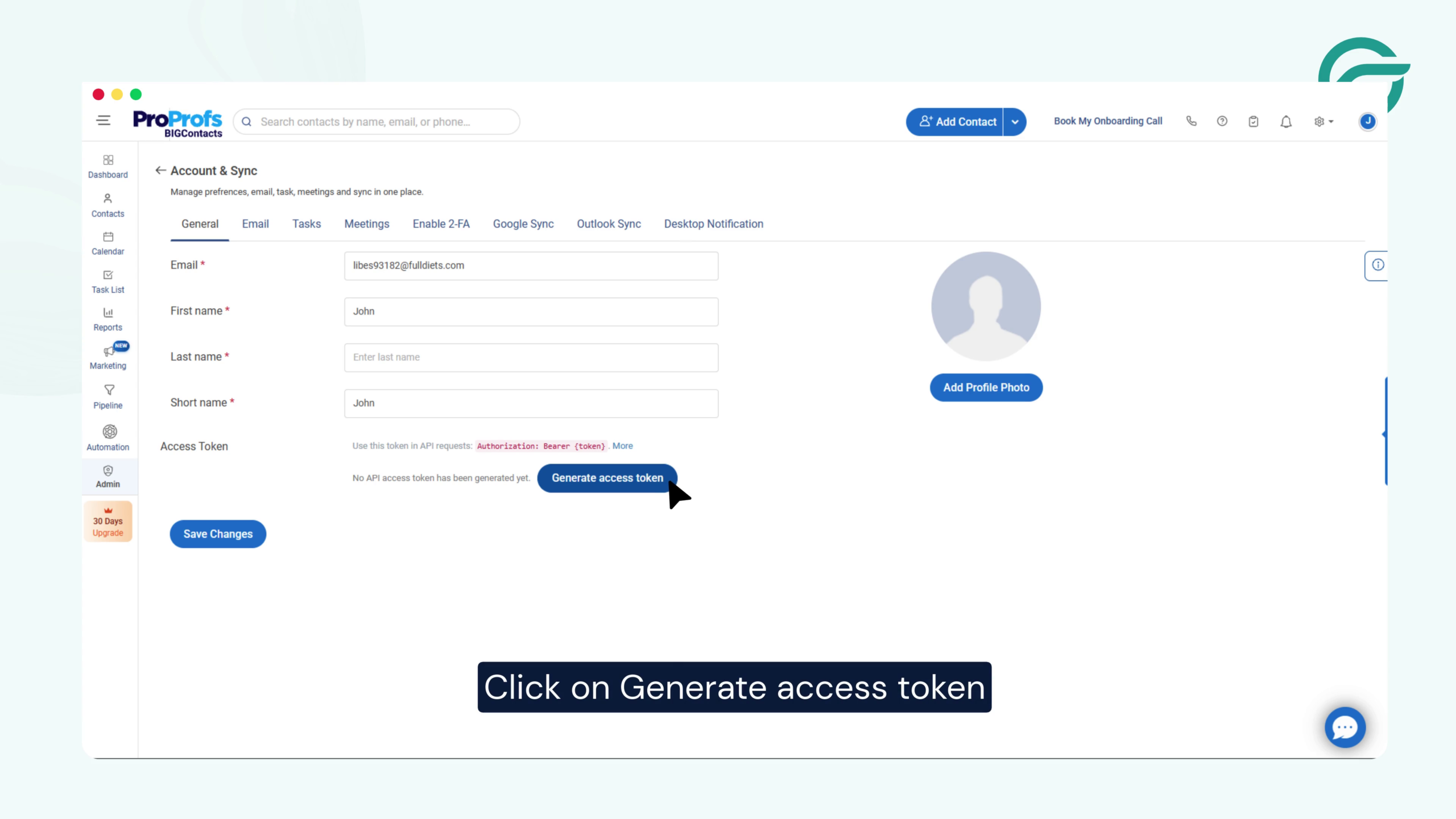
Click on Generate access token
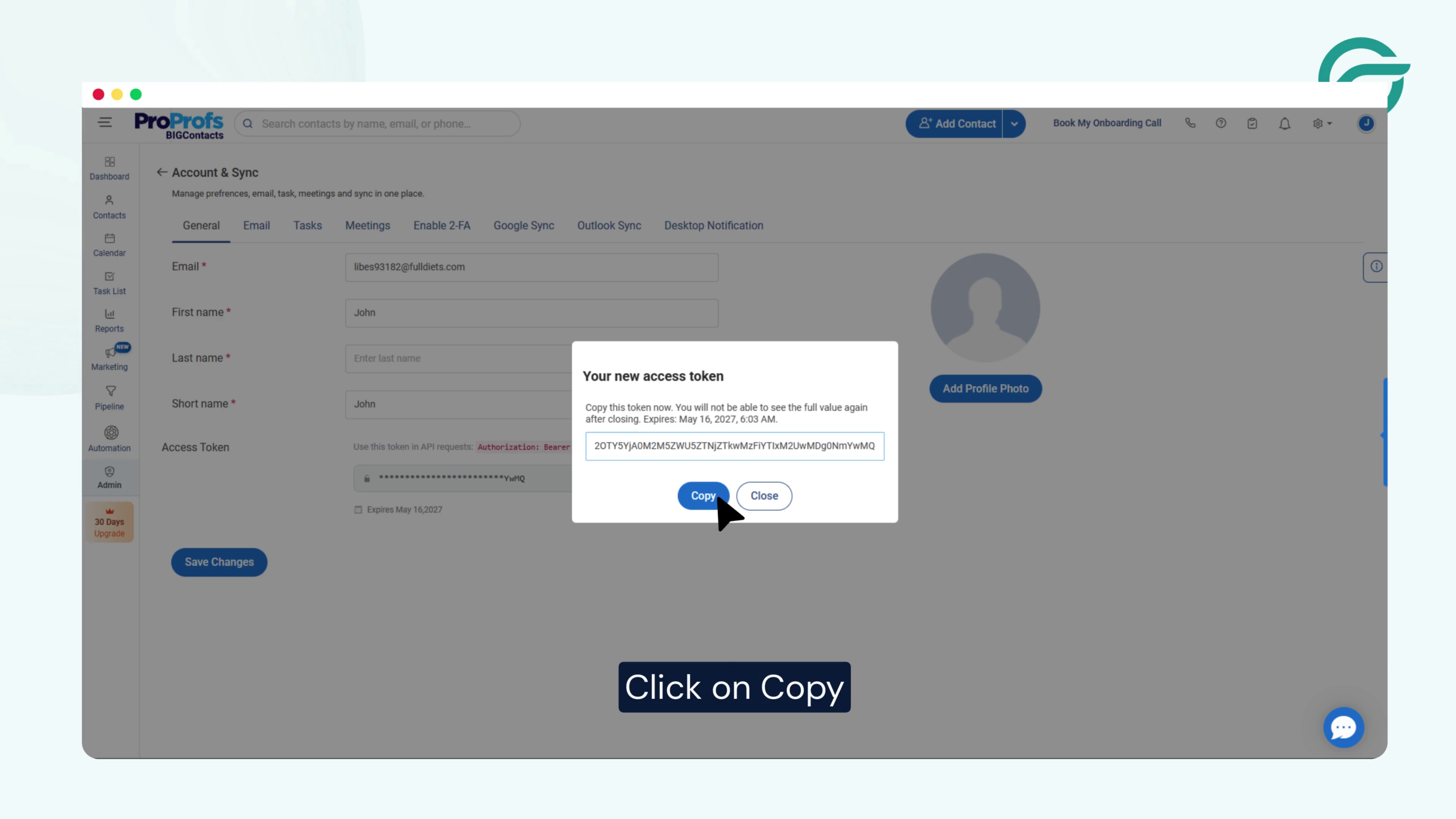
Click on Continue – > Click on Copy
Also can Copy or Delete as per your future use
Keep this token secure, as it will be used to authenticate API requests from your WordPress website.
Step 6: Configure the Request Headers in WordPress
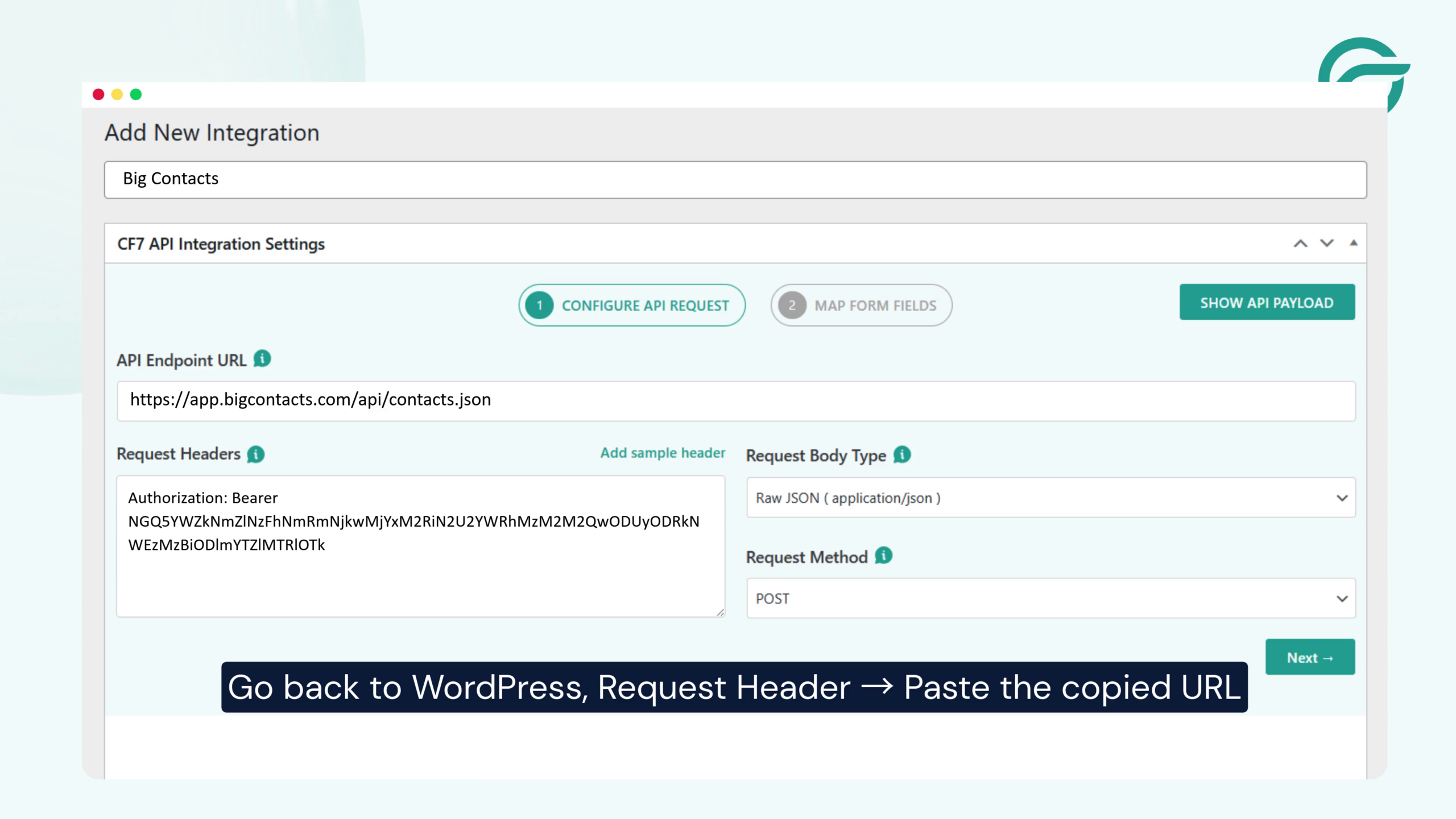
Go back to WordPress, Request Header -> Paste the copied URL in the “Request Headers” field
Once the request header is configured, click Next to continue.
Step 7: Select Your Contact Form 7 Form
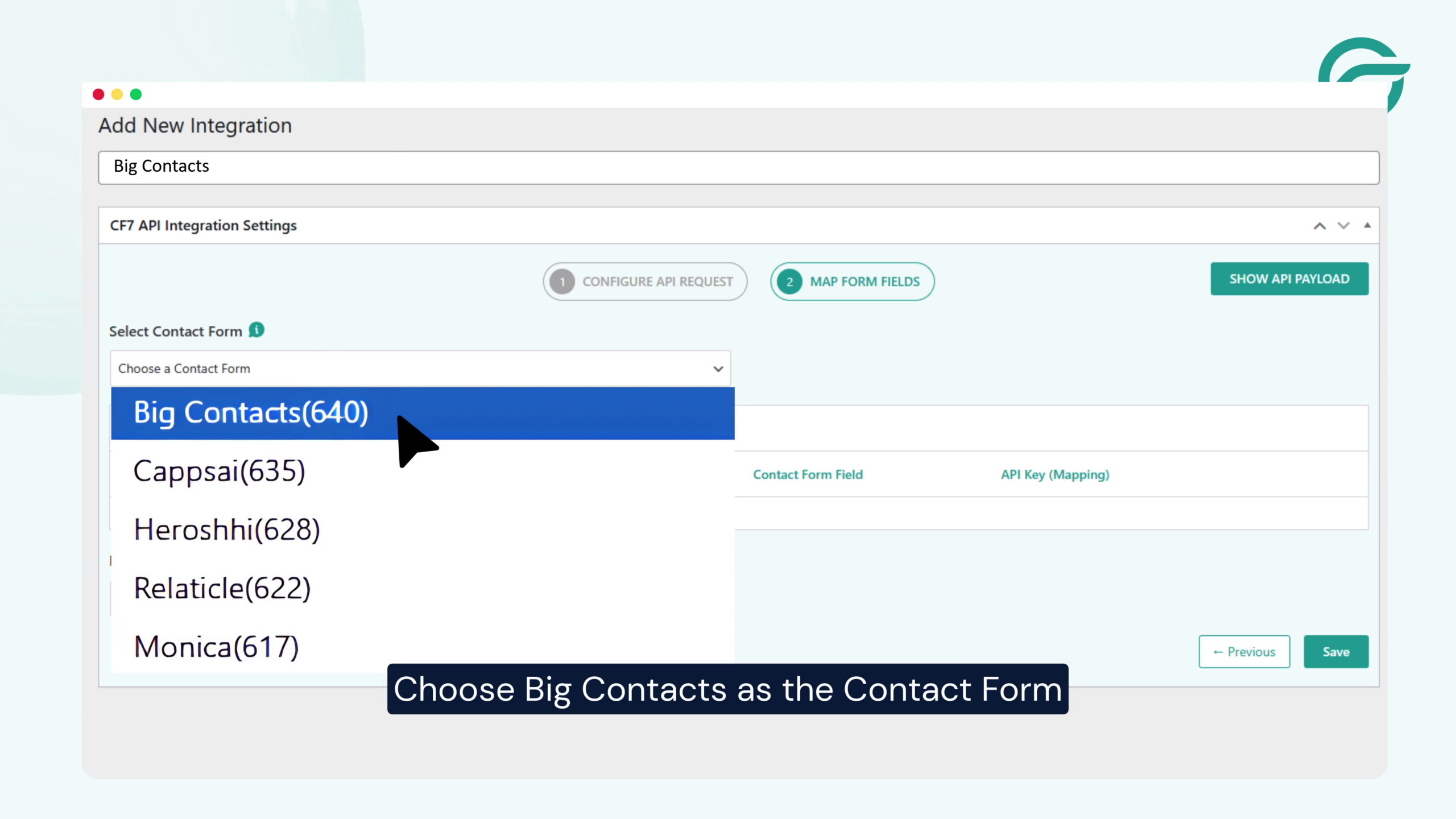
Choose Big Contacts as the Contact Form
This ensures that submissions from the selected website form are sent to your CRM.
Step 8: Map Contact Form 7 Fields to Big Contacts CRM Fields
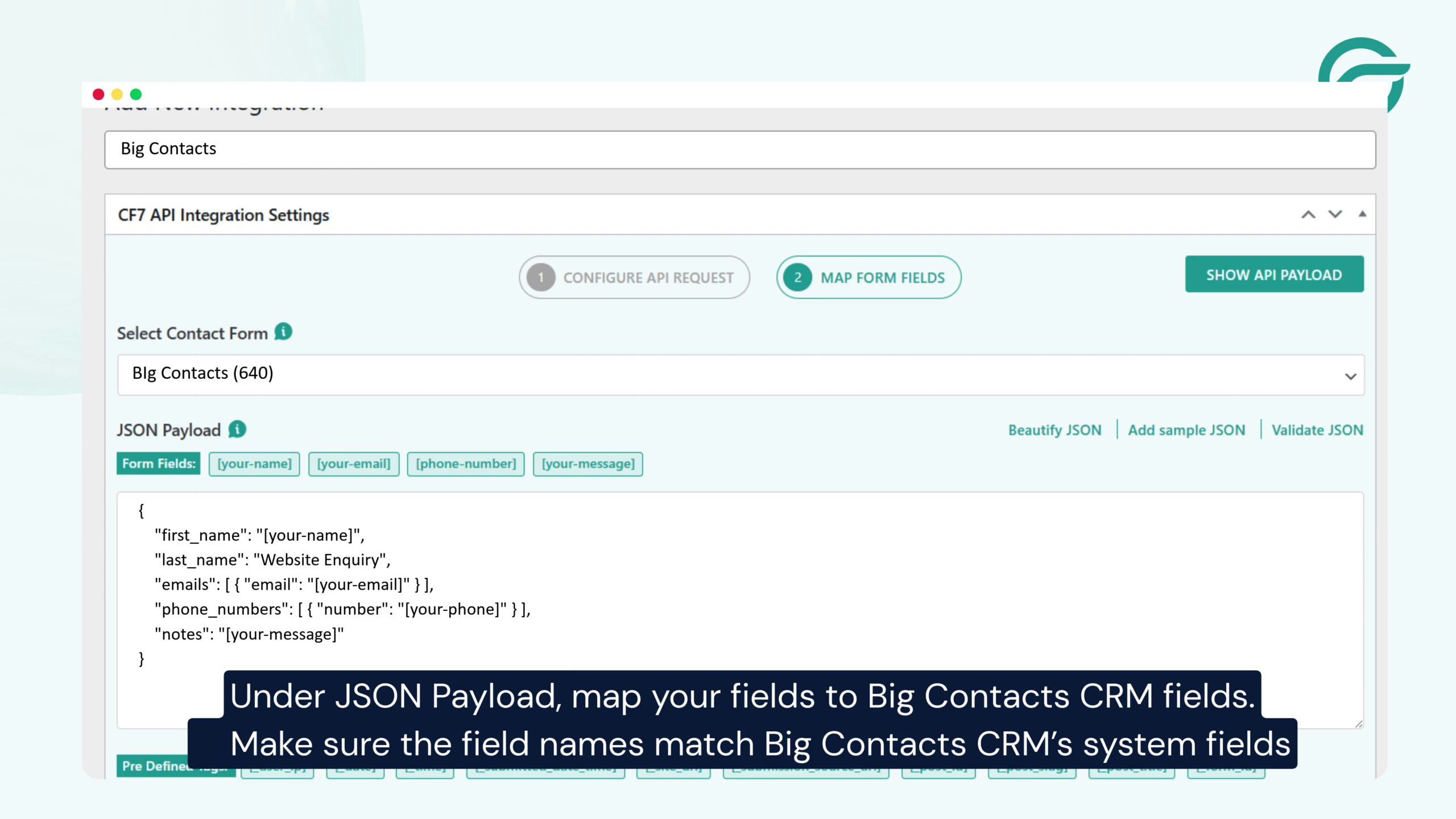
Under JSON Payload, map your fields to Big Contacts CRM fields.
Make sure the field names match Big Contacts CRM’s system fields
For example, you may need to map:
- Name
- Email Address
- Phone Number
- Company Name
- Message
Ensure that the field names and JSON structure match the requirements of the Big Contacts API. Incorrect field mapping may prevent contact information from being transferred successfully.
Step 9: Submit a Test Entry and Verify the Integration
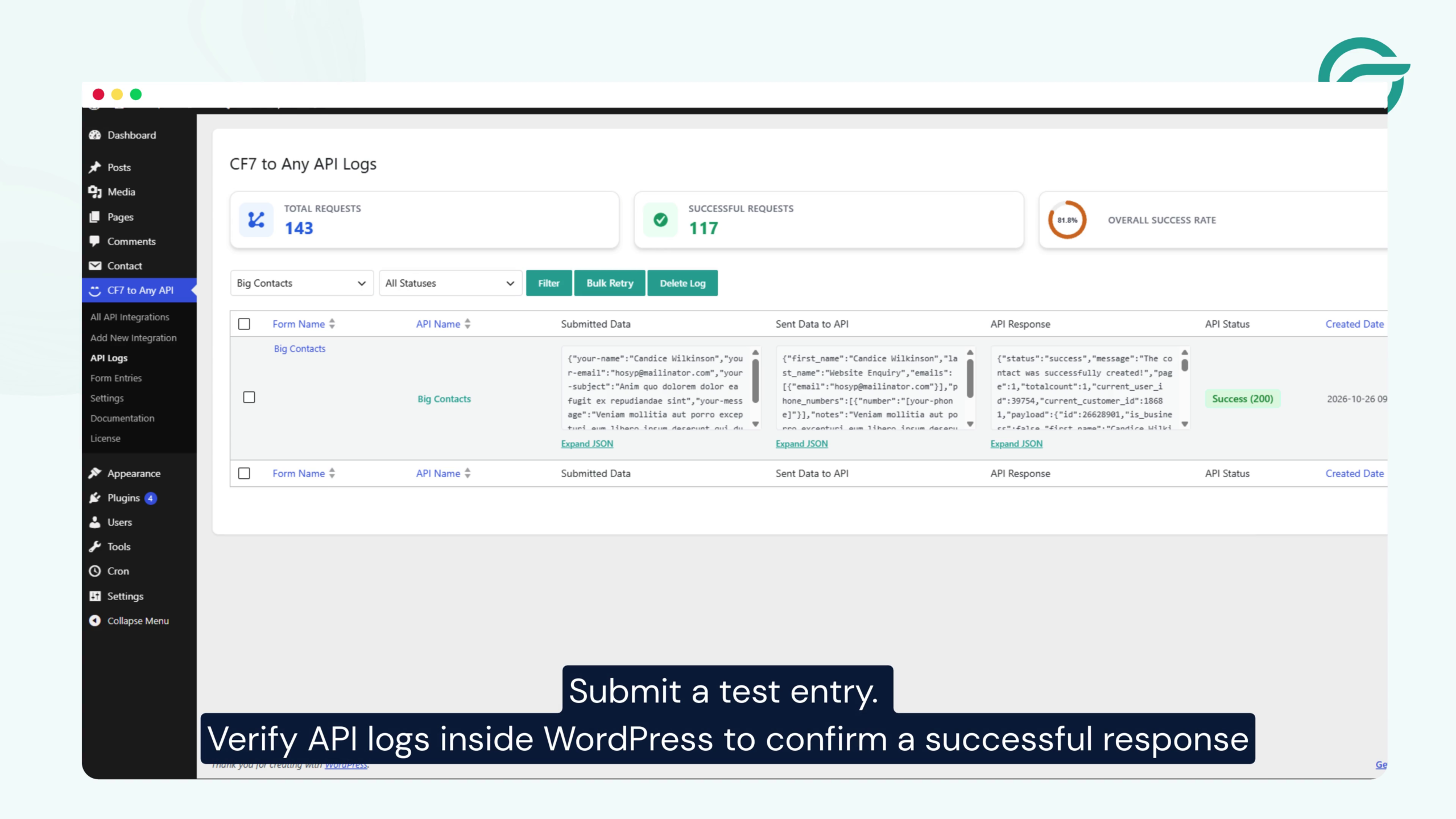
Submit a test entry. Verify API logs inside WordPress to confirm a successful response.
Conclusion
Integrating Contact Form 7 with Big Contacts CRM is an effective way to automate lead collection and simplify customer management on your WordPress website. With the Contact Form to API plugin, you can connect both platforms through an API, automatically transfer website enquiries to your CRM, reduce manual data entry, and keep important contact information organized and accessible.
By configuring the correct API endpoint, authentication token, and field mapping in the Contact Form to API plugin, you can establish a seamless connection between your website forms and Big Contacts CRM.
Follow the steps outlined in this guide to streamline your lead management process, save time, and focus more on building relationships with potential customers.
Ready to simplify your lead management? Use the Contact Form to API plugin to connect Contact Form 7 with Big Contacts CRM and make your website enquiries easier to manage.
FAQs: Contact Form 7 with Big Contacts CRM Integration
1. What are the benefits of integrating Contact Form 7 with Big Contacts CRM?
Integrating Contact Form 7 with Big Contacts CRM helps automate lead collection by transferring website form submissions directly into your CRM. It reduces manual data entry, minimizes the risk of missing enquiries, and keeps customer information organized for easier follow-ups and relationship management.
2. Can Contact Form 7 automatically send website enquiries to Big Contacts CRM?
Yes. By using the Contact Form to API plugin, you can connect Contact Form 7 with Big Contacts CRM through an API. Once configured, form submissions can be automatically sent to your CRM, eliminating the need to manually copy contact details.
3. What type of information can be transferred from Contact Form 7 to Big Contacts CRM?
You can transfer important lead information such as names, email addresses, phone numbers, company names, and enquiry messages. Mapping the relevant form fields to the corresponding CRM fields helps ensure that contact information is transferred in the correct format.
4. How does this integration improve lead management for businesses?
This integration streamlines lead management by bringing website enquiries directly into Big Contacts CRM. Your team can access submitted contact details in one place, manage incoming leads more efficiently, and focus on timely communication and building stronger customer relationships.
5. Is this integration useful for businesses that receive multiple website enquiries?
Yes. Businesses that regularly receive enquiries through contact forms can benefit significantly from this integration. It automates the transfer of submissions, reduces repetitive administrative work, and makes it easier to manage a growing volume of potential customers.


