


Contact Form 7 is one of the most widely used WordPress plugins for creating contact and lead forms. However, collecting form submissions is only the first step. To manage leads efficiently, businesses often need to send those submissions directly to their CRM, where they can be organized, tracked, and followed up.
With Contact Form to Any API, you can connect Contact Form 7 with CRM Zero, you can automatically send form data from your WordPress website to your CRM using an API endpoint. This eliminates the need to manually copy and transfer contact information and helps ensure that new leads are sent to your CRM quickly and accurately.
In this guide, we’ll show you how to connect Contact Form 7 with CRM Zero in WordPress using Contact Form to Any API. You’ll learn how to configure the API endpoint, add your CRM Zero API key, map Contact Form 7 fields to CRM Zero fields, and test the integration.
Watch the Video Tutorial: CF7 with CRM Zero Integration (Step-by-Step)
Before following the written steps, you can watch the complete integration setup in this quick video tutorial.
Follow the steps below to set up the integration:
1. Sign in to your CRM Zero Account
Sign in to your CRM Zero account before starting the integration process.
2. Open WordPress
Log in to your WordPress dashboard where Contact Form 7 and the Contact Form to Any API plugin are installed.
3. Go to Contact Form to Any API → Add New Integration
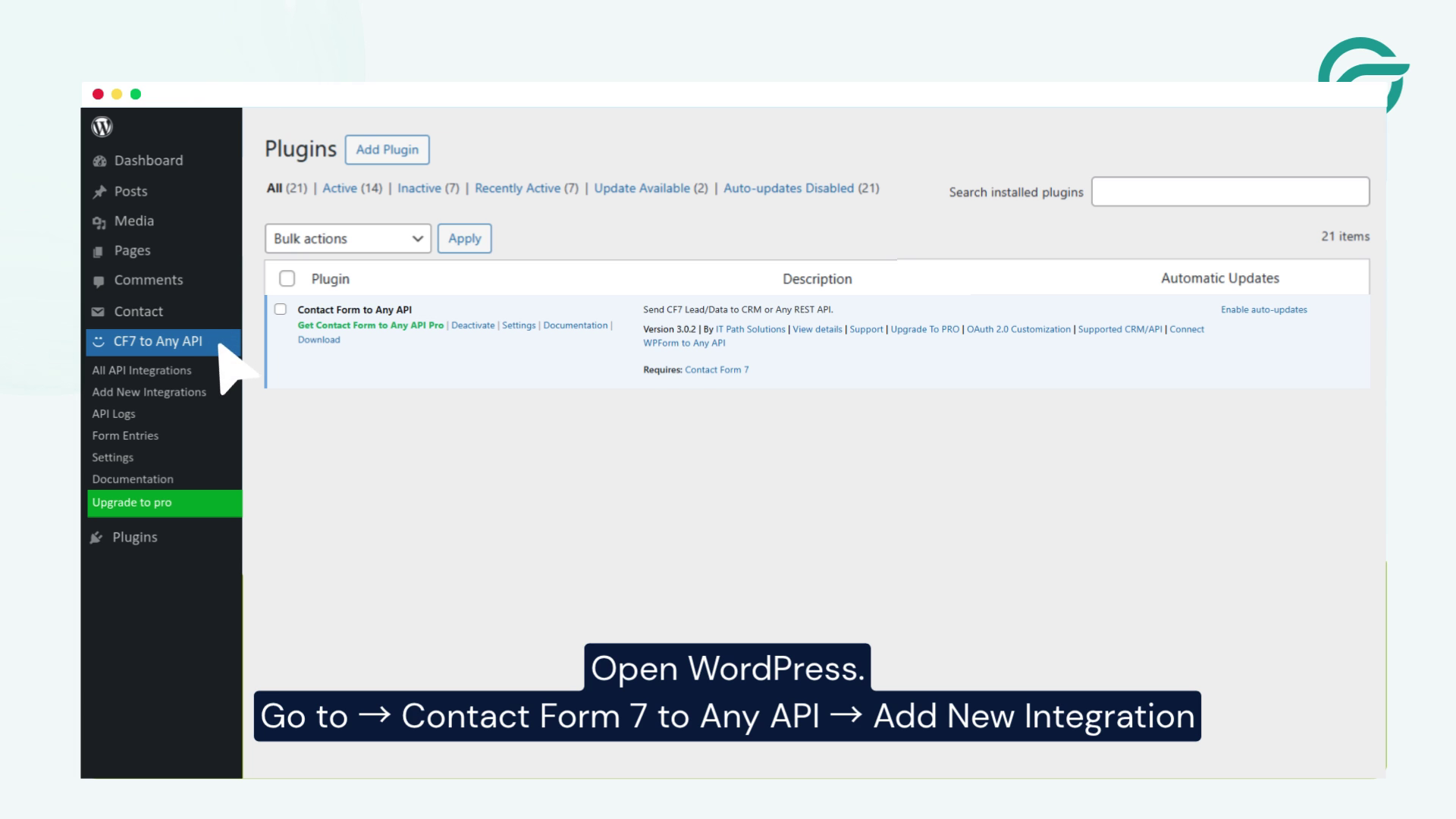
From your WordPress dashboard, navigate to:
Contact Form to Any API → Add New Integration
4. Add a New Integration Title
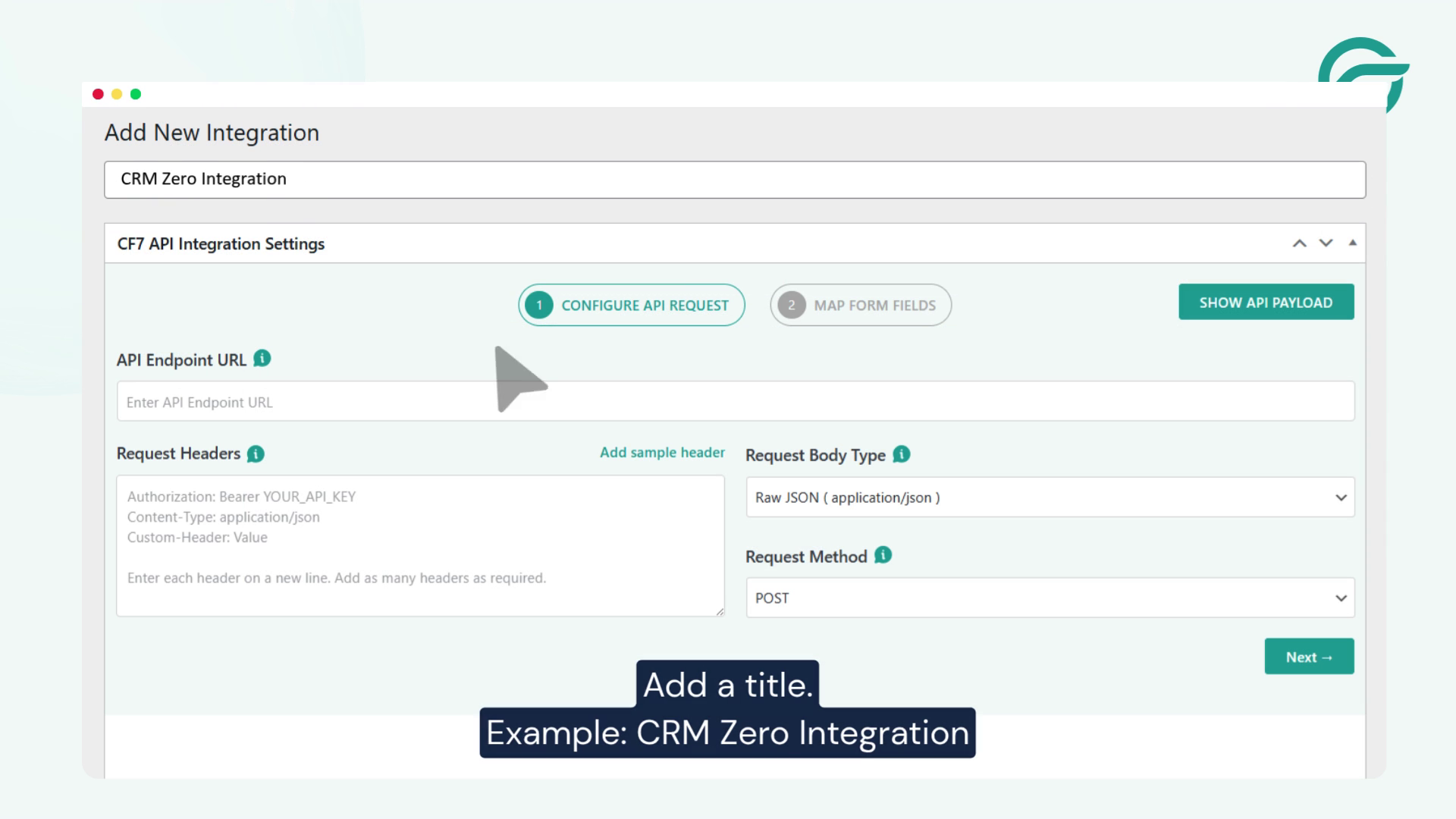
Enter a title for your integration so you can easily identify it later.
Example: CRM Zero Integration
5. Go to CRM Zero Documentation and Copy the API Endpoint URL
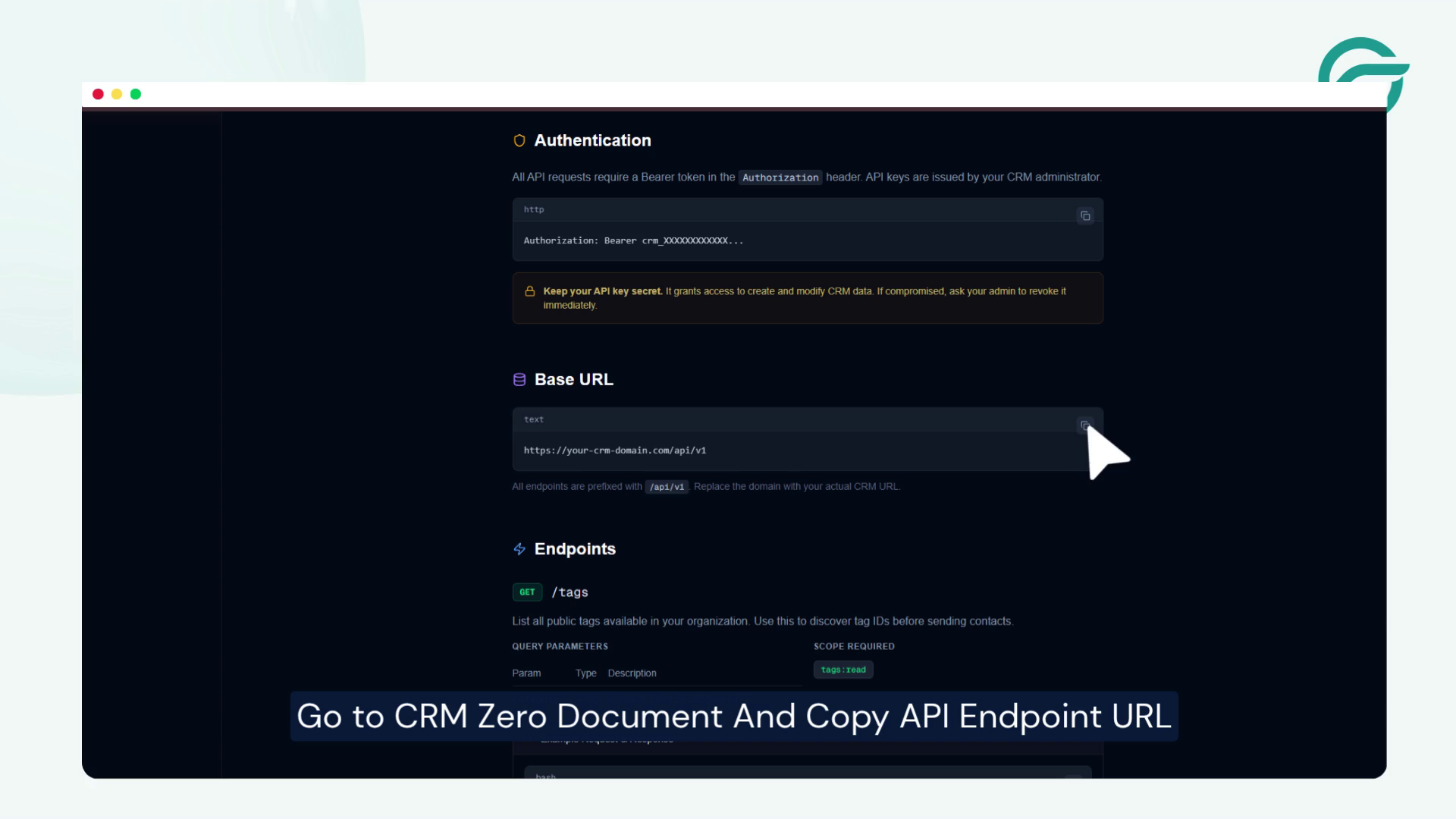
Open the CRM Zero documentation and locate the API endpoint URL required for sending your form data.
Copy the appropriate API endpoint URL, such as:
https://your-crm-domain.com/api/v1/
6. Go Back to WordPress → API Endpoint URL
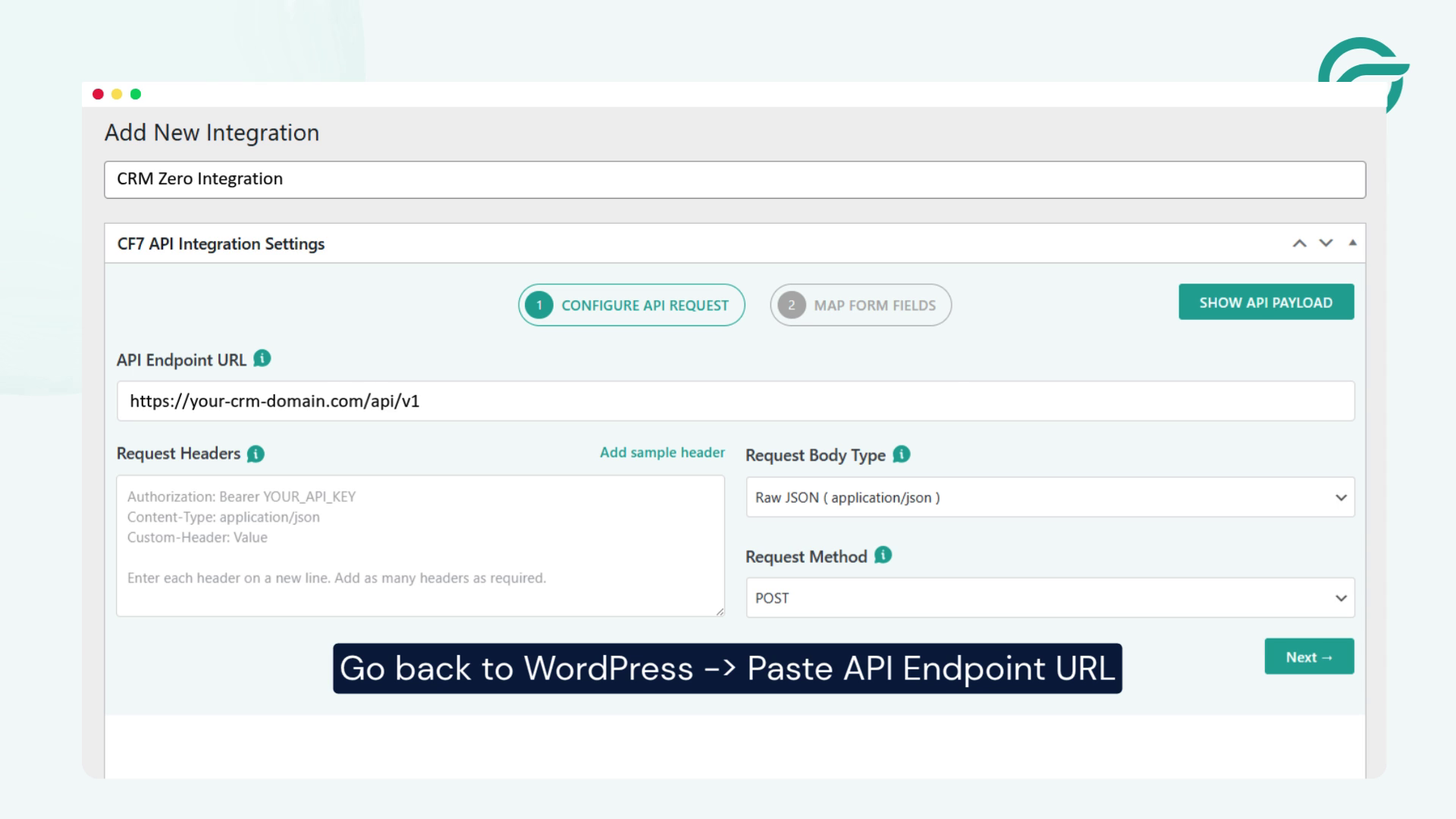
Return to your WordPress integration settings and paste the copied CRM Zero API endpoint URL into the API Endpoint URL field.
7. Add the Request Header
Go to your CRM Zero Dashboard and click on your profile.
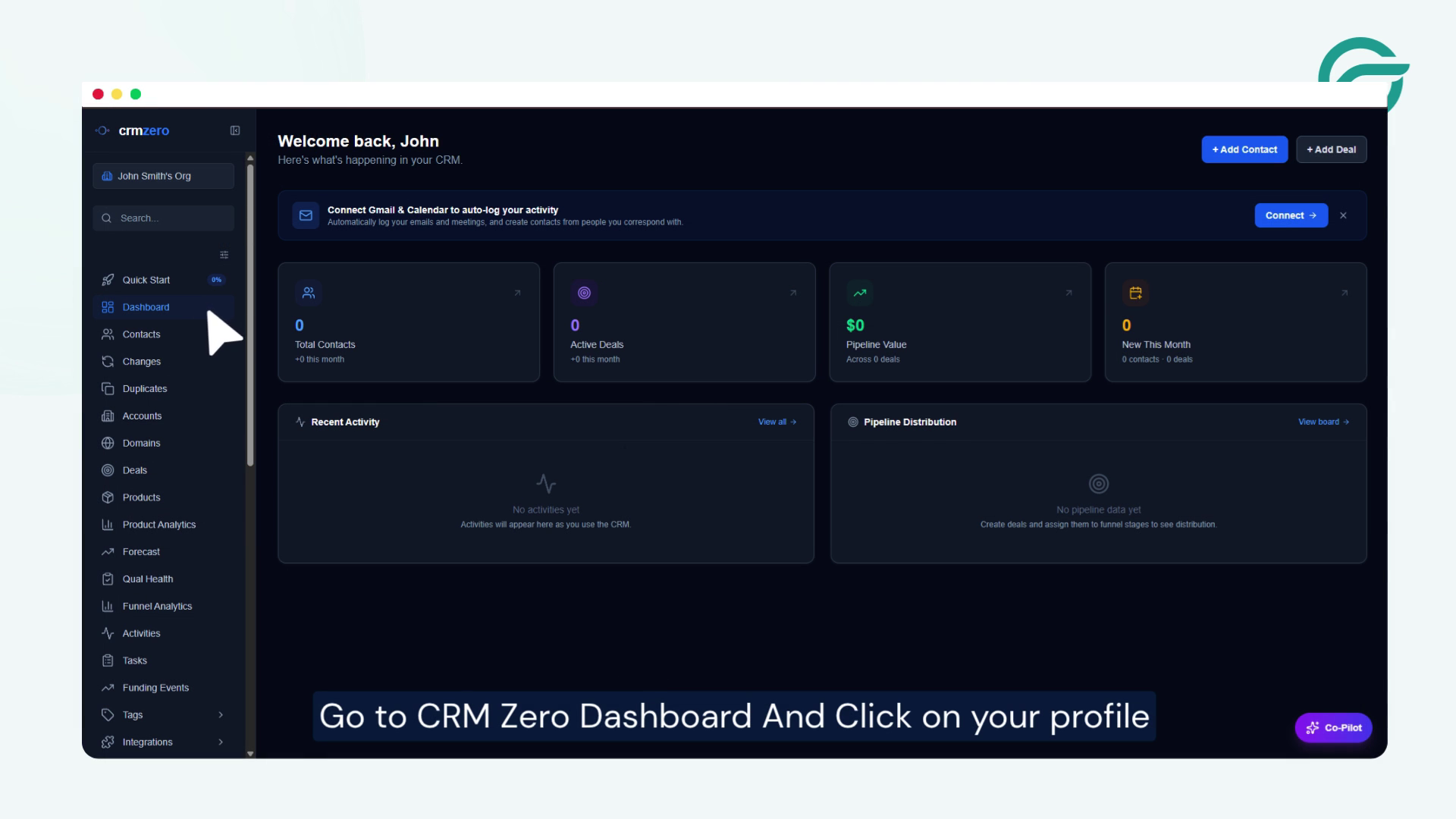
Navigate to:
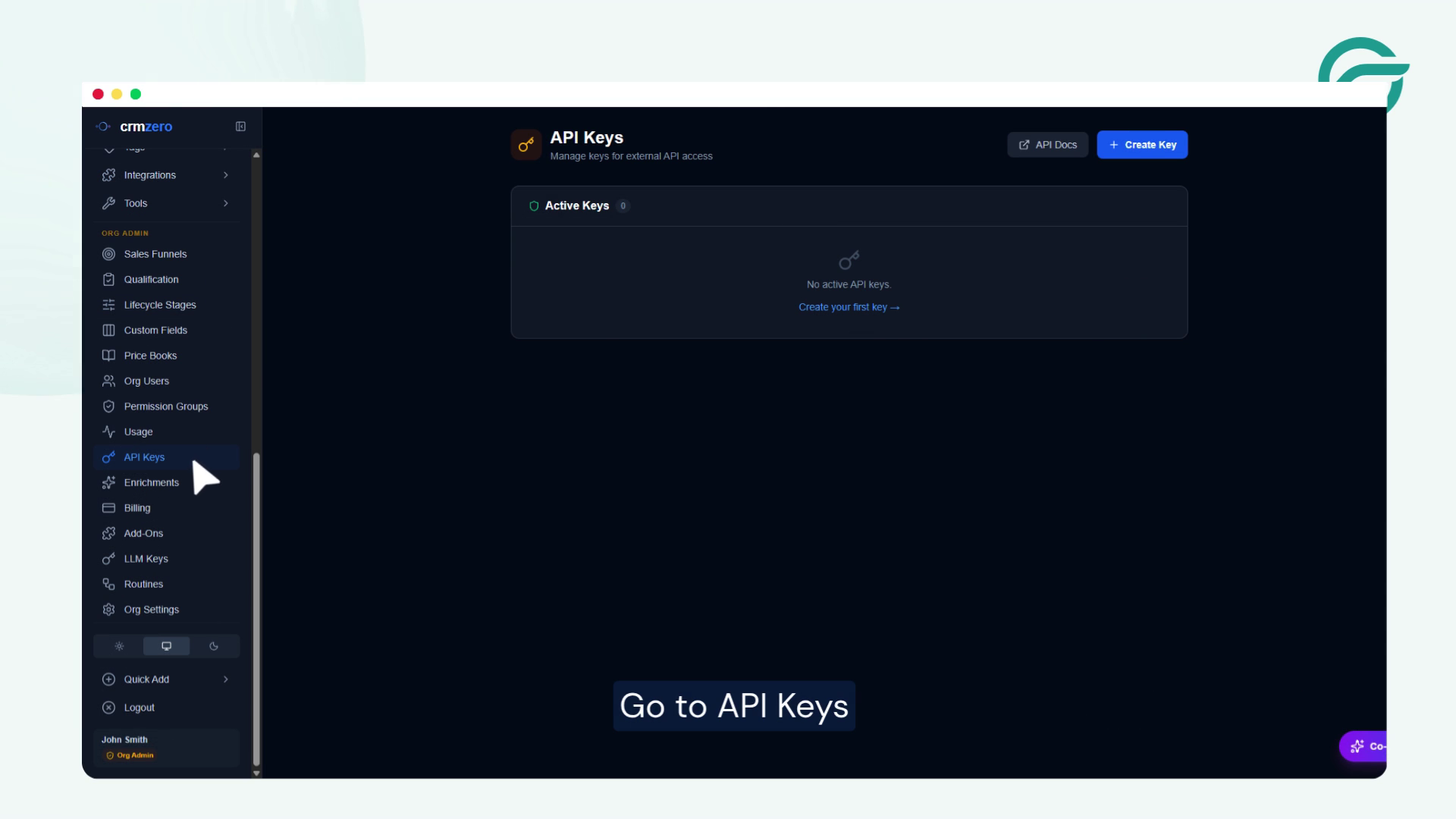
API Keys → Create Key
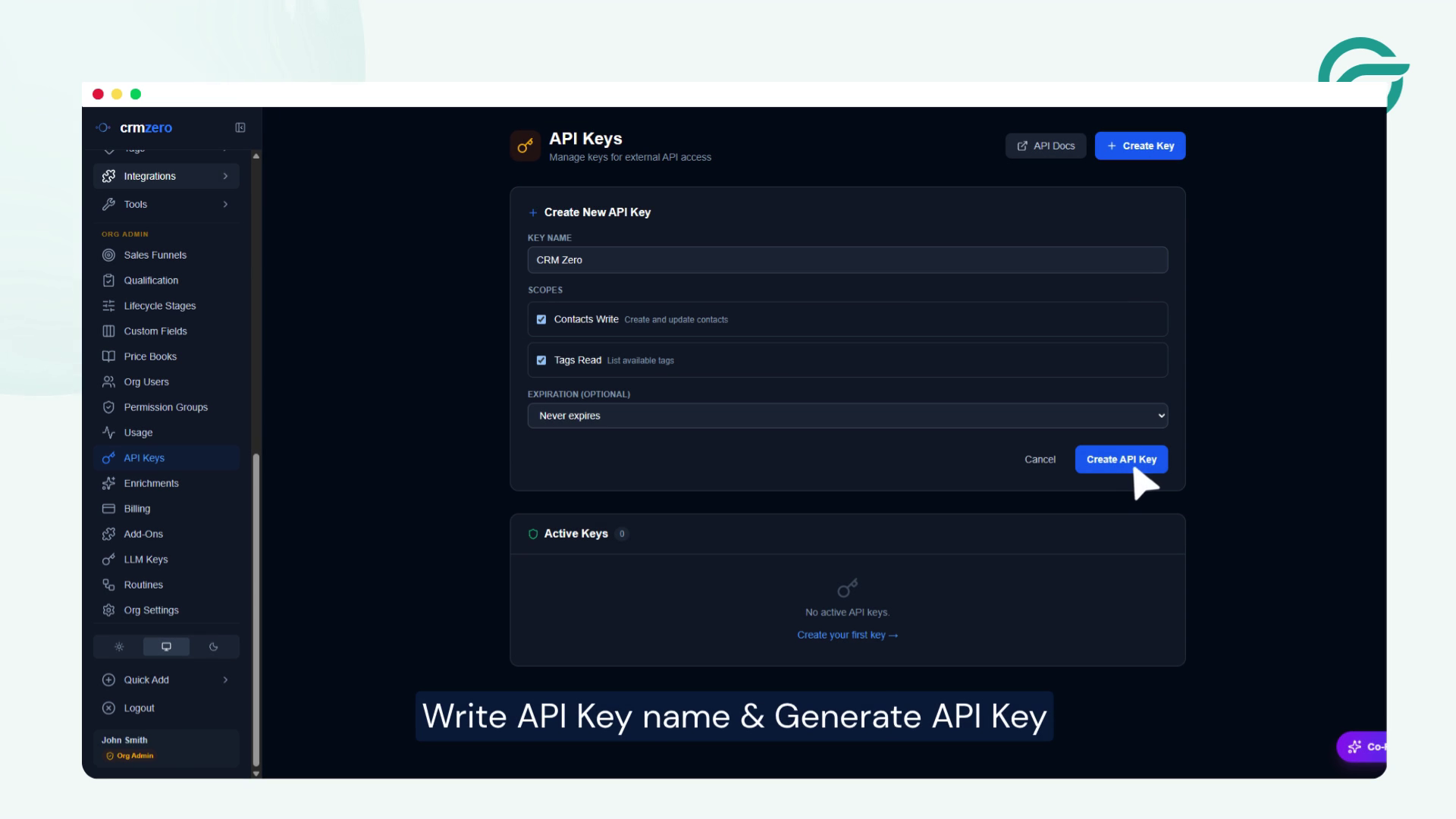
Enter an API key name and generate the API key.
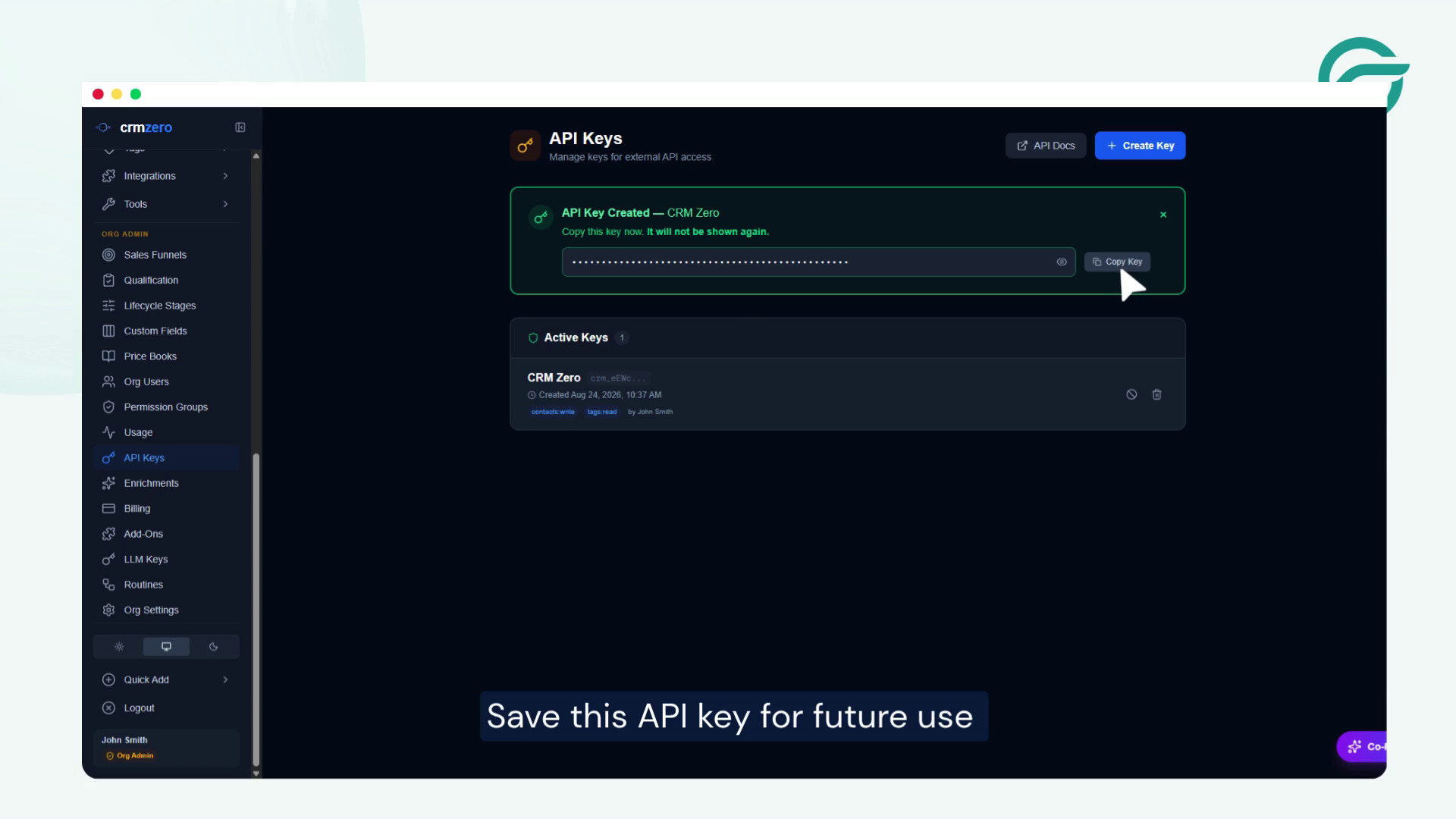
Save this API key for future use.
8. Add the API Key to the Request Headers
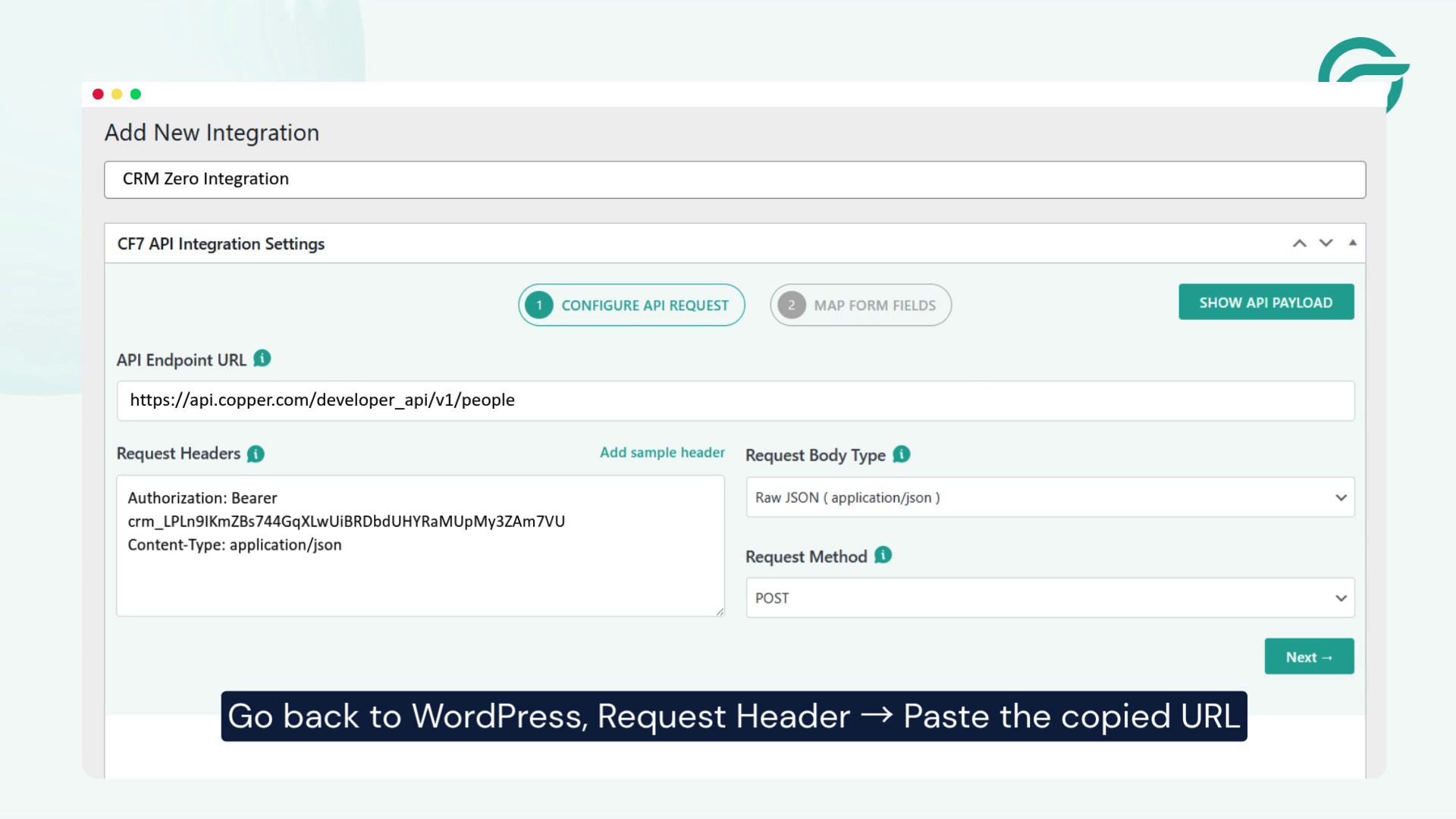
Go back to WordPress and open the Request Headers section.
Paste the required API key or header information into the Request Headers field according to the CRM Zero API documentation.
Then click Next.
9. Choose CRM Zero as the Contact Form
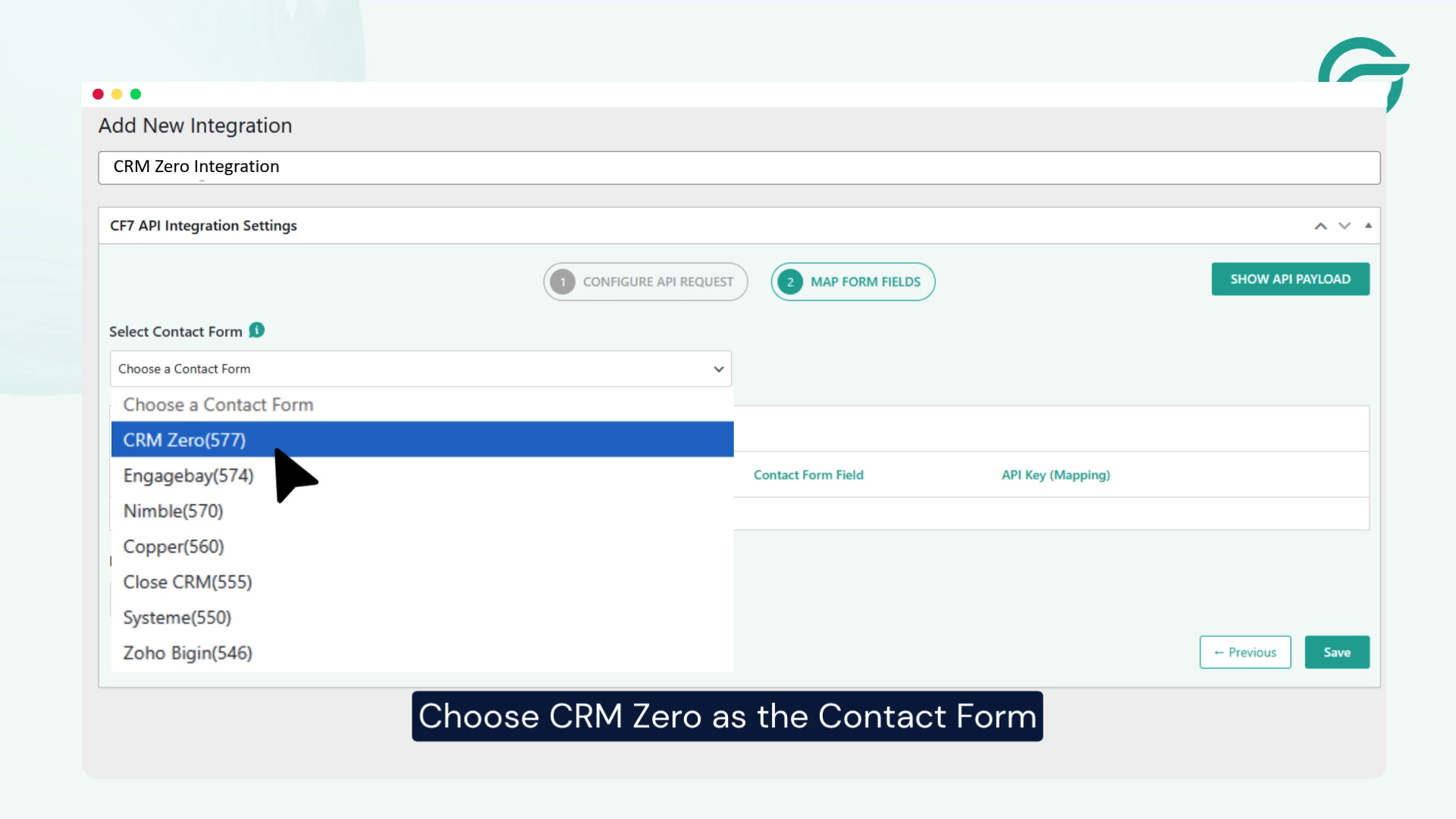
Select CRM Zero as the Contact Form you want to use for the integration.
This connects the selected Contact Form 7 form with the CRM Zero API configuration.
10. Map Your Fields Under JSON Payload
Under JSON Payload, map your Contact Form 7 fields to the corresponding CRM Zero fields.
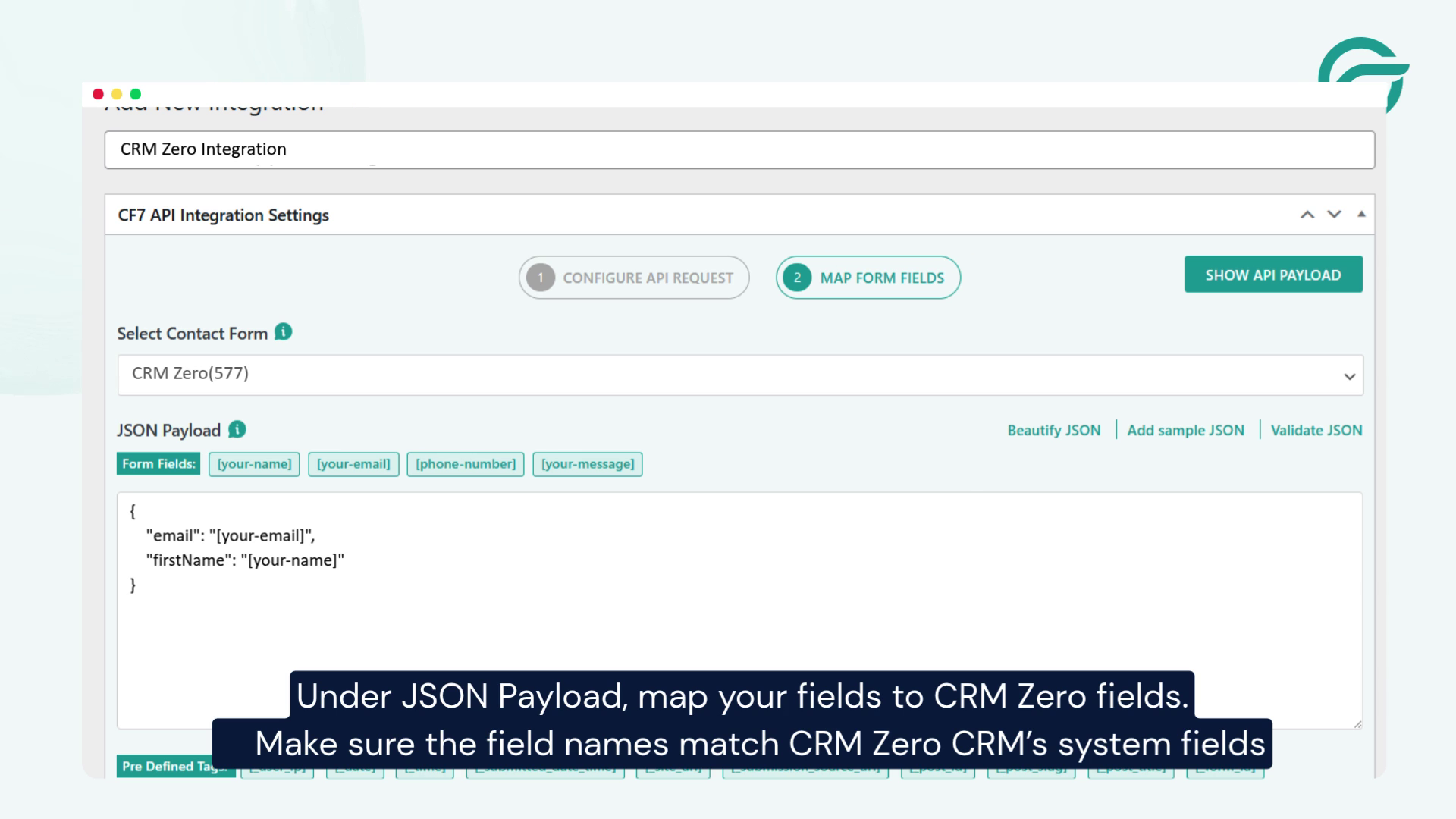
Make sure the field names match CRM Zero’s system fields so the submitted information is accepted correctly by the API.
For example, you may need to map fields such as:
- Name
- Phone
- Message
The exact fields will depend on the CRM Zero API requirements and the fields available in your Contact Form 7 form.
11. Submit a Test Entry
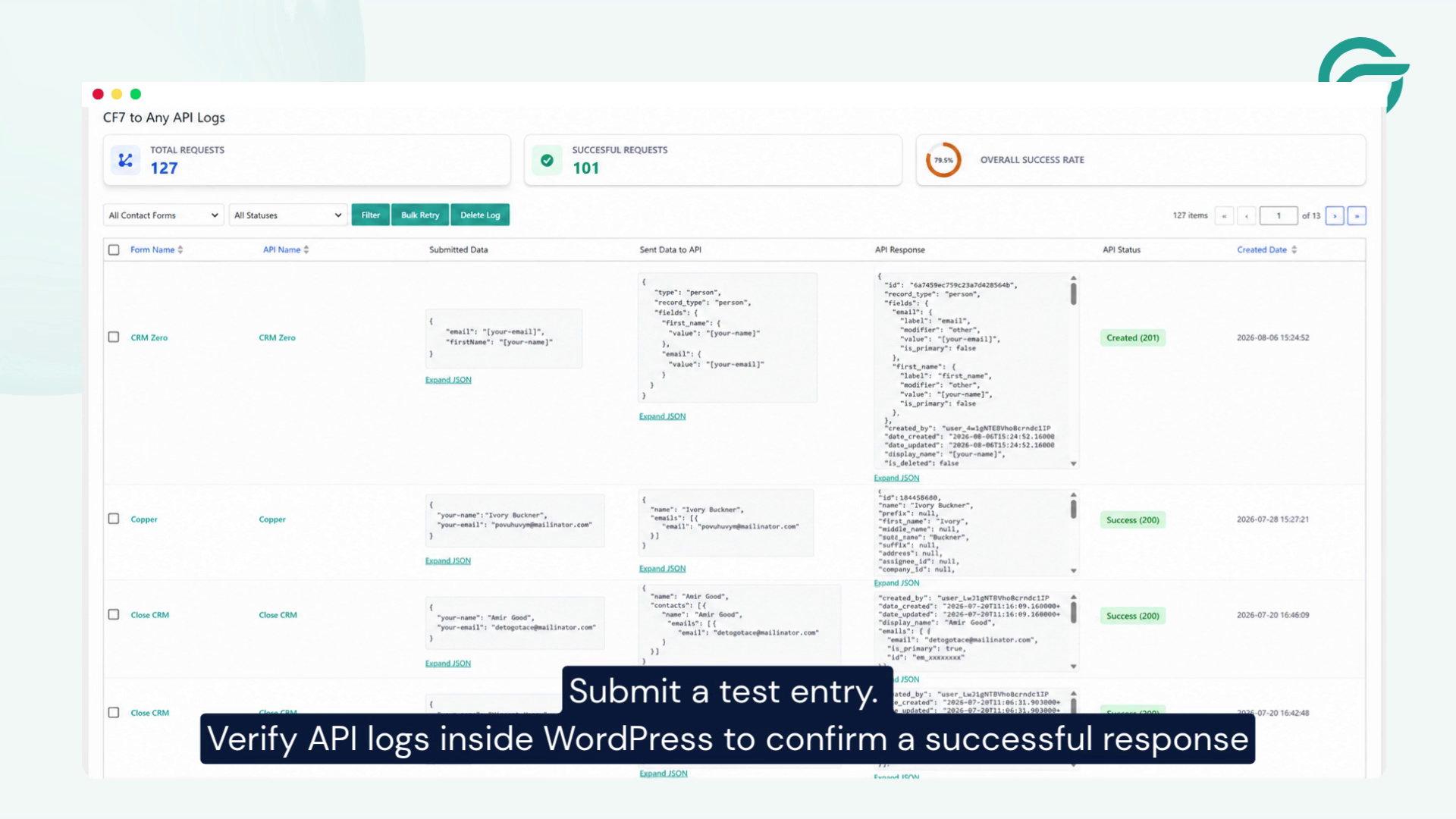
Submit a test entry through your Contact Form 7 form.
Then, check the API logs inside WordPress to verify that the request was sent successfully and that CRM Zero returned a successful response.
If the test is successful, your Contact Form 7 submissions can now be sent to CRM Zero through the configured API integration.
Conclusion
Connecting Contact Form 7 with CRM Zero allows you to automatically send website form submissions to your CRM without manually transferring lead information. By configuring the CRM Zero API endpoint, adding the required API key, mapping your Contact Form 7 fields, and testing the integration, you can create a reliable workflow for managing new contacts and leads.
With Contact Form to Any API, you can connect Contact Form 7 with CRM Zero and other third-party applications using API requests. This makes it easier to automate form data transfer, reduce manual work, and keep your lead information organized.
Ready to connect your Contact Form 7 forms with CRM Zero? Set up your integration with Contact Form to Any API today and start automating your form submissions.
Frequently Asked Questions
1. Why should I connect Contact Form 7 with CRM Zero?
Connecting Contact Form 7 with CRM Zero can help automate lead management by sending website form submissions directly to your CRM. This reduces manual data entry and helps your team respond to new inquiries more efficiently.
2. What types of businesses can benefit from this integration?
The integration can be useful for businesses that generate leads through WordPress contact forms, including service providers, agencies, consultants, healthcare organizations, real estate companies, educational businesses, and other lead-driven businesses.
3. Can Contact Form 7 submissions be sent to CRM Zero automatically?
Yes. Once the integration is properly configured, form submissions can be sent to CRM Zero through its API whenever a visitor submits the connected Contact Form 7 form.
4. What information can I send from Contact Form 7 to CRM Zero?
You can send information collected through your Contact Form 7 form, such as names, email addresses, phone numbers, messages, and other relevant fields supported by CRM Zero’s API. The available data depends on your form configuration and CRM requirements.
5. How can this integration improve lead management?
Instead of manually copying information from website submissions into your CRM, the integration can automate the transfer of lead data. This can save time, reduce repetitive work, and help keep customer information organized in one place.
6. Can I use the integration for different Contact Form 7 forms?
Yes. You can create integrations for different Contact Form 7 forms depending on your requirements. This can be useful when different forms collect different types of information or are used for different lead-generation purposes.
7. Does the CRM Zero integration require coding?
The integration can be configured through the Contact Form to Any API plugin using CRM Zero’s API details, so you do not necessarily need to build a custom WordPress integration from scratch. However, familiarity with API endpoints, request headers, and JSON data can be helpful when configuring more advanced integrations.
8. What happens if the form data is not sent to CRM Zero?
If a submission is not transferred successfully, you can review the API response and logs to identify the issue. Common causes may include an incorrect API endpoint, invalid authentication details, or field names that do not match the CRM’s expected format.
9. Can this integration help reduce missed leads?
Yes. Automatically transferring website inquiries to CRM Zero can help reduce the risk of leads being overlooked due to manual data entry or delayed processing. Your team can manage incoming contacts from a centralized CRM environment.
10. Can I connect Contact Form 7 to other platforms besides CRM Zero?
Yes. Contact Form to Any API can be used to connect Contact Form 7 with third-party platforms that provide compatible APIs. This allows businesses to automate the transfer of form data to different applications and services based on their workflow requirements.


