


Introduction
If you’re using Contact Form 7 on your WordPress website and Systeme CRM to manage leads, manually copying every enquiry into your CRM quickly becomes inefficient. It wastes time, increases the risk of missing valuable prospects, and slows down your sales follow-up.
By integrating Contact Form 7 with Systeme CRM, every form submission is automatically sent to your CRM the moment a visitor completes your form. Your sales or marketing team can immediately view new contacts, start follow-up campaigns, assign leads, and keep customer information organized without any manual data entry.
Using the Contact Form to Any API plugin, you can connect Contact Form 7 to Systeme CRM without writing custom code. The plugin lets you authenticate with the Systeme API, map form fields to CRM fields, and send submissions securely through a direct API connection.
Watch the Video Tutorial: CF7 with Systeme CRM Integration (Step-by-Step)
Before following the written steps, you can watch the complete integration setup in this quick video tutorial.
In this guide, we’ll walk you through the complete setup process.
Step 1: Sign in to Your Systeme CRM Account
Log in to your Systeme CRM account using your credentials.
Keep this dashboard open, as you’ll need to generate an API key during the setup process.
Step 2: Open Your WordPress Dashboard
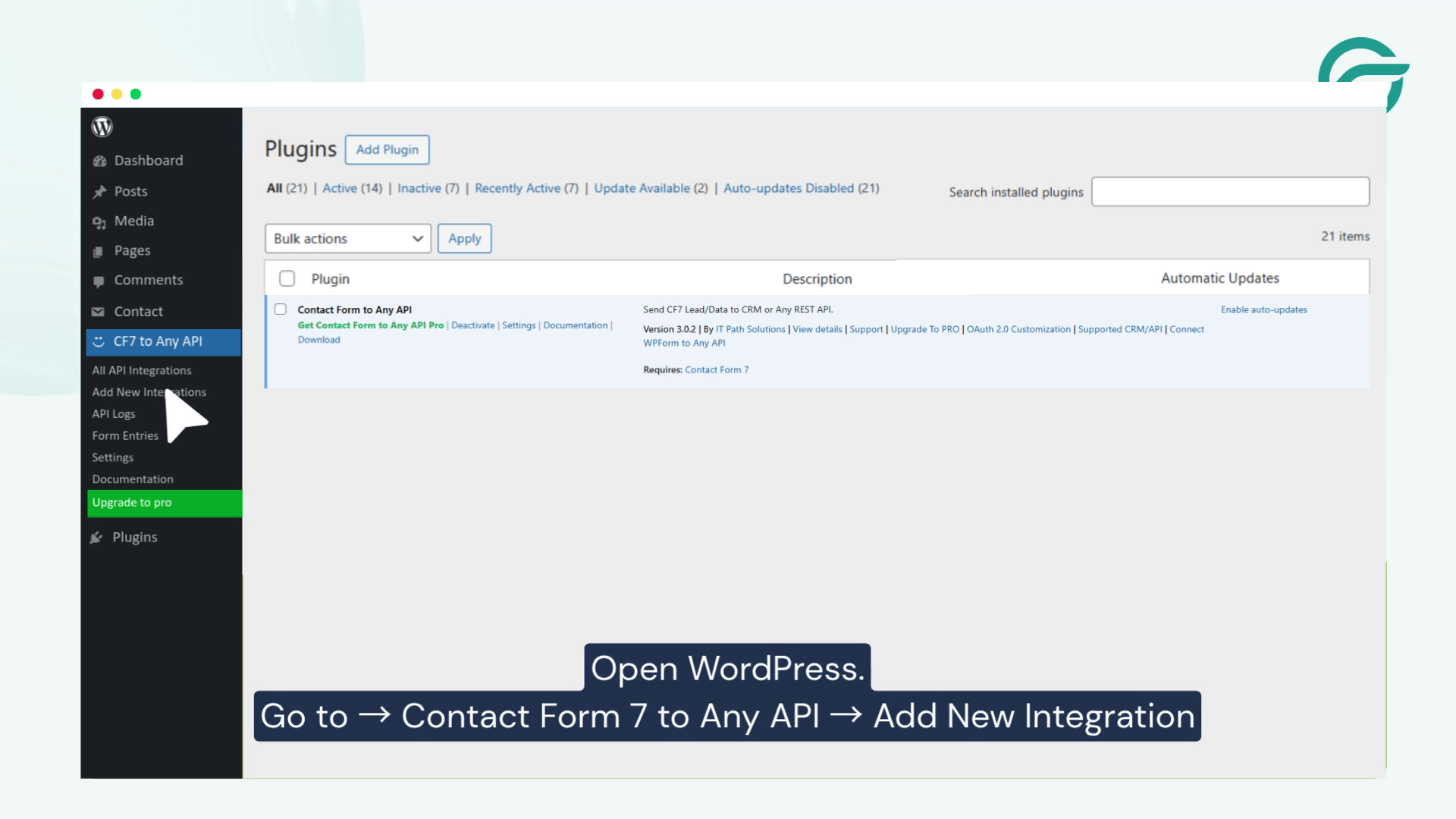
Log in to your WordPress admin panel.
Navigate to:
Contact Form to Any API → Add New Integration
This is where you’ll configure the connection between Contact Form 7 and Systeme CRM.
Step 3: Create a New Integration
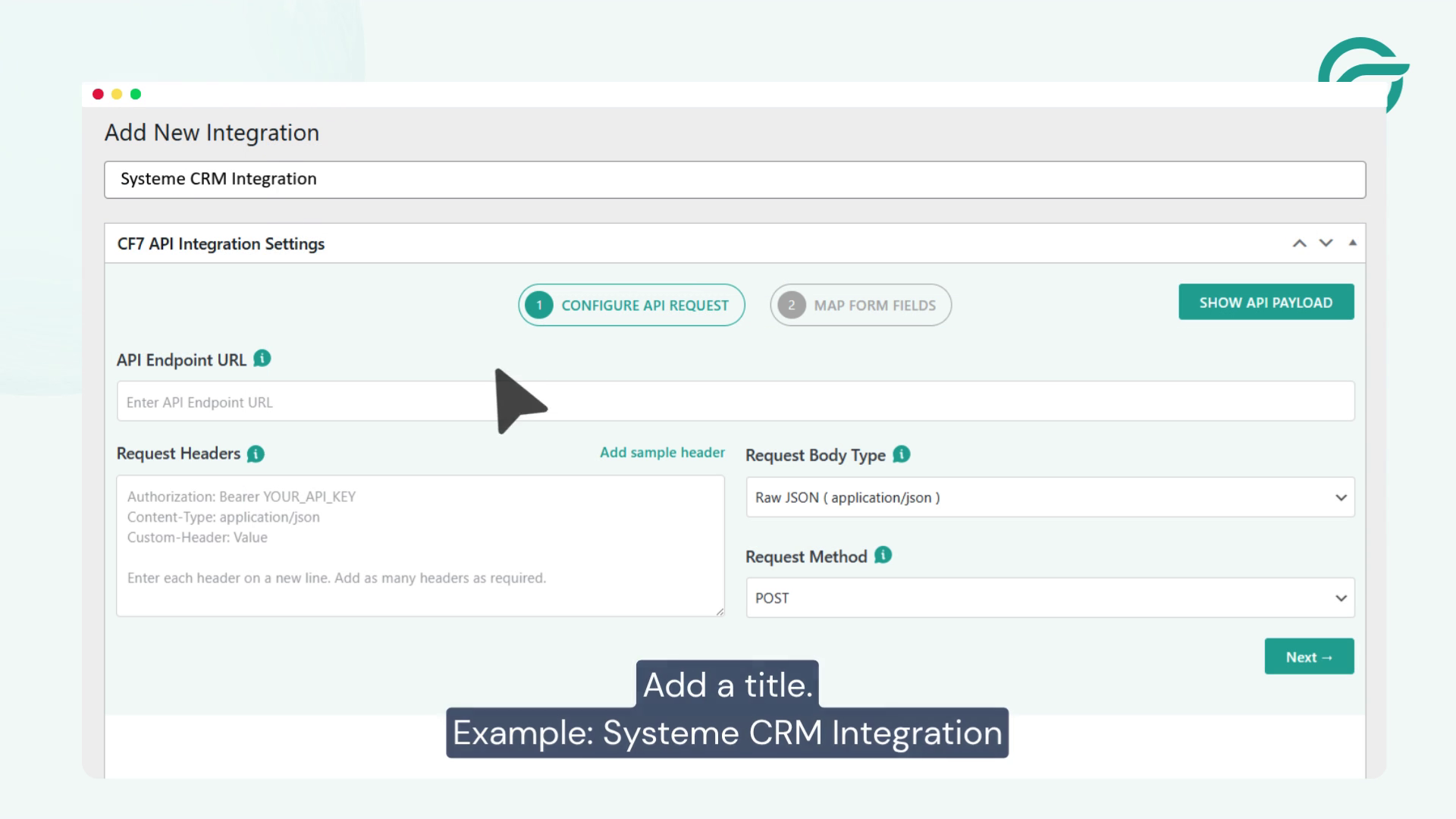
Enter a name for your integration.
Example:
Systeme CRM Integration
Giving each integration a descriptive name makes it easier to manage multiple API connections later.
Step 4: Enter the Systeme CRM API Endpoint
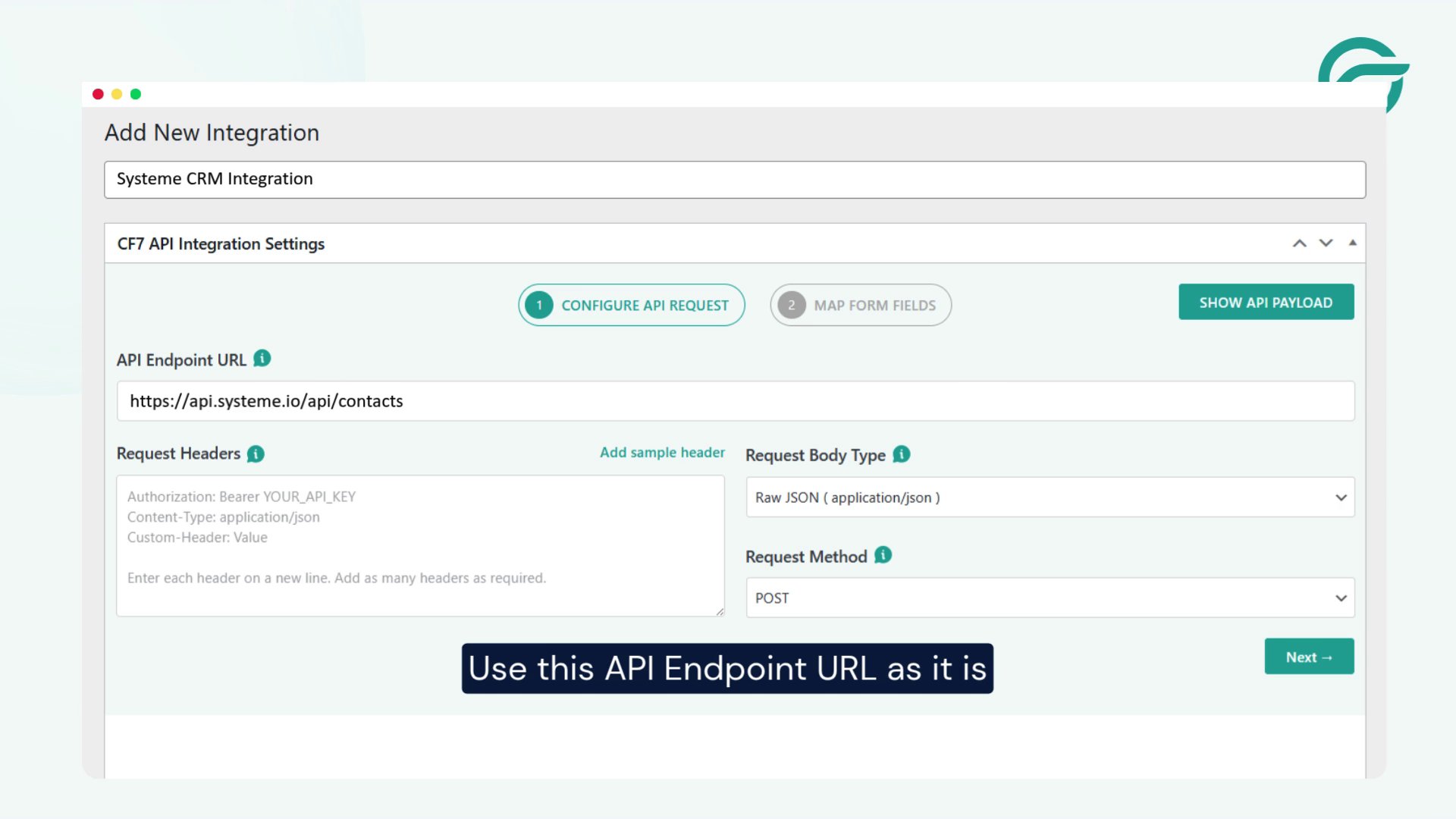
In the API Endpoint URL field, enter the following endpoint:
https://api.systeme.io/api/contacts
This endpoint tells the plugin where to send new contact data.
Step 5: Generate Your Systeme CRM API Key
Now switch back to your Systeme CRM dashboard.
Go to Systeme CRM Dashboard -> Click on setting
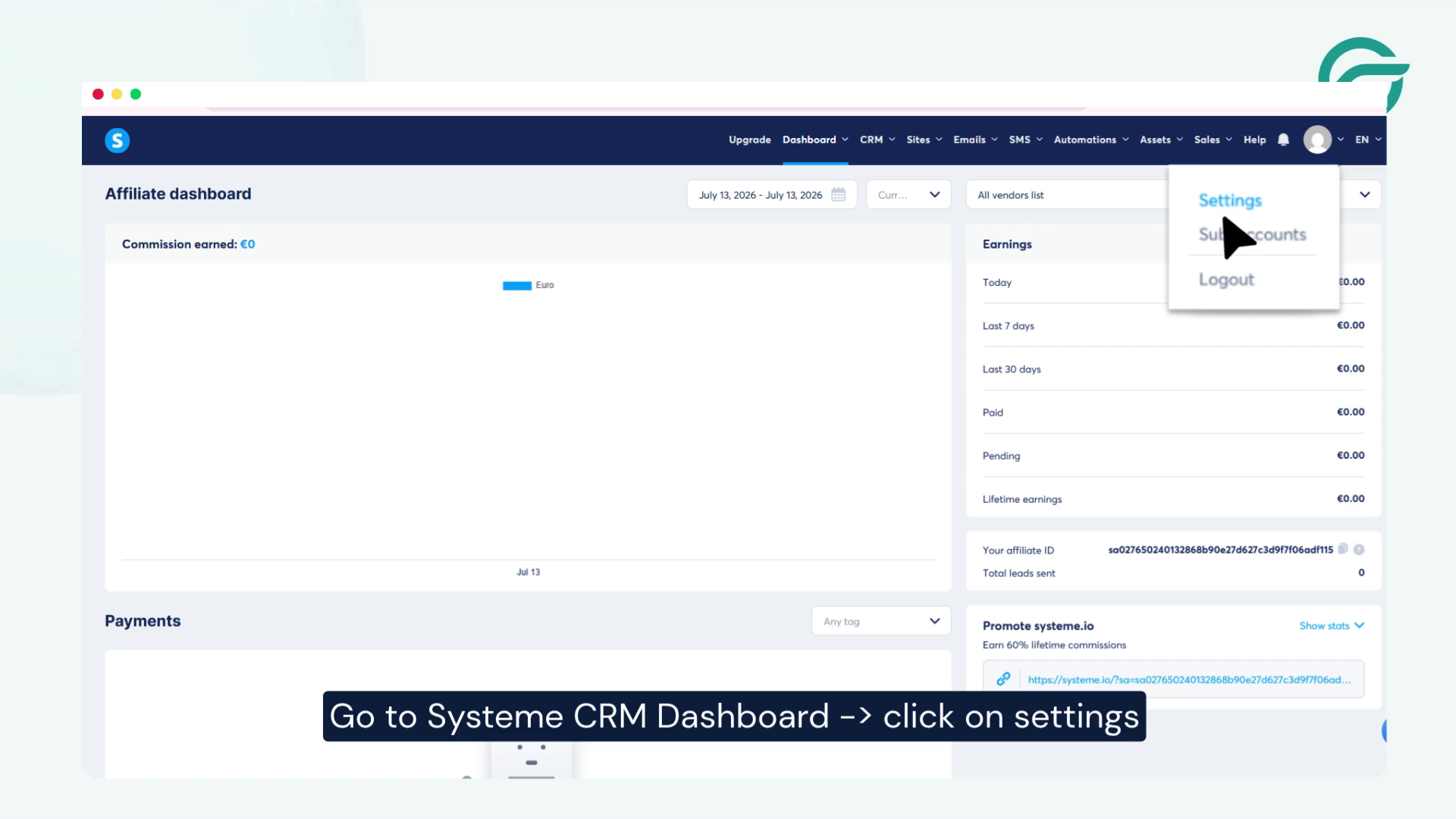
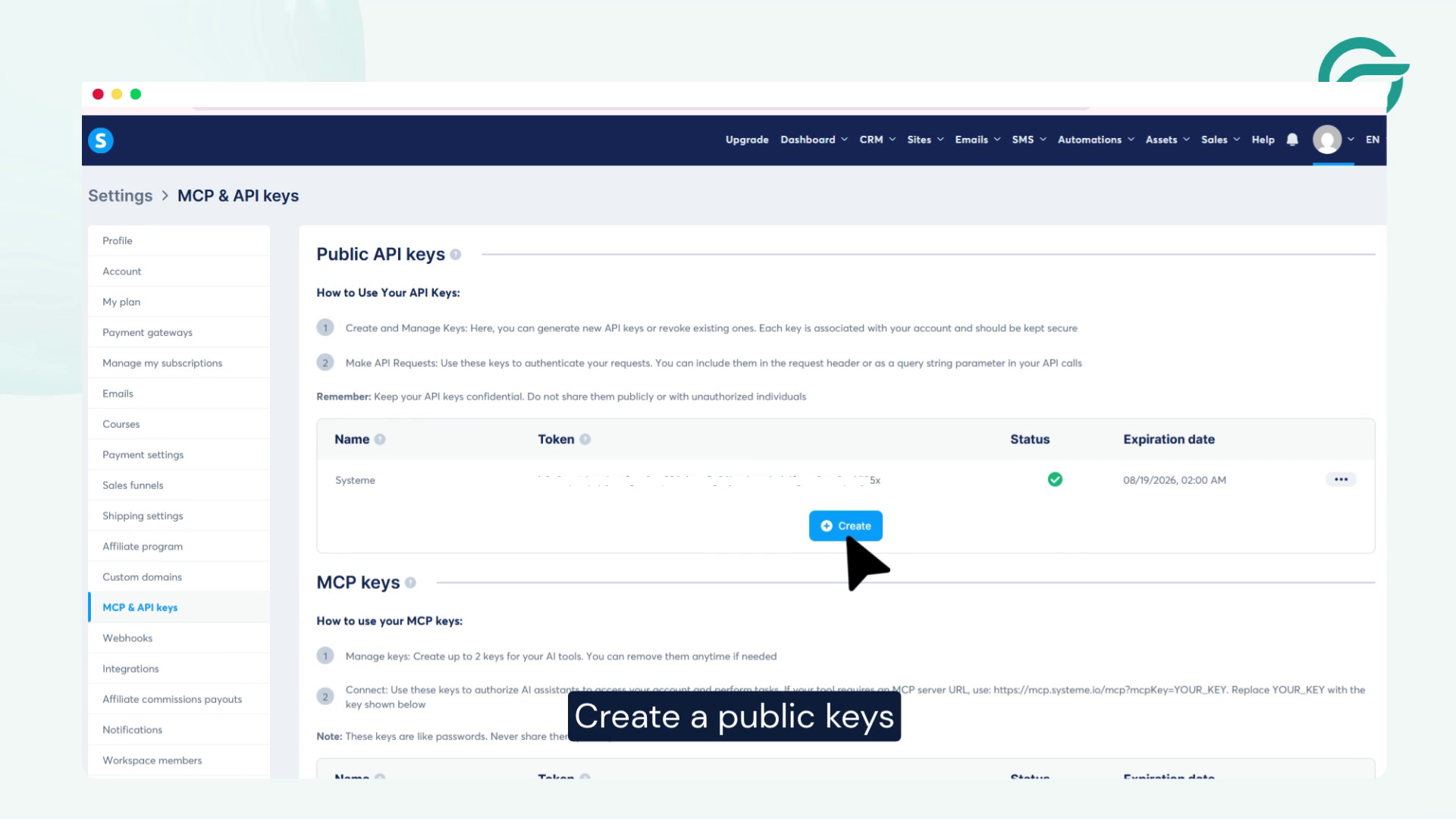
Settings → MCP & API Keys
Then:
- Click Create Public Key
- Enter a name for the key
- Save the key
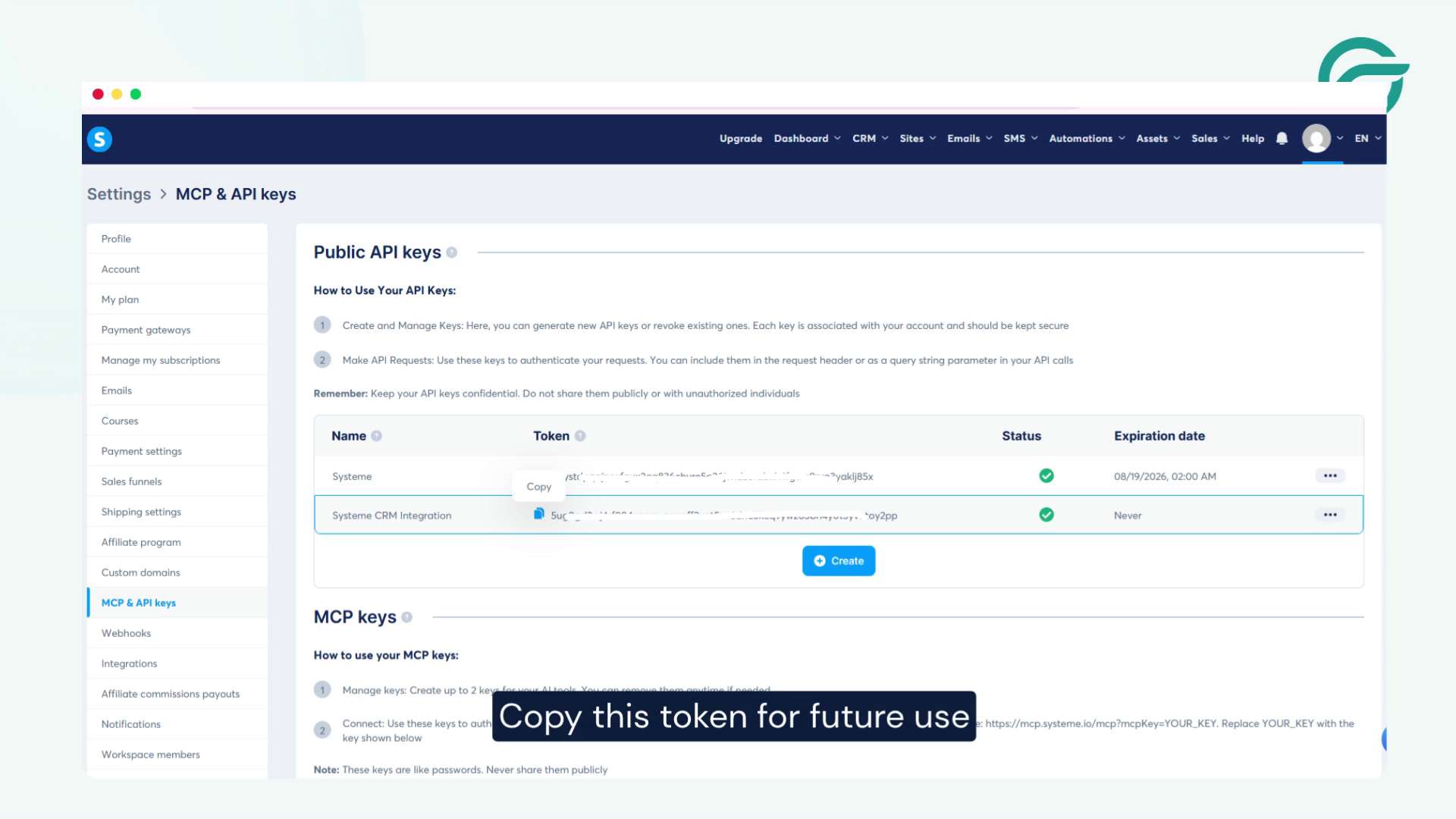
Copy the generated API token
You’ll use this token to authenticate requests from WordPress.
Step 6: Add the API Key to Request Headers
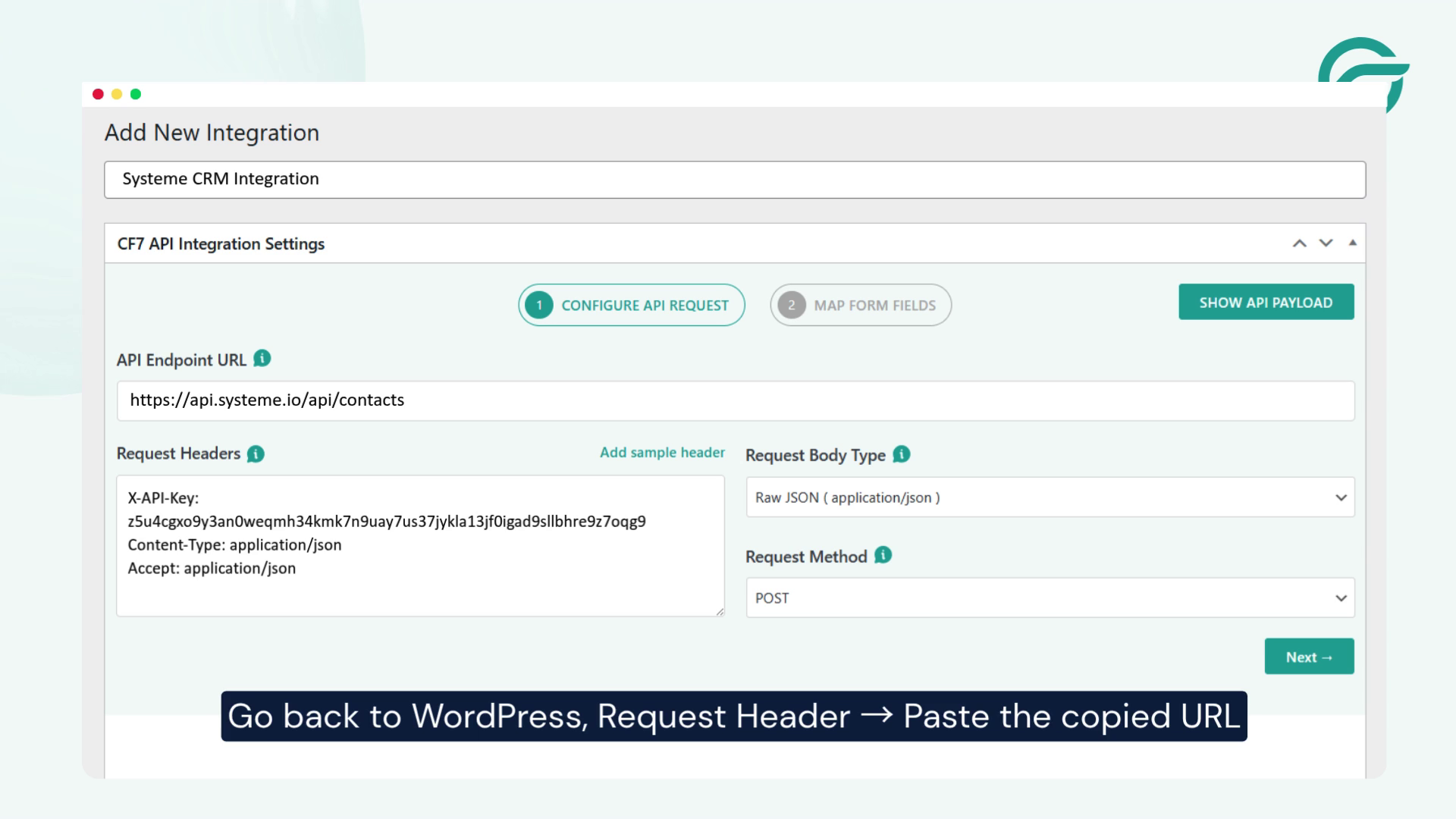
Go back to WordPress, Request Header -> Paste the copied URL in the “Request Headers” field
Once complete, click Next.
Step 7: Choose Systeme CRM as the Contact Form

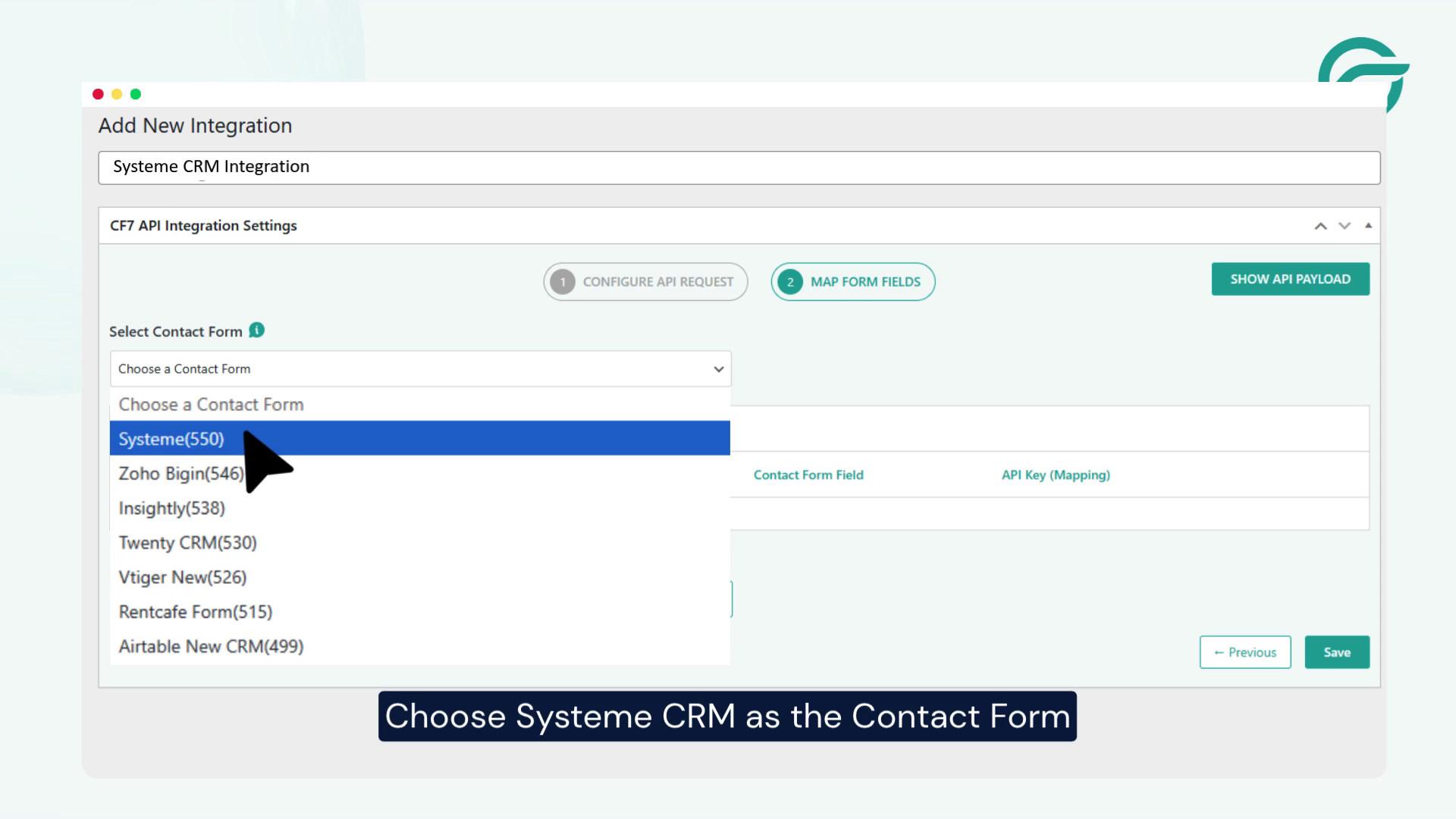
Then select the specific Contact Form 7 form you want to connect with Systeme CRM.
Step 8: Map Contact Form Fields
In the JSON Payload section, map each Contact Form 7 field to its corresponding Systeme CRM field.
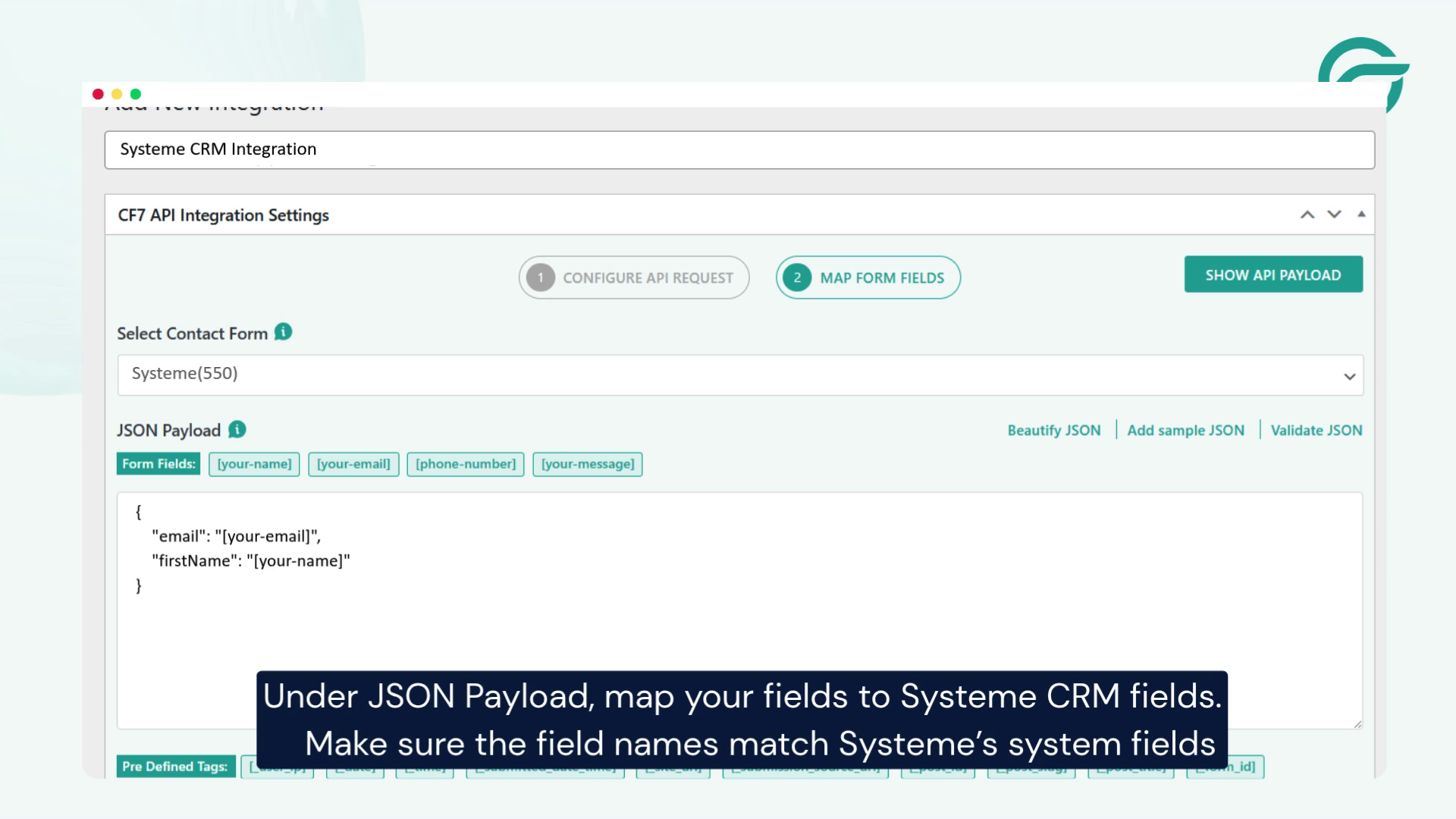
For example:
{
“FIRST_NAME”: “[your-name]”,
“LAST_NAME”: “[last-name]”,
“EMAIL_ADDRESS”: “[your-email]”,
“PHONE”: “[your-phone]”,
“ORGANISATION_NAME”: “[company]”,
“BACKGROUND”: “[your-message]”
}
Step 9: Test the Integration
Submit a test form from your website.
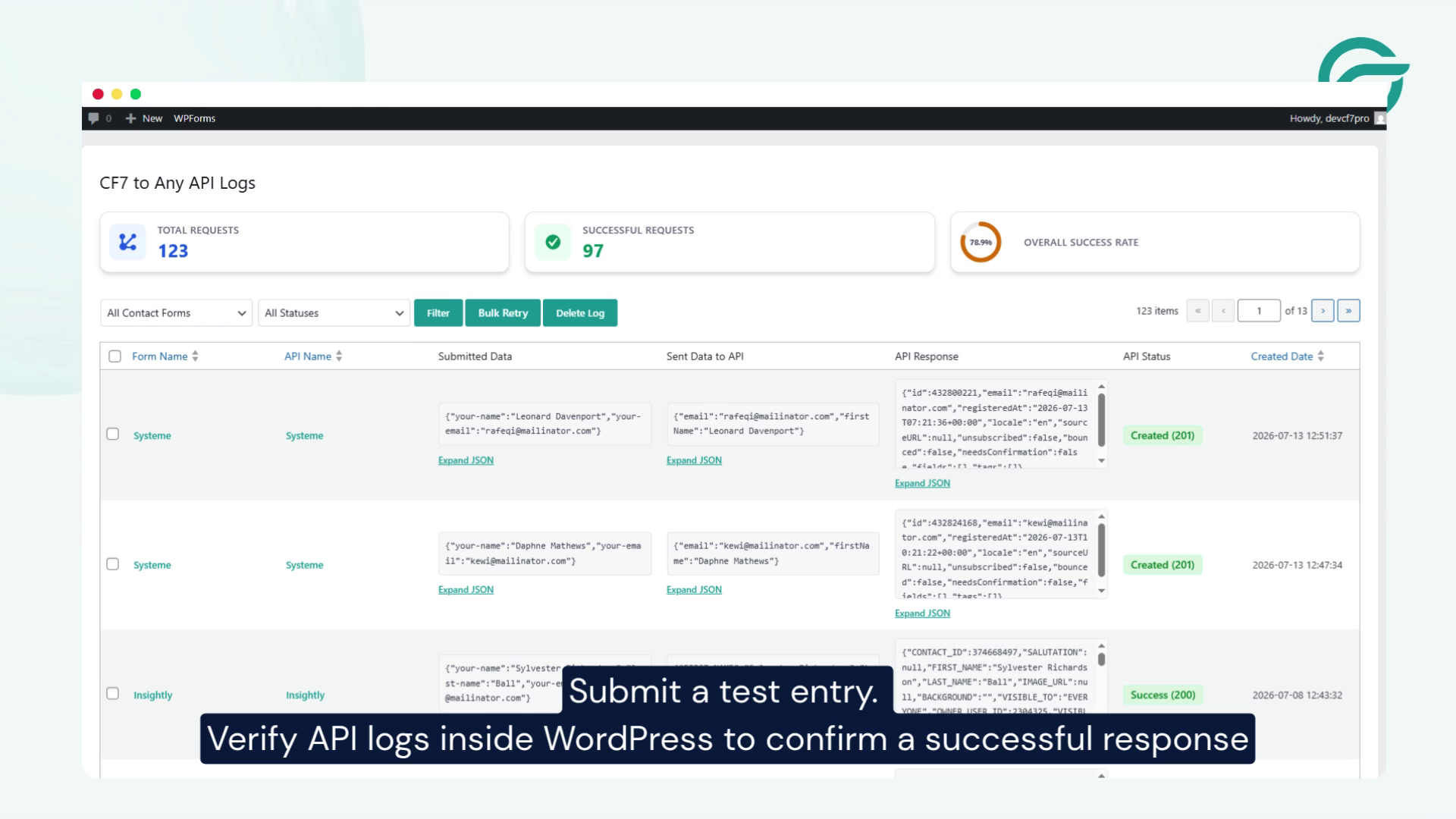
Then return to WordPress and review the API Logs inside the Contact Form to Any API plugin.
Verify that:
- The request was sent successfully
- The API returned a successful response
- The contact appears in your Systeme CRM account
If everything looks correct, your integration is ready to use.
Final Thoughts
Connecting Contact Form 7 with Systeme CRM is a simple way to automate lead capture directly from your WordPress website. Using the Contact Form to Any API plugin, you can send form submissions to Systeme CRM in real time without custom development.
Once configured, every new Contact Form 7 submission will automatically be added to your CRM, allowing your sales and marketing teams to follow up with leads more efficiently and build streamlined automation workflows.
Frequently Asked Questions
1. Why should I connect Contact Form 7 with Systeme CRM?
Connecting Contact Form 7 with Systeme CRM automatically sends website enquiries into your CRM instead of relying only on email notifications. This reduces manual work, prevents lost leads, and allows your sales team to respond much faster.
2. Can Contact Form 7 send leads directly to Systeme CRM?
Yes. Contact Form 7 can send submissions directly to Systeme CRM using its API. With an API integration plugin like Contact Form to Any API, every form submission can be transferred automatically without requiring Zapier or manual exports.
3. What information can be transferred from Contact Form 7 to Systeme CRM?
You can send virtually any field collected by Contact Form 7, including:
- Name
- Email address
- Phone number
- Company name
- Custom fields
- Lead source
- Marketing preferences
- Form messages
You can also map custom Contact Form 7 fields to the appropriate fields inside Systeme CRM.
4. Who benefits from integrating Contact Form 7 with Systeme CRM?
This integration is useful for:
- Marketing agencies
- SaaS companies
- Online course creators
- Coaches and consultants
- Service businesses
- Freelancers
- Ecommerce stores
- B2B businesses
Any business that collects enquiries through WordPress and manages customer relationships in Systeme CRM can benefit from automation.
5. What are the biggest advantages of automating lead capture with Systeme CRM?
Automating lead capture helps businesses:
- Eliminate manual data entry
- Reduce human errors
- Respond to leads faster
- Keep customer information centralized
- Trigger marketing automations sooner
- Improve sales team productivity
Faster lead response often results in better conversion rates because prospects receive follow-up while their interest is still high.
6. Is coding required to integrate Contact Form 7 with Systeme CRM?
No. With the Contact Form to Any API plugin, you can connect Contact Form 7 with Systeme CRM using a visual interface. You simply configure the API endpoint, authentication, and field mapping without writing custom PHP code.
7. Can I connect multiple Contact Form 7 forms to the same Systeme CRM account?
Yes. You can create separate integrations for different Contact Form 7 forms, allowing each form to send data to the same Systeme CRM account while using different field mappings, tags, or workflows.
8. What are some real-world use cases for this integration?
Businesses commonly use this integration to:
- Capture sales enquiries automatically
- Send consultation requests to the CRM
- Collect webinar registrations
- Receive demo booking requests
- Manage support enquiries
- Store newsletter signups
- Track lead sources from different landing pages
This eliminates repetitive administrative work and keeps customer information synchronized.
9. Why use a direct API integration instead of manual imports?
A direct API integration transfers form submissions immediately after they’re submitted. Unlike spreadsheets or manual imports, there’s no delay, no duplicate entry, and much less chance of missing important leads. Direct API connections also simplify long-term maintenance compared with manual workflows or third-party middleware in many scenarios.
10. Is the Contact Form 7 to Systeme CRM integration secure?
Yes. When configured correctly, data is transmitted securely using HTTPS and authenticated through the Systeme CRM API. The Contact Form to Any API plugin also provides API logs, making it easier to monitor requests and troubleshoot issues if needed.


