


Integrating Contact Form 7 with Pipedrive helps businesses automatically send form submissions from WordPress directly into their CRM. This saves time, reduces manual data entry, and ensures every lead is captured instantly.
In this guide, you will learn how to connect Contact Form 7 with Pipedrive using the Contact Form 7 to Any API plugin.
Watch the Video Tutorial: CF7 with Pipedrive Integration (Step-by-Step)
Prefer a visual walkthrough? Watch our complete step-by-step video tutorial on how to connect Contact Form 7 with Pipedrive.
👉 Watch here:
Step 1: Sign In to Your Pipedrive Account
First, log in to your Pipedrive account using your credentials.
Once logged in, keep the dashboard open because you will need your API details during the setup process.
Step 2: Open WordPress and Create a New Integration
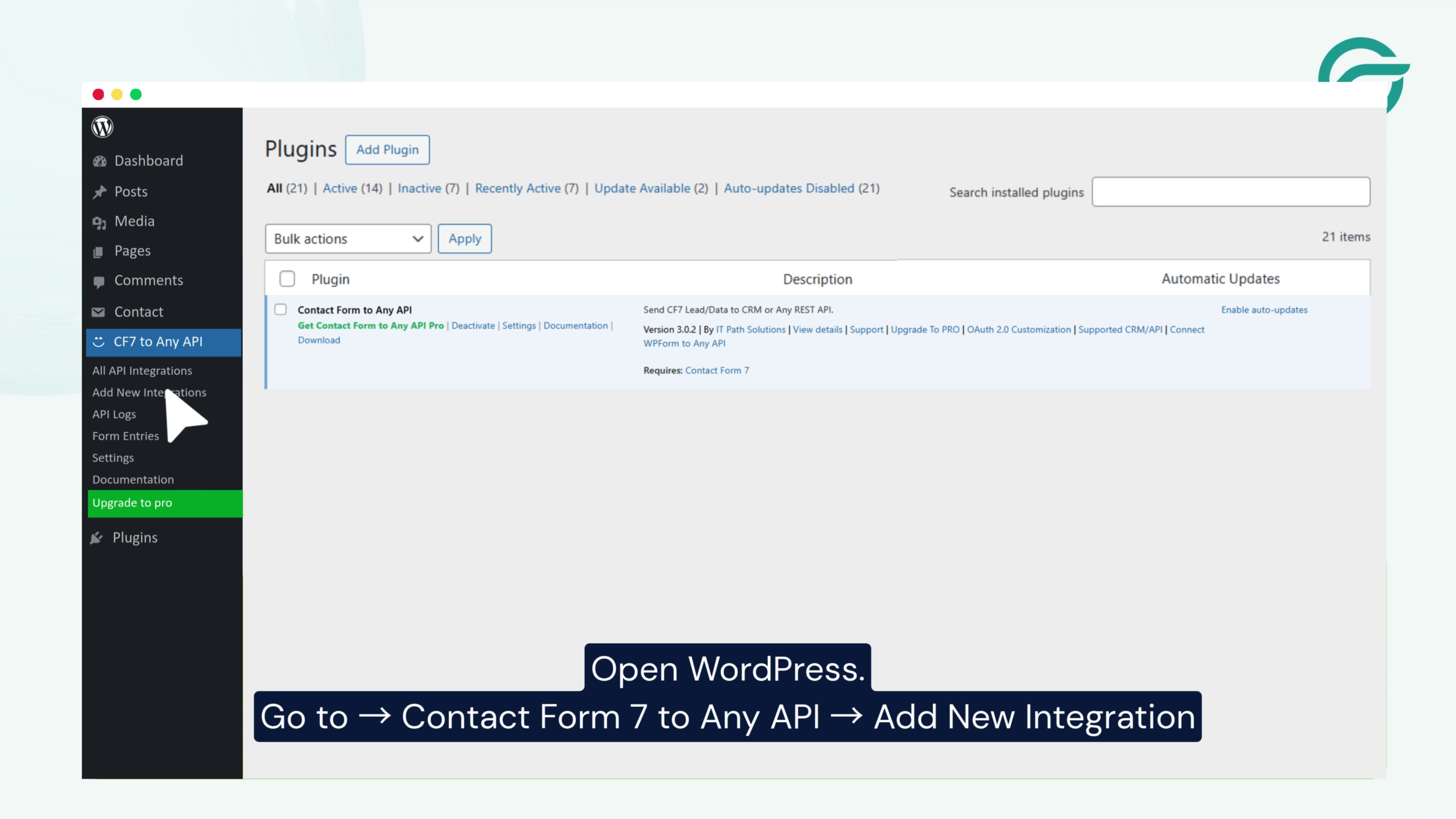
Log in to your WordPress admin panel.
Navigate to:
Contact Form 7 to Any API → Add New Integration
This section allows you to create a custom API connection between Contact Form 7 and Pipedrive.
Step 3: Add an Integration Title
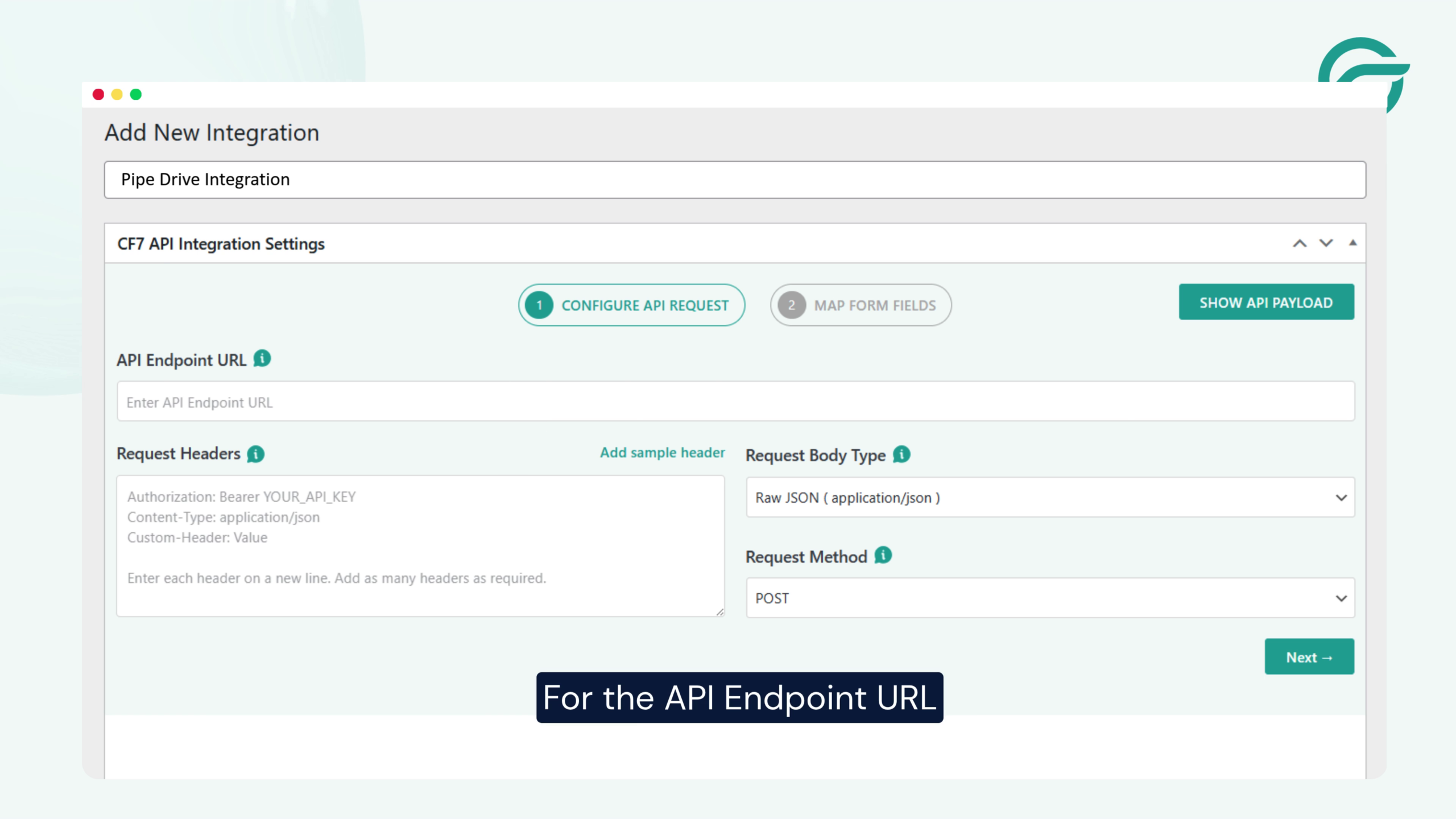
Enter a name for your integration.
Example:
Pipedrive Integration
Using a proper title helps you easily identify the integration later, especially if you manage multiple APIs.
Step 4: Copy the Pipedrive API Endpoint URL
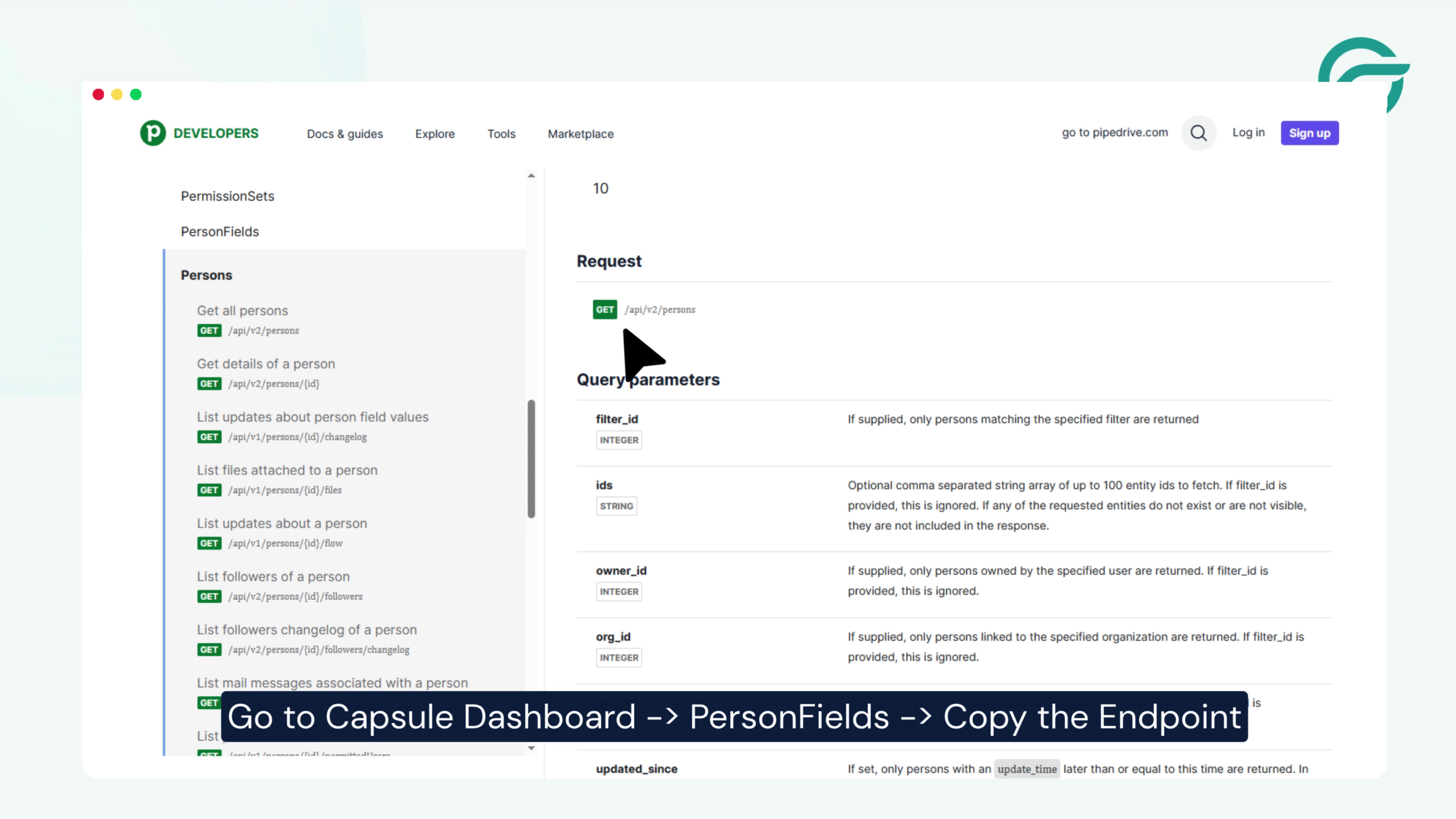
Go to your Pipedrive dashboard and locate the required API endpoint for your CRM module.
Copy the endpoint URL that will be used to send Contact Form 7 submissions to Pipedrive.
For example, you may use endpoints related to:
- Persons
- Deals
- Organizations
- Leads
After copying the endpoint, return to WordPress.
Step 5: Paste the API Endpoint URL in WordPress
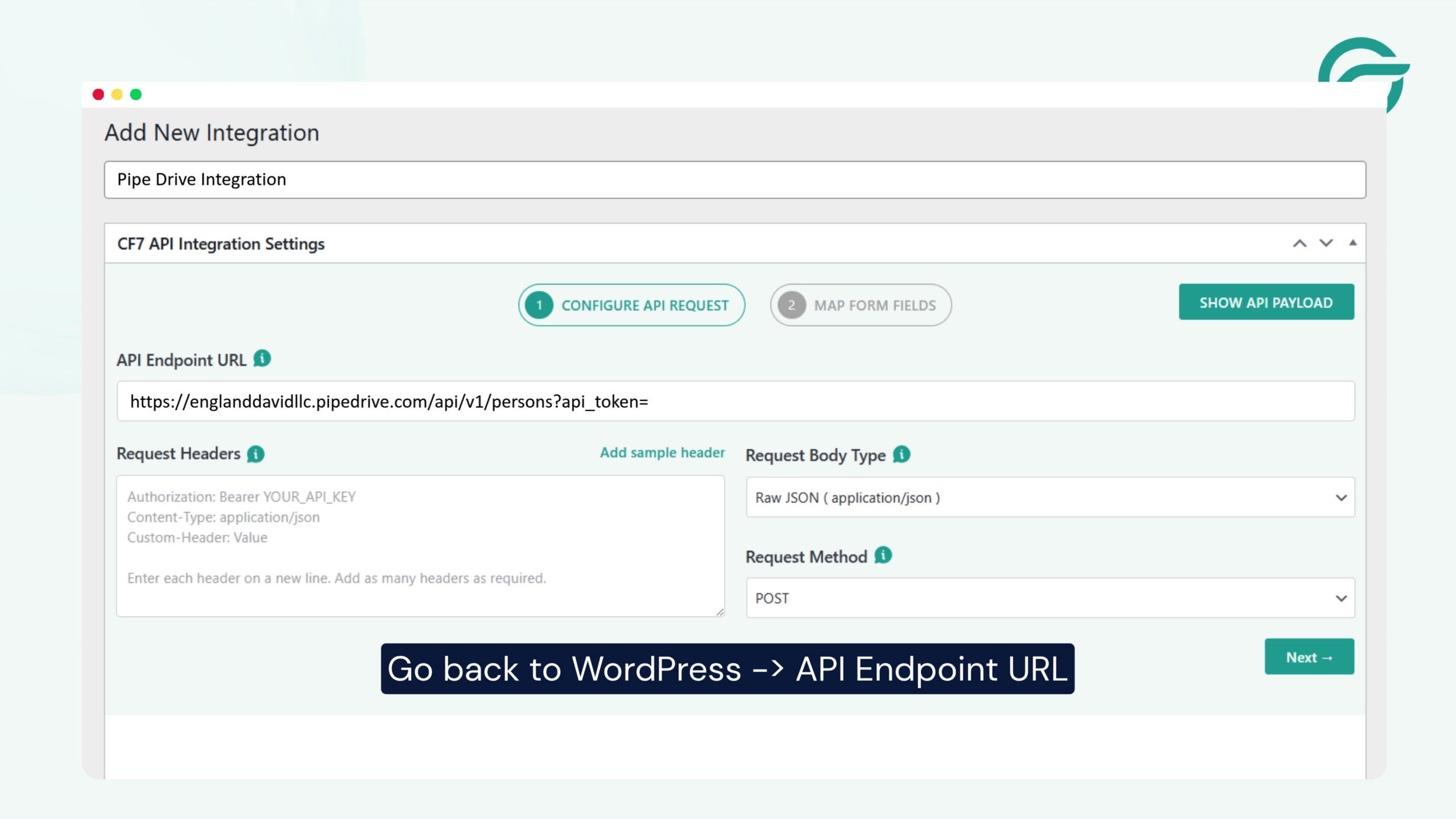
Inside the integration settings in WordPress:
Locate the API Endpoint URL field.
Paste the copied Pipedrive endpoint URL here.
This tells the plugin where the form data should be sent.
Step 6: Generate Your Pipedrive API Token
To authenticate the connection, you need your Pipedrive API token.


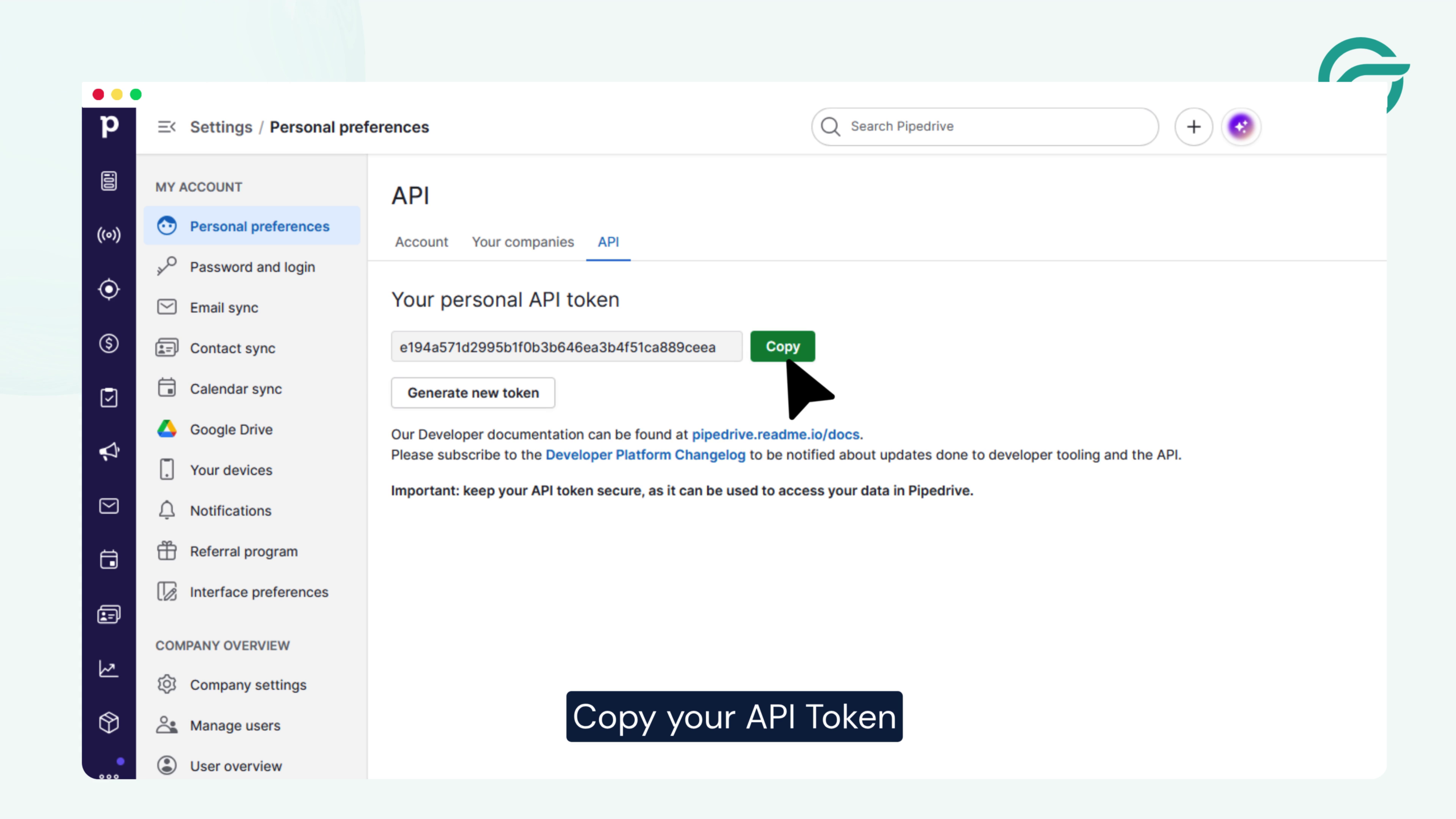
Inside your Pipedrive account:
- Click your profile icon in the top-right corner
- Open Personal Preferences
- Go to the API section
- Copy your API Token
Step 7: Configure Authentication in WordPress
Return to your WordPress integration settings.
Add the API token in the required authentication field.
This securely connects your website with Pipedrive’s API services.
Step 8: Add Request Headers
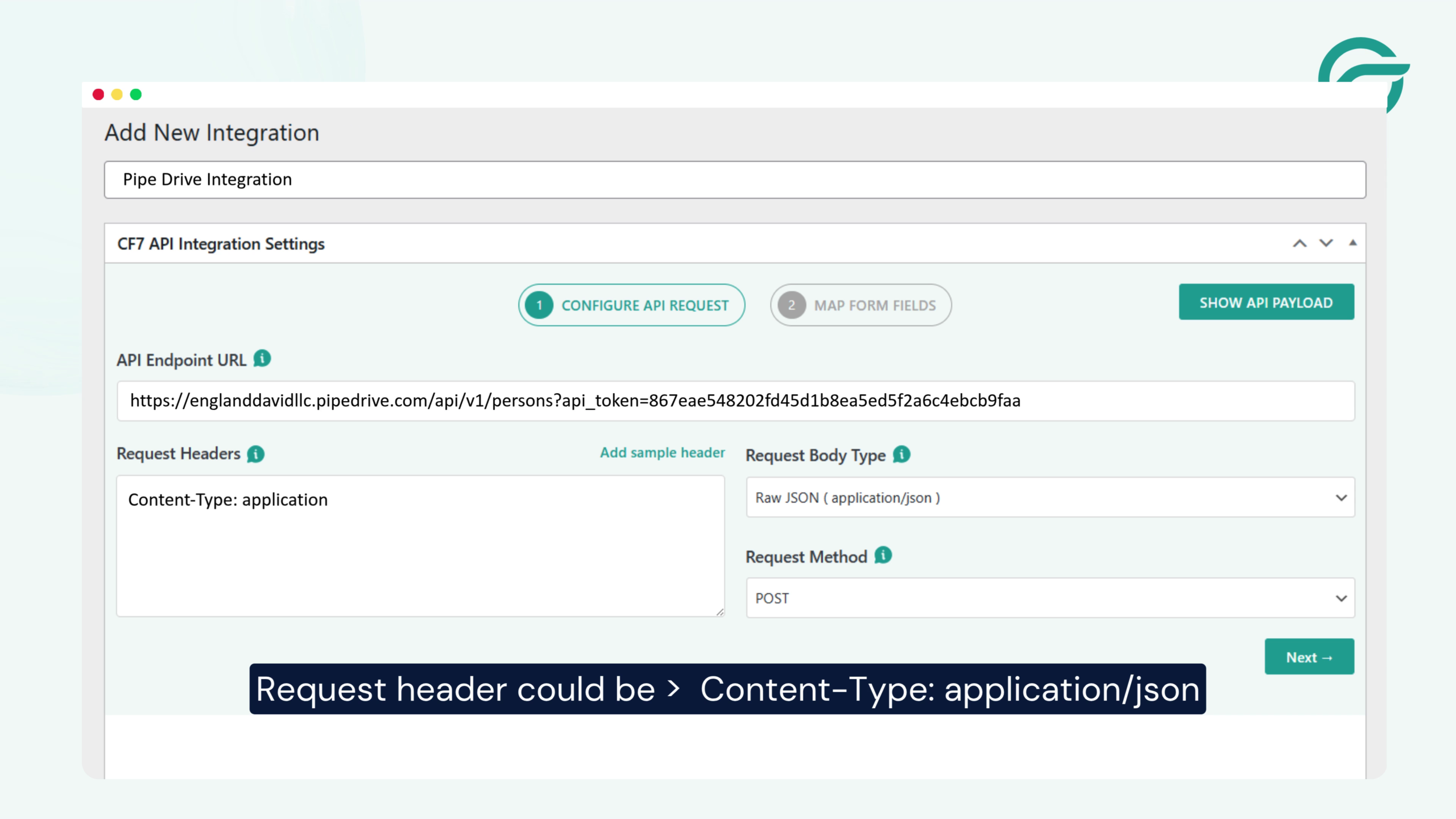
Under the Request Headers section, add the following:
Content-Type: application/json
This ensures the data is sent in JSON format, which is required by the Pipedrive API.
Step 9: Select Your Contact Form
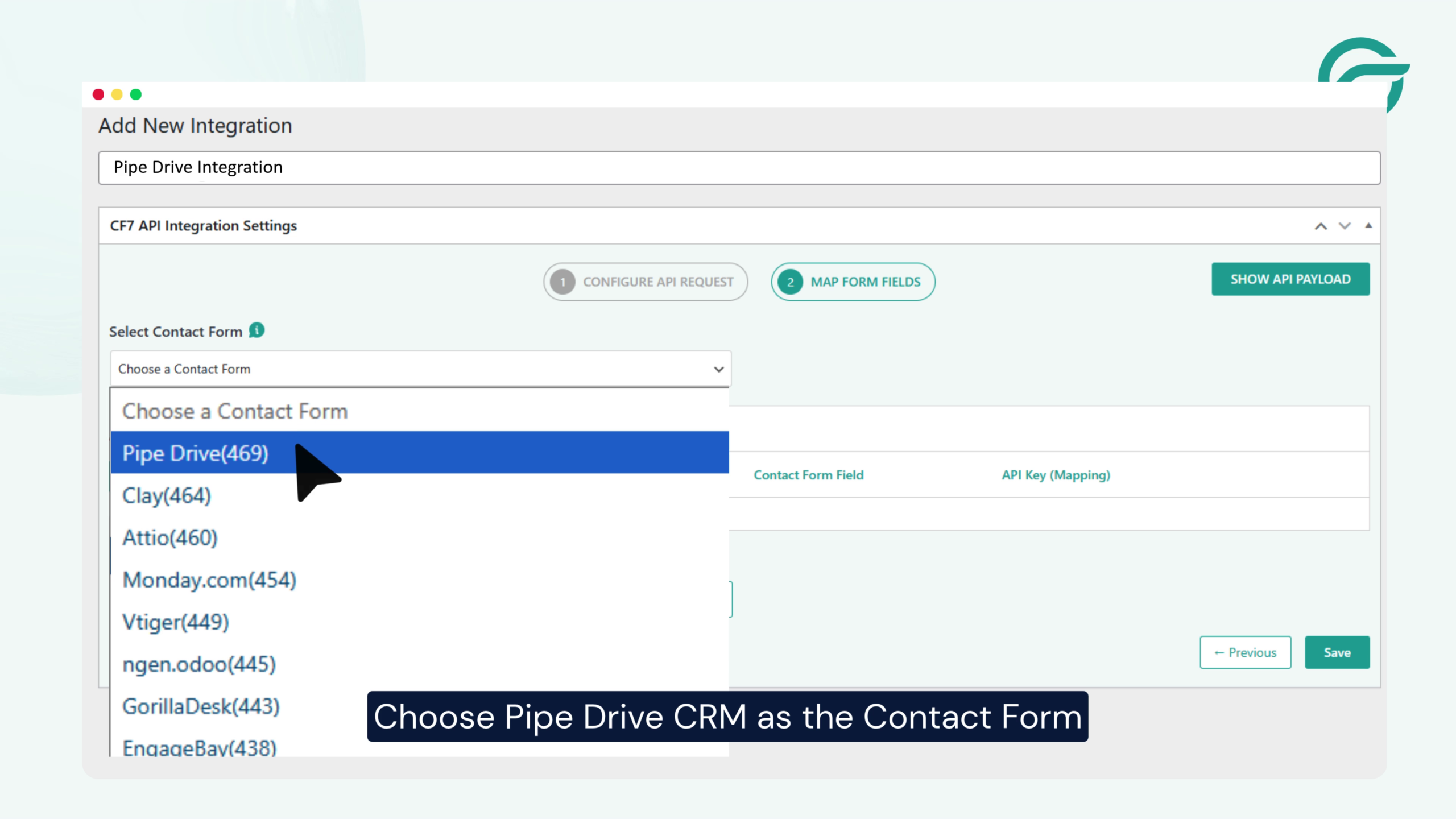
Click on Select Contact Form.
Choose the Contact Form 7 form you want to connect with Pipedrive CRM.
This is the form whose submissions will automatically sync with your CRM.
Step 10: Map Contact Form 7 Fields to Pipedrive Fields
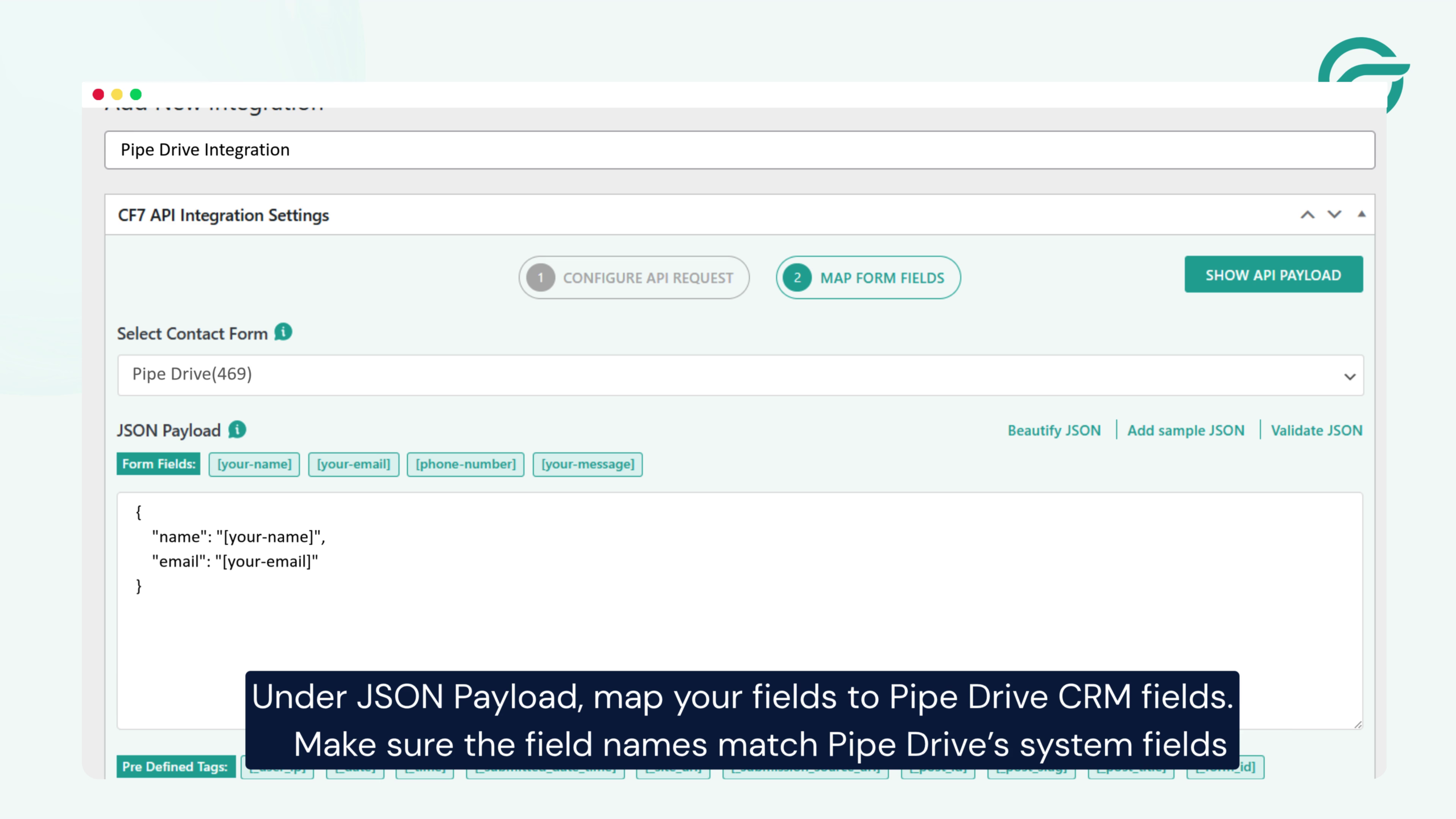
Under the JSON Payload section, map your form fields with the corresponding Pipedrive CRM fields.
Example:
{
“name”: “[your-name]”,
“email”: “[your-email]”,
“phone”: “[your-phone]”
}
Make sure:
- Field names match Pipedrive system fields
- Required CRM fields are correctly mapped
- The payload structure follows Pipedrive API requirements
Proper field mapping ensures accurate lead creation inside the CRM.
Step 11: Submit a Test Entry
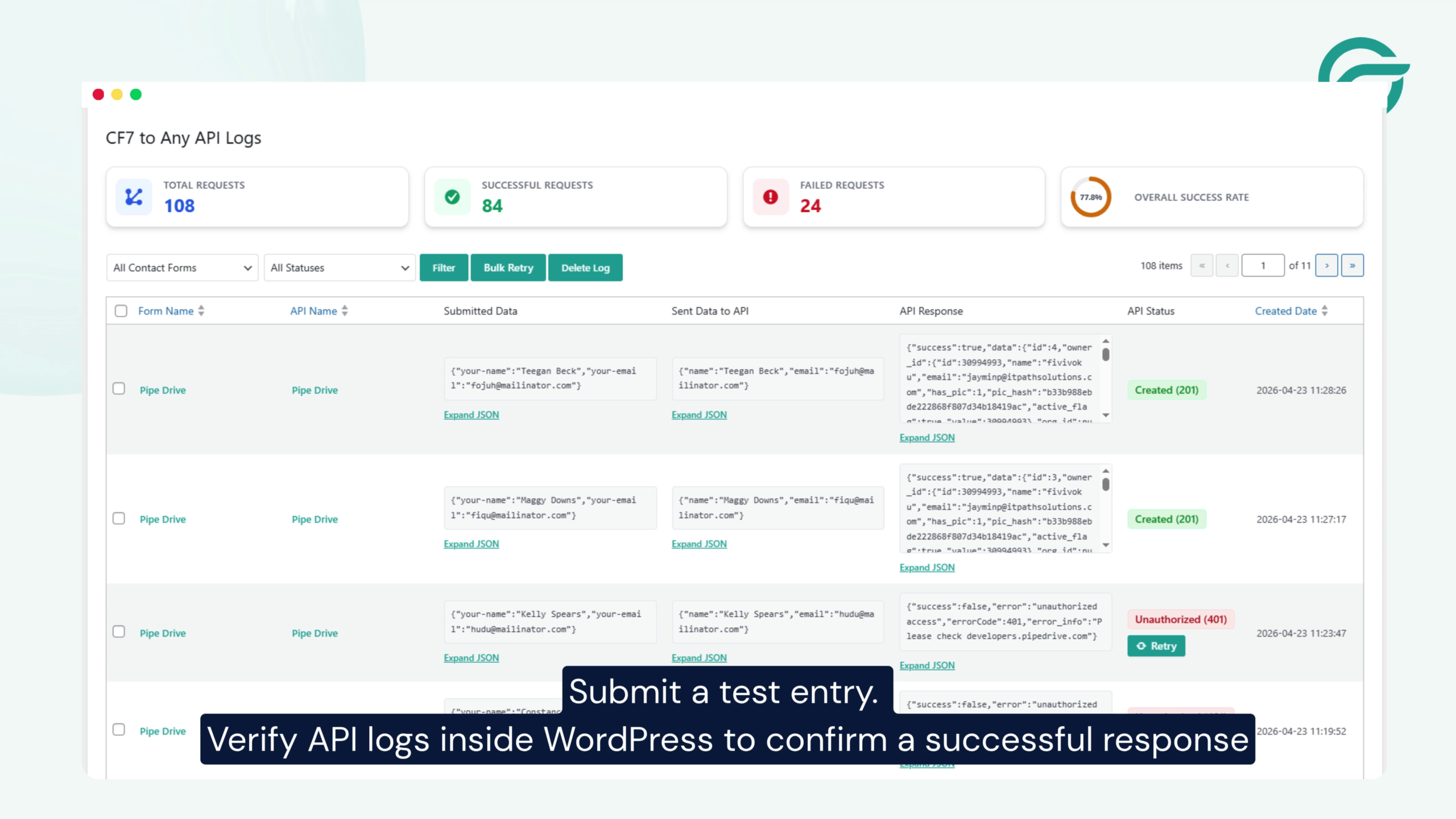
Now submit a test form entry from your website.
After submission:
- Check whether the data appears inside Pipedrive
- Review API logs inside WordPress
- Confirm that the API response shows a successful connection
If the response status is successful, your integration is working correctly.
Benefits of Connecting Contact Form 7 With Pipedrive
Connecting Contact Form 7 with Pipedrive offers several advantages:
- Automatically capture leads from your website
- Eliminate manual CRM data entry
- Improve lead response time
- Reduce errors in customer information
- Streamline your sales workflow
Final Thoughts
Integrating Contact Form 7 with Pipedrive is a simple yet powerful way to automate lead management for your business. By using the Contact Form to Any API plugin, you can easily send form submissions directly into your CRM without complicated development work.
Once configured properly, every new inquiry from your website will instantly appear inside Pipedrive, helping your sales team manage leads more efficiently.


