


Integrating your WordPress forms with HubSpot can help you automatically capture leads, streamline your marketing efforts, and eliminate manual data entry. If you’re using Contact Form 7, you can easily connect it to HubSpot using an API integration.
In this guide, we’ll walk you through the complete step-by-step process to set up Contact Form 7 to HubSpot integration using an Contact Form to Any API plugin.
Watch the Step-by-Step Video Tutorial
If you prefer a visual walkthrough, watch this detailed tutorial on integrating Contact Form 7 with HubSpot:
Step-by-Step Guide to Set Up Integration
Step 1: Access Your WordPress Dashboard
Log in to your WordPress admin panel to begin the integration process.
Step 2: Navigate to API Integration Plugin
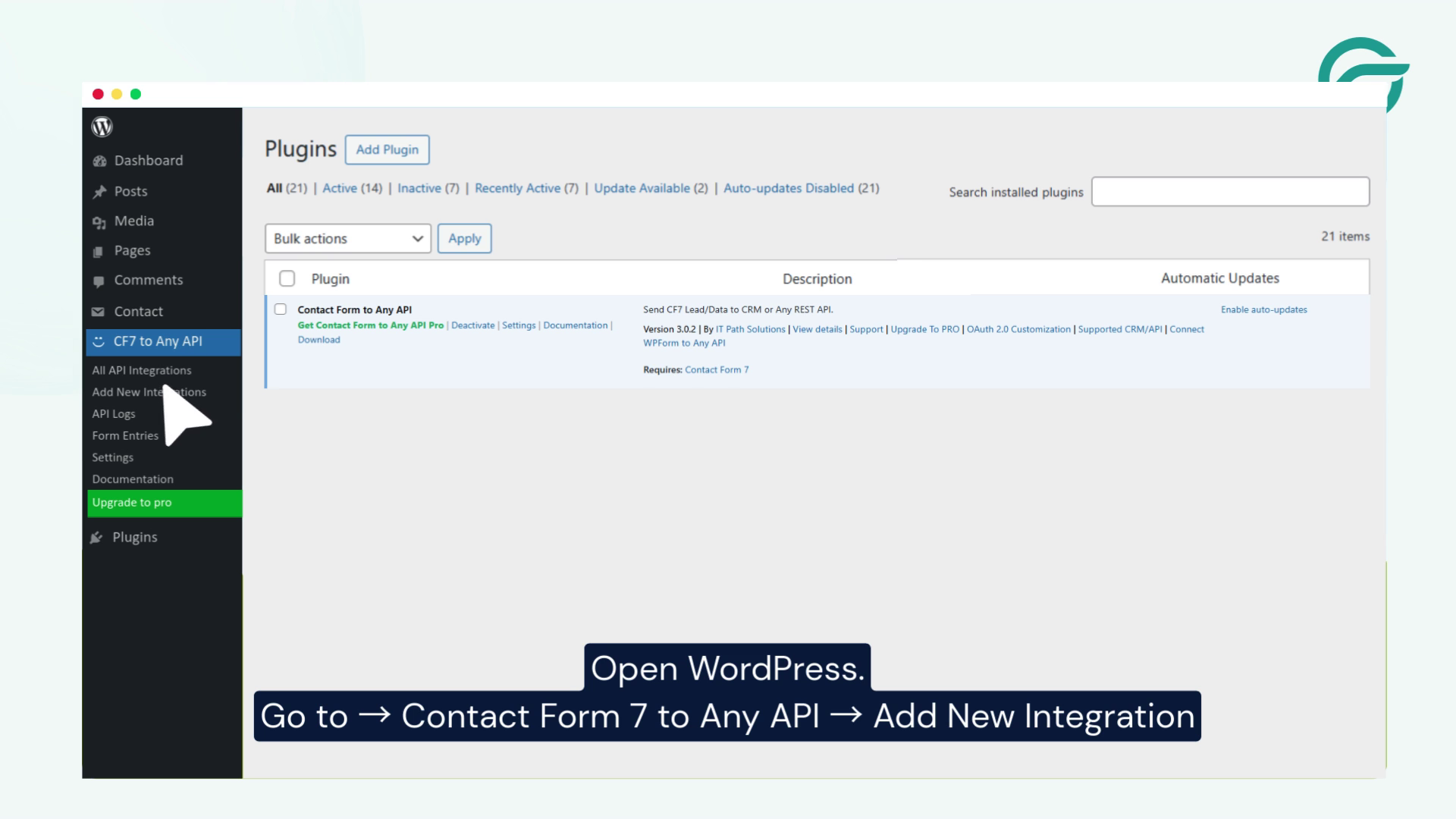
Go to Contact Form 7 to Any API and click on Add New Integration.
Step 3: Create a New Integration
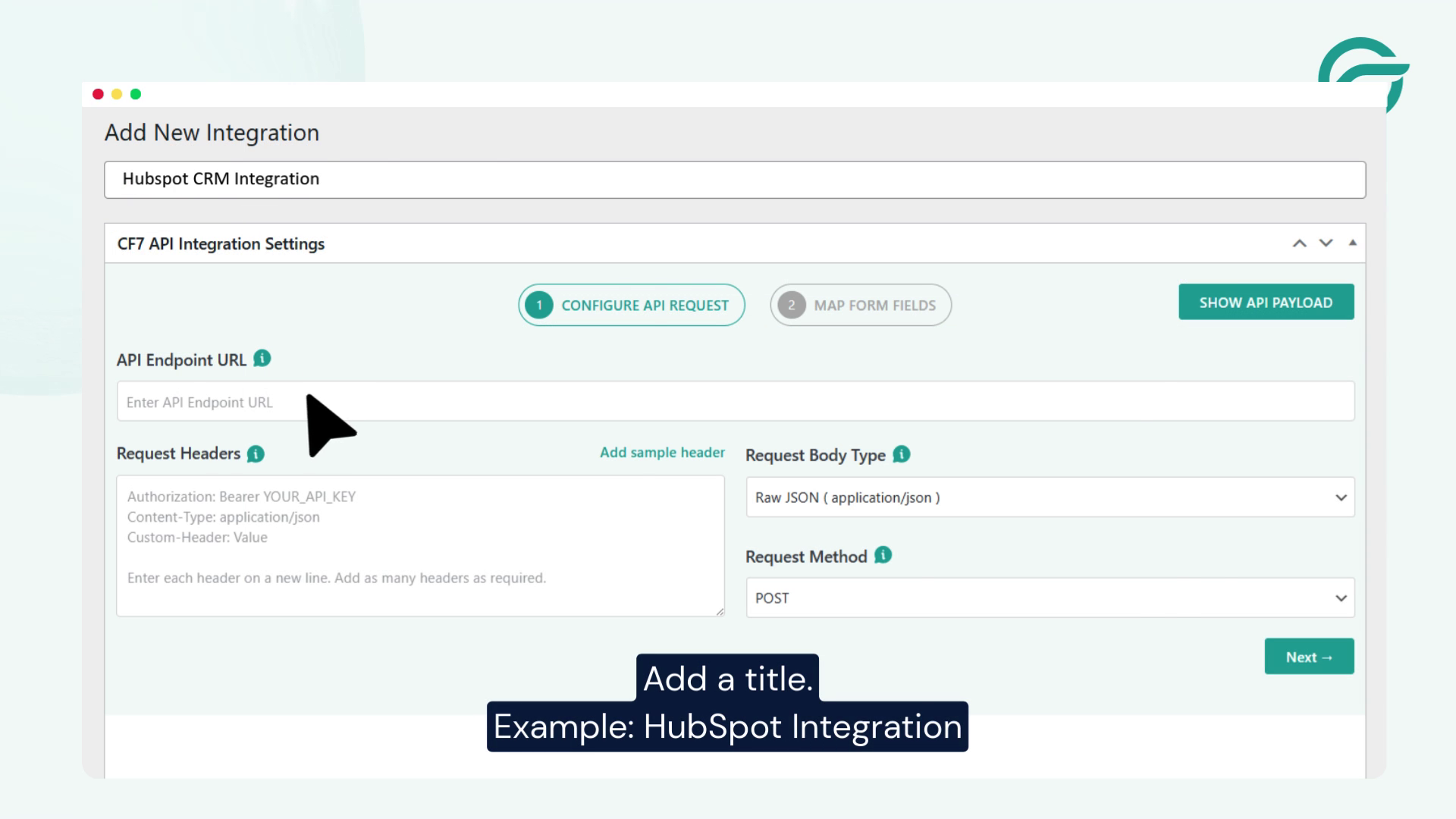
Enter a name for your integration to identify it easily.
Example: HubSpot Integration
Step 4: Get HubSpot API Endpoint
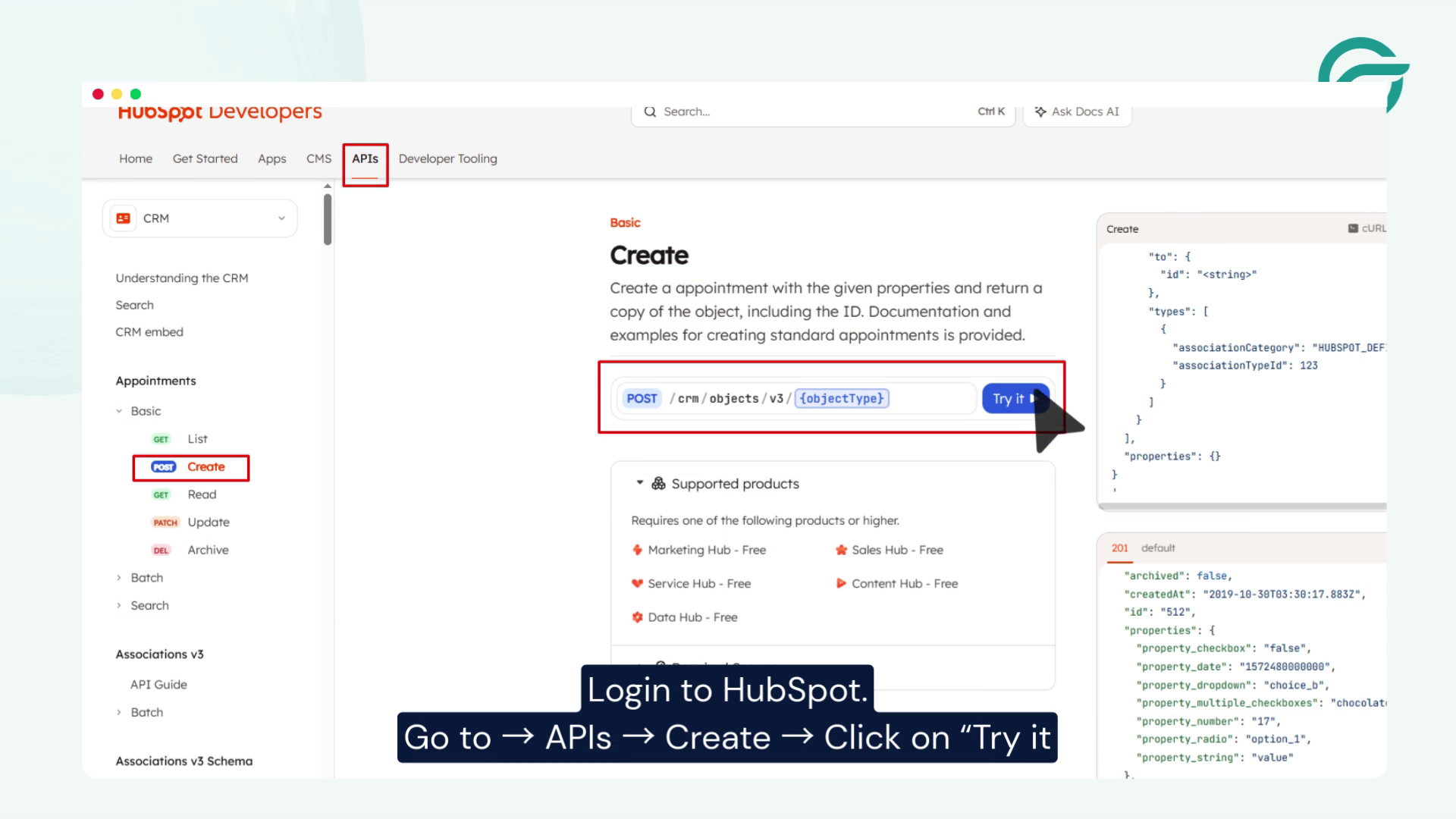
Log in to your HubSpot account and navigate to:
APIs → Create → Try it
This section allows you to generate an API request.
Step 5: Copy the API Endpoint URL

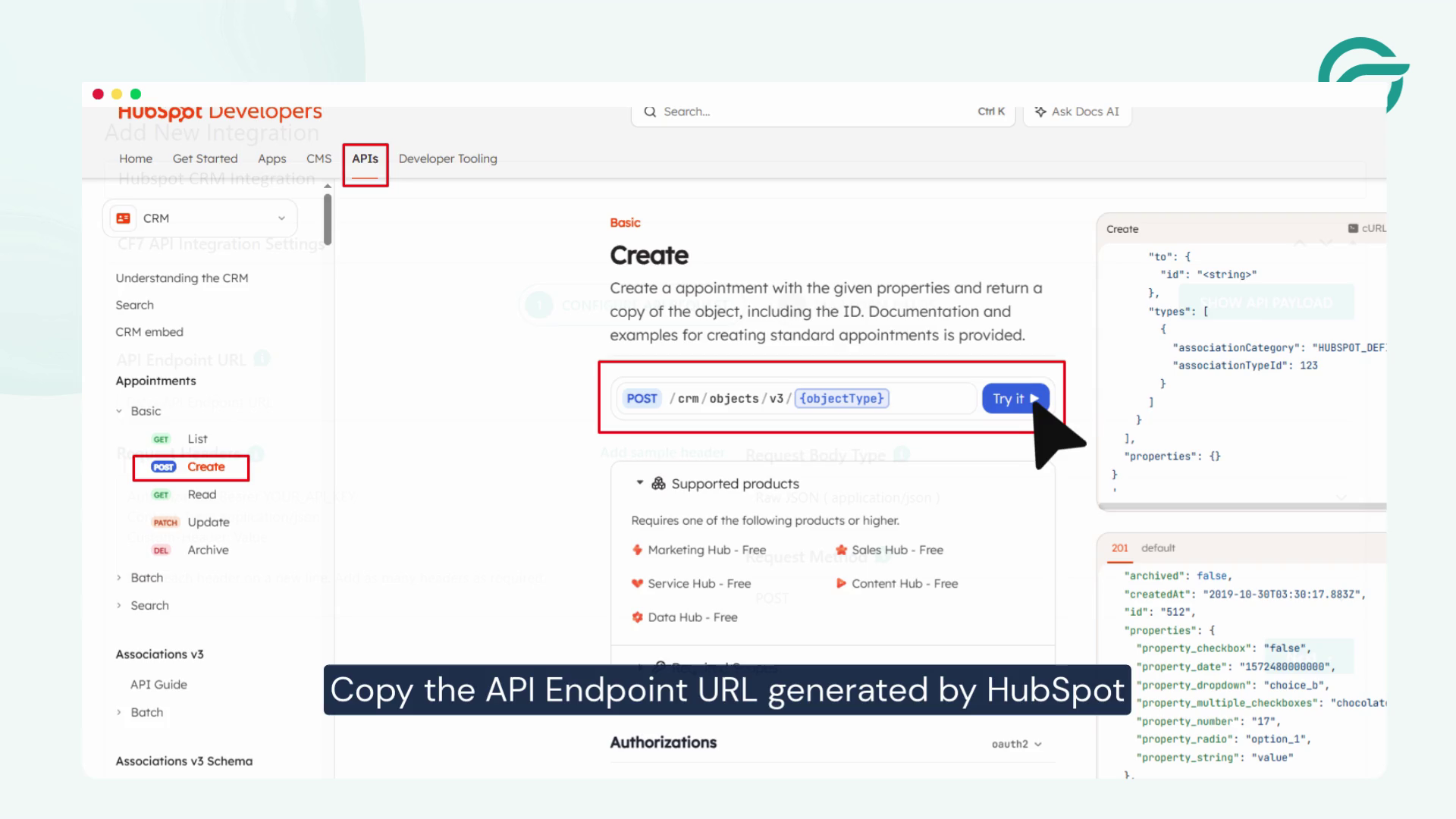
Once the API request is generated, copy the API Endpoint URL provided by HubSpot.
Step 6: Add API Endpoint in WordPress
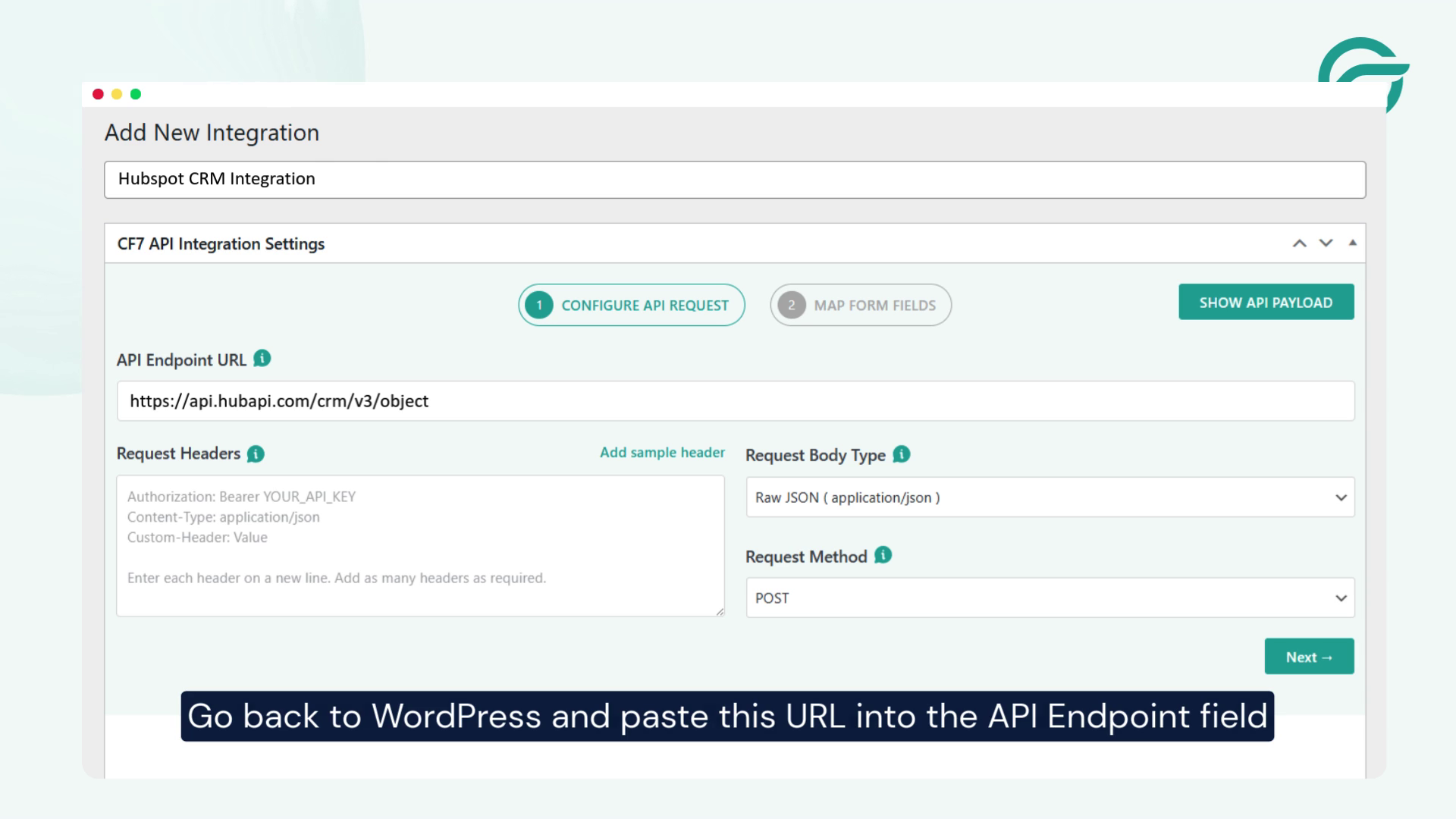
Return to WordPress and paste the copied URL into the API Endpoint field in your integration settings.
Step 7: Generate Access Token in HubSpot
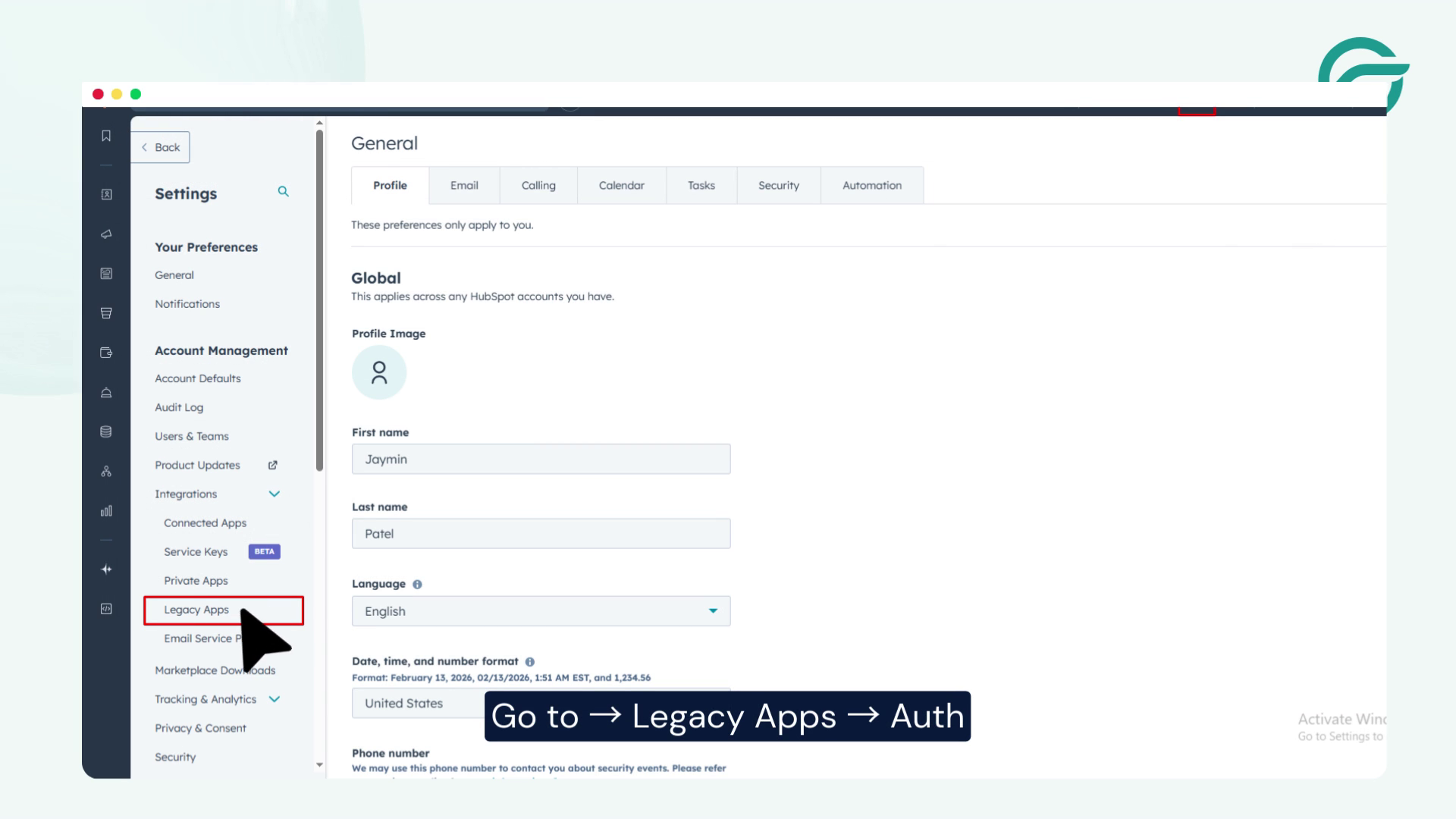
To authenticate the connection:
Go to: Legacy Apps → Auth in HubSpotCopy your Access Token
Step 8: Configure Request Method
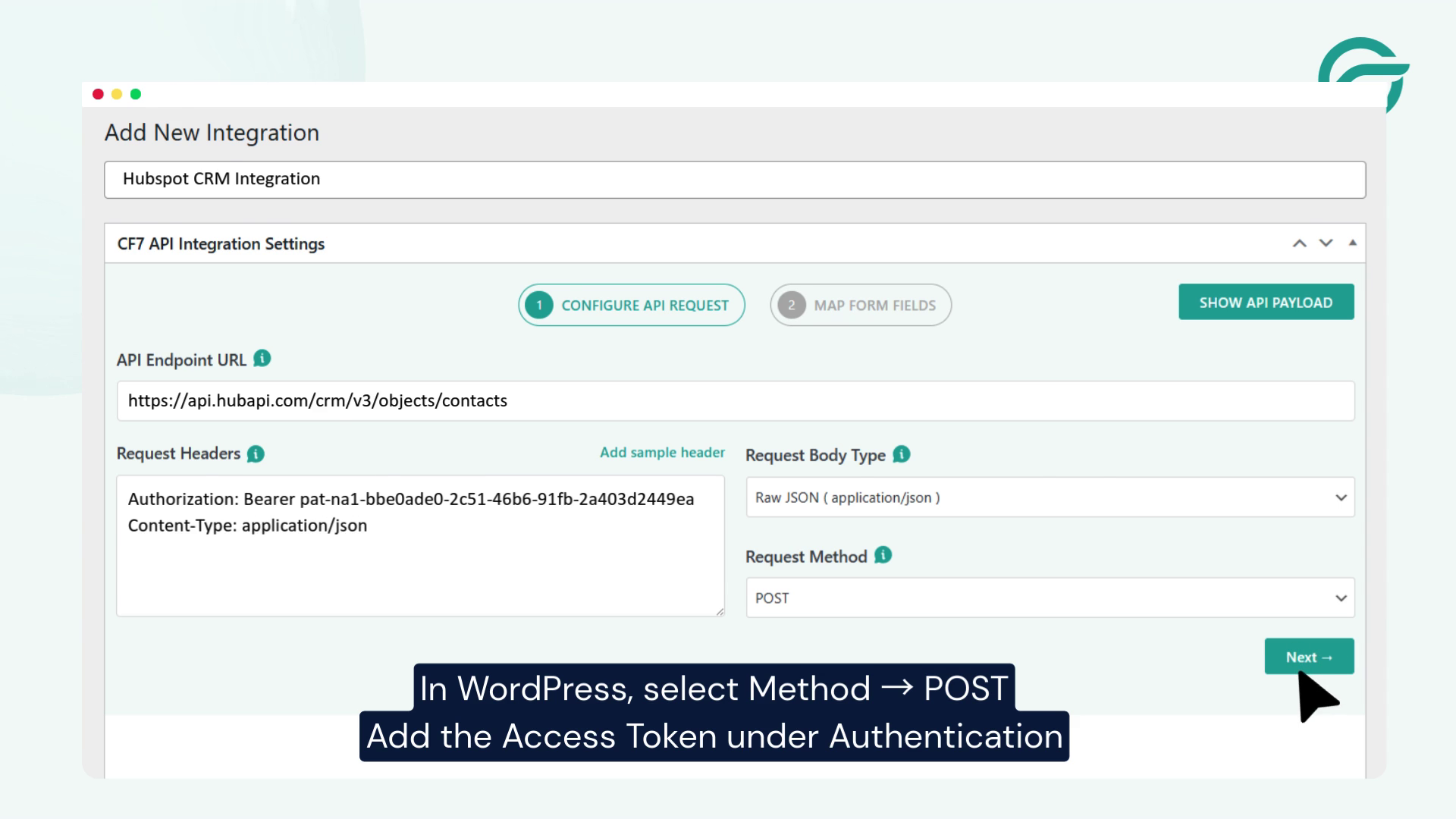
In WordPress, select the request method as POST, since you’ll be sending data to HubSpot.
Step 9: Add Authentication Token
Paste the copied Access Token into the authentication section in WordPress.
Step 10: Select Your Contact Form
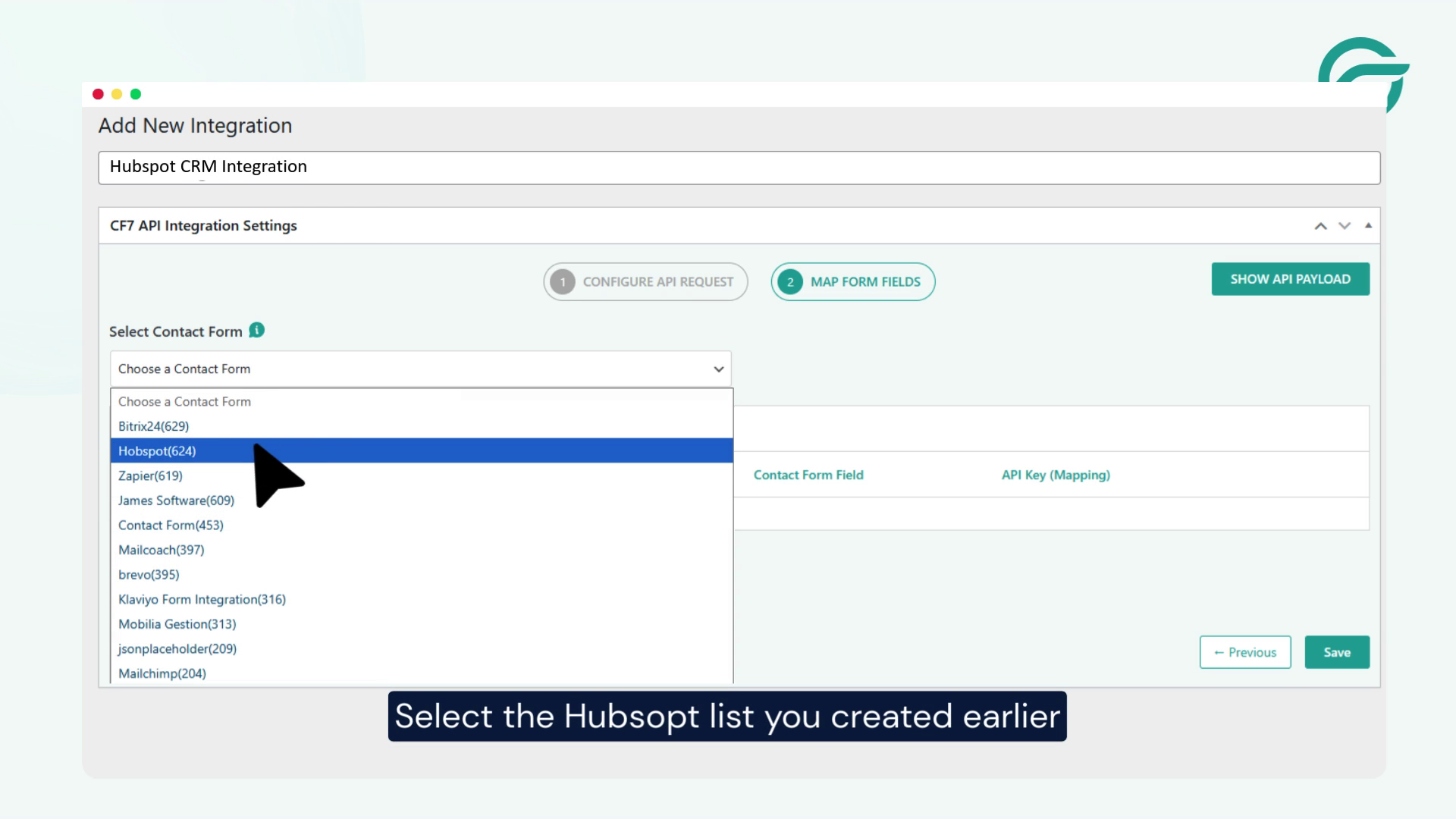
Choose the Contact Form 7 form that you want to connect with HubSpot.
Step 11: Map Form Fields Using JSON Payload
Now comes the most important part—mapping your form fields to HubSpot properties.
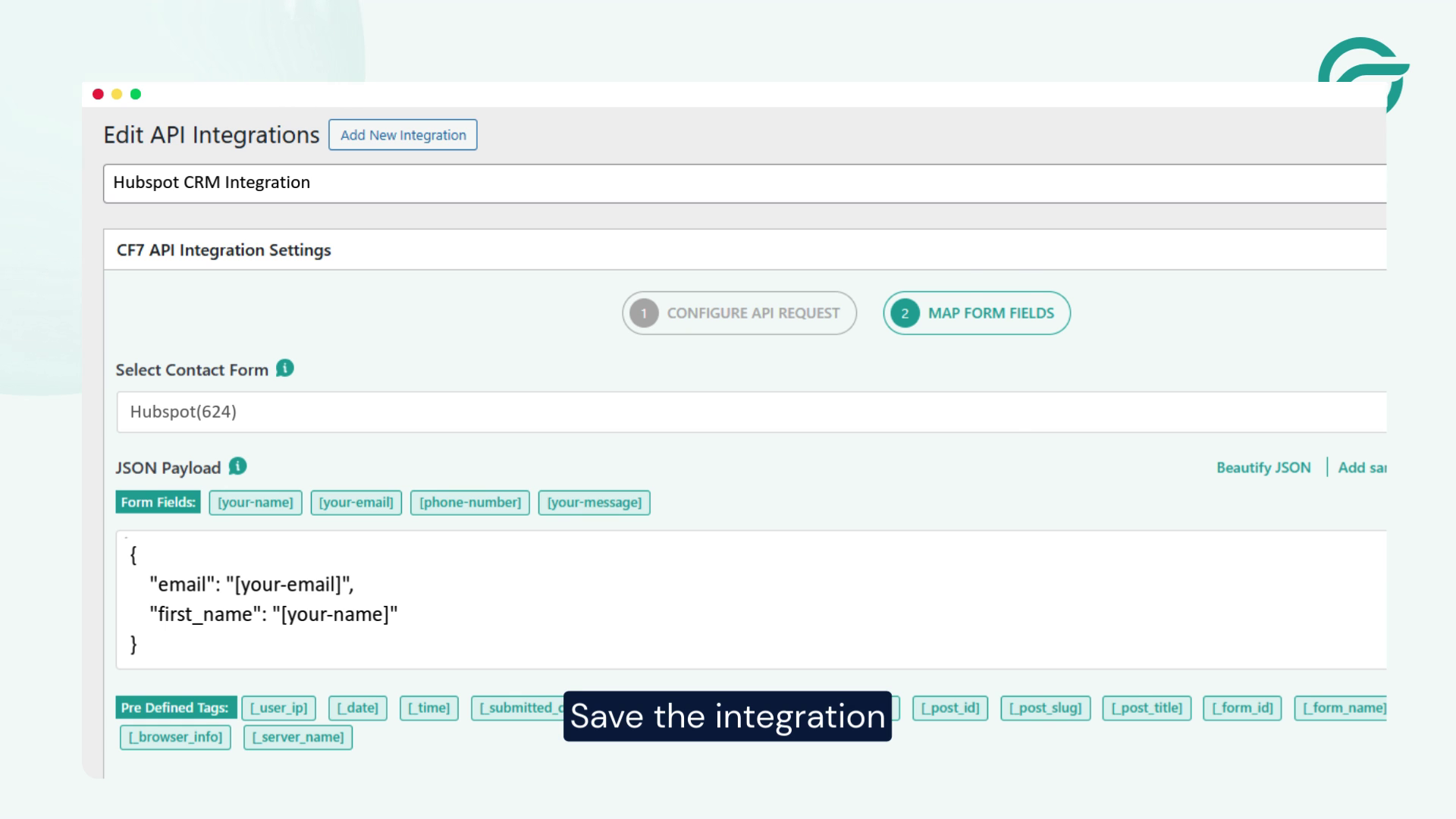
Add the following JSON payload:
{
“properties”: {
“email”: “[your-email]”,
“firstname”: “[your-first-name]”,
“lastname”: “[your-last-name]”,
“phone”: “[your-phone]”
}
}
Make sure your field names match exactly with your Contact Form 7 fields.
Step 12: Save Your Integration
Click on Save to store all your settings.
Step 13: Test the Integration
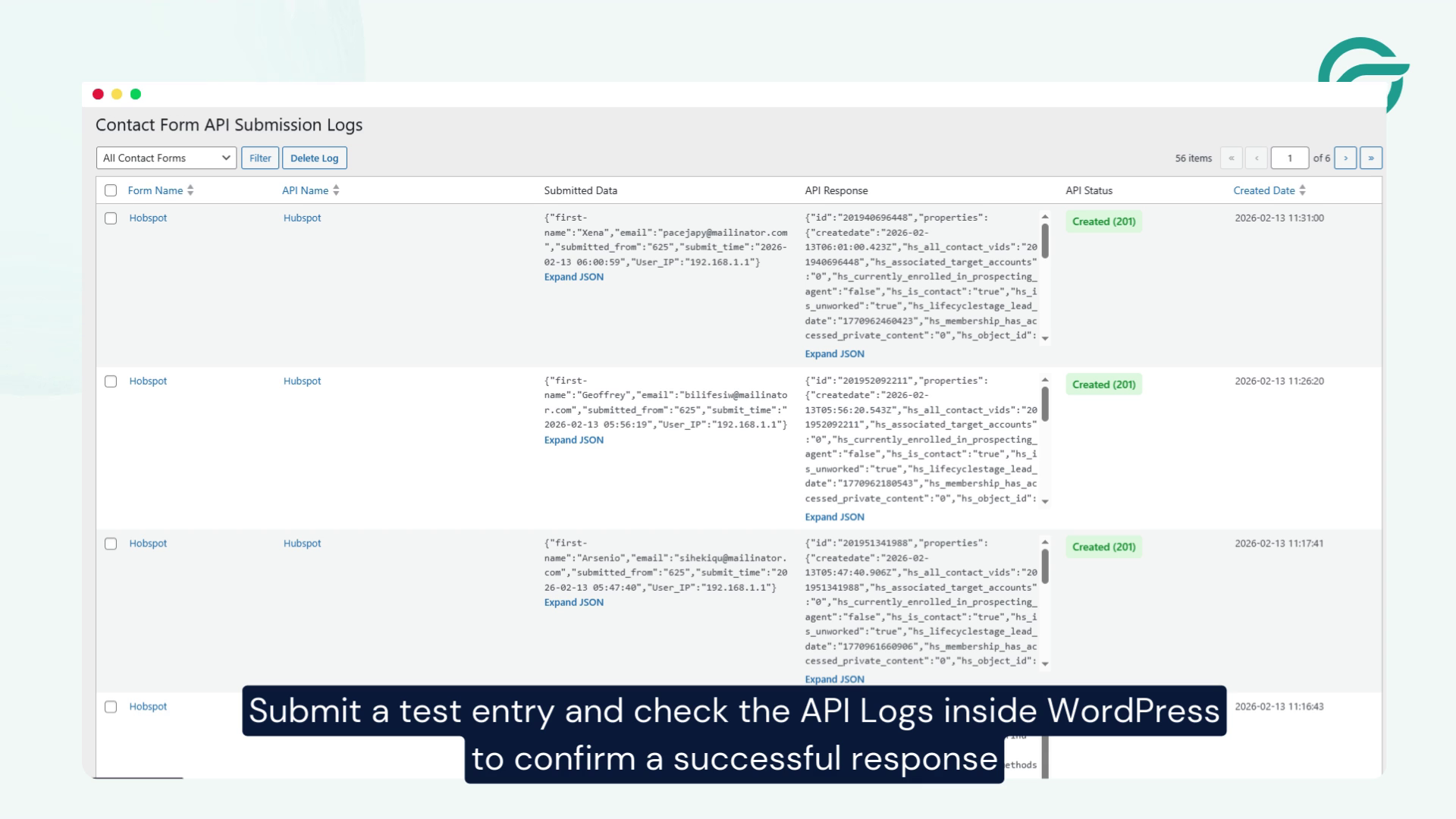
Submit a test form entry from your website to check if everything is working correctly.
Step 14: Verify API Logs
Go to the API logs section in WordPress and confirm that the request was successful.
You should see a success response if the integration is properly configured.
Common Contact Form 7 HubSpot Integration Issues
A Contact Form 7 to HubSpot integration may fail if the API endpoint, authentication, field mapping, or request payload is not configured correctly.
Contact Form 7 Submission Is Not Reaching HubSpot
Check that the API endpoint is correct and that the integration is enabled for the Contact Form 7 form being submitted.
HubSpot Rejects the API Request
Review the authentication credentials, request method, endpoint, and required headers. An invalid or expired authentication credential can prevent HubSpot from accepting the request.
Contact Form 7 Fields Are Not Appearing Correctly in HubSpot
Check the JSON payload and make sure the Contact Form 7 field tags correspond to the fields you want to send. Also verify that the HubSpot property names are correct.
Some Contact Data Is Missing
Make sure the corresponding Contact Form 7 field contains a value and that the destination HubSpot property accepts the submitted data.
The API Request Returns an Error
Use the API logs to identify the HTTP response and error returned by the destination API. The response can help determine whether the problem is related to authentication, the endpoint, the request body, or field mapping.
Final Thoughts
Integrating Contact Form 7 with HubSpot using an API is a powerful way to automate your lead capture process. While the setup may seem technical at first, following the steps above ensures a smooth and reliable integration.
Once connected, every form submission will automatically be sent to HubSpot, helping your team respond faster and manage leads more efficiently.
Frequently Asked Questions
Can Contact Form 7 be integrated with HubSpot?
Yes. Contact Form 7 can be connected to HubSpot through an API integration. Form submissions can be sent to HubSpot and mapped to the appropriate contact properties.
How do I integrate Contact Form 7 with HubSpot?
A typical integration requires a HubSpot API endpoint, authentication, the Contact Form 7 form, field mapping, and a JSON request payload. Once configured, you can submit a test form and verify the API response.
What is the difference between Contact Form 7 and HubSpot?
Contact Form 7 is a WordPress form plugin used to collect information from website visitors, while HubSpot provides CRM and marketing tools for managing contacts and customer interactions. Integrating the two allows form submissions to be transferred from the WordPress website to HubSpot.
Can Contact Form 7 submissions automatically create contacts in HubSpot?
Yes, when the integration is configured to send the required contact information to the appropriate HubSpot API endpoint and the submitted data meets the requirements of the destination properties.
Can I connect Contact Form 7 to HubSpot without replacing my existing form?
Yes. An API-based integration can allow you to continue using your existing Contact Form 7 form while sending its submissions to HubSpot.
What Contact Form 7 fields can be sent to HubSpot?
The fields that can be sent depend on the HubSpot properties and the API payload configured for the integration. Common examples include name, email, phone number, company, and other custom fields.
Why is my Contact Form 7 to HubSpot integration not working?
Common causes include an incorrect API endpoint, invalid authentication, incorrect HubSpot property names, mismatched Contact Form 7 field tags, or an incorrectly formatted API request. Checking the API response and logs can help identify the issue.


