


A CF7 Brevo integration plugin lets businesses automatically send Contact Form 7 submissions to Brevo the moment a visitor fills out a form. Contact Form to Any API connects directly with the Brevo API without any Zapier integration, middleware, or custom code.
Best CF7 Brevo Integration Plugin for WordPress
Many businesses collect leads and customer enquiries through Contact Form 7 on WordPress while managing email marketing and automation inside Brevo. Without an automated workflow, teams often manually transfer form submissions into Brevo or depend on third-party automation tools that increase both cost and complexity.
Contact Form to API solves this by sending Contact Form 7 submissions directly to Brevo through API requests, allowing contact data to sync automatically in real time without leaving WordPress. It’s commonly used for newsletter signup forms, lead generation campaigns, consultation requests, webinar registrations, and marketing automation workflows where every submission needs to be added to Brevo contact lists instantly.
This setup is commonly used for email subscription forms, enquiry forms, campaign landing pages, promotional offers, and customer onboarding workflows where Contact Form 7 submissions need to be synced with Brevo contacts and automation sequences in real time.
Watch the Setup (2 mins)
Watch this once, then follow the steps below at your own pace.
What You’ll Need
Before you start, make sure you have:
- A Brevo account
- Contact Form 7 installed and active
- CF7 to Any API installed and active
That’s all.
Step 1: Generate Your Brevo API Key
- Log in to your Brevo account.
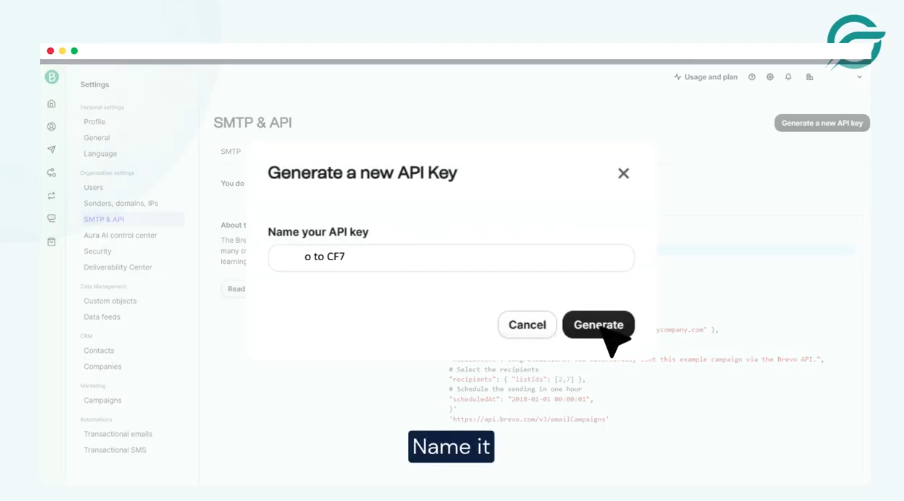
- Go to: Settings → SMTP & API
- Open API Keys, then generate a new key.
- Give it a clear name so you know exactly what it’s for, for example: CF7 Integration
- Copy the API key and keep it safe. You’ll need it during the WordPress setup.
Step 2: Create a New Integration in WordPress
- Now switch to your WordPress dashboard.
- Navigate to: CF7 to Any API → Add New Integration
- Give your integration a clear, descriptive title. This helps later if you manage multiple forms or tools.
Step 3: Add Brevo Headers
Brevo requires specific headers to authenticate and accept incoming data.
- Go back to Brevo and open: Help → API Documentation
- Inside the documentation, open: Create an email campaign
- You’ll see sample header code there. This typically includes:
- API key authorization
- Content-Type set to application/json
- Copy the header code exactly as shown.
- Paste this code into the Headers field inside CF7 to Any API.
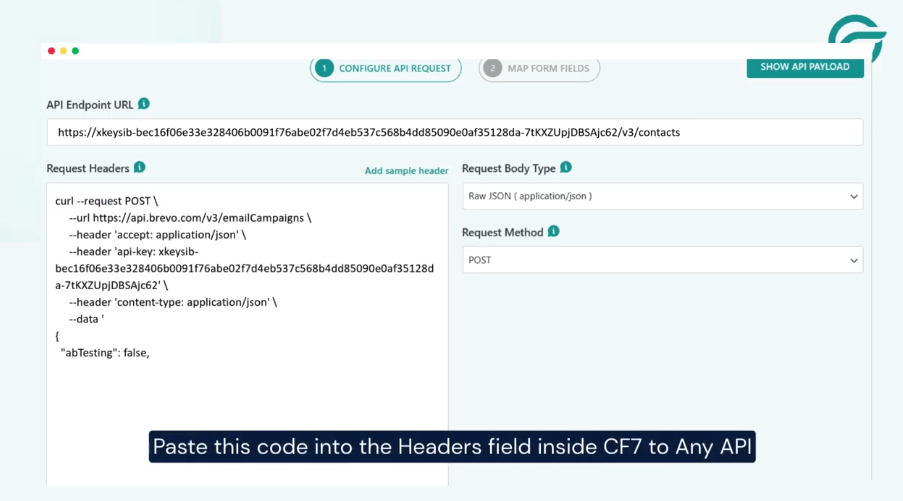
This step is critical. If the headers are wrong, Brevo will reject the request.
Step 4: Select Your Contact Form
Click Next and choose the Contact Form 7 form you want to connect to Brevo.
This defines which form submissions should be sent automatically.
Step 5: Configure the Request and Map Fields
Now map your Contact Form 7 fields to the fields Brevo expects.
Common examples include:
- Name
- Message
CF7 to Any API lets you structure this request visually, so you don’t need to work with raw JSON.
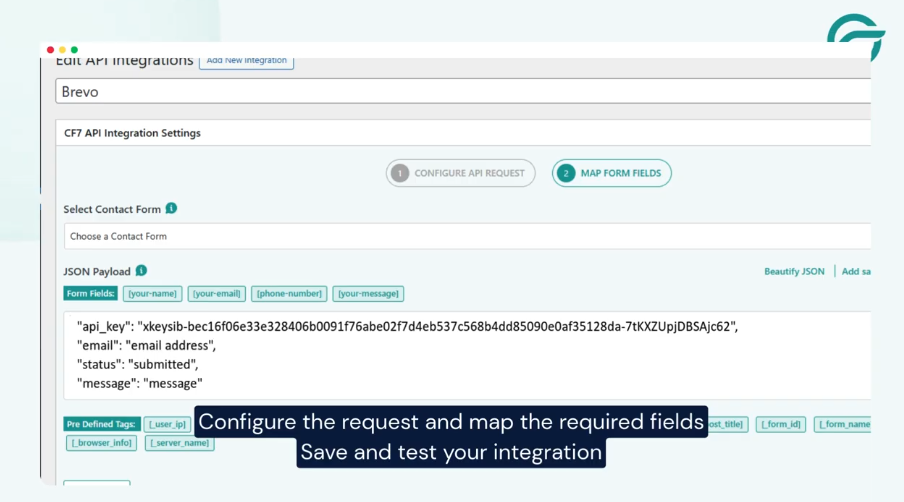
Double-check field names before saving.
Step 6: Save and Test
Save the integration, and submit a test entry through your Contact Form 7 form.
If everything is set up correctly, the submission will appear in Brevo almost instantly.
That’s it! From this point on, every Contact Form 7 submission goes straight into Brevo.
No exports. No waiting. No extra tools in the middle. Once it’s set up, the form just works in the background, the way it should.
Real Business Use-Cases for Brevo Integration
Integrating Contact Form 7 with Brevo unlocks several automation possibilities that can improve marketing efficiency and customer engagement.
1. Automated Lead Capture for Marketing Campaigns
One of the most common use cases is capturing leads from website forms and automatically adding them to a Brevo contact list.
Example:
A digital marketing agency creates a “Download Free SEO Checklist” form on their website.
Workflow:
- User submits the form
- Contact Form 7 captures the data
- API sends data to Brevo
- Brevo adds the user to a list called SEO Leads
- Automated email sequence begins
This ensures every lead receives a welcome email immediately.
2. Newsletter Subscription Automation
Many websites use Contact Form 7 as a newsletter subscription form. By integrating it with Brevo, every subscriber can automatically be added to the email marketing database.
Example workflow:
- Visitor enters email on newsletter form
- Form sends data to Brevo
- Contact added to newsletter list
- Welcome email sent automatically
This process removes the need for manual data entry.
3. Event Registration Automation
Businesses hosting webinars, workshops, or online events can automate their event registrations.
Example:
A company hosting a webinar creates a Contact Form 7 registration form.
Workflow:
- User registers for webinar
- Data sent to Brevo
- User added to Webinar Registrations list
- Automated confirmation email sent
- Reminder emails triggered before event
This automation ensures every participant receives necessary information.
4. eCommerce Lead Nurturing
Online stores often collect leads through forms like:
- Request product demo
• Download product catalog
• Ask for pricing
With Brevo integration, these leads can automatically enter an email nurture campaign.
Example workflow:
- User submits product inquiry form
- Contact created in Brevo
- User added to Product Inquiry List
- Automated product education emails begin
This increases conversion rates by nurturing potential buyers.
5. Customer Support Automation
Support forms can also be integrated with Brevo to track support contacts.
Example workflow:
- Customer submits support request
- Contact created in Brevo
- Support team receives notification
- Customer added to support segment
This allows companies to track customer issues and engagement.
Frequently Asked Questions
How do I connect Contact Form 7 to Brevo?
You can connect Contact Form 7 to Brevo using the Contact Form to Any API plugin. Configure the Brevo API endpoint, add your API key, and map form fields to Brevo contact attributes.
Can Contact Form 7 automatically add contacts to Brevo?
Yes. When integrated with Brevo’s API, Contact Form 7 can automatically send form submissions to Brevo and create new contacts in selected email lists.
What data can be sent from Contact Form 7 to Brevo?”
You can send email addresses, names, phone numbers, and custom fields as contact attributes to Brevo using API integration
Why integrate Brevo with WordPress forms?
Integrating Brevo with WordPress forms automates lead capture, enables email marketing automation, and eliminates manual data entry.
Can Brevo trigger automated emails from form submissions?
Yes. When a new contact is added through the integration, Brevo can trigger automated workflows such as welcome emails or marketing campaigns.


